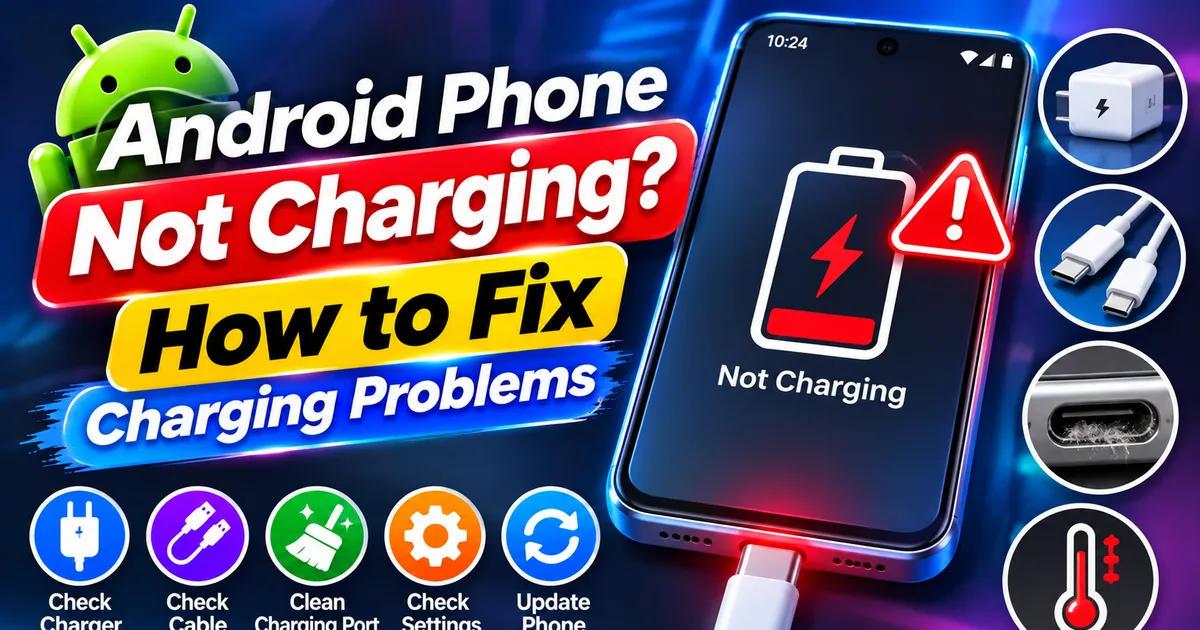
Android Phone Not Charging? How to Fix Charging Problems
GetApkFree Team
Is your Android phone not charging or charging slowly? Learn how to check your charger, USB cable, charging port, moisture warnings, battery, and software to fix common charging problems safely.
Quick Answer
Is your Android phone not charging or charging slowly? Learn how to check your charger, USB cable, charging port, moisture warnings, battery, and software to fix common charging problems safely.
Android Phone Not Charging? How to Fix Charging Problems
Is your Android phone not charging when you connect it to a charger? Perhaps the battery percentage stays the same, charging starts and stops repeatedly, or your phone takes several hours to reach a full charge.
Charging problems can happen for several reasons. A damaged USB cable, incompatible power adapter, dirty charging port, software issue, excessive device temperature, or aging battery may prevent your phone from charging properly.
Before replacing your battery or visiting a repair shop, try a few basic checks.
In this guide, you'll learn how to identify common Android charging problems and troubleshoot them safely.
1. Check Your Charger and USB Cable
Start with the charger and cable because they are among the most common causes of charging problems.
A damaged cable or incompatible power adapter may prevent your phone from charging or cause unusually slow charging.
Try these steps:
- Disconnect the charger from your phone.
- Check the cable for visible damage, cuts, or bent connectors.
- Inspect the power adapter for signs of damage.
- Connect the charger securely to the power outlet.
- Try another compatible USB cable.
- If possible, test another compatible power adapter.
You can also test your existing charger with another compatible device.
If the charger works with another device but not your phone, the problem may be related to your phone's charging port, software, or battery.
Important: Use a charger and cable that meet your phone manufacturer's compatibility requirements. A charger with a higher advertised wattage does not automatically mean your phone will charge faster.
2. Try a Different Power Outlet
Sometimes the problem is not your phone or charger. The wall outlet, extension board, or power strip may be faulty.
To check:
- Disconnect the charger.
- Try another working wall outlet.
- Avoid using a damaged extension board.
- Connect the charger directly to the outlet if possible.
- Check whether your phone starts charging.
If the phone charges normally from another outlet, the original power source may be the problem.
If you suspect an electrical fault, stop using that outlet and have it checked by a qualified electrician.
3. Inspect the Charging Port for Dust and Debris
Dust, lint, and other debris can accumulate inside your phone's USB-C or Micro-USB charging port.
This may prevent the cable from connecting properly.
Common signs include:
- The cable feels loose.
- Charging starts only when the cable is held at a particular angle.
- The phone repeatedly connects and disconnects.
- The charging cable does not fit properly.
Inspect the port using a flashlight.
If you see visible debris, avoid inserting metal objects, needles, pins, or other sharp tools into the connector. Do not pour liquid or spray cleaning chemicals into the port.
If the port appears blocked or damaged, have it cleaned or inspected by an authorized service provider.
A damaged charging connector may require professional repair.
4. Restart Your Android Phone
A temporary software problem can sometimes interfere with charging indicators or normal device operation.
Restarting your phone is a simple troubleshooting step.
- Disconnect the charger.
- Open the phone's power menu.
- Tap Restart.
- Wait for the device to boot completely.
- Connect the charger again.
If your screen is frozen, the restart procedure may differ depending on your phone manufacturer.
A restart will not repair a damaged cable or charging port, but it can help resolve temporary software-related problems.
5. Check Whether Your Phone Is Overheating
Android phones may reduce charging speed or temporarily pause charging when the device becomes too hot.
This can happen when:
- You play demanding games while charging.
- You record videos for long periods.
- You use navigation apps continuously.
- The phone is exposed to direct sunlight.
- You use the phone in a hot environment.
- The charger or battery is experiencing a problem.
Try the following:
- Disconnect the charger if the phone is unusually hot.
- Stop demanding applications.
- Remove the phone from direct sunlight.
- Allow the device to cool naturally.
- Connect a compatible charger again after it has cooled.
Do not put a hot phone in a refrigerator or freezer.
If your phone repeatedly overheats while charging, stop using it and contact the manufacturer or an authorized service center.
6. Check for Moisture or Liquid Detection Warnings
Some Android phones can detect moisture or foreign material in the charging port.
When this happens, the device may display a warning and temporarily disable wired charging to protect the connector.
You might see messages such as:
- Moisture detected
- Check charging port
- Unplug charger
- Charging disabled
If you see one of these warnings:
- Disconnect the charging cable.
- Keep the charging port facing downward.
- Allow the phone and port to dry naturally in a well-ventilated area.
- Avoid connecting the charger until the warning disappears and the port is dry.
- Follow your phone manufacturer's instructions if the warning continues.
Do not use a hair dryer, heater, compressed air, or sharp objects to force moisture out of the port.
If the phone was exposed to significant liquid or the warning does not disappear, seek professional assistance.
7. Check Whether Your Phone Supports the Charger
Not every charger provides the same charging speed or compatibility.
Different Android phones support different charging technologies and power requirements.
For example, a phone may support a particular fast-charging standard while a charger uses another standard.
This does not always mean the charger will fail completely. It may simply charge the device more slowly.
Check the following:
- Whether the charger supports your phone's charging standard.
- Whether the USB cable supports the required power.
- Whether the phone's fast-charging feature is enabled, if applicable.
- Whether the charger is genuine or from a reputable compatible manufacturer.
If your phone displays a charging-accessory warning, try a compatible charger and cable.
Do not assume that every high-wattage charger will provide the maximum charging speed supported by your device.
8. Check Fast Charging Settings
If your phone charges but takes much longer than expected, check its charging settings.
Some manufacturers provide separate options for fast charging or optimized charging.
On supported Samsung Galaxy devices, for example:
- Open Settings.
- Tap Battery.
- Look for Charging settings.
- Check whether Fast charging is enabled, if your device provides the option.
Other Android manufacturers may place similar settings under Battery, Power, or Device Care.
Remember that fast charging also depends on the phone model, charger, cable, battery temperature, and current battery level.
The charging speed may decrease as the battery approaches full capacity. This is normal behavior on many devices.
9. Let a Completely Drained Battery Charge for a While
If your battery reaches zero percent, your phone may not turn on immediately after connecting a charger.
A deeply discharged battery may need some time before the display responds.
Try this:
- Connect your phone to a known-working compatible charger.
- Leave it connected for at least 30 minutes.
- Check whether the battery icon appears.
- Try turning the phone on.
- If it does not respond, follow your manufacturer's recommended troubleshooting steps.
Avoid repeatedly pressing the power button while the phone is attempting to recover from a very low battery level.
Google's Android Help also recommends allowing a fully discharged device to charge before attempting to restart it.
10. Check Whether the Battery or Charging Port Is Damaged
If you have tested different compatible chargers and cables but your phone still does not charge, the problem may be hardware-related.
Possible causes include:
- A damaged charging port
- A worn-out battery
- A faulty charging circuit
- Internal connector damage
- Liquid damage
- A damaged power-management component
Some signs of hardware problems include:
- The charging cable repeatedly disconnects.
- The phone charges only at certain cable angles.
- The battery percentage does not increase.
- The phone shuts down unexpectedly.
- The device becomes unusually hot during charging.
- The battery appears swollen.
If the battery is swollen, the back cover is lifting, or the device becomes dangerously hot, stop using and charging the phone. Do not press, puncture, or attempt to replace a swollen battery yourself.
Contact an authorized service center for inspection.
11. Check Whether Your Phone Charges When Switched Off
You can perform another simple test by turning off your phone and connecting it to a compatible charger.
If the device charges while switched off but behaves differently when powered on, background activity, software behavior, or heat may be contributing to the problem.
However, this test does not conclusively identify the cause.
If charging remains unreliable in both conditions, inspect the charger, cable, charging port, and battery.
12. Try Wireless Charging If Your Phone Supports It
Some Android phones support wireless charging.
If your device supports this feature, you can use a compatible wireless charger to help determine whether the wired charging connection may be responsible.
Try these steps:
- Confirm that your phone supports wireless charging.
- Use a compatible wireless charging pad.
- Remove accessories that may interfere with charging.
- Position your phone correctly on the charging surface.
- Check whether the charging indicator appears.
If wireless charging works but wired charging does not, the USB port or wired charging accessories may need inspection.
If neither method works, the problem may involve the battery, charging circuitry, or another hardware component.
13. When Should You Visit a Service Center?
If none of the troubleshooting steps works, avoid repeatedly experimenting with different chargers or attempting to repair the charging port yourself.
Professional inspection is recommended when:
- The charging port is physically damaged.
- Your phone has been exposed to liquid.
- The battery is swollen.
- The device repeatedly overheats.
- Charging stops unexpectedly with multiple compatible chargers.
- The phone does not respond after an extended charging period.
- The device shuts down whenever you disconnect the charger.
A technician can inspect the battery, charging connector, and internal power components.
A factory reset should not be your first solution for a physical charging problem. It also removes local data, so do not reset your phone without a verified backup.
Frequently Asked Questions
1. Why is my Android phone not charging even when plugged in?
Possible causes include a damaged cable, incompatible adapter, faulty power outlet, dirty charging port, moisture detection, software problems, or battery damage. Test a compatible charger and cable first.
2. Why does my Android phone charge very slowly?
Slow charging can result from an incompatible charger, damaged cable, high device temperature, demanding applications running during charging, or a charging setting that limits speed.
3. Can dust inside the charging port stop my phone from charging?
Yes. Dust and lint can prevent the charging connector from making proper contact. Inspect the port carefully and avoid using metal objects or sharp tools to remove debris.
4. Why does my phone show that it is charging but the battery percentage does not increase?
This may happen when the phone consumes power as quickly as it receives it, when charging is being limited by temperature, or when the charger or cable cannot provide sufficient power. Battery or charging-system faults are also possible.
5. Should I use another brand's charger for my Android phone?
You can use a compatible charger from a reputable manufacturer if it supports your phone's charging requirements. Check the manufacturer's recommendations and use a suitable cable.
6. Why does my phone stop charging at 80 percent?
Some Android phones offer battery protection or optimized charging features that limit charging to a selected percentage to help reduce battery aging. Check your battery settings to see whether a charging limit is enabled.
7. What should I do if my phone says moisture detected?
Disconnect the charger and allow the charging port to dry naturally. Do not insert objects, apply heat, or connect a cable while the warning remains. Contact the manufacturer if the warning persists.
8. Can a software update fix Android charging problems?
An update may fix certain software-related charging problems, but it cannot repair a damaged cable, charging port, or battery. Check for official updates if the problem started after a software change.
9. Is it safe to charge a phone overnight?
Modern phones include charging management features, but you should use compatible charging accessories and follow the manufacturer's instructions. Avoid charging a damaged or unusually hot device.
10. Should I replace my battery if my phone is not charging?
Not necessarily. A charging problem can also be caused by the cable, adapter, charging port, or charging circuitry. Have the phone diagnosed before replacing the battery.
Final Thoughts
When your Android phone stops charging, start with the simplest checks: test the cable, adapter, and power outlet, then inspect the charging port and check for moisture or overheating.
If the problem continues, try restarting the phone, checking charging settings, and allowing a completely drained battery enough time to respond.
Avoid forcing a damaged connector or opening the phone without the right expertise. If you notice swelling, liquid damage, or repeated overheating, stop charging and seek professional help.
The best approach is to identify the cause before replacing parts, so you can fix the charging problem without risking further damage to your device.
Related Articles
OTP Not Received on Android? How to Fix Missing Verification SMS
Not receiving OTP messages on Android? Find out why verification codes are delayed or missing and how to check your SIM, network, spam folder, dual-SIM settings
GetApkFree Team
How to Free Up Storage on Android Without Deleting Important Files
Running out of space on your Android phone? Learn how to safely free up storage by removing junk files, clearing app cache, managing downloads,
GetApkFree Team
Messenger Messages Not Sending on Android? How to Fix It
Messenger messages not sending on Android? Fix messages stuck on Sending, failed delivery, connection errors, and attachment problems by checking your network
GetApkFree Team
Roblox Not Loading Games on Android? How to Fix It
Roblox games not loading on Android? Fix endless loading screens, failed connections, and games that close unexpectedly with practical checks for your network.
GetApkFree Team