
This article is about
Messenger
Meta Platforms, Inc. · Internet
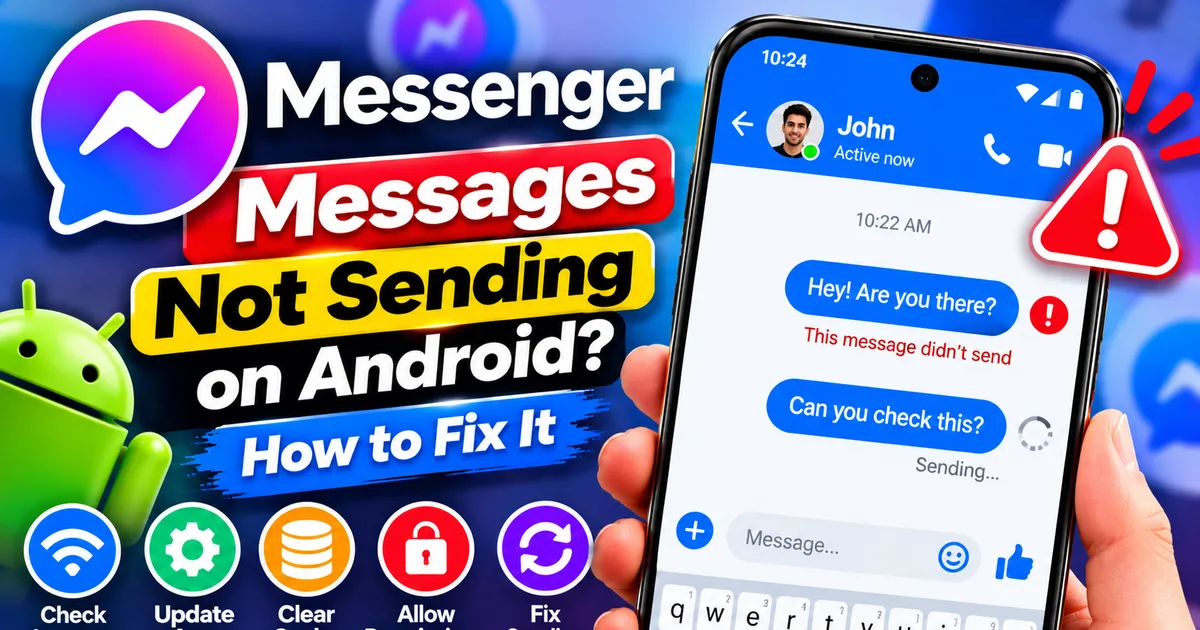
Messenger Messages Not Sending on Android? How to Fix It
GetApkFree Team
Messenger messages not sending on Android? Fix messages stuck on Sending, failed delivery, connection errors, and attachment problems by checking your network
- Version
- Latest
- Source
- Google Play
- Package
- com.facebook.orca
Messenger Messages Not Sending on Android? How to Fix It
Are your Facebook Messenger messages not sending on your Android phone? Perhaps a message stays stuck on "Sending," you see a red error icon, or Messenger displays "This message didn't send" when you try to contact someone.
The problem may affect every conversation or just one person. Sometimes text messages work while photos, videos, or voice messages fail.
The cause could be an unstable internet connection, an outdated app, a temporary Messenger issue, an account restriction, or a problem with the recipient's account.
This guide explains how to troubleshoot Messenger messages that won't send on Android, starting with simple checks and moving to more specific solutions.
Why Are Messenger Messages Not Sending?
Messenger may fail to send messages for several reasons:
- Unstable internet connection: Your phone may not have a reliable connection to Meta's messaging service.
- Temporary service disruption: Messenger may be experiencing a technical problem.
- Outdated Messenger app: An older version may contain bugs or compatibility issues.
- Temporary app problem: Messenger may be stuck or unable to complete a sending request.
- Low device storage: Limited available storage can affect app operations and media handling.
- Attachment problems: A photo, video, or other file may be too large, unsupported, or failing to upload.
- Recipient or conversation issue: The other person's account may be unavailable, or a blocking or group-membership issue may affect the conversation.
- Temporary messaging restriction: Meta may limit an account's ability to send messages in certain circumstances.
Before changing settings, check whether the problem affects one conversation, several conversations, or every message you send. This distinction can help you find the right solution.
1. Check Your Internet Connection
An unstable connection is one of the first things to investigate when Messenger messages remain stuck on Sending.
Try these steps:
- Open Chrome or another browser on your phone.
- Visit a few websites to confirm that the internet is working.
- If you're using Wi-Fi, temporarily switch to mobile data.
- If you're using mobile data, try a reliable Wi-Fi connection.
- Return to Messenger and send a short text message.
If Messenger works on one network but not another, the problem may be related to the failing connection.
If other apps and websites also fail, fix the general internet problem before changing Messenger settings.
You can also restart your Wi-Fi router if other devices connected to it are experiencing problems.
2. Check Whether Messenger Is Experiencing a Service Problem
Sometimes messages fail because of a problem with Messenger itself rather than your phone.
Before reinstalling the app, check Meta's official support resources:
You can also check whether Facebook and other Meta services are behaving normally.
If a confirmed service disruption is affecting messaging, wait for it to be resolved and try again later. Repeatedly reinstalling Messenger or changing your phone settings will not fix a server-side problem.
Remember that reports from third-party outage websites do not necessarily confirm that Meta has acknowledged an outage.
3. Close Messenger and Open It Again
A temporary app problem may prevent Messenger from completing a message-sending request.
To restart the app:
- Open your Android phone's recent apps screen.
- Find Messenger.
- Swipe it away to close it.
- Open Messenger again.
- Return to the affected conversation.
- Try sending a short text message.
If the problem continues, force-stop Messenger:
- Open your phone's Settings.
- Tap Apps or Applications.
- Select Messenger.
- Tap Force stop.
- Confirm the action if prompted.
- Open Messenger and test it again.
Menu names may differ between Android devices.
Force-stopping the app is different from clearing its data. It does not normally delete your conversations or sign you out.
4. Update Messenger From Google Play
An outdated version of Messenger may contain bugs that affect messaging or media uploads.
Follow these steps:
- Open the Google Play Store.
- Search for Messenger.
- Open the official Messenger listing.
- Tap Update if the option is available.
- Wait for the update to finish.
- Open Messenger and try sending a message again.
If the button says Open, an update may not currently be available for your device.
Also check whether an Android software update is available if the app continues to behave unexpectedly.
Always use the official app listing rather than modified Messenger APKs from unknown sources.
5. Check Whether the Problem Affects One Chat or Every Chat
This is one of the most useful checks because a problem affecting one conversation may have a different cause from an app-wide sending failure.
Try sending a short text message to another contact you are authorized to message.
Compare the results:
- Messages fail in every conversation: Check your connection, Messenger app, device storage, and account status.
- Only one conversation fails: The issue may involve that recipient, account status, blocking, or the specific conversation.
- Text works but photos and videos fail: Investigate attachment size, file format, permissions, and connection stability.
- Messages work in a browser but not the Android app: Focus on Messenger's app installation, updates, and device settings.
If only one conversation is affected, avoid repeatedly sending the same message. First check whether Messenger displays a warning or other explanation.
6. Check Whether the Recipient's Account Is Available
If messages fail only when contacting one person, the issue may not be with your Android phone.
Possible explanations include:
- The recipient's Facebook account has been deactivated or deleted.
- The recipient has blocked you, or you have blocked them.
- The person is no longer available in the relevant conversation.
- A group conversation has changed because a participant left.
- The conversation or account has a messaging restriction.
Check whether you can send messages to other contacts.
If only one recipient is affected, you may need to resolve the issue with that conversation or account rather than reinstalling Messenger.
A failed message by itself does not prove that someone has blocked you.
7. Check Whether Messenger Has Restricted Your Ability to Send Messages
Meta may temporarily restrict messaging when account activity triggers its safety or spam-prevention systems.
For example, sending a large number of messages in a short period or activity that violates Meta's rules may lead to a restriction.
If Messenger displays a warning such as a temporary sending restriction:
- Read the full message.
- Check whether Messenger provides a reason or an expiry time.
- Wait for the restriction to end if one has been applied.
- Review any account or policy notice.
- Use the official appeal or reporting option if one is provided.
Do not try to bypass a restriction by creating additional accounts or repeatedly sending messages.
An account restriction is different from a network problem or an app crash. Reinstalling Messenger will not remove a restriction applied to your account.
8. Check Whether Photos or Videos Are Causing the Problem
Sometimes text messages send successfully while photos, videos, voice messages, or other attachments fail.
This can happen because of an unstable connection, a file that cannot be uploaded, or a problem with the attachment itself.
Try the following:
- Open the affected Messenger conversation.
- Send a short text message without an attachment.
- If the text works, try sending a smaller photo.
- Check whether the original file opens normally on your phone.
- Try another network if the upload remains stuck.
- Review Messenger's photo, video, and file permissions if the app cannot access the attachment.
If smaller files work but a particular video does not, the problem may be related to that file or its size.
Avoid repeatedly uploading the same large attachment while the connection is unstable.
9. Allow Messenger to Use Background Data
Android can restrict background data for individual apps. Although this setting does not explain every sending failure, it is worth checking if Messenger has trouble maintaining connectivity.
To review it:
- Open Android Settings.
- Tap Apps.
- Select Messenger.
- Open Mobile data & Wi-Fi or a similarly named option.
- Check whether background data is allowed.
- If Data Saver is enabled, review whether Messenger is restricted.
The menu names vary by phone manufacturer and Android version.
If you rely on Data Saver, you do not necessarily need to disable it for every app. Allow Messenger the access it needs if the restriction is causing the problem.
10. Check Available Storage on Your Phone
Very low storage can affect app operations, downloads, and media handling.
To check:
- Open Android Settings.
- Tap Storage.
- Review how much free space remains.
- Remove unnecessary downloads or files if storage is nearly full.
- Reopen Messenger and test sending again.
Before deleting photos, videos, or documents, make sure important files are backed up.
Freeing storage may help if your phone is running out of space, but it is not a guaranteed fix for every sending problem.
11. Clear Messenger's Cache
Temporary app files can sometimes contribute to unexpected behavior. Clearing Messenger's cache is a reasonable next step if the earlier checks have not helped.
On most Android phones:
- Open Settings.
- Tap Apps.
- Select Messenger.
- Open Storage or Storage & cache.
- Tap Clear cache.
- Reopen Messenger and try sending a message.
The exact menu names may differ between devices.
Important: Choose Clear cache, not Clear storage or Clear data, for this step.
Clearing storage or data can reset local app information and sign you out. Messenger also supports end-to-end encrypted conversations, so do not reset the app or remove it without checking that your secure storage and chat-history recovery method are configured.
Clearing the cache is not a guaranteed fix, but it is less disruptive than resetting the app.
12. Test Messenger in a Browser
Testing Messenger outside the Android app can help identify whether the problem is specific to your phone.
If your account supports it, open:
Sign in using the same account and try sending a short message.
Compare the results:
- Browser works, Android app fails: The issue may be related to the app installation, permissions, or device settings.
- Browser and Android app both fail: Investigate your connection, account status, recipient, or a possible service problem.
- Only one conversation fails in both places: The issue may be specific to that conversation or recipient.
Use a browser you trust and avoid signing in on shared or public devices unless you can secure the session and sign out afterward.
13. Check Encrypted Chat History Before Reinstalling Messenger
Messenger uses end-to-end encryption for personal conversations. Depending on your account and device setup, secure storage may be used to restore encrypted chat history when you sign in on another device.
Before uninstalling Messenger or clearing its storage:
- Open Messenger.
- Go to its settings.
- Look for Privacy & safety and the encrypted-chat or secure-storage settings.
- Review whether secure storage is enabled.
- Confirm that you know your configured recovery method, such as your PIN, if applicable.
- Follow Meta's official instructions for restoring encrypted chat history.
Do not delete secure storage or reset its recovery method just to fix a sending error.
If you cannot confirm that your chat history can be recovered, leave the app installed and try the less disruptive troubleshooting steps first.
For additional guidance, visit the Messenger Help Center.
14. Reinstall Messenger Only as a Last Resort
If Messenger still cannot send messages after the previous checks, reinstalling the app may help resolve a persistent installation problem.
Before uninstalling:
- Confirm that you know your login details.
- Make sure you can complete any required account verification.
- Check that your encrypted chat history is protected and that you know the recovery method.
- Avoid deleting secure storage.
Then:
- Open the Google Play Store.
- Find the official Messenger app.
- Uninstall it.
- Install Messenger again from Google Play.
- Sign in to your account.
- Follow any encrypted-history restoration instructions.
- Test a short message.
Reinstallation is not guaranteed to solve the problem. If the cause is an account restriction, recipient issue, or service disruption, you will need to address that cause instead.
What Do Common Messenger Sending Errors Mean?
"This message didn't send"
Messenger could not complete the sending request.
Check your internet connection, restart the app, and try another conversation. If the problem affects only one contact, investigate that conversation separately.
"Unable to connect"
This message may indicate a connection problem or a temporary service issue.
Switch between Wi-Fi and mobile data, check other websites, and try again when the connection is stable.
Message stuck on "Sending"
The app may not have completed the upload or sending process.
Avoid repeatedly tapping Send. Check the message status, test another conversation, and confirm that the internet connection is working.
Message marked as Sent but not Delivered
These statuses are not identical. A message that has been sent may not yet have been delivered to the recipient's device.
A delivery delay does not automatically mean the message failed or that the recipient blocked you.
When Should You Contact Meta Support?
If Messenger still cannot send messages after the relevant checks, report the problem through Meta's official support options.
Include useful details such as:
- Your phone model.
- Your Android version.
- Your Messenger app version.
- The exact error message.
- Whether one conversation or every conversation is affected.
- Whether text messages work but attachments fail.
- Whether Messenger works in a browser.
- Whether the problem occurs on both Wi-Fi and mobile data.
You can start with the official Messenger Help Center.
If you submit a screenshot, hide private conversations, phone numbers, passwords, verification codes, and other sensitive information.
Frequently Asked Questions
Why are my Messenger messages stuck on Sending?
An unstable internet connection, temporary app problem, service disruption, or account restriction may prevent a message from being sent. Check another website, switch networks, restart Messenger, and test another conversation.
Why can I send messages to everyone except one person?
The issue may involve that recipient's account, blocking, conversation status, or group membership. Test another conversation before changing your phone settings.
Why are Messenger photos and videos not sending?
Large or unsupported attachments, limited storage, missing permissions, and unstable connections can affect uploads. Try sending a short text first, then a smaller photo.
Will clearing Messenger's cache delete my messages?
Clearing cache is different from clearing app storage or data. However, before clearing storage or reinstalling Messenger, check your encrypted chat history and secure-storage recovery options.
Can I use Messenger in a browser if the Android app is not working?
Yes. You can try the official Messenger website at messenger.com. If sending works in the browser but not in the app, the problem may be specific to the Android app or device.
Does a failed Messenger message mean someone blocked me?
No. A failed message can have several causes, including connection problems, app issues, account restrictions, or recipient availability. The error alone does not prove that someone blocked you.
Final Thoughts
If Messenger messages are not sending on Android, start by checking your internet connection and whether the problem affects one conversation or every chat. Then restart Messenger, update the app, test a smaller attachment, and review background-data and storage settings.
If the issue continues, compare the Android app with Messenger on the web and check for account or recipient restrictions.
Most importantly, protect your encrypted chat history before clearing app data or reinstalling Messenger. Identifying the exact failure can help you fix the problem without losing access to important conversations.
Related Articles
Roblox Not Loading Games on Android? How to Fix It
Roblox games not loading on Android? Fix endless loading screens, failed connections, and games that close unexpectedly with practical checks for your network.
GetApkFree Team
Reddit Notifications Not Working on Android? How to Fix It
Reddit notifications not working on Android? Fix missing replies, comment alerts, chat notifications, and delayed updates by checking Reddit settings,
GetApkFree Team
Snapchat Camera Not Working on Android? How to Fix It
Is Snapchat’s camera showing a black screen or refusing to take photos on Android? Check camera permissions, update the app, clear its cache, and follow these practical troubleshooting steps.
GetApkFree Team
Pinterest Images Not Loading on Android? How to Fix It
Pinterest images not loading on Android? Fix blank Pins, missing pictures, endless loading, and feed problems with these practical troubleshooting steps.
GetApkFree Team