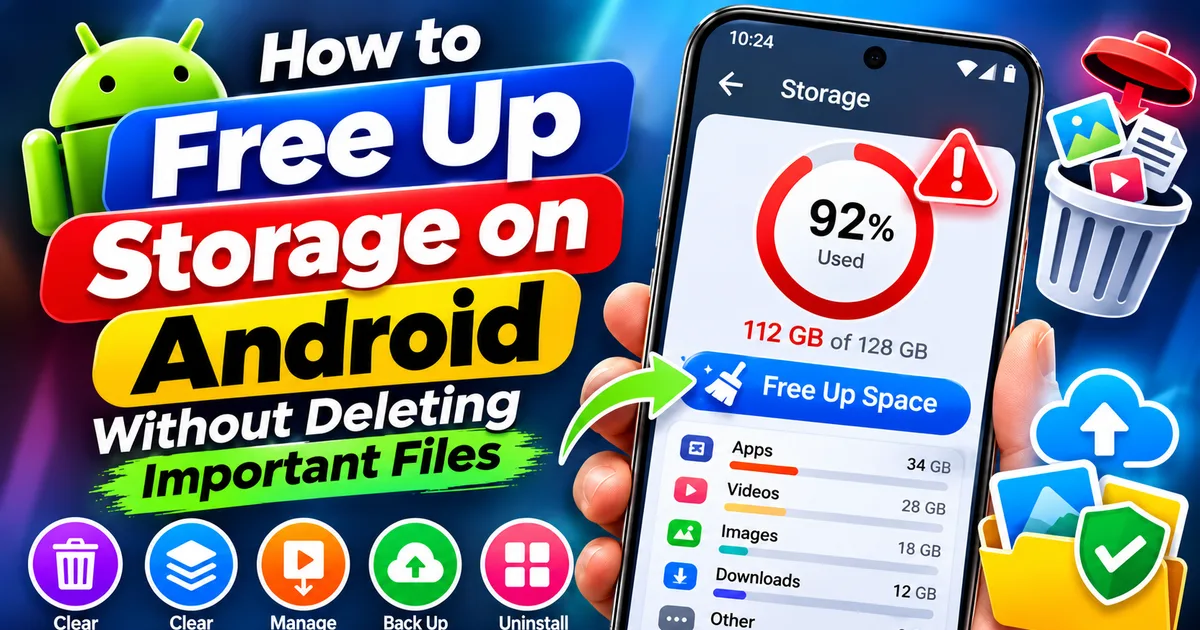
How to Free Up Storage on Android Without Deleting Important Files
GetApkFree Team
Running out of space on your Android phone? Learn how to safely free up storage by removing junk files, clearing app cache, managing downloads,
Quick Answer
Running out of space on your Android phone? Learn how to safely free up storage by removing junk files, clearing app cache, managing downloads,
How to Free Up Storage on Android Without Deleting Important Files
Running out of storage on your Android phone can be frustrating. You may see warnings such as “Storage space running out,” struggle to install new apps, or find that your camera cannot save more photos and videos.
However, freeing up storage does not mean you need to delete your important pictures, documents, messages, or apps.
Android provides several ways to recover storage safely. You can remove temporary files, review large downloads, clear unnecessary app cache, manage offline media, and move important files to another location.
In this guide, you'll learn how to free up storage on Android without accidentally losing important data.
- Check What's Using Your Android Storage
Before deleting anything, find out which files and apps are consuming the most space.
Follow these steps:
- Open your phone's Settings.
- Find and tap Storage.
- Wait for Android to calculate storage usage.
- Review categories such as Apps, Images, Videos, Audio, Documents, and Other.
The exact names and layout may vary depending on your Android version and phone manufacturer.
This step helps you identify the actual problem. For example, if videos are using most of your storage, clearing app cache will probably make very little difference.
Tip: Take note of the largest storage categories before making changes. This helps you focus on the files that can free up the most space.
- Remove Unnecessary Junk Files Safely
Temporary files can accumulate as you use apps, browse the internet, and download content.
One convenient way to review these files is with Files by Google.
If you have the app installed:
- Open Files by Google.
- Tap the Clean section.
- Review the available cleanup suggestions.
- Check the Junk files recommendation.
- Read the details before confirming the cleanup.
Files by Google can also suggest duplicate files, screenshots, unused apps, and other items that may be worth reviewing.
Be careful when using cleanup suggestions. Do not assume every recommended file is unnecessary. Review important items before deleting them.
Google explains how its file-cleaning features work in its "official Files by Google Help guide" (https://support.google.com/files/answer/9713869).
- Clear App Cache Without Clearing App Data
Apps often store temporary information called cache. This can include images, temporary downloads, and other files that help an app load content faster.
Over time, some apps may accumulate a significant amount of cached data.
You can clear an individual app's cache:
- Open Settings.
- Tap Apps or Apps & notifications.
- Select the app you want to check.
- Open Storage or Storage & cache.
- Tap Clear cache.
Repeat this for other apps only when their cached data is taking up unnecessary space.
Clear Cache vs Clear Storage: What's the Difference?
These two options are not the same.
- Clear cache: Removes temporary files. The app may take slightly longer to load some content the next time you use it.
- Clear storage: Permanently removes the app's stored data. This may delete settings, downloaded content, saved sessions, and other local information.
If your goal is to free up space without losing important information, choose Clear cache, not Clear storage.
Do not routinely clear storage for messaging, banking, authentication, or other important apps unless you understand what data will be removed and have a reliable backup.
- Find and Remove Large Downloaded Files
Your Downloads folder may contain files that you no longer need.
Examples include:
- Old PDF documents
- Duplicate images
- APK installer files
- Large ZIP archives
- Videos received through messaging apps
- Documents downloaded for temporary use
To review your downloads:
- Open your phone's Files app.
- Navigate to Downloads.
- Sort files by size or date, if available.
- Open unfamiliar files before deciding whether to delete them.
- Select only the files you no longer need.
- Move them to Trash or delete them, depending on your file manager.
If you regularly download Android installation packages, you can also review our guide on "how to find APK files on Android" (https://getapkfree.com/blog/how-to-find-apk-files-on-android).
Important: Do not delete documents, installation files, or backups simply because you do not recognize their names. Check their purpose first.
- Back Up Photos and Videos Before Removing Local Copies
Photos and videos can consume a large amount of storage, particularly if you record high-resolution videos.
Instead of deleting important memories, consider backing them up first.
Google Photos offers a feature called Free up space that can remove local copies of photos and videos that have already been backed up.
Before using it:
- Open Google Photos.
- Make sure you are signed in to the correct Google Account.
- Check that backup is enabled.
- Wait until the photos and videos you want to keep have finished backing up.
- Verify that important items are accessible in Google Photos or at photos.google.com.
- Use Free up space on this device if the backup is complete.
Google Photos can then remove eligible local copies while keeping the backed-up versions available in your Google Photos library.
Important: Do not assume that every photo is backed up just because Google Photos is installed. Check the backup status first. Also remember that removing local copies means they may no longer be available through your phone's built-in gallery when you are offline.
For detailed instructions, see "Google Photos' official Free up space guide" (https://support.google.com/photos/answer/6128843).
- Delete Offline Downloads You No Longer Need
Streaming and entertainment apps often store downloaded content for offline use.
These downloads can quietly consume several gigabytes of storage.
Check apps that you use regularly, such as:
- YouTube
- Spotify
- Netflix
- Google TV
- Other music and video applications
Open each app and look for its Downloads or Offline content section.
Remove movies, episodes, albums, playlists, or videos that you have already watched or no longer need offline.
Whenever possible, remove downloads from inside the app rather than manually deleting unfamiliar folders from your phone.
This helps avoid accidentally removing files that an app needs to function correctly.
- Uninstall Apps You No Longer Use
Unused applications can take up storage even when you rarely open them.
Review your installed apps:
- Open Settings.
- Tap Apps.
- Review the installed applications.
- Select an app you no longer need.
- Tap Uninstall.
Before uninstalling an app, consider whether it contains important local information, saved projects, downloaded files, or account data.
If you might need the app later, Android also supports app archiving on eligible devices and apps. Archiving can free up some storage while retaining personal app data and keeping the app icon available for restoration.
You can check for automatic app archiving in Google Play:
- Open the Play Store.
- Tap your profile picture.
- Open Settings.
- Select General.
- Look for Automatically archive apps.
Availability and menu options can vary by device and Android version.
- Move Important Files to a Computer or External Storage
If you have important videos, documents, or photos that you do not want to delete, consider moving a copy to another storage location.
Possible options include:
- A Windows or Mac computer
- An external USB drive
- A compatible memory card
- A cloud storage service
To transfer files to a computer using USB:
- Connect your Android phone to the computer.
- Unlock your phone.
- Select the USB notification.
- Choose File transfer if prompted.
- Open your phone's storage on the computer.
- Copy the files you want to preserve.
- Open a few copied files to verify that the transfer worked.
- Only then consider removing the original copies from your phone.
Do not delete the originals until you have confirmed that the copied files are accessible.
Some phones do not support expandable storage, and USB storage compatibility depends on the device.
- Use Android's Built-In Storage Cleanup Options
Some Android devices provide built-in tools to help manage storage.
Open Settings > Storage and look for options such as:
- Free up space
- Storage manager
- Smart Storage
- Recommended cleanup
- Unused apps
On supported devices, Smart Storage can automatically remove eligible local copies of backed-up photos and videos when storage is running low.
These features are not available in exactly the same form on every Android phone. Check the options available on your device before enabling automatic cleanup.
- Avoid These Common Storage-Cleaning Mistakes
Some cleanup methods can cause more problems than they solve.
Keep these precautions in mind:
Do not clear app storage without checking first. It can remove important local app data, not just temporary files.
Do not delete Android system folders randomly. Files inside unfamiliar folders may be required by apps or the operating system.
Do not remove photos before verifying their backup. A cloud backup should be complete before you delete local copies.
Do not install unknown cleaner applications. Some unnecessary cleaner apps may show misleading warnings, request excessive permissions, or create additional background activity.
Do not delete messaging app folders blindly. They may contain documents, voice notes, photos, and other files you want to keep.
A careful review is safer than deleting everything that appears large or unfamiliar.
Frequently Asked Questions
- How can I free up storage on Android without deleting photos?
You can clear unnecessary app cache, remove unwanted downloads, delete unused apps, manage offline media, and transfer files to a computer or cloud storage. You can also use Google Photos' Free up space feature after verifying that your photos and videos are backed up.
- Does clearing app cache delete important data?
Generally, clearing an app's cache removes temporary files rather than the app's main stored data. However, the app may need to download some content again. Avoid confusing Clear cache with Clear storage.
- Why is my Android storage full even after deleting files?
Deleted files may remain in a Trash or Recently Deleted folder until they are permanently removed. Other storage may also be occupied by app data, offline downloads, cached files, or large media folders. Check your Storage settings to identify the remaining usage.
- Is Files by Google safe for cleaning Android storage?
Files by Google is Google's file-management app and provides tools to review junk files, duplicates, and other cleanup suggestions. However, deleting files can be permanent, so review the items before confirming.
- How much free storage should I keep on my Android phone?
There is no single amount that works for every Android device. It is sensible to avoid keeping your phone almost completely full. Leave enough room for app updates, downloads, temporary files, and new photos or videos.
- Can I clear the cache of all Android apps at once?
The available options depend on your Android version and device manufacturer. Many phones require you to clear cache for individual apps. Be cautious with third-party apps that promise to clean everything automatically.
Final Thoughts
Freeing up Android storage does not have to mean deleting your important files. Start by checking which categories are using the most space, then remove unnecessary temporary files, review downloads, clear app cache, and manage offline content.
For photos, videos, and documents you want to preserve, make a verified backup or transfer a copy to another storage location before removing anything from your phone.
The safest approach is simple: review first, back up important files, and delete only what you no longer need.
Related Articles
Messenger Messages Not Sending on Android? How to Fix It
Messenger messages not sending on Android? Fix messages stuck on Sending, failed delivery, connection errors, and attachment problems by checking your network
GetApkFree Team
Roblox Not Loading Games on Android? How to Fix It
Roblox games not loading on Android? Fix endless loading screens, failed connections, and games that close unexpectedly with practical checks for your network.
GetApkFree Team
Reddit Notifications Not Working on Android? How to Fix It
Reddit notifications not working on Android? Fix missing replies, comment alerts, chat notifications, and delayed updates by checking Reddit settings,
GetApkFree Team
Snapchat Camera Not Working on Android? How to Fix It
Is Snapchat’s camera showing a black screen or refusing to take photos on Android? Check camera permissions, update the app, clear its cache, and follow these practical troubleshooting steps.
GetApkFree Team