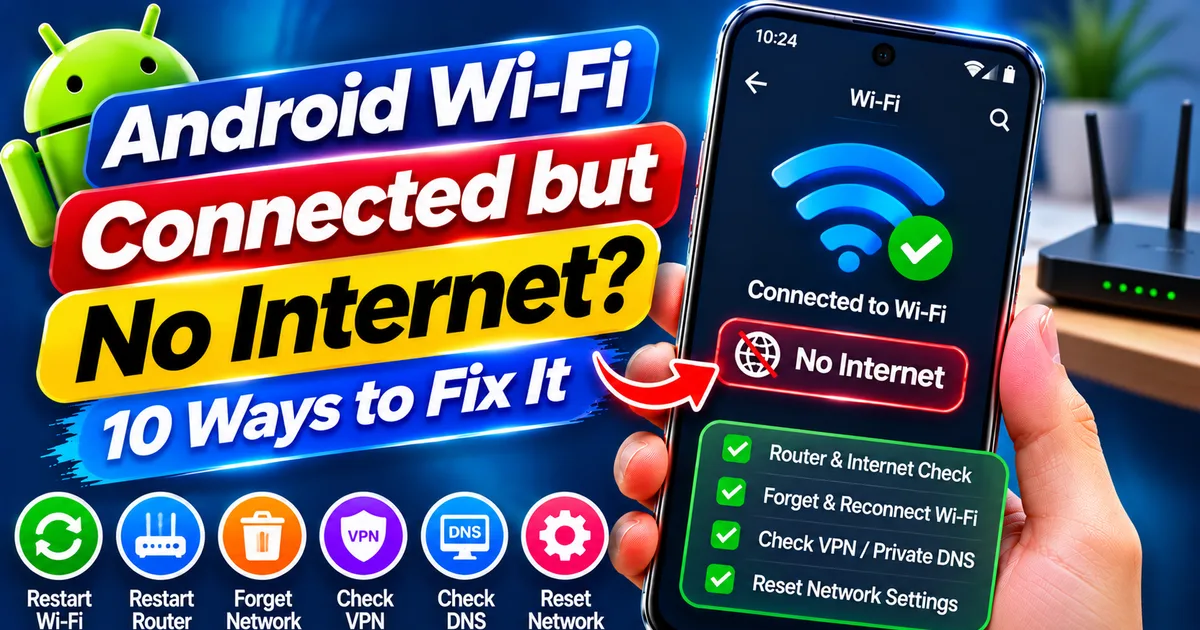
Android Wi-Fi Connected but No Internet? 10 Ways to Fix It
GetApkFree Team
Android Wi-Fi connected but no internet? Find out why websites and apps are not loading and fix the problem by checking your router, saved network, VPN,
Quick Answer
Android Wi-Fi connected but no internet? Find out why websites and apps are not loading and fix the problem by checking your router, saved network, VPN,
Android Wi-Fi Connected but No Internet? 10 Ways to Fix It
Your Android phone shows that it is connected to Wi-Fi, but websites are not loading, apps keep buffering, and the internet seems completely unavailable.
This problem can be confusing because the Wi-Fi icon may show a strong signal even when you cannot access the internet.
The reason is simple: connecting to a Wi-Fi router and accessing the internet are two different things. Your phone may successfully connect to the router while the router, internet service, DNS settings, or phone configuration prevents websites and apps from loading.
In this guide, you'll learn how to diagnose and fix the Wi-Fi connected but no internet problem on Android, including situations where only one phone is affected, every device is offline, or only certain apps cannot connect.
Quick Answer: How to Fix Wi-Fi Connected but No Internet on Android
Try these checks in order:
- Open a website to confirm that the internet is actually unavailable.
- Connect another device to the same Wi-Fi network.
- Turn Wi-Fi off and on again.
- Restart your Android phone.
- Restart your router and modem.
- Forget the Wi-Fi network and reconnect.
- Check VPN and Private DNS settings.
- Sign in to public Wi-Fi if an authorization page appears.
- Check automatic date and time settings.
- Reset network settings if the problem continues.
Do not immediately factory-reset your phone or reset your router. First identify whether the problem is coming from the phone, router, or internet provider.
1. Find Out Whether the Problem Is Your Phone or Wi-Fi Router
Before changing settings, identify which device is actually causing the problem.
This is the most important troubleshooting step because it prevents you from changing phone settings when the internet service itself is unavailable.
Try these three tests.
Test A: Connect Another Device to the Same Wi-Fi
Connect a second phone, laptop, or tablet to the same Wi-Fi network.
Open a website and check whether it loads.
- If other devices work normally, your Android phone may have a network configuration problem.
- If other devices also cannot access the internet, the router, modem, or internet service may be responsible.
Test B: Switch Your Android Phone to Mobile Data
Turn off Wi-Fi and enable mobile data.
Open a website in your browser.
- If mobile data works, your phone's general internet access is available, but the Wi-Fi connection may be causing the problem.
- If mobile data also fails, investigate your mobile network separately.
Test C: Try Another Wi-Fi Network
Connect your Android phone to another working Wi-Fi network, such as a trusted hotspot or another household network.
- If the phone works on another Wi-Fi network, investigate your original router or internet connection.
- If it fails on multiple Wi-Fi networks, focus on the phone's settings or software.
| Test result | Most likely area to investigate |
|---|---|
| Only your Android phone fails | Phone settings or software |
| All devices on the Wi-Fi fail | Router, modem, or ISP |
| Your phone works on another Wi-Fi | Original router or network |
| Only one app fails | That particular app or service |
| Public Wi-Fi connects but nothing loads | Sign-in or authorization page |
This simple diagnosis can save time before you start changing advanced Android settings.
2. Turn Wi-Fi Off and On Again
A temporary connection problem can sometimes prevent your phone from accessing the internet properly.
Refreshing the Wi-Fi connection is a simple first step.
Follow these instructions:
- Swipe down from the top of your screen.
- Open the Quick Settings panel.
- Turn Wi-Fi off.
- Wait approximately 10 seconds.
- Turn Wi-Fi on again.
- Connect to your saved network.
- Open a website to test the connection.
You can also refresh the connection through Settings:
- Open Settings.
- Select Network & Internet, Connections, or Wi-Fi.
- Turn Wi-Fi off.
- Wait a few seconds.
- Turn it on again.
The menu names may differ depending on your phone manufacturer.
If the connection still shows no internet access, continue to the next step.
3. Restart Your Android Phone
Temporary software problems can sometimes interfere with network connectivity.
Restarting the phone refreshes its system services and wireless connections.
To restart:
- Press and hold the power button or open the power menu.
- Select Restart.
- Wait for the phone to boot completely.
- Reconnect to your Wi-Fi network.
- Open Chrome or another browser.
Check whether websites load normally.
A restart does not fix every Wi-Fi problem, but it is a useful step before changing network configurations.
4. Restart Your Wi-Fi Router and Modem
If multiple devices connected to the same Wi-Fi network cannot access the internet, investigate the router and modem.
Your router may be broadcasting a Wi-Fi signal while its internet connection is unavailable.
Restarting the equipment can resolve some temporary connection problems.
Follow these steps:
- Unplug the router's power cable.
- If you have a separate modem or ONT, follow your ISP's recommended restart procedure for that device.
- Wait approximately 15–30 seconds before reconnecting the power.
- Turn the equipment back on.
- Wait for its connection and status lights to stabilize.
- Connect your Android phone again.
- Open a website to test the internet.
If your router and modem are combined into one device, you generally need to restart only that unit.
Important: Restarting is different from factory resetting.
Do not press and hold the router's Reset button unless you intend to restore its factory configuration. A factory reset can remove your Wi-Fi name, password, ISP settings, and other configurations.
If the internet remains unavailable on every device, contact your broadband provider to check for an outage or connection issue.
5. Forget the Wi-Fi Network and Connect Again
Android saves information about previously connected Wi-Fi networks.
Sometimes the saved connection profile or authentication details may cause problems.
You can remove the saved network and reconnect.
How to Forget a Wi-Fi Network on Android
- Open Settings.
- Select Network & Internet or Connections.
- Tap Wi-Fi or Internet.
- Find the network that is not working.
- Tap the network or open its details.
- Select Forget.
- Return to the available networks list.
- Select your Wi-Fi network again.
- Enter the correct password.
After reconnecting, open a browser and test the internet.
Before forgetting the network: Make sure you know its password. If you do not, you may not be able to reconnect.
This method is particularly useful when the phone connects to Wi-Fi but the saved connection behaves incorrectly.
6. Check Your VPN, Firewall, and Network Filtering Apps
A VPN, firewall, ad blocker, or network-filtering application can sometimes interfere with internet access.
This may happen when:
- A VPN connection is active but not routing traffic properly.
- A filtering app blocks certain network requests.
- A firewall restricts internet access.
- A network protection application has incorrect rules.
To test whether a VPN is responsible:
- Open your VPN application.
- Disconnect temporarily.
- Keep Wi-Fi enabled.
- Open a website in your browser.
- Check whether the connection works.
If you use a firewall or network filtering app, review its settings and temporarily test without the filter if it is safe to do so.
Do not disable security protection permanently just to restore internet access.
If the problem disappears when a VPN is disconnected, investigate that VPN's connection settings or contact its support team.
7. Check Android Private DNS Settings
Private DNS is an Android feature that can help protect DNS queries using encrypted connections.
However, a custom Private DNS provider may become unavailable or incorrectly configured.
When this happens, your phone may remain connected to Wi-Fi while some or all websites fail to load.
How to Check Private DNS
On supported Android versions:
- Open Settings.
- Go to Network & Internet or Connections.
- Find Private DNS.
- Check the current setting.
- If you entered a custom provider hostname, verify that it is correct.
- As a temporary test, select Automatic, if available.
- Save the change and try opening a website again.
Some manufacturers place Private DNS under additional connection settings.
Important: Do not enter random DNS addresses or provider hostnames found in unverified tutorials. Use a trusted provider if you intentionally configure custom DNS.
If changing Private DNS to Automatic fixes the issue, investigate the original provider rather than repeatedly changing DNS settings.
8. Sign In to Public Wi-Fi Networks
Some public Wi-Fi networks require you to complete an authorization process before allowing internet access.
You may encounter this at:
- Airports
- Railway stations
- Hotels
- Restaurants
- Shopping malls
- Universities
- Public Wi-Fi hotspots
Your Android phone may show that it is connected even though the network requires a sign-in or acceptance of terms.
How to Fix Public Wi-Fi With No Internet
- Connect to the public Wi-Fi network.
- Check whether Android displays a sign-in notification.
- Tap the notification if available.
- Complete the required sign-in or authorization steps.
- Accept the terms if you trust the network.
- Open a website to test the connection.
If no sign-in page appears, open a new browser tab and visit a regular website.
Avoid entering passwords, banking details, or sensitive information into suspicious Wi-Fi login pages.
If you are unsure whether the network is legitimate, ask the venue's staff for the correct network name and sign-in instructions.
9. Check Your Phone's Date and Time Settings
Incorrect date and time settings can sometimes interfere with secure website connections and network authentication.
Make sure your Android device uses automatic date and time.
Follow these steps:
- Open Settings.
- Go to System or General management.
- Select Date & time.
- Enable Set time automatically.
- Enable automatic time-zone selection if available.
- Restart the browser and test the connection.
The menu location varies by manufacturer.
This is a simple check, especially if websites display certificate warnings or secure connections fail unexpectedly.
10. Test Wi-Fi in Safe Mode
If Wi-Fi works incorrectly after installing a VPN, firewall, security tool, or another application, a third-party app may be affecting connectivity.
Android Safe Mode temporarily disables downloaded applications so you can investigate whether one of them is responsible.
The procedure for entering Safe Mode varies by device.
On many Android phones:
- Open the power menu.
- Touch and hold the Power off option.
- Select Safe mode if the option appears.
- Wait for your phone to restart.
- Connect to your Wi-Fi network.
- Open a website to test the connection.
If Wi-Fi works in Safe Mode, a downloaded app may be interfering.
Restart your phone to exit Safe Mode. Then review recently installed VPNs, firewalls, network filters, and other applications. Uninstall or reconfigure only the application you have identified as a possible cause.
If Wi-Fi still fails in Safe Mode, the router or system network configuration may be responsible.
11. Update Your Android Software
An outdated Android build or a software bug may contribute to connectivity problems.
Check whether your manufacturer has released a software update.
- Open Settings.
- Go to System or Software update.
- Select System update or Download and install.
- Check for available updates.
- Follow the instructions if an update is available.
Menu names and update availability vary by manufacturer.
If you cannot access Wi-Fi, you may need mobile data or another trusted connection to download an update. Check your data allowance before downloading large files.
Do not install unofficial firmware or unknown APK files that claim to repair Wi-Fi automatically.
12. Reset Android Network Settings
If none of the earlier steps works, resetting network settings may help.
This resets certain connection configurations that could be causing persistent problems.
The exact option depends on your device.
On Many Android Phones
- Open Settings.
- Select System or General management.
- Open Reset options or Reset.
- Look for Reset Wi-Fi, mobile and Bluetooth or a similar option.
- Read the confirmation screen carefully.
- Confirm only if you are comfortable resetting those settings.
On Supported Samsung Galaxy Phones
The option may be located under:
Settings > General management > Reset > Reset Wi-Fi and Bluetooth settings
The exact wording varies by model and software version.
What Happens After a Network Reset?
Depending on the selected reset option and device, you may need to:
- Reconnect to saved Wi-Fi networks.
- Enter Wi-Fi passwords again.
- Pair Bluetooth accessories again.
- Reconfigure certain network preferences.
A network reset does not normally erase your photos, documents, or installed applications.
Important: Read the confirmation screen before proceeding. Some Android devices provide separate reset options for Wi-Fi, mobile network, Bluetooth, and all network settings.
Do not choose Factory data reset for an ordinary Wi-Fi problem unless you have a separate, well-supported reason to do so.
13. What If Wi-Fi Works but Only One App Shows No Internet?
If websites open normally and other apps work, but one application displays a connection error, your entire Wi-Fi connection may not be the problem.
The issue could involve:
- App-specific network restrictions
- A temporary service outage
- A VPN or DNS filter
- Outdated application software
- Account or regional availability
- An app-specific configuration problem
Start by checking whether that app works through mobile data.
If the app works on mobile data but not Wi-Fi, investigate the router or network filtering.
If it fails on both connections while other apps work, troubleshoot the application itself.
For example, if CapCut shows No Internet Connection while other apps work, use our dedicated guide: How to Fix CapCut No Internet Connection on Android.
Avoid clearing app storage or uninstalling an app that contains important local projects before verifying a backup.
Frequently Asked Questions
1. Why does my Android phone say Wi-Fi connected but no internet?
Your phone may have successfully connected to the router, but the router may not have internet access. Other possible causes include DNS problems, VPN interference, saved network errors, public Wi-Fi authorization, or an internet service outage.
2. Why does Wi-Fi work on other phones but not mine?
If other devices work on the same network, the issue may be specific to your Android phone. Check the saved Wi-Fi network, VPN, Private DNS, software updates, and network settings.
3. Why does my phone show full Wi-Fi signal but websites do not load?
Wi-Fi signal strength indicates the connection between your phone and the router. It does not guarantee that the router has a working internet connection. Check the router's internet status and test another device.
4. Should I restart my router or Android phone first?
Start by refreshing Wi-Fi on your phone and restarting the phone. If other devices connected to the same router also have no internet, restart the router and modem according to the manufacturer's instructions.
5. Can VPN cause Wi-Fi connected but no internet?
Yes. A VPN may connect incorrectly or interfere with network routing. Disconnect it temporarily to test whether internet access returns. If it does, investigate the VPN configuration.
6. Does Private DNS cause Android internet problems?
A custom Private DNS provider may be unavailable or incorrectly configured. Temporarily changing the setting to Automatic can help determine whether the custom provider is responsible.
7. Why does public Wi-Fi connect but not open websites?
Public Wi-Fi often requires you to sign in, accept terms, or complete an authorization page. Check Android's sign-in notification or open a new browser tab to find the sign-in page.
8. Will resetting network settings delete my photos?
A normal network-settings reset does not usually erase photos, documents, or installed applications. However, it can remove saved Wi-Fi connections and Bluetooth pairings, depending on the device and reset option.
9. Can an Android update fix Wi-Fi problems?
Yes, a software update may fix certain bugs affecting connectivity. However, an update will not resolve an ISP outage, damaged router, or incorrect router configuration.
10. When should I contact my internet service provider?
Contact your ISP when multiple devices connected to the same router cannot access the internet, router status indicators show a connection problem, or restarting the equipment does not restore the service.
Final Thoughts
When Android says Wi-Fi is connected but there is no internet, the first thing you should do is identify where the problem starts.
Check whether other devices can access the same network, try mobile data, and test another Wi-Fi connection. These simple checks help distinguish a phone problem from a router or internet service issue.
If the problem is limited to your phone, review the saved network, VPN, Private DNS, date and time settings, and third-party applications. If every device is offline, investigate the router or contact your internet provider.
Save network resets for persistent problems, and avoid factory-resetting your phone before trying simpler solutions.
The most effective fix is not always restarting your phone or router. It is finding out whether the failure is in your phone, Wi-Fi network, or internet connection first.
Related Articles
OTP Not Received on Android? How to Fix Missing Verification SMS
Not receiving OTP messages on Android? Find out why verification codes are delayed or missing and how to check your SIM, network, spam folder, dual-SIM settings
GetApkFree Team
Android Phone Not Charging? How to Fix Charging Problems
Is your Android phone not charging or charging slowly? Learn how to check your charger, USB cable, charging port, moisture warnings, battery, and software to fix common charging problems safely.
GetApkFree Team
How to Free Up Storage on Android Without Deleting Important Files
Running out of space on your Android phone? Learn how to safely free up storage by removing junk files, clearing app cache, managing downloads,
GetApkFree Team
Messenger Messages Not Sending on Android? How to Fix It
Messenger messages not sending on Android? Fix messages stuck on Sending, failed delivery, connection errors, and attachment problems by checking your network
GetApkFree Team