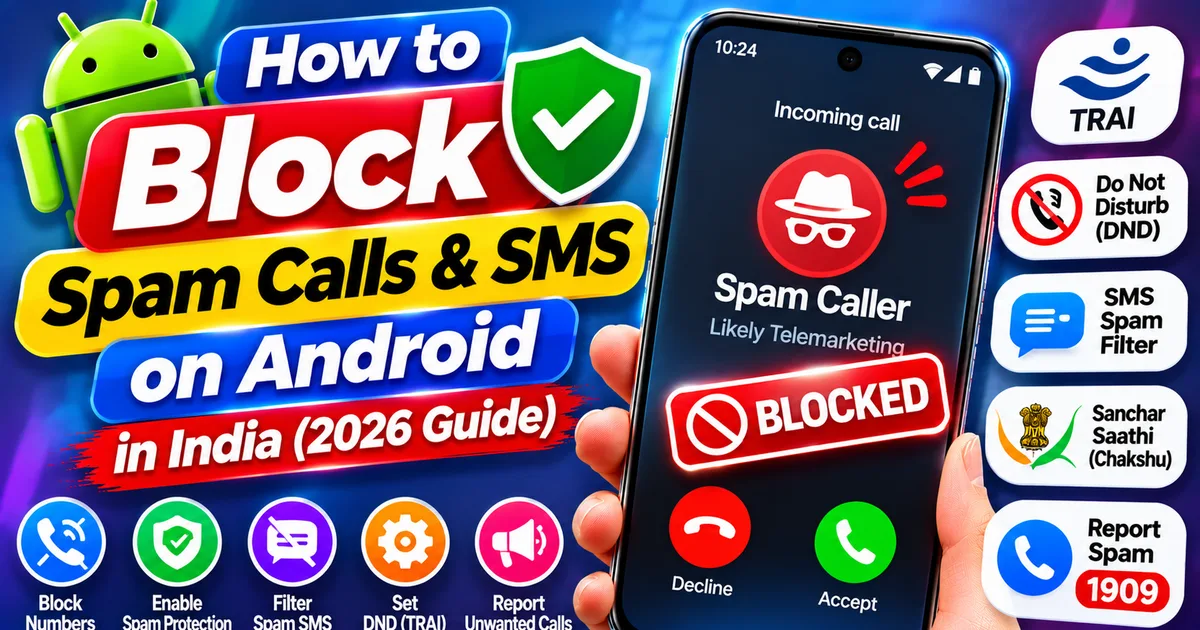
How to Block Spam Calls and SMS on Android in India (2026 Guide)
GetApkFree Team
Getting unwanted calls and spam SMS on Android? Learn how to block callers with Google Phone and Samsung, filter spam texts, activate TRAI DND.
Quick Answer
Getting unwanted calls and spam SMS on Android? Learn how to block callers with Google Phone and Samsung, filter spam texts, activate TRAI DND.
How to Block Spam Calls and SMS on Android in India (2026 Guide)
Are you constantly receiving unwanted telemarketing calls, promotional messages, suspicious SMS alerts, or calls from unknown numbers? Spam communications can interrupt your work, clutter your inbox, and sometimes expose you to financial scams.
Android offers built-in tools to identify and block unwanted callers and messages. In India, you can also use the official Do Not Disturb (DND) system from the Telecom Regulatory Authority of India (TRAI) to manage promotional calls and SMS and report unwanted commercial communications.
There is a good reason to understand these options. According to the Ministry of Communications' November 2026 report, telecom service providers registered 1.529 million unsolicited commercial communication (UCC) complaints during July–September 2026. AI-based systems also flagged 18.28 billion incoming calls and 1.62 billion incoming SMS as suspected spam during that quarter.
This guide explains how to block spam calls and SMS on Android using Google Phone, Samsung's Phone app, Google Messages, and TRAI's official reporting options.
Quick Answer: How to Stop Spam Calls and SMS on Android
You can reduce unwanted calls and messages using these methods:
- Google Phone: Enable Caller ID and spam protection and, where available, Filter spam calls.
- Samsung Phone: Use Block numbers and Smart Call if supported on your device.
- Google Messages: Block and report unwanted SMS conversations as spam.
- TRAI DND: Register Full DND or Partial DND preferences to restrict promotional communications.
- 1909: Use the official telecom complaint and reporting channel for unwanted commercial calls and SMS.
- Sanchar Saathi Chakshu: Report suspicious fraud-related calls, SMS, and WhatsApp communications.
These tools serve different purposes. Blocking a number on your phone does not automatically stop someone from contacting you through a different number, and DND preferences are not a complete solution to fraud calls.
1. Enable Spam Call Protection in Google Phone
The Google Phone app includes Caller ID and spam protection. It can identify some callers outside your contact list and warn you about suspected spam.
On supported devices, you can also enable a filter that automatically filters calls identified as spam.
Follow these steps:
- Open the Phone app.
- Tap the three-dot menu.
- Select Settings.
- Tap Caller ID and spam.
- Enable See caller ID and spam.
- If available, enable Filter spam calls.
The first option helps identify potential spam callers. The second option filters calls identified as spam.
What happens when you enable Filter spam calls?
Filtered calls may not generate missed-call or voicemail notifications. However, they can still appear in your call history, and you can check your voicemail.
Some devices with automatic Call Screen features use different spam-protection controls. Menu names and availability also vary by Android version and phone manufacturer.
Tip: If you regularly receive calls from delivery partners, hospitals, customers, or service providers, review your filtered call history occasionally. A legitimate number can sometimes be incorrectly identified as spam.
For official instructions, see Google's Caller ID and spam protection guide.
2. Block a Specific Spam Number on Android
If the same number repeatedly calls you, you can block it directly.
Using the Google Phone app:
- Open the Phone app.
- Go to Recents or your call history.
- Tap the unwanted number.
- Select Block or Block / report spam, depending on the interface.
- Confirm your choice if requested.
The blocked number will generally be prevented from calling you through the normal phone service.
You can also review your blocked numbers:
- Open the Phone app.
- Tap the three-dot menu.
- Select Settings.
- Open Blocked numbers.
- Review or remove numbers from the list.
Keep in mind that blocking a number only affects that number. Someone using a different number may still contact you.
3. Block Unknown or Private Numbers
Some Android phones provide an option to block calls from private or unidentified numbers.
On supported Google Phone versions:
- Open the Phone app.
- Tap the three-dot menu.
- Open Settings.
- Tap Blocked numbers.
- Turn on Unknown, if the option is available.
Important: Unknown does not always mean unsaved
Google's Unknown setting blocks calls from private or unidentified numbers. It does not necessarily block every caller whose number is missing from your contacts.
This distinction matters because you may receive genuine calls from delivery agents, banks, hospitals, recruiters, and other people whose numbers are not saved.
Do not enable broad call blocking without understanding which callers your device will reject.
4. Block Spam Calls on Samsung Galaxy Phones
Samsung Galaxy devices have their own Phone app, and some models offer Smart Call for caller identification and spam protection.
Method A: Block a specific number
- Open the Phone app.
- Tap the three-dot menu.
- Select Settings.
- Tap Block numbers.
- Enter the phone number you want to block.
- Tap the option to add it to the blocked list.
You can also block a number from the recent calls list by selecting its details and choosing the block option.
Method B: Use Smart Call
If your Samsung device and region support Smart Call:
- Open the Phone app.
- Go to Settings.
- Look for Caller ID and spam protection.
- Enable the feature if available.
- Follow the displayed options to identify, block, or report suspected spam calls.
Smart Call availability and features can vary by country, device, and software version. Samsung states that its Smart Call service is provided by Hiya.
For model-specific instructions, check Samsung India's official call-blocking guide.
5. Block and Report Spam SMS in Google Messages
Spam calls are not the only problem. Unwanted SMS messages may contain fake offers, suspicious links, misleading payment requests, or impersonation attempts.
Google Messages includes a feature that lets you block and report unwanted conversations.
Follow these steps:
- Open Google Messages.
- Find the unwanted conversation.
- Touch and hold the conversation.
- Tap Block.
- Select Report spam if you want to report it.
- Confirm your choice.
You can also open a conversation, tap the three-dot menu, select Details, and choose Block and report spam, where available.
Reported conversations are moved to the Spam & blocked folder.
What happens when you report an SMS as spam?
Google explains that reporting a conversation sends the sender's number and the last 10 incoming messages from that sender to Google to help improve spam detection. Your report may also be used to improve Google's spam and abuse protection systems.
Reporting is optional. You can block a sender without submitting a spam report.
Before reporting a conversation, understand what information may be shared.
Read Google's official guide to reporting spam in Google Messages.
6. Activate TRAI DND to Reduce Promotional Calls and SMS in India
Blocking individual numbers is useful, but it does not manage promotional communications from all registered telemarketers.
For that, you can use India's official Do Not Disturb system.
TRAI DND allows mobile subscribers to manage communication preferences and restrict promotional calls and messages.
You can choose between:
- Full DND: Restricts promotional commercial communications more broadly.
- Partial DND: Allows you to select categories of commercial communication that you want to receive or restrict.
The available categories and preference options are shown during registration.
How to manage your DND preferences
You can use the official TRAI DND app or the TRAI citizen portal.
- Open the official TRAI DND portal.
- Select your mobile operator.
- Enter your mobile number.
- Follow the OTP verification process.
- Open the DND preference section.
- Choose Full DND or Partial DND.
- Select the categories you want to restrict.
- Submit and follow the confirmation instructions.
You can also find information about the official application on TRAI's Apps page.
What does DND actually block?
DND preferences apply to promotional commercial calls and SMS from registered telemarketing channels, according to your selected preferences.
The TRAI portal explains that important communications such as OTPs, bank transaction alerts, delivery updates, and messages from saved contacts are not blocked by these DND preferences.
Important: DND is not a universal spam or scam blocker. It does not guarantee that suspicious calls from ordinary mobile numbers, spoofed numbers, or unregistered sources will never reach you.
7. Report Unwanted Commercial Calls and SMS to TRAI Using 1909
If you continue receiving unwanted commercial communications, you can report them to your telecom service provider through the official TRAI channels.
Available reporting methods include:
- Calling 1909
- Sending an SMS to 1909
- Using the official DND app or portal
- Using an approved reporting method offered by your service provider
When reporting an unwanted call or SMS, keep the following information available:
- The sender's phone number or message header
- The date and time of the communication
- The category of commercial communication
- A brief description of the unwanted call or message
Why should you report instead of only blocking?
Blocking a number on your phone mainly prevents that number from contacting your device.
Reporting unwanted commercial communication gives your telecom provider information that can help identify spam activity and take action under the applicable rules.
TRAI distinguishes between a complaint and a report:
- A complaint submitted within three days of receiving the unwanted commercial communication can qualify for investigation and possible action against the sender.
- A submission made after three days is treated as a report and may help identify spam patterns proactively.
Your telecom provider should provide a reference or complaint ID so you can track the submission.
Use TRAI's official UCC complaint and reporting page for the current process.
8. Report Suspicious Fraud Calls and Messages Through Sanchar Saathi
Not every unwanted communication is ordinary marketing spam.
A call or message pretending to be from a bank, government department, courier company, customer support team, or financial service may be an attempted fraud.
For suspicious fraud-related communications, India's Department of Telecommunications provides the Chakshu facility through the Sanchar Saathi platform.
You can use it to report suspected fraudulent communications received through calls, SMS, or WhatsApp.
Visit the official Sanchar Saathi portal and look for the Chakshu reporting option.
Before submitting a report, keep relevant details such as the suspicious phone number, message, date, time, and any supporting screenshots.
What if you have already lost money?
If you have already transferred money or suffered a financial loss because of a suspected cyber fraud:
- Contact your bank or payment provider immediately.
- Report the incident through the official National Cyber Crime Reporting Portal.
- Call the cybercrime helpline 1930 as soon as possible.
- Preserve transaction details, messages, and other evidence.
For a financial loss, do not rely only on a spam-reporting feature.
Official reporting portal: https://cybercrime.gov.in/
9. Should You Install a Third-Party Spam Call Blocking App?
Some users prefer third-party caller identification applications because they can display caller information and identify numbers not saved in their contacts.
These apps may offer features such as:
- Caller identification
- Spam warnings
- Number blocking
- Community-based spam reporting
- Call history management
However, review an application's privacy policy and permission requests before installing it.
Caller identification and spam protection may involve processing information about phone numbers or calls. Understand the data practices before enabling these features.
Do not install unknown APK files claiming to provide premium caller identification or unlimited spam blocking.
Get applications from official sources and check their developer, permissions, and update history.
If you already use Truecaller but caller names or pop-ups are not working, see our guide: Truecaller Caller ID Not Showing on Android? How to Fix It.
10. How to Avoid Missing Important Calls While Blocking Spam
Aggressive call filtering may prevent you from noticing genuine calls.
Before enabling every available blocking option, consider these precautions:
- Save frequently used contacts.
- Review filtered calls periodically.
- Avoid blocking all numbers outside your contact list unless you understand the consequences.
- Check voicemail or missed-call history where available.
- Be careful when blocking delivery agents, hospitals, banks, and service providers.
- Review the blocked-number list if you stop receiving expected calls.
A balanced setup is usually better than blocking every unknown caller.
Frequently Asked Questions
1. How can I block spam calls on Android permanently?
You can enable spam filtering in Google Phone, use Samsung's supported caller protection features, and report unwanted commercial communication through TRAI. However, no single feature can guarantee that all future spam calls will be stopped.
2. How do I block spam SMS on Android?
In Google Messages, touch and hold the unwanted conversation, tap Block, and select Report spam if you want to report it. The conversation will move to the Spam & blocked folder.
3. Does TRAI DND block all spam calls?
No. TRAI DND manages promotional commercial communication from registered telemarketing channels according to your preferences. It does not guarantee protection from every scam call or communication from an unregistered source.
4. Can I block unknown numbers without blocking saved contacts?
The Google Phone app's Unknown setting blocks private or unidentified numbers. It does not necessarily block every number that is missing from your contacts. Check the exact behavior of your phone's call-blocking feature before enabling it.
5. Is the TRAI DND app official?
Yes. TRAI identifies TRAI DND as its official Do Not Disturb preference-management application. It allows users to manage Full DND or Partial DND preferences. Use TRAI's official website to find the app and its current information.
6. What is the 1909 number used for?
The short code 1909 is an official channel for registering complaints or reports about unsolicited commercial communications with your telecom service provider.
7. How quickly should I report a spam call or SMS?
TRAI states that complaints made within three days of receiving UCC can qualify for further investigation. Submissions after that period are treated as reports that may help identify spam activity.
8. Does blocking a number stop a scammer from calling again?
It blocks the selected number from contacting your phone through normal calls. However, a scammer may use another number. Reporting suspicious communications helps authorities and telecom providers identify patterns beyond your individual device.
9. Will DND block bank OTPs and delivery messages?
The TRAI DND portal says that OTPs, bank transaction alerts, delivery updates, and communications from saved contacts are not blocked by DND preferences.
10. Should I use Truecaller or Google Phone for spam calls?
Google Phone provides built-in caller ID and spam protection on supported devices. Truecaller offers additional caller-identification features. Compare their permissions and privacy practices before deciding which one to use.
Final Thoughts
Blocking spam calls and SMS on Android requires more than adding individual phone numbers to a blocked list.
Start with Google Phone or Samsung's built-in protection features, use Google Messages to block unwanted texts, and register your preferred DND settings through TRAI.
For unwanted commercial communication, use the official 1909 reporting process. For suspected fraud calls, SMS, and WhatsApp messages, use Sanchar Saathi's Chakshu facility.
Remember that no blocking method can guarantee that every unwanted call or message will disappear. Combining device-level filtering with official reporting gives you more control while helping telecom providers and authorities identify abusive communication.
The best approach is to block what you can, report what you receive, and never share OTPs, banking details, or passwords with an unknown caller.
Related Articles
Truecaller Caller ID Not Showing on Android? How to Fix It
Truecaller Caller ID not showing on Android? Fix missing caller names and caller ID pop-ups by checking permissions, display-over-other-apps settling
GetApkFree Team
Gemini App Not Working on Android? How to Fix It
Gemini not working on Android? Fix “Something went wrong” errors, failed prompts, endless loading, and app problems with practical checks for your connection, app updates, cache, and Google account.
GetApkFree Team
Canva App Keeps Crashing on Android? How to Fix It
Canva keeps crashing, freezing, or closing unexpectedly on Android? Troubleshoot app updates, Android System WebView, internet problems, storage, cache, and device settings with these practical fixes.
GetApkFree Team
ChatGPT App Login Error on Android: How to Fix “Something Went Wrong”
Getting a “Something went wrong” error when logging in to ChatGPT on Android? Check Google Play Store updates, browser sign-in settings, connectivity, and other safe troubleshooting steps.
GetApkFree Team