
This article is about
ChatGPT
OpenAI · Productivity
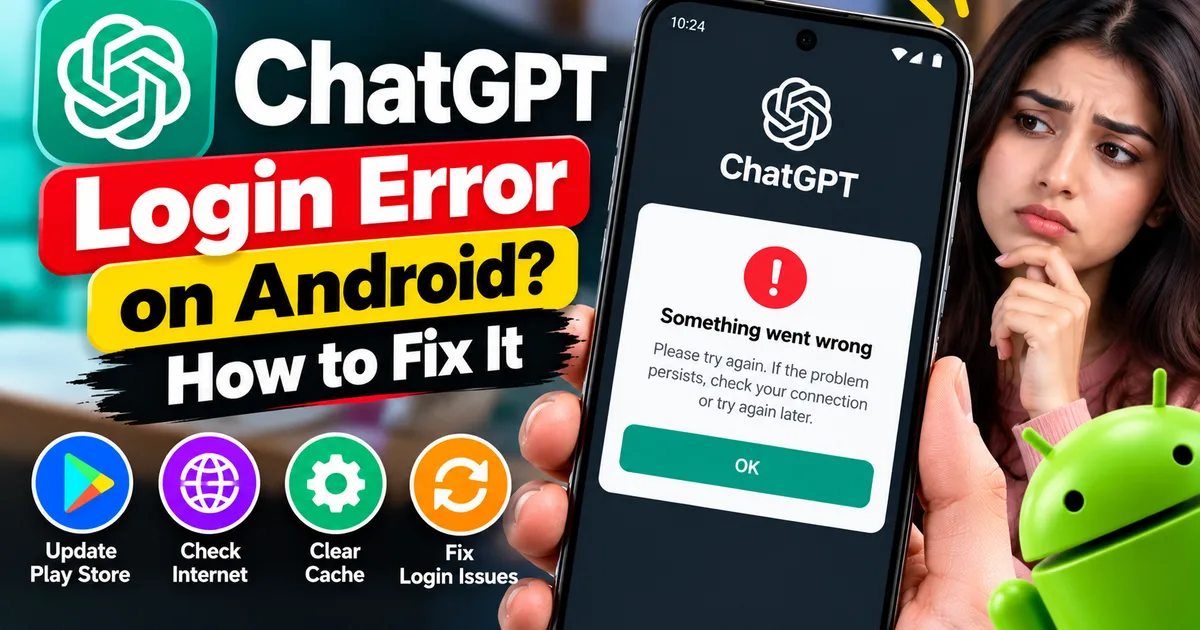
ChatGPT App Login Error on Android: How to Fix “Something Went Wrong”
GetApkFree Team
Getting a “Something went wrong” error when logging in to ChatGPT on Android? Check Google Play Store updates, browser sign-in settings, connectivity, and other safe troubleshooting steps.
- Version
- Latest
- Source
- Google Play
- Package
- com.openai.chatgpt
ChatGPT App Login Error on Android: How to Fix “Something Went Wrong”
Getting a “Something went wrong” message when you try to log in to ChatGPT on Android can be frustrating. You may have a working internet connection and the correct login details, yet the app still refuses to sign you in.
The error does not always mean your password is wrong. It can be related to an outdated Google Play Store, the browser used for authentication, a temporary connection problem, or another issue affecting the sign-in process.
This guide explains how to troubleshoot the error safely, starting with the specific checks recommended by OpenAI.
Quick Answer: How to Fix the ChatGPT Login Error
Try these steps in order:
- Update Google Play Store.
- Close and reopen the ChatGPT app.
- Check your internet connection.
- If you use Google or another sign-in provider, select the same method you used when creating your account.
- Check whether Chrome or Brave is installed if the sign-in process relies on a browser.
- Restart your Android phone.
- Check OpenAI's service status if the error continues.
- Reinstall the official ChatGPT app only if simpler steps fail.
The exact cause varies. If one step does not work, continue to the next rather than repeatedly attempting to log in.
1. Update Google Play Store
OpenAI's official ChatGPT Android App FAQ identifies an outdated Google Play Store as one possible cause of the “Something went wrong” login error.
To check for an update:
- Open Google Play Store.
- Tap your profile icon in the top-right corner.
- Select Settings.
- Open About.
- Find Play Store version.
- Tap it to check whether an update is available.
If an update is available, allow it to download and install. Wait a little while, then reopen ChatGPT and try signing in again.
If Google Play Store is already up to date, move to the next step.
For the latest official instructions, see the ChatGPT Android App FAQ.
2. Check Your Internet Connection
A connection problem can interrupt the sign-in process even when other parts of your phone appear to work normally.
Try the following:
- Open a website in your browser.
- Switch from Wi-Fi to mobile data, or from mobile data to Wi-Fi.
- Move closer to your router if the Wi-Fi signal is weak.
- Temporarily test without a VPN or network filter if you use one and can safely do so.
If ChatGPT works on a different network, the original connection or its settings may be contributing to the problem.
Avoid changing several network settings at once. Test one change, then try signing in again.
3. Close ChatGPT and Reopen It
A temporary app issue may interrupt authentication.
- Open your Android Recent apps screen.
- Swipe ChatGPT away to close it.
- Open ChatGPT again.
- Try signing in once more.
If the error continues, you can force-stop the app:
- Open Android Settings.
- Select Apps or App management.
- Choose ChatGPT.
- Tap Force stop.
- Open the app again.
The wording may vary by phone manufacturer and Android version. Force-stopping the app does not normally delete your account.
4. Use the Same Sign-In Method as Before
ChatGPT may offer different ways to sign in, including an email-based option and supported third-party sign-in providers.
If you originally created your account using Google, continue with that same method. If you used another provider, select the corresponding option.
Using a different sign-in method can sometimes lead to confusion about which account you are accessing.
Before trying repeatedly, check:
- Which email address you originally used.
- Whether you normally select Continue with Google or another sign-in option.
- Whether you can sign in to the same account through the official ChatGPT website.
Do not share your password or verification codes with anyone offering to fix the problem.
5. Check Chrome or Brave
OpenAI's Android app FAQ explains that the ChatGPT app uses Chrome or Brave for its browser-based login flow when these browsers are available. It recommends Chrome as the default browser for resolving certain sign-in errors.
If login keeps failing:
- Check whether Chrome is installed.
- Update Chrome through Google Play Store.
- Open Android Settings.
- Find the Default apps section.
- Select Browser app.
- Choose Chrome if it is available.
- Return to ChatGPT and try again.
Android settings vary between devices, so the exact menu path may differ.
If Chrome is already installed and set as the default browser, you do not need to keep changing this setting. Continue with the other troubleshooting steps.
6. Clear the ChatGPT App Cache
Temporary files can sometimes contribute to app problems. Clearing the cache is a reasonable troubleshooting step if the app continues to behave unexpectedly.
- Open Android Settings.
- Tap Apps or App management.
- Select ChatGPT.
- Open Storage or Storage and cache.
- Tap Clear cache.
- Reopen ChatGPT and try signing in.
Important: Choose Clear cache rather than Clear storage or Clear data for this initial step. Clearing storage can remove local app information and may sign you out.
Clearing the cache is not guaranteed to fix a login error, especially if the actual problem is with authentication or a service.
7. Restart Your Android Phone
Restarting your phone can resolve temporary operating-system or app-process problems.
Save any work in other apps, restart your device, wait for it to reconnect to the internet, and open ChatGPT again.
If the same error appears immediately, do not keep restarting repeatedly. Move on to checking service availability and the app installation.
8. Check Whether ChatGPT Is Experiencing a Service Problem
Sometimes a login failure is related to a temporary service issue rather than your phone.
To investigate:
- Visit the OpenAI status page.
- Look for reported incidents affecting ChatGPT or login services.
- If an incident is listed, wait for it to be resolved and try again later.
- If no relevant incident is shown, continue troubleshooting your device and sign-in method.
A status page may not identify every account-specific problem, so a normal status report does not guarantee that every login attempt will succeed.
9. Update the ChatGPT App
An outdated app can have compatibility or software problems that may be addressed in a later release.
To check:
- Open Google Play Store.
- Search for “openai chatgpt.”
- Verify that the publisher is OpenAI.
- Open the official listing.
- Install an update if one is available.
Make sure you are updating the official app rather than an unrelated application with a similar name.
You can find the official download guidance in the ChatGPT Android App FAQ.
10. Reinstall ChatGPT Only If Necessary
If the previous steps fail, reinstalling the app may help resolve a damaged installation.
Before doing so:
- Confirm that you know your account's sign-in method.
- Make sure you can access any required email address or authentication method.
- Understand that you may need to sign in again.
- Use Google Play Store or another official source recommended by OpenAI.
Then uninstall ChatGPT, reinstall the official app, open it, and try signing in.
Do not download a random APK from an unfamiliar website to bypass a login error. A new installation will not fix a wrong sign-in method, a service outage, or an account-specific authentication problem.
What If ChatGPT Works in the Browser but Not in the App?
If you can sign in at the official ChatGPT website but cannot sign in through the Android app, your account may be working while the app's authentication flow is failing.
Try updating Google Play Store and the app, checking Chrome or Brave, and clearing the app cache.
If browser access works, you can continue using the official website while you troubleshoot the app. Avoid creating a second account unless you specifically need one.
When Should You Contact OpenAI Support?
If you still cannot sign in after trying the relevant steps, contact OpenAI through the official Help Center.
Include useful information such as:
- The exact error message.
- Whether the error appears before or after choosing your sign-in method.
- Your Android version and phone model.
- Whether Google Play Store and ChatGPT are up to date.
- Whether you can sign in through the official website.
- The troubleshooting steps you have already tried.
Never include your password, authentication codes, or other private account credentials in a support request.
Frequently Asked Questions
Why does ChatGPT say “Something went wrong” when I log in on Android?
The error can have several causes. OpenAI specifically notes that an outdated Google Play Store can trigger this message. Other possibilities include browser-based authentication problems, connectivity issues, or a temporary service problem.
Do I need to reinstall ChatGPT to fix the login error?
Not necessarily. First update Google Play Store, check your connection, verify your sign-in method, and review Chrome or Brave. Reinstall only if simpler steps fail.
Why does ChatGPT work in Chrome but not in the Android app?
The browser and app use different paths to access your account. If browser sign-in works, investigate the app's version, cache, and authentication flow. This does not by itself identify the exact cause.
Will clearing the ChatGPT cache delete my conversations?
Clearing the app cache removes temporary files and does not normally delete your account's server-stored conversations. Avoid Clear storage or Clear data unless you understand the local information that may be removed.
Is it safe to download a ChatGPT APK from an unfamiliar website?
It is safer to use the official ChatGPT listing and the download instructions provided by OpenAI. An unofficial file may be altered or misleading, and installing a different APK will not necessarily solve an authentication problem.
What if none of the fixes work?
Check the OpenAI status page, then contact OpenAI Support with the exact error and the steps you have tried. Avoid repeatedly attempting the same unsuccessful sign-in method without checking the cause.
Final Thoughts
If ChatGPT shows “Something went wrong” when you log in on Android, start by checking Google Play Store updates, your internet connection, and the sign-in method you normally use. Review Chrome or Brave if the browser-based login flow is failing, then try clearing the cache and updating the official app.
If the problem persists, check OpenAI's service status and contact support. These steps help narrow down the likely cause without risking your account or downloading an untrusted app.
Related Articles
How to Fix CapCut Reverse Not Working on Android
Fix CapCut reverse not working on Android with practical steps for stuck processing, failed reverse effects, unsupported clips, low storage, and app issues.
GetApkFree Team
How to Fix CapCut Templates Not Showing on Android
CapCut templates not showing on Android? Find the missing Templates tab, fix an empty template library, check regional availability, and troubleshoot loading issues.
GetApkFree Team
How to Fix CapCut Template Link Not Opening on Android
CapCut template links not opening on Android? Fix links that open the wrong template, redirect to the home screen, or fail to launch CapCut.
GetApkFree Team
How to Fix CapCut Drafts Disappeared on Android
CapCut drafts disappeared on Android? Check your project list, account, local storage, and recovery options without risking unfinished video edits.
GetApkFree Team