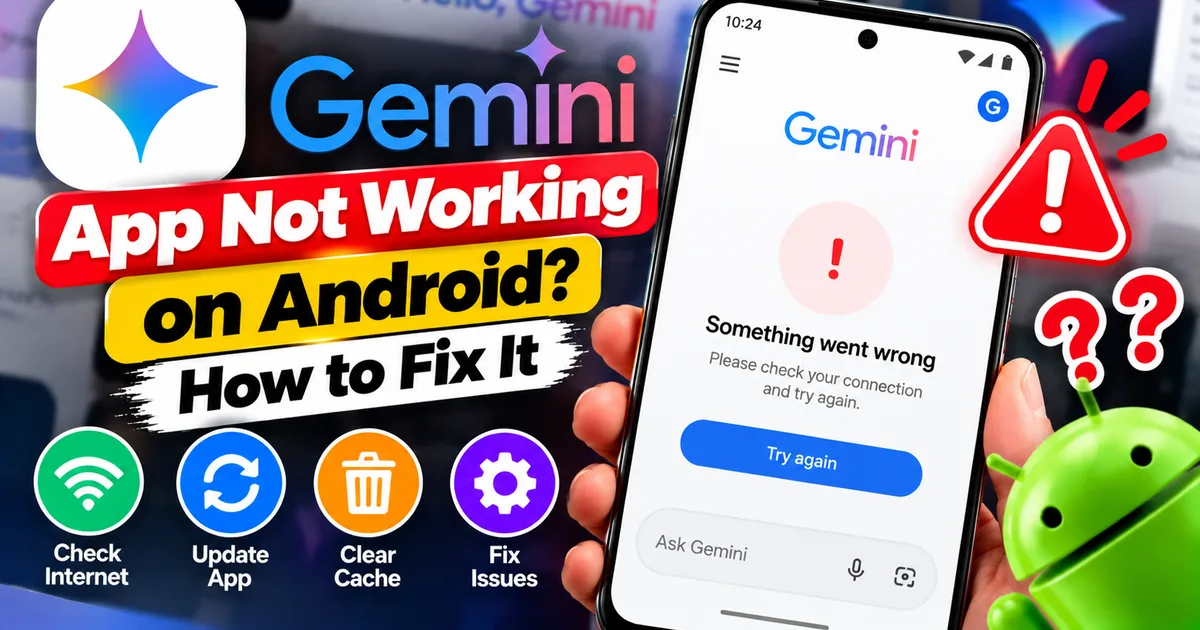
Gemini App Not Working on Android? How to Fix It
GetApkFree Team
Gemini not working on Android? Fix “Something went wrong” errors, failed prompts, endless loading, and app problems with practical checks for your connection, app updates, cache, and Google account.
Quick Answer
Gemini not working on Android? Fix “Something went wrong” errors, failed prompts, endless loading, and app problems with practical checks for your connection, app updates, cache, and Google account.
Gemini App Not Working on Android? How to Fix It
Is Google Gemini not working on your Android phone? Maybe the app keeps showing “Something went wrong,” your prompts never receive a response, the screen stays stuck loading, or Gemini closes unexpectedly.
These problems can be caused by a temporary service issue, an unstable internet connection, an app problem, or an account or availability restriction. The right solution depends on the error you see.
This guide explains how to troubleshoot Gemini on Android, starting with simple checks before moving on to app settings and account-related issues.
Why Is Gemini Not Working on Android?
Gemini may fail to respond for several reasons:
- Unstable internet connection: Your phone may not be able to maintain a reliable connection to Gemini.
- Temporary service issue: Google's Gemini service may be experiencing high demand or a technical problem.
- Outdated app: An older version of Gemini or the Google app may have compatibility issues.
- Temporary app glitch: The app may become unresponsive or fail to process a prompt.
- Cache-related problem: Temporary files may contribute to unexpected app behavior.
- Account restrictions: Some features depend on your Google account, age eligibility, or work or school account settings.
- Usage limits: You may have reached a temporary usage limit.
- Feature or regional availability: Certain Gemini features may not be available for every account or location.
Before changing settings, note the exact error message or code. This can help you choose the appropriate fix instead of trying every troubleshooting step unnecessarily.
- Check Whether Gemini Is Experiencing a Service Issue
First, check whether Gemini is experiencing a service disruption.
Visit Google's official "Google Workspace Status Dashboard" (https://www.google.com/appsstatus/dashboard/). Check for any relevant Gemini service information available there.
If you cannot find a relevant incident, that does not necessarily prove the service is working perfectly. A localized or newly developing issue may not appear immediately.
You can also open the official "Gemini web app" (https://gemini.google.com/) in your phone's browser and try sending a simple text prompt.
- If Gemini works in the browser but not in the app, the issue may be related to the app or device.
- If both the app and website fail, investigate your connection, account, error message, and possible service issues.
This comparison is a useful diagnostic test, not a guarantee of the underlying cause.
- Check Your Internet Connection
Gemini needs an internet connection to process prompts and return responses.
Try these steps:
- Open your browser and load a few websites.
- If you're using Wi-Fi, check the signal strength.
- Temporarily switch to mobile data if available.
- If you're using mobile data, try a reliable Wi-Fi connection.
- Reopen Gemini and submit a short text prompt.
If Gemini works on one connection but not another, the failing network may be contributing to the problem.
If you use a VPN or network filter, you can temporarily test the connection without it if safe and appropriate. Avoid changing multiple network settings at once, because doing so makes it harder to identify the cause.
- Close Gemini and Open It Again
A temporary app glitch may prevent Gemini from processing prompts or loading its interface correctly.
To restart the app:
- Open your Android phone's recent apps screen.
- Swipe Gemini away to close it.
- Open Gemini again.
- Start a new chat.
- Enter a simple text prompt and check whether a response appears.
If the app remains unresponsive, you can force-stop it:
- Open Settings on your phone.
- Tap Apps or Applications.
- Select Gemini.
- Tap Force stop.
- Confirm the action if prompted.
- Reopen Gemini.
Menu names may differ between Android devices. Force-stopping the app does not normally delete your Google account or conversation history.
- Update Gemini and the Google App
An outdated app can contain bugs or compatibility problems. On Android, Gemini's experience may also depend on the Google app, so checking both is worthwhile.
Follow these steps:
- Open the Google Play Store.
- Search for Google Gemini.
- Open its official listing and tap Update if available.
- Return to the Play Store and search for the Google app.
- Update it if an update is available.
- Reopen Gemini and test a prompt.
If the listing shows Open rather than Update, an update may not currently be available for your device.
Avoid installing modified Gemini APKs from unknown websites. Unofficial packages may introduce security risks or create additional compatibility problems.
- Clear Gemini's Cache
Gemini may occasionally behave unexpectedly because of temporary app files. Clearing the cache is a reasonable next step if restarting and updating have not helped.
On most Android phones:
- Open Settings.
- Tap Apps.
- Select Gemini.
- Open Storage or Storage & cache.
- Tap Clear cache.
- Reopen Gemini and test it again.
The exact menu names depend on your phone manufacturer and Android version.
If the problem continues, you can also check the Google app's cache using the same general process: open Settings, select Apps, choose Google, open Storage, and tap Clear cache if available.
Important: Start with clearing the cache, not clearing storage or data. Clearing storage can reset app-specific information or sign you out. If you consider that step later, make sure you know your Google account login details first.
- Start a New Chat and Try a Simple Prompt
Sometimes a problem affects one conversation or a particular request rather than the entire Gemini app.
Google's official error troubleshooting recommends starting a new chat for certain errors.
Try this:
- Open Gemini.
- Start a New chat.
- Enter a short, simple text prompt.
- Wait for the response.
If the new chat works, the issue may be related to the original conversation or request.
If the original prompt contains an image, video, or document, try submitting a text-only prompt first. If text works but the attachment fails, check whether the file type is supported and whether the upload limits have been reached.
If every new chat fails, continue with the connection, account, and error-code checks below.
- Check for Usage Limits or Temporary High Demand
Gemini may show messages such as “Too many requests in a short time period” when usage limits or high demand are involved.
If you see this message:
- Stop resubmitting the same prompt repeatedly.
- Wait a few minutes.
- Start a new chat if appropriate.
- Try the prompt again.
Usage limits can depend on the account, plan, feature, and current conditions. Do not assume that every failed response means your account has been blocked.
If a limit message persists, review the information displayed in Gemini and the official Gemini Help Center rather than relying on a fixed waiting period that may not apply to your situation.
- Check Your Google Account and Feature Access
Some Gemini features depend on account eligibility, settings, and permissions.
For example, a work or school Google account may have restrictions imposed by its administrator. Certain features may also have age or regional eligibility requirements.
If Gemini reports that a feature is unavailable or that it cannot access particular content:
- Read the full error message.
- Check which Google account is currently signed in.
- If appropriate, test with another Google account that you are authorized to use.
- Check whether the requested feature is available to that account and in your region.
- If you're using a managed work or school account, contact the administrator if access appears restricted.
Do not change your date of birth or other account details inaccurately to bypass eligibility requirements.
If the error says Gemini is not supported in your location, check Google's official availability information. Reinstalling the app will not make a region-restricted feature available.
- Check Microphone and Other Required Permissions
If Gemini opens but voice input, Gemini Live, or another permission-dependent feature does not work, review the relevant Android permissions.
To check:
- Open Android Settings.
- Tap Apps.
- Select Gemini, or the Google app if that is where the relevant feature is managed.
- Open Permissions.
- Check the permission required for the feature, such as Microphone.
- Allow it if you want to use that feature and the permission is appropriate.
The available permissions vary by feature and app version.
If text prompts work normally but voice input does not, focus on microphone access rather than resetting the entire app. If all prompts fail, permissions may not be the main issue.
- Restart Your Android Phone
If Gemini still does not respond, restart your phone.
- Save any work in other apps.
- Open the power menu.
- Tap Restart, or turn the phone off and back on.
- Wait for Android to finish starting.
- Open Gemini and try a simple prompt.
A restart may resolve temporary operating-system or app problems. If the same error returns, continue troubleshooting instead of repeatedly restarting the device.
- Check Android System WebView and System Updates
If Gemini crashes, displays a blank screen, or fails to load its interface, check for available updates to Android System WebView and Chrome.
- Open the Google Play Store.
- Search for Android System WebView.
- Install an update if one is available.
- Check for a Chrome update as well.
- Restart the phone if necessary and test Gemini again.
Some Android devices manage WebView differently, so an update option may not always appear.
You can also check your phone's Software update or System update settings. Install official updates when available, following the manufacturer's instructions.
Do not remove system components or install unofficial firmware as a first-line fix.
- Reinstall Gemini as a Last Resort
If the previous steps fail, reinstalling Gemini may help resolve a persistent app installation problem.
Before uninstalling, make sure you know your Google account login details.
Then:
- Open the Google Play Store.
- Find the official Google Gemini app.
- Uninstall it if your device offers that option.
- Install it again from Google Play.
- Open Gemini and sign in if required.
- Try a simple prompt.
On some Android devices, Gemini is integrated with the Google app or serves as the default digital assistant. The available uninstall options may differ.
Reinstalling is not guaranteed to fix the issue. If the cause is a service disruption, account restriction, or usage limit, you may need to address that specific issue instead.
What Do Common Gemini Error Messages Mean?
Google provides official guidance for Gemini error codes. Here are some examples of how to approach them.
“Something went wrong. Please try again later.”
This message can occur because of a temporary connection or server issue, among other causes.
- Retry the prompt once.
- Start a new chat.
- Check your connection.
- Wait a few minutes if the service is busy.
- Restart the app if needed.
“Too many requests in a short time period”
This may indicate high demand or that you've reached a temporary usage limit.
Wait before trying again, and review any usage information shown in Gemini.
Error code 1060
Google's troubleshooting guidance says this code can indicate that Gemini Apps may not be available in your country or region. Check the availability of the relevant Gemini service instead of repeatedly reinstalling the app.
Other numbered error codes
Codes such as (2), (4), (5), (7), (9), (12), (13), and (17), as well as certain 1000-series codes, can indicate unexpected processing issues.
Follow Google's current instructions for your specific code. Retry the prompt, start a new chat, check attachments, verify connectivity, and wait briefly if high demand may be involved.
For the complete and current list, see Google's official "Gemini Apps error-code troubleshooting guide" (https://support.google.com/gemini/answer/18647528?co=GENIE.Platform%3DAndroid&hl=en).
When Should You Contact Google Support?
If Gemini continues to fail after you have checked the connection, updated the apps, cleared the cache, and tested a new chat, report the problem through the official Gemini feedback options.
Include useful details such as:
- Your phone model and Android version.
- Your Gemini app version.
- The exact error message or code.
- Whether the problem affects every prompt or only a particular feature.
- Whether Gemini works in a browser.
- Which troubleshooting steps you have already tried.
To report a problem in the Gemini mobile app, open the app and look for the profile menu or the Help & feedback or Report a problem option. Menu labels may vary by version.
You can also visit the "official Gemini Help Center" (https://support.google.com/gemini/).
Frequently Asked Questions
Why does Gemini keep saying “Something went wrong”?
Possible causes include temporary service problems, an unstable connection, an app issue, or a request that cannot be processed. Retry the prompt, start a new chat, check your connection, and consult Google's error-code guidance if a code appears.
Why does Gemini open but not answer my questions?
Gemini may be experiencing a temporary processing problem, usage limit, or connectivity issue. Test a short text prompt in a new chat and check whether the same problem occurs in the web app.
Will clearing Gemini's cache delete my chats?
Clearing the cache removes temporary app files and is different from clearing storage or data. Do not use the storage-reset option unless you understand its effects. Your saved Gemini activity is also subject to your Google account's activity and data settings.
Why does Gemini work in my browser but not in the Android app?
The issue may be specific to the app installation, its temporary files, or device compatibility. Update Gemini and the Google app, clear the app cache, and restart your phone.
Should I reinstall Gemini if it is not working?
Not immediately. Check service status, connectivity, app updates, cache, and the exact error message first. Reinstall only if the simpler steps fail.
Final Thoughts
When Gemini is not working on Android, begin with your internet connection, the official service information, and a simple prompt in a new chat. Then update Gemini and the Google app, clear the cache, and check whether the problem is connected to your account, a particular feature, or an error code.
If the issue persists, follow Google's official troubleshooting instructions and report the exact error. Identifying whether the problem affects one prompt, the entire app, or your account can help you find the right solution without resetting settings unnecessarily.
Related Articles
Canva App Keeps Crashing on Android? How to Fix It
Canva keeps crashing, freezing, or closing unexpectedly on Android? Troubleshoot app updates, Android System WebView, internet problems, storage, cache, and device settings with these practical fixes.
GetApkFree Team
ChatGPT App Login Error on Android: How to Fix “Something Went Wrong”
Getting a “Something went wrong” error when logging in to ChatGPT on Android? Check Google Play Store updates, browser sign-in settings, connectivity, and other safe troubleshooting steps.
GetApkFree Team
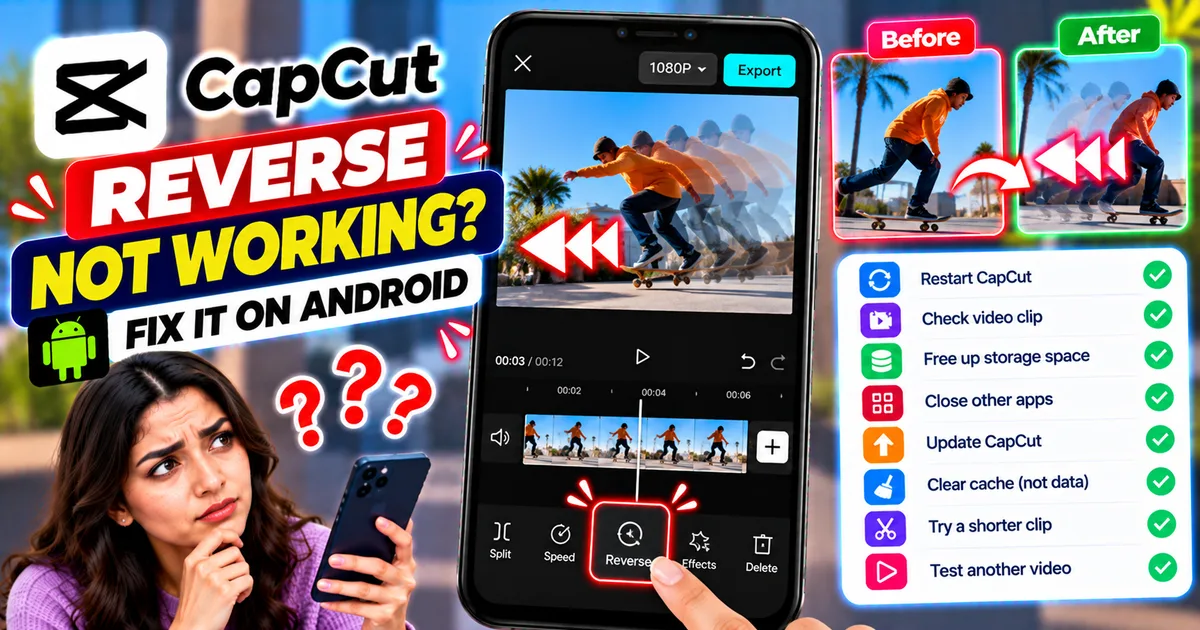
How to Fix CapCut Reverse Not Working on Android
Fix CapCut reverse not working on Android with practical steps for stuck processing, failed reverse effects, unsupported clips, low storage, and app issues.
GetApkFree Team
How to Fix CapCut Templates Not Showing on Android
CapCut templates not showing on Android? Find the missing Templates tab, fix an empty template library, check regional availability, and troubleshoot loading issues.
GetApkFree Team