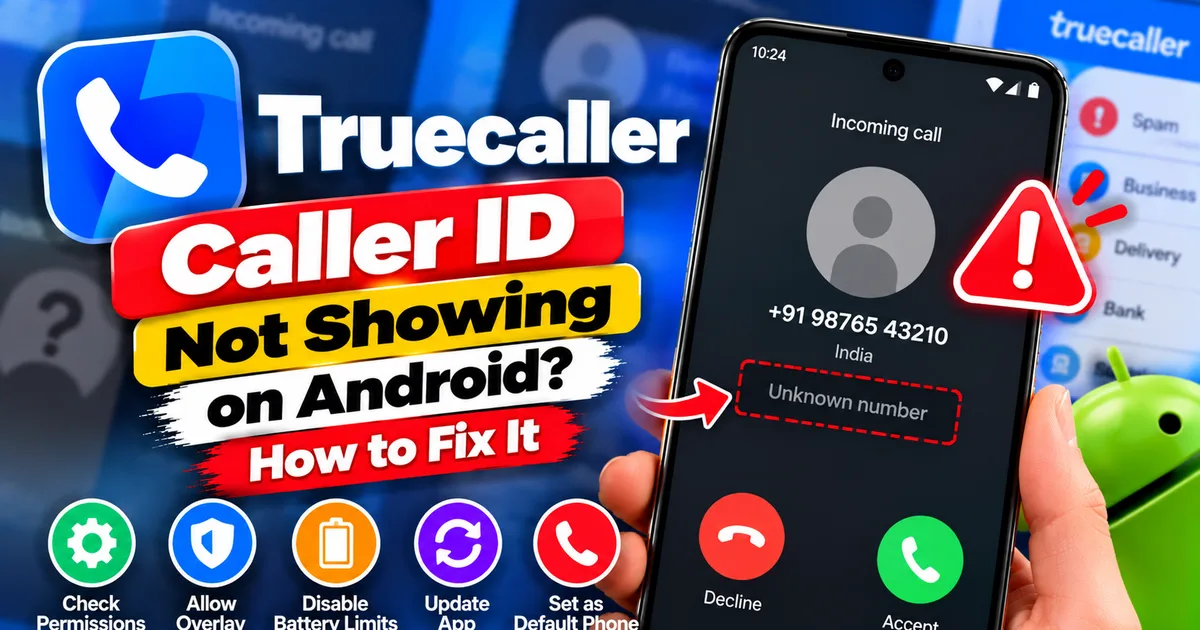
Truecaller Caller ID Not Showing on Android? How to Fix It
GetApkFree Team
Truecaller Caller ID not showing on Android? Fix missing caller names and caller ID pop-ups by checking permissions, display-over-other-apps settling
Quick Answer
Truecaller Caller ID not showing on Android? Fix missing caller names and caller ID pop-ups by checking permissions, display-over-other-apps settling
Truecaller Caller ID Not Showing on Android? How to Fix It
Does Truecaller show unknown numbers instead of caller names on your Android phone? Perhaps the caller ID pop-up no longer appears, the app identifies numbers only after a call, or its caller identification feature stopped working after a phone update.
These problems can occur when permissions are missing, Android restricts background activity, or Truecaller is not configured correctly for your phone. The exact solution depends on whether the name is missing, the pop-up is absent, or the app cannot identify numbers at all.
This guide explains how to troubleshoot Truecaller Caller ID on Android, starting with the simplest checks.
Why Is Truecaller Caller ID Not Working?
Truecaller may fail to identify callers or display its caller ID for several reasons:
- Missing permissions: Truecaller may not have the access required for the feature you are using.
- Display-over-other-apps permission disabled: The caller ID pop-up may not appear when another app is open.
- Battery optimization: Android may restrict Truecaller’s background activity.
- Default phone app settings: Some calling and spam-protection functions depend on your phone’s default app configuration.
- Outdated app: An older version may have bugs or compatibility problems.
- Phone-specific restrictions: Some manufacturers use additional background, autostart, or power-management controls.
- Connectivity or identification limitations: Truecaller may be unable to retrieve information for a particular number.
First, identify the symptom. If caller names are missing only in the pop-up, check display permissions. If caller ID fails across the phone, also check app permissions, updates, and default phone settings.
- Restart Truecaller and Your Phone
Start with a simple restart to rule out a temporary app or system problem.
- Open your phone’s recent apps screen.
- Swipe Truecaller away to close it.
- Open Truecaller again and test its caller identification.
- If the problem remains, restart your phone.
- Ask someone to call you so you can check whether the caller ID appears.
If Truecaller works after restarting, the issue may have been temporary. If it still fails, continue to the permission checks.
- Check Truecaller’s Required Permissions
Truecaller needs appropriate permissions for the features you use. The exact permissions depend on your Android version and the feature being configured.
To review them:
- Open your phone’s Settings.
- Tap Apps or Applications.
- Select Truecaller.
- Open Permissions.
- Review the permissions shown for the app.
- Allow the permissions required for caller identification and calling features you want to use.
The available options differ by device and app version. Do not grant unrelated permissions simply because they appear in the list.
After changing a permission, reopen Truecaller and test an incoming call.
- Enable Display Over Other Apps
If Truecaller identifies a number but its caller ID pop-up does not appear over other apps, check the display-over-other-apps permission.
Android may call this permission Display over other apps, Appear on top, or something similar.
To check it:
- Open Android Settings.
- Tap Apps.
- Select Truecaller.
- Look for Display over other apps or Appear on top.
- Enable the permission if the caller ID feature you use requires it.
- Return to Truecaller and test an incoming call.
On some phones, this setting is under Special app access rather than the main app permissions screen.
Only enable this permission for apps you trust. It allows an app to display certain interface elements over other apps, which has privacy and security implications.
If the permission is already enabled, do not keep toggling it repeatedly. Continue with the next check.
- Disable Battery Restrictions for Truecaller if Necessary
Some Android phones restrict apps running in the background to save battery power. These restrictions can interfere with Truecaller’s ability to operate as expected.
Truecaller’s official support guidance recommends checking battery optimization when caller ID or certain notifications do not work.
To investigate:
- Open Settings on your phone.
- Tap Apps and select Truecaller.
- Open the Battery or App battery usage section.
- Review the available background-activity settings.
- If Truecaller is being heavily restricted, allow suitable background activity or select a less restrictive option.
On some devices, the setting may be called Unrestricted, Allow background activity, or Don't optimize.
You may also need to check manufacturer-specific settings such as autostart or background app management. The names and availability vary by phone.
Avoid disabling battery optimization for every app. Change only the Truecaller setting that is relevant to the problem, because unrestricted background activity may increase battery consumption.
- Check Whether Truecaller Is Your Default Phone App
Some Truecaller features depend on how your phone handles calls. If your default phone app changed after a system update, review the calling configuration.
To check:
- Open Android Settings.
- Go to Apps.
- Find Default apps or Choose default apps.
- Open Phone app.
- Review which app is selected.
If you want Truecaller to handle supported calling functions, check Truecaller’s own setup instructions and select it as the default only if the relevant feature requires it and you are comfortable doing so.
Changing the default phone app can affect your calling experience. Do not change it automatically if your existing phone app is working well and your problem is limited to a caller ID pop-up.
Test an incoming call after making any change.
- Update Truecaller From Google Play
An outdated app may contain bugs or compatibility problems that affect caller identification.
Follow these steps:
- Open the Google Play Store.
- Search for Truecaller.
- Open the official Truecaller listing.
- Tap Update if available.
- Wait for the update to finish.
- Open Truecaller and test caller ID again.
If the button says Open, an update may not currently be available for your device.
Use the official app listing rather than modified or unofficial APKs. Unofficial versions may create security risks, cause unexpected behavior, or lack current fixes.
- Check for a Phone Software Update
If Truecaller stopped working after an Android update—or if your phone has not been updated for a long time—check whether another official software update is available.
- Open your phone’s Settings.
- Look for System update or Software update.
- Check for available updates.
- Follow your manufacturer’s instructions if an update is available.
- Restart the phone if required.
- Test Truecaller again.
Menu names vary between Samsung, Xiaomi, OnePlus, Motorola, and other Android devices.
Do not install unofficial firmware as a quick fix for caller ID problems.
- Check Whether the Problem Affects Every Caller
A missing name does not always mean the entire Truecaller app is broken.
Try to determine whether the issue affects every number or only certain callers.
- Every incoming call lacks caller ID: Check permissions, background restrictions, and calling configuration.
- The pop-up is missing, but identification works elsewhere: Focus on display-over-other-apps permission and phone-specific restrictions.
- Only certain numbers are unidentified: The number may not have information available to Truecaller, or identification may be limited for that number.
- Caller names appear only after opening the app: Check background activity, connectivity, and relevant permissions.
You can also open Truecaller and search for a number manually. If manual search works but live caller identification does not, focus on the settings required during incoming calls.
Remember that caller identification is not guaranteed for every number.
- Check Your Internet Connection
Although caller ID behavior varies by feature, connectivity can affect number lookups and other Truecaller functions.
Try these steps:
- Open a browser and confirm that websites load.
- Switch between Wi-Fi and mobile data if possible.
- Open Truecaller and search for a number.
- Check whether the same issue occurs on both connections.
If number searches fail while other internet services work, the problem may involve Truecaller’s service or the specific lookup rather than your general connection.
A successful manual search does not necessarily prove that live caller identification is configured correctly, so continue checking permissions and background restrictions if incoming calls still lack identification.
- Clear Truecaller’s Cache
Temporary app files may contribute to unexpected behavior. Clearing the cache is a reasonable next step after checking permissions and updates.
On most Android phones:
- Open Settings.
- Tap Apps.
- Select Truecaller.
- Open Storage or Storage & cache.
- Tap Clear cache.
- Reopen Truecaller and test caller identification.
The exact menu names vary by device.
Important: Start with Clear cache, not Clear storage or Clear data. Clearing storage or data can reset local app information and may require you to sign in or configure Truecaller again.
If you use Truecaller for SMS, call history, or other features, review its backup and restore guidance before performing any more disruptive reset.
- Recheck Truecaller After a System Update
Sometimes Android updates change app permissions or default-app settings.
If caller ID stopped working immediately after a software update:
- Open Truecaller’s App info page.
- Review its permissions.
- Check display-over-other-apps access if the pop-up is missing.
- Review battery and background restrictions.
- Confirm your default phone app settings.
- Test with a new incoming call.
Some phone manufacturers also use separate autostart or background management controls. If your phone has these options, consult the manufacturer-specific instructions linked from Truecaller’s official support page.
Do not assume every phone needs the same configuration.
- Reinstall Truecaller as a Last Resort
If the problem persists after checking permissions, battery settings, updates, and cache, reinstalling the app may help resolve a persistent installation problem.
Before uninstalling, check Truecaller’s backup and restore guidance if you use its call history, messages, or other data-related features. Make sure you know how to sign in again.
Then:
- Open the Google Play Store.
- Find the official Truecaller app.
- Uninstall it.
- Install it again from Google Play.
- Complete the setup process.
- Review the permissions and calling settings required for the features you use.
- Test an incoming call.
Reinstalling is not guaranteed to fix the problem. If Android is restricting background activity or the issue is specific to certain numbers, you may need to address that cause instead.
When Should You Contact Truecaller Support?
Contact Truecaller Support if caller identification still fails after the relevant settings have been checked.
Provide useful details such as:
- Your phone manufacturer and model.
- Your Android version.
- Your Truecaller app version.
- Whether the problem affects every caller or only some numbers.
- Whether the caller ID pop-up is missing or the name itself is unavailable.
- Whether the problem started after a software update.
- Which troubleshooting steps you have already tried.
You can start with Truecaller’s official "Live Caller ID troubleshooting guide for Android" (https://support.truecaller.com/support/solutions/articles/81000392455-live-caller-id-is-not-working-android-phones) and its "Android Help Center" (https://support.truecaller.com/support/solutions/81000196629).
Frequently Asked Questions
Why does Truecaller show unknown numbers instead of names?
Truecaller may not have identification information for a particular number, or its caller ID features may not be configured correctly. If every caller appears as unknown, check permissions, app updates, and phone settings.
Why is the Truecaller caller ID pop-up not appearing?
The display-over-other-apps permission may be disabled, or your phone may restrict Truecaller’s background activity. Check both settings and consult your manufacturer’s guidance if necessary.
Why did Truecaller stop showing caller names after an Android update?
A system update may change permissions, default apps, or background restrictions. Review Truecaller’s permissions, battery settings, and default phone app configuration.
Will clearing Truecaller’s cache delete my call history?
Clearing cache is different from clearing app data, but behavior can vary by feature and version. Check Truecaller’s backup and restore guidance before clearing storage or uninstalling if you rely on its call history or messages.
Should I set Truecaller as my default phone app?
Only if the calling features you want require it and you are comfortable changing your phone’s default behavior. Review the app’s instructions before changing the setting.
Final Thoughts
If Truecaller Caller ID is not showing on Android, start by identifying exactly what is missing: the caller name, the pop-up, or identification for certain numbers.
Check the required permissions, display-over-other-apps access, background battery restrictions, and default phone settings. Then update Truecaller, restart the phone, and clear the cache if needed.
Because Android manufacturers manage background apps differently, the correct fix may vary between devices. If the problem continues, use Truecaller’s official Android troubleshooting guide and provide your phone model when contacting support.
Related Articles
Gemini App Not Working on Android? How to Fix It
Gemini not working on Android? Fix “Something went wrong” errors, failed prompts, endless loading, and app problems with practical checks for your connection, app updates, cache, and Google account.
GetApkFree Team
Canva App Keeps Crashing on Android? How to Fix It
Canva keeps crashing, freezing, or closing unexpectedly on Android? Troubleshoot app updates, Android System WebView, internet problems, storage, cache, and device settings with these practical fixes.
GetApkFree Team
ChatGPT App Login Error on Android: How to Fix “Something Went Wrong”
Getting a “Something went wrong” error when logging in to ChatGPT on Android? Check Google Play Store updates, browser sign-in settings, connectivity, and other safe troubleshooting steps.
GetApkFree Team
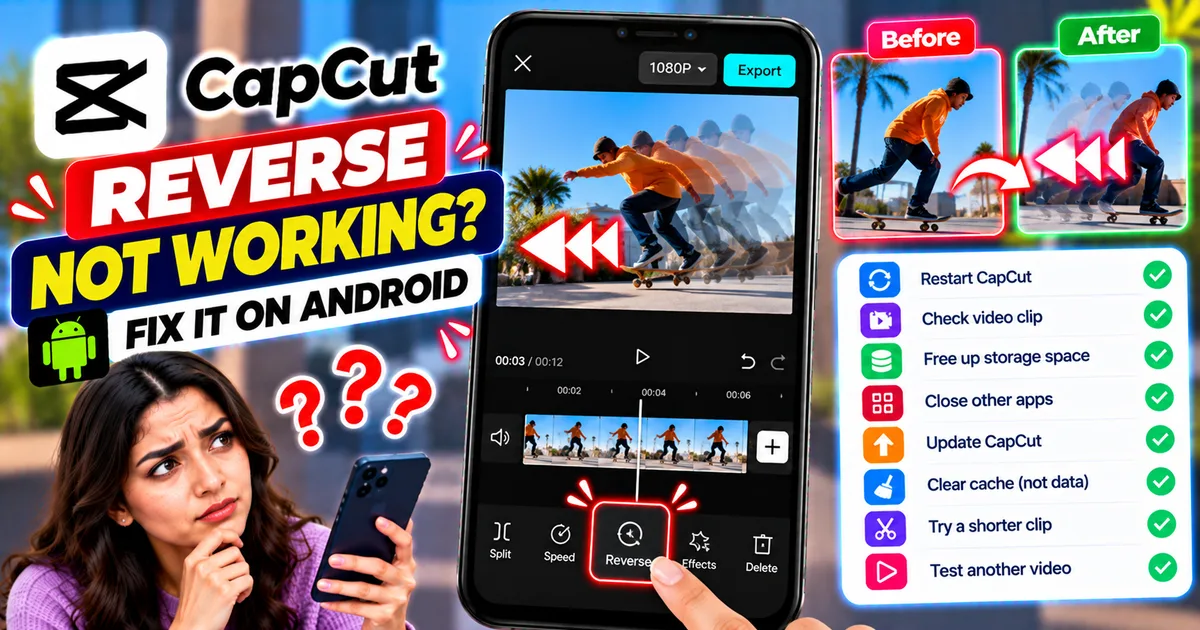
How to Fix CapCut Reverse Not Working on Android
Fix CapCut reverse not working on Android with practical steps for stuck processing, failed reverse effects, unsupported clips, low storage, and app issues.
GetApkFree Team