
This article is about
CapCut Premium
capcutdownload.com.pk · Tools
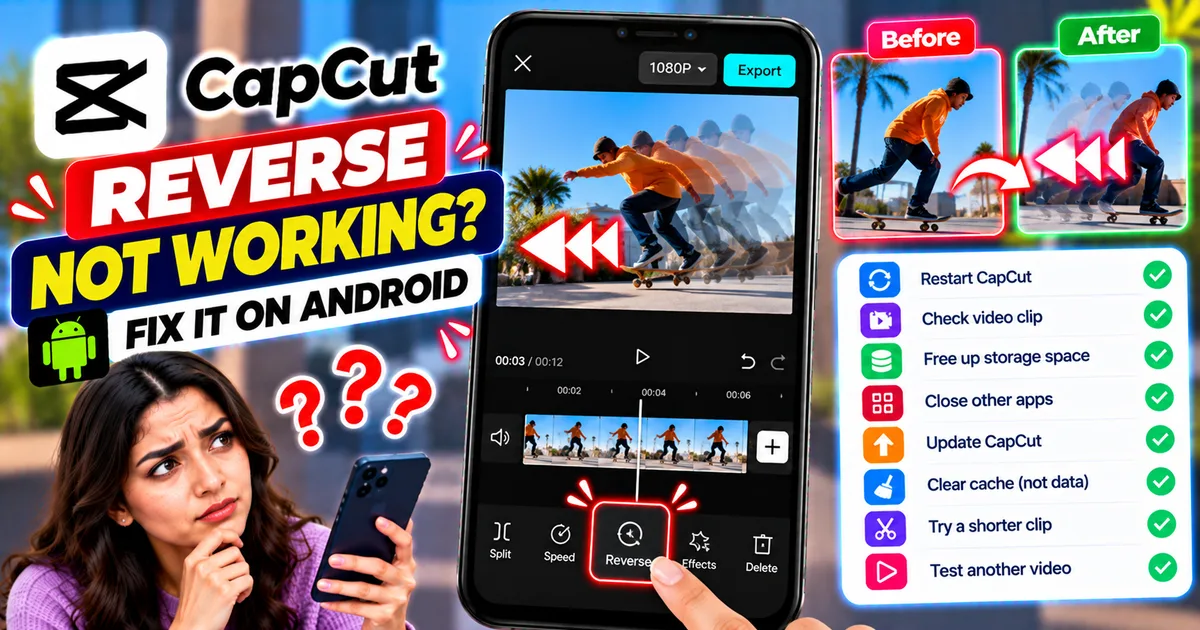
How to Fix CapCut Reverse Not Working on Android
GetApkFree Team
Fix CapCut reverse not working on Android with practical steps for stuck processing, failed reverse effects, unsupported clips, low storage, and app issues.
- Source
- Developer
- Package
- CapCut Premium
How to Fix CapCut Reverse Not Working on Android
CapCut's reverse feature lets you play a video clip backward, making it useful for creative transitions, rewind effects, action edits, and social media videos. However, the feature may sometimes fail to process a clip, remain stuck while reversing, or appear to do nothing after you tap Reverse.
If CapCut reverse is not working on your Android phone, the problem may be related to the video file, available storage, memory usage, complex editing effects, or an outdated app version. In some cases, the issue may be temporary.
This guide explains how to troubleshoot the problem step by step without unnecessarily deleting your editing projects.
Quick Answer: How to Fix CapCut Reverse Not Working
If the reverse effect is not working in CapCut on Android, try these solutions in order:
- Close CapCut and reopen it.
- Check that your video clip plays normally before reversing it.
- Free up storage space on your phone.
- Close other apps to free up memory.
- Temporarily remove heavy effects or speed adjustments from the clip.
- Update CapCut from an official app store or trusted official source.
- Restart your phone and try reversing a shorter clip.
- Clear CapCut's cache without deleting app data.
If the problem continues, test another video file to determine whether the issue affects one particular clip or the entire app.
Why Is CapCut Reverse Not Working on Android?
Before changing settings, identify the type of problem you are experiencing. Different symptoms can point to different causes.
1. Reverse processing gets stuck
CapCut may take longer to process large or high-resolution clips, especially when the phone has limited free memory or storage.
2. The reverse button does nothing
The app may be temporarily unresponsive, the selected clip may not be processing correctly, or the feature's location may have changed after an update.
3. The reverse effect fails on one video
A particular file may be damaged, unusually large, or incompatible with the editing operation. If other videos reverse successfully, investigate that specific clip first.
4. CapCut crashes when reversing a clip
Processing a demanding video alongside multiple effects can put pressure on available system resources. An app bug or an outdated version may also contribute.
5. The reversed clip looks incorrect
Sometimes the operation succeeds, but the result does not match your expectations because of the clip's audio, speed adjustments, or other timeline edits.
CapCut's official troubleshooting guidance discusses several of these potential causes, including limited device resources, large clips, complex effects, and outdated software.
Method 1: Restart CapCut and Try Again
A temporary app problem may prevent the reverse operation from starting or completing.
Follow these steps:
- Save your current project if possible.
- Exit the editing screen.
- Open your phone's recent-apps screen.
- Swipe CapCut away to close it completely.
- Launch CapCut again.
- Reopen your project.
- Select the video clip and try the Reverse feature again.
If the reverse operation now works, the problem was likely temporary.
Important: Make sure your project has been saved before closing the app. Do not assume every recent edit has been preserved automatically.
Method 2: Check Whether the Original Video Plays Normally
A video that cannot be decoded or played properly may also cause problems during editing.
To test the file:
- Open your phone's Gallery or Photos app.
- Locate the original video.
- Play it from beginning to end.
- Check whether playback freezes, shows a black screen, or stops unexpectedly.
- If the video behaves abnormally, try importing another copy of the file.
If you downloaded the clip from a messaging app or another platform, the file may have been compressed or incompletely downloaded.
When possible, use a complete local copy of the original video. If the source file is damaged, obtain a new copy before troubleshooting CapCut further.
Method 3: Free Up Storage Space
CapCut may need additional temporary space to process video edits. A phone that is nearly full can struggle with demanding operations.
How to free up storage
- Open Android Settings.
- Navigate to Storage. The exact location depends on your phone manufacturer.
- Check how much free space remains.
- Remove unnecessary downloads or files you no longer need.
- Move important videos to another storage location if appropriate.
- Reopen CapCut and test the reverse effect.
Avoid deleting original footage or project-related files unless you have verified that you no longer need them.
There is no single free-space requirement that applies to every video. Larger and higher-resolution clips may require more working space than short, low-resolution clips.
Method 4: Close Other Apps
Reverse processing can be demanding, particularly on phones with limited available memory.
To reduce the workload:
- Save your CapCut project.
- Close games, browsers, video players, and other demanding apps.
- Return to CapCut.
- Reopen the project.
- Try reversing the clip again.
If the operation succeeds after closing other apps, your phone may have been running short of available resources.
If CapCut continues to crash during processing, restart your phone before trying again.
Method 5: Temporarily Remove Heavy Effects
A clip with several effects, overlays, keyframes, or speed adjustments may be more difficult to process.
Try testing the reverse operation with a simpler version of the clip.
- Open your project in CapCut.
- Select the video clip you want to reverse.
- If the clip has multiple effects or speed adjustments, consider testing with a duplicate or a separate copy of the project.
- Temporarily remove unnecessary effects from the test clip.
- Open the clip's editing toolbar and locate Reverse.
- Start the reverse operation and wait for processing to finish.
- Preview the result.
If reversing works on the simplified clip, reintroduce the other edits gradually to identify whether a particular effect or adjustment causes the failure.
Editing tip: Preserve your original project before experimenting. Removing effects or changing a clip's speed can alter the appearance and timing of your edit.
Method 6: Try Reversing a Shorter Clip
A long video may take more time and resources to process than a short one.
Testing a smaller section can help determine whether clip size or processing load is contributing to the problem.
- Open your project.
- Select the video you want to reverse.
- Use the Split or Trim tools to create a short test segment, preferably in a separate copy of your project.
- Select that segment.
- Locate Reverse in the editing toolbar.
- Wait for processing to complete.
If the short segment reverses successfully but the original clip does not, try dividing the footage into smaller sections.
You can reverse the sections individually and arrange them on the timeline. However, check the sequence carefully: splitting and reversing separate sections does not always produce the same result as reversing the entire original clip.
Method 7: Update CapCut
An outdated app version may contain bugs or compatibility issues that affect editing tools.
To check for an update:
- Open the Google Play Store.
- Search for CapCut.
- Open the app's listing.
- If an Update button appears, tap it.
- Wait for the update to finish.
- Open CapCut and test the reverse effect again.
If no update is available, your installed version may already be current through that store, although releases can roll out gradually.
Use official distribution channels whenever possible. Avoid installing an unknown APK just to troubleshoot the reverse feature.
Method 8: Clear the CapCut Cache
Temporary cached files can occasionally contribute to app glitches. Clearing the cache is a reasonable troubleshooting step, but it will not fix every reverse-processing problem.
Option A: Clear cache inside CapCut
If your version provides this option:
- Open CapCut.
- Go to your profile or settings area.
- Look for Clear Cache.
- Follow the on-screen instructions.
- Close and reopen the app.
- Test the reverse feature again.
The location of settings may differ between app versions.
Option B: Clear cache through Android Settings
- Open Android Settings.
- Tap Apps or App Management.
- Find CapCut.
- Open Storage or Storage & cache.
- Select Clear cache, if available.
- Reopen CapCut and try again.
Do not tap Clear data, Clear storage, or a similarly named option by mistake. Those options can remove local app information and may put locally stored projects at risk. Back up important projects before performing any more extensive reset.
Method 9: Check Whether the Problem Affects Every Video
Testing another clip is one of the most useful ways to narrow down the cause.
Try these comparisons:
- Reverse a short video recorded directly on your phone.
- Try a different video that plays normally in Gallery.
- Test a clip without added effects or speed adjustments.
- Compare the results in a new test project rather than modifying your main edit.
If one clip fails but others work, investigate the original file or its editing complexity.
If every clip fails, the issue may be related to CapCut, your device's resources, or the installed app version.
This simple test can prevent you from repeatedly changing settings that are unrelated to the problem.
Method 10: Reimport the Video or Create a Test Project
If the original project continues to behave unexpectedly, test the same footage in a new project.
- Keep your existing project intact.
- Open CapCut and create a separate test project.
- Import the original video from your phone.
- Select the clip.
- Try the Reverse feature before adding any effects.
- Preview the result.
If the feature works in the new project, the issue may involve the original timeline, effects, or clip adjustments.
If the feature still fails, test a different source video and continue with the app and device troubleshooting steps.
Do not delete your original project simply because a test project works.
Method 11: Restart Your Android Phone
Restarting your phone can help resolve temporary system or memory problems.
- Save your editing project.
- Restart your Android phone.
- Wait until the phone has fully started.
- Open CapCut without launching several other apps.
- Load the project and try the reverse effect again.
This is particularly worth trying if CapCut was crashing, freezing, or becoming unresponsive during processing.
Method 12: Check for App or Feature Availability Issues
Sometimes a problem is not caused by your video file or phone.
CapCut's interface and feature availability can vary by version, platform, device, and region. If the Reverse option is missing, first check that you have selected the correct video clip and explored the available editing toolbar.
You can also review CapCut's official guide to why the Reverse feature may not work.
If the feature remains unavailable or fails on multiple clips after the basic troubleshooting steps, contact CapCut Support. Include your phone model, Android version, CapCut version, and a description of what happens when you tap Reverse.
Common Questions About CapCut Reverse on Android
Why is CapCut reverse stuck processing?
The clip may be too large or demanding for the available device resources. Close other apps, free up storage, restart CapCut, and test a shorter clip.
Why does CapCut crash when I reverse a video?
Possible causes include limited memory, demanding effects, a large video file, or a software issue. Restart your phone, simplify the clip, and update CapCut before trying again.
Why is the Reverse button missing in CapCut?
Make sure you have selected a video clip and inspect the editing toolbar. The location of tools can change between versions, so check CapCut's current interface and official help resources.
Does reversing a video also reverse its audio?
Do not assume that every reverse workflow will produce the audio result you want. Preview the processed clip and inspect the audio tracks. If you need the original sound to remain unchanged, keep a separate copy of the audio and adjust it independently.
Can I reverse a video without losing quality?
Reversing a clip does not automatically mean the output must look noticeably worse. However, the final result depends on the source footage, editing operations, export settings, and any compression applied during export.
Keep the original file and choose suitable export settings when you finish editing.
Will clearing CapCut's cache delete my projects?
Clearing the cache is different from clearing app data or storage. Nevertheless, you should save and back up important projects before troubleshooting. Avoid selecting Clear data or Clear storage unless you understand the consequences.
Why does Reverse work on one video but not another?
The videos may differ in length, resolution, file integrity, or editing complexity. Test both clips in a new project and compare the results before changing additional settings.
Should I reinstall CapCut if Reverse still does not work?
Reinstallation should be a last resort, not the first step. Confirm that your projects are safely backed up and that you understand where your local drafts are stored before uninstalling the app. Reinstallation may not resolve a problem caused by a particular source video or device limitation.
Final Thoughts
When CapCut Reverse is not working on Android, start with the simplest fixes: restart the app, test the original video, free up storage, close other apps, and try a shorter clip.
If those steps do not work, temporarily remove demanding effects, update CapCut, clear its cache carefully, and test the feature in a separate project. These checks can help you determine whether the problem comes from a specific video, your current project, or the app itself.
Protect your original footage and editing projects throughout the process. If the Reverse feature continues to fail across multiple videos, contact CapCut Support with your device and app details rather than repeatedly deleting data or installing unverified versions.
Related Articles
Truecaller Caller ID Not Showing on Android? How to Fix It
Truecaller Caller ID not showing on Android? Fix missing caller names and caller ID pop-ups by checking permissions, display-over-other-apps settling
GetApkFree Team
Gemini App Not Working on Android? How to Fix It
Gemini not working on Android? Fix “Something went wrong” errors, failed prompts, endless loading, and app problems with practical checks for your connection, app updates, cache, and Google account.
GetApkFree Team
Canva App Keeps Crashing on Android? How to Fix It
Canva keeps crashing, freezing, or closing unexpectedly on Android? Troubleshoot app updates, Android System WebView, internet problems, storage, cache, and device settings with these practical fixes.
GetApkFree Team
ChatGPT App Login Error on Android: How to Fix “Something Went Wrong”
Getting a “Something went wrong” error when logging in to ChatGPT on Android? Check Google Play Store updates, browser sign-in settings, connectivity, and other safe troubleshooting steps.
GetApkFree Team