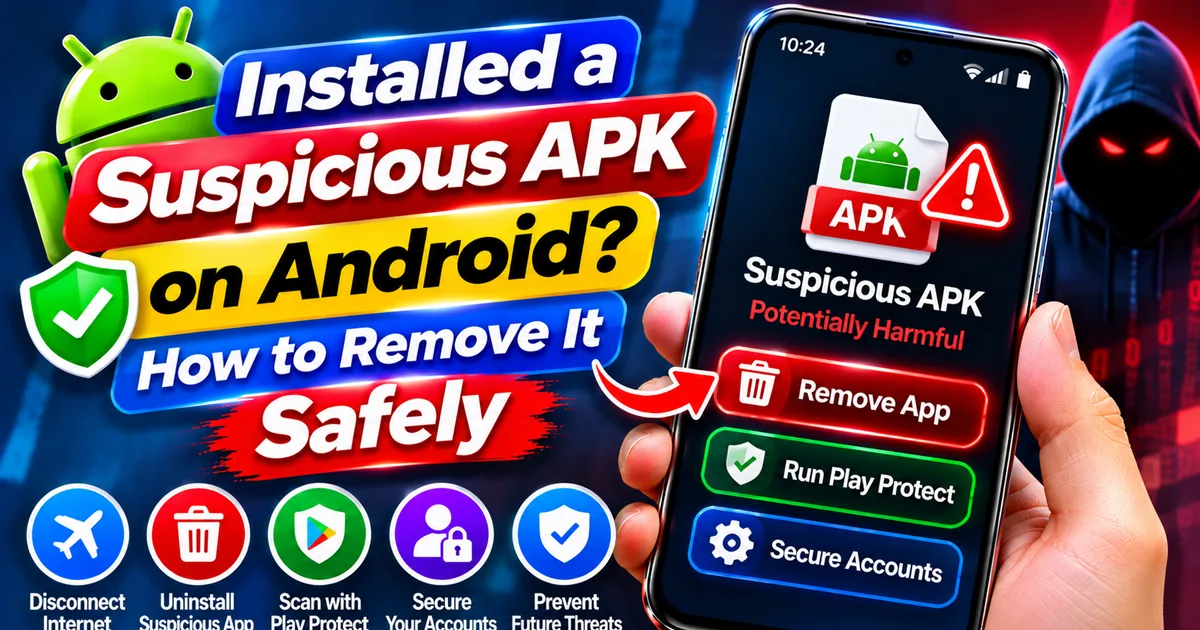
Installed a Suspicious APK on Android? How to Remove It Safely
GetApkFree Team
Installed a suspicious APK on your Android phone? Learn how to disconnect safely, remove malicious apps, run Google Play Protect, secure your banking accounts
Quick Answer
Installed a suspicious APK on your Android phone? Learn how to disconnect safely, remove malicious apps, run Google Play Protect, secure your banking accounts
Installed a Suspicious APK on Android? How to Remove It Safely
Did you recently install an APK file from WhatsApp, Telegram, SMS, or an unfamiliar website? Are you now seeing unusual pop-ups, unfamiliar apps, unexpected OTP messages, or suspicious activity on your phone?
You may have installed an unsafe Android application.
A malicious APK can sometimes steal personal information, access messages, collect banking credentials, or misuse permissions to perform unauthorized activities. Some fake applications even imitate legitimate banking, government, or payment applications.
This is particularly important for Android users in India, where cybercriminals have used fake KYC updates, traffic challans, electricity bills, and banking messages to distribute malicious APK files.
If you suspect that you installed a harmful APK, don't panic. Follow the steps below to secure your phone, remove suspicious applications, and protect your accounts.
Important: If you notice unauthorized banking transactions, do not wait until you finish every phone-cleaning step. Contact your bank immediately and report financial cyber fraud through India's official helpline 1930.
Quick Answer: What Should You Do After Installing a Suspicious APK?
If you believe you installed a malicious APK, follow this sequence:
- Disconnect your phone from Wi-Fi and mobile data if you suspect active unauthorized access.
- Do not open the suspicious application again.
- Check for unfamiliar applications in Android Settings.
- Remove suspicious applications and revoke dangerous permissions when necessary.
- Run a Google Play Protect scan.
- Update Android and Google Play system security.
- Secure your Google, email, banking, and messaging accounts using a trusted device.
- Contact your bank if financial information or transactions may be affected.
- Report financial cyber fraud through 1930 and cybercrime.gov.in.
- Consider a factory reset if the malware cannot be removed or suspicious activity continues.
The exact steps depend on what the suspicious application has done and which permissions it received.
- Disconnect Your Android Phone From the Internet
If you suspect that an installed APK is actively communicating with an attacker, temporarily disconnect the device from the internet.
Follow these steps:
- Swipe down from the top of your screen.
- Turn on Airplane mode.
- Check that Wi-Fi and mobile data are disabled.
- Do not open the suspicious application again.
- Avoid using the affected phone for banking or financial transactions.
You can also turn off Wi-Fi and mobile data individually.
CERT-In's March 2026 advisory about fake RTO and e-Challan APKs recommends disconnecting mobile data and Wi-Fi when a malicious application has already been installed.
Important: Disconnecting the internet is a temporary containment step. It does not remove malware or reverse information that may already have been stolen.
If money has been transferred without your permission, use another trusted phone to contact your bank and report the incident immediately.
- Identify the Suspicious APK You Installed
Before removing anything, try to identify the application that may have caused the problem.
Think about what happened before the unusual activity started.
Did you recently install an APK received through:
- Telegram
- SMS
- An unfamiliar website
- A fake Google Play download page
- A KYC update message
- A traffic challan notification
- A courier or electricity bill message
Check your installed applications:
- Open Settings.
- Tap Apps or App management.
- Select See all apps if available.
- Review the installed application list.
- Look for applications you do not remember installing.
- Check recently installed applications if your phone provides this option.
Pay attention to applications with names that imitate banks, government departments, courier companies, or popular services.
A malicious application may use a familiar name or icon to appear legitimate.
However, an unfamiliar application is not automatically malware. Some legitimate system applications have technical names that are difficult to recognize.
Do not uninstall essential system applications simply because you do not recognize them.
- Run a Google Play Protect Scan
Google Play Protect is Android's built-in application security system.
It checks applications for potentially harmful behaviour, including applications installed from sources outside Google Play.
You can run a manual scan.
How to Scan Your Android Phone
- Open the Google Play Store.
- Tap your profile picture in the top-right corner.
- Select Play Protect.
- Tap Scan.
- Wait for the scan to complete.
- Review any security warnings.
- Follow Google's recommended action if a harmful application is detected.
Enable Improved Harmful App Detection
If you install APK files from outside Google Play, check this additional setting:
- Open Google Play Store.
- Tap your profile picture.
- Select Play Protect.
- Tap the Settings icon.
- Enable Improve harmful app detection, if available.
This setting allows Play Protect to send unknown applications to Google for additional evaluation.
Keep Play Protect enabled.
Important: A clean scan does not prove that your phone is completely free of malware. Play Protect is an important security layer, but it cannot guarantee detection of every threat.
Official reference: "Google Play Protect Help" (https://support.google.com/accounts/answer/2812853).
- Uninstall the Suspicious Application
Once you identify the suspicious application, remove it from your phone.
Follow these steps:
- Open Settings.
- Tap Apps or App management.
- Select the suspicious application.
- Tap Uninstall.
- Confirm the action.
If the application appears in your app drawer, you may also be able to long-press its icon and select Uninstall.
However, some malicious applications may use special Android permissions to make removal more difficult.
What If the Uninstall Button Is Disabled?
Some applications may have Device Admin access or other special permissions.
If you cannot uninstall the application:
- Open Settings.
- Search for Device admin apps or Device administrators.
- Review the applications with administrator access.
- If the suspicious application appears, revoke its administrator permission.
- Return to the installed application list.
- Try uninstalling it again.
The exact menu location varies by Android manufacturer.
Only revoke access for an application you have identified as suspicious. Do not disable legitimate device-management or security applications without understanding their purpose.
If you are unsure which application controls an important device function, contact your phone manufacturer's support team.
- Check Accessibility and Other Sensitive App Permissions
Some malicious Android applications misuse powerful permissions to monitor activity or perform actions on the user's behalf.
CERT-In has documented mobile malware that abuses Android Accessibility Services and other device capabilities.
Review these settings carefully.
Check Accessibility Services
- Open Settings.
- Search for Accessibility.
- Open the installed or downloaded services section.
- Review which applications have Accessibility access.
- Disable access for applications you have identified as suspicious.
Check Display Over Other Apps
Some applications request permission to display content over other applications.
This capability can be misused to show fake login screens or misleading messages.
To review it:
- Open Settings.
- Go to Apps.
- Open Special app access, if available.
- Select Display over other apps.
- Review the applications with permission.
- Revoke access from suspicious applications.
Check Notification Access
Applications with notification access may be able to read notification content, depending on the permission and Android version.
Review this setting and disable access for untrusted applications.
Check SMS and Phone Permissions
Look for unfamiliar applications with access to:
- SMS
- Contacts
- Phone
- Call logs
- Notifications
Remove unnecessary permissions from applications you do not trust.
Do not assume that every application with these permissions is malicious. A legitimate messaging or phone application may need them for its normal operation.
- Use Safe Mode if You Cannot Remove the Suspicious App
If an application keeps restarting, displaying pop-ups, or interfering with normal phone operation, Safe Mode can help isolate the problem.
Android Safe Mode temporarily disables downloaded third-party applications.
The exact method differs by manufacturer and model.
On many Android phones:
- Open the power menu.
- Touch and hold the Power off option.
- Select Safe mode, if displayed.
- Wait for your phone to restart.
- Look for the Safe Mode indicator.
- Open Settings and review your installed applications.
- Try removing the suspicious downloaded application.
Some devices use a different button combination to enter Safe Mode. Check your manufacturer's official instructions if the method above does not work.
If the suspicious application cannot be removed even in Safe Mode, seek assistance from the device manufacturer or an authorized service centre.
Restart the phone normally to exit Safe Mode.
- Secure Your Google Account and Other Online Accounts
Removing a suspicious APK does not automatically secure accounts whose passwords or session information may already have been exposed.
If you suspect that the application accessed sensitive information, use another trusted device to secure your accounts.
Start with your Google Account.
Check Your Google Account Security
- Open a browser on a trusted device.
- Visit "Google Account Security Checkup" (https://myaccount.google.com/security-checkup).
- Review recent security activity.
- Check devices signed in to your account.
- Remove devices you do not recognize.
- Review third-party applications with account access.
- Change your password if you suspect it was exposed.
- Enable two-step verification.
Also review your email, social media, messaging, and other important accounts.
If you reuse the same password across multiple services, change those passwords to unique ones.
Important: Do not enter new passwords on the potentially compromised phone until you have reasonable confidence that it is safe to use.
- Protect Your Bank Account and UPI Applications
This is one of the most important steps if you installed an APK claiming to be a bank, KYC, payment, or government application.
Some Android banking malware attempts to steal banking credentials, read sensitive notifications, or misuse permissions.
Take these precautions:
- Contact your bank using its official customer-care number.
- Explain that you may have installed a malicious APK.
- Ask the bank to secure affected digital banking access.
- Review recent account transactions.
- Check UPI and payment application activity.
- Change exposed passwords and PINs using a trusted device.
- Follow your bank's instructions about blocking or reactivating payment services.
Never share your UPI PIN, banking password, card PIN, or OTP with a caller claiming to help you remove malware.
Banks do not need your OTP or UPI PIN to investigate a complaint.
What If Money Has Already Been Stolen?
Act immediately.
- Call 1930, India's cybercrime financial fraud helpline.
- Visit "https://cybercrime.gov.in/" (https://cybercrime.gov.in/).
- Contact your bank or payment provider.
- Preserve transaction IDs, screenshots, messages, and other evidence.
The faster you report a financial cyber fraud, the sooner the relevant authorities and financial institutions can begin the reporting and response process.
- Check Your Phone for Security and Software Updates
An outdated Android version may lack important security fixes.
After removing the suspicious application, check for available updates.
Check Android Updates
- Open Settings.
- Select System or Software update.
- Tap System update or the equivalent option.
- Check for available updates.
- Install updates provided by your device manufacturer.
Check Google Play System Updates
- Open Settings.
- Go to Security & privacy.
- Select System & updates if available.
- Check the Google Play system update section.
- Install available updates.
The menu names and update availability depend on your Android version and manufacturer.
Restart the phone after installing updates if requested.
- Remove Suspicious Files and Downloads
After uninstalling the application, review the files that were downloaded with it.
Examples include:
- APK installer files
- ZIP archives
- Unknown documents
- Fake KYC forms
- Suspicious attachments
- Unwanted downloaded files
Open your phone's Files application and review the Downloads folder.
Delete files that you have identified as suspicious or unnecessary.
Do not randomly delete files from Android system directories.
You can also refer to our existing guides:
- "How to Find APK Files on Android" (https://getapkfree.com/blog/how-to-find-apk-files-on-android)
- "How to Check If an APK Is Safe" (https://getapkfree.com/blog/how-to-check-if-apk-is-safe)
These guides can help you understand where downloaded APK files are stored and how to evaluate APK safety before installation.
- When Should You Factory Reset Your Android Phone?
A factory reset may be necessary if:
- A malicious application cannot be removed.
- Suspicious activity continues after uninstalling the application.
- Security problems repeatedly return.
- Your device continues behaving abnormally.
- Your manufacturer or security support team recommends resetting the phone.
However, a factory reset should be a last resort, not your first troubleshooting step.
Before Factory Resetting
Protect important information first:
- Save essential photos and documents.
- Verify that important backups are accessible.
- Secure your Google and financial accounts from a trusted device.
- Preserve evidence if a cybercrime investigation is involved.
- Follow your manufacturer's official reset instructions.
Avoid automatically restoring every application and setting from an old backup if you suspect the backup may reintroduce the problematic application.
After resetting:
- Install available Android updates.
- Keep Google Play Protect enabled.
- Install applications from trusted sources.
- Reinstall only the applications you actually need.
- Monitor your device for unusual behaviour.
If the problem returns even after a clean reset, stop repeating the reset process and contact the manufacturer or an authorized repair centre.
- How to Avoid Installing Malicious APK Files Again
Prevention is better than trying to recover a compromised phone.
Follow these safety practices:
Download From Trusted Sources
Prefer Google Play Store or the official developer website.
Avoid APK files distributed through unknown WhatsApp groups, Telegram channels, unsolicited SMS messages, and suspicious download pages.
Do Not Trust Urgent KYC Messages
Messages claiming that your bank account, SIM card, electricity connection, or government service will be blocked unless you install an APK are common social-engineering warning signs.
Verify such claims through the institution's official website or customer-support channel.
Review App Permissions
An application requesting SMS, Accessibility, contacts, or notification access should have a legitimate reason for needing that permission.
Do not approve sensitive permissions simply because an application asks you to do so.
Keep Play Protect Enabled
Play Protect checks applications and can warn you about potentially harmful software.
Verify APK Files Before Installation
If you download an APK, examine its source, developer, signature, and checksum where available.
Read these existing GetAPKFree guides:
- "How to Install APK Files on Android Safely" (https://getapkfree.com/blog/how-to-install-apk-files-on-android-safely)
- "How to Verify an APK SHA-256 Checksum" (https://getapkfree.com/blog/how-to-verify-apk-sha256-checksum)
A valid checksum comparison can help establish file integrity when you have a trustworthy reference checksum. It does not independently prove that an application is harmless.
Frequently Asked Questions
- How do I know if an APK is malicious?
Warning signs include an unexpected installation source, requests for unrelated sensitive permissions, persistent pop-ups, unfamiliar applications, and unusual account activity. However, no single symptom proves that an APK is malicious. Use Google Play Protect and investigate the application's source and permissions.
- Can an APK steal my bank details?
Yes. Malicious Android applications can be designed to collect banking credentials, access sensitive information, or misuse permissions. CERT-In has documented fake applications that imitate banking and government services.
- Can Google Play Protect remove malicious APKs?
Google Play Protect checks applications from Google Play and other sources. It may warn about harmful applications, disable them, or remove them. However, it cannot guarantee detection of every threat.
- What should I do if a suspicious APK cannot be uninstalled?
Check whether the application has Device Admin or other sensitive permissions. Revoke permissions only after identifying the suspicious app, then try uninstalling it. Safe Mode may help isolate third-party applications. Contact your manufacturer if removal remains unsuccessful.
- Does factory resetting remove Android malware?
A factory reset removes installed applications and local data from the device, which may remove many malware infections. However, it does not secure compromised online accounts or reverse financial transactions. Be careful when restoring applications from backups.
- Can a malicious APK read my OTP messages?
Some Android malware is designed to access SMS messages or notifications, depending on the permissions and capabilities it obtains. If you suspect this happened, secure your banking and other important accounts from another trusted device.
- Should I turn off the internet after installing a suspicious APK?
If you suspect active malicious activity, temporarily disconnect Wi-Fi and mobile data to limit network communication. This does not remove the malware. Continue with application removal, security checks, and account protection.
- What is the 1930 helpline used for?
1930 is India's helpline for reporting financial cyber fraud. If money has been transferred without authorization, contact your bank and call 1930 promptly. You can also report the incident through the official National Cyber Crime Reporting Portal.
- Is a phone slow or overheating always a sign of malware?
No. Slow performance and overheating can have ordinary causes, including demanding applications, low storage, poor network coverage, and aging hardware. Investigate multiple warning signs together rather than assuming that one symptom confirms an infection.
- Can I use my banking app after removing a suspicious APK?
First secure your device and accounts. Contact your bank if banking credentials or OTPs may have been exposed. Follow its instructions before using affected banking or payment services again.
Final Thoughts
Installing a suspicious APK does not automatically mean that your phone or bank account has been compromised. However, it is important to respond carefully rather than ignoring unusual activity.
Disconnect the device temporarily if you suspect active malware, identify and remove suspicious applications, run Google Play Protect, review sensitive permissions, and secure important accounts using a trusted device.
If financial information or money is involved, contact your bank immediately and report the incident throug
Related Articles
Fake e-Challan APK Scam in India: How to Identify Fake Traffic Fine Messages
Received an e-Challan SMS or WhatsApp message asking you to download an APK? Learn how to spot fake traffic fine scams
GetApkFree Team
How to Block Spam Calls and SMS on Android in India (2026 Guide)
Getting unwanted calls and spam SMS on Android? Learn how to block callers with Google Phone and Samsung, filter spam texts, activate TRAI DND.
GetApkFree Team
Truecaller Caller ID Not Showing on Android? How to Fix It
Truecaller Caller ID not showing on Android? Fix missing caller names and caller ID pop-ups by checking permissions, display-over-other-apps settling
GetApkFree Team
Gemini App Not Working on Android? How to Fix It
Gemini not working on Android? Fix “Something went wrong” errors, failed prompts, endless loading, and app problems with practical checks for your connection, app updates, cache, and Google account.
GetApkFree Team