How to Install APK Files on Android Safely: A Complete Guide
GetApkFree Team
Learn how to install APK files on Android safely: how to check an APK is trustworthy, enable unknown sources correctly, scan before installing, and fix common errors.
Quick Answer
Learn how to install APK files on Android safely: how to check an APK is trustworthy, enable unknown sources correctly, scan before installing, and fix common errors.
If you've ever tried to install an app that isn't available in your region, or wanted to try a build that hasn't hit the Play Store yet, you've probably run into the term "APK." Installing one isn't complicated, but doing it safely takes a bit more care than tapping "Download" and hoping for the best.
This guide covers what an APK actually is, when installing one manually makes sense, how to tell a safe file from a risky one, and how to fix the errors people run into most often — written for real Android users, not search engines. If you just want the short version, our quick install walkthrough covers the same core steps.
What Is an APK File?
APK stands for Android Package Kit. It's the file format Android uses to distribute and install apps — every single app on your phone, including the ones you got from the Play Store, arrived as an APK at some point. The Play Store just handles the download and installation for you automatically, so most people never see the file itself.
An APK is essentially a compressed archive: the app's compiled code, its resources (images, layouts, sounds), a manifest describing what permissions it needs, and a digital signature identifying the developer. That signature matters — Android uses it to verify the app hasn't been tampered with, and to confirm an update comes from the same developer as the original install.
When people talk about "installing an APK," they usually mean installing an app from a file directly, instead of through the Play Store. This is often called sideloading.
When Might You Need to Install an APK Manually?
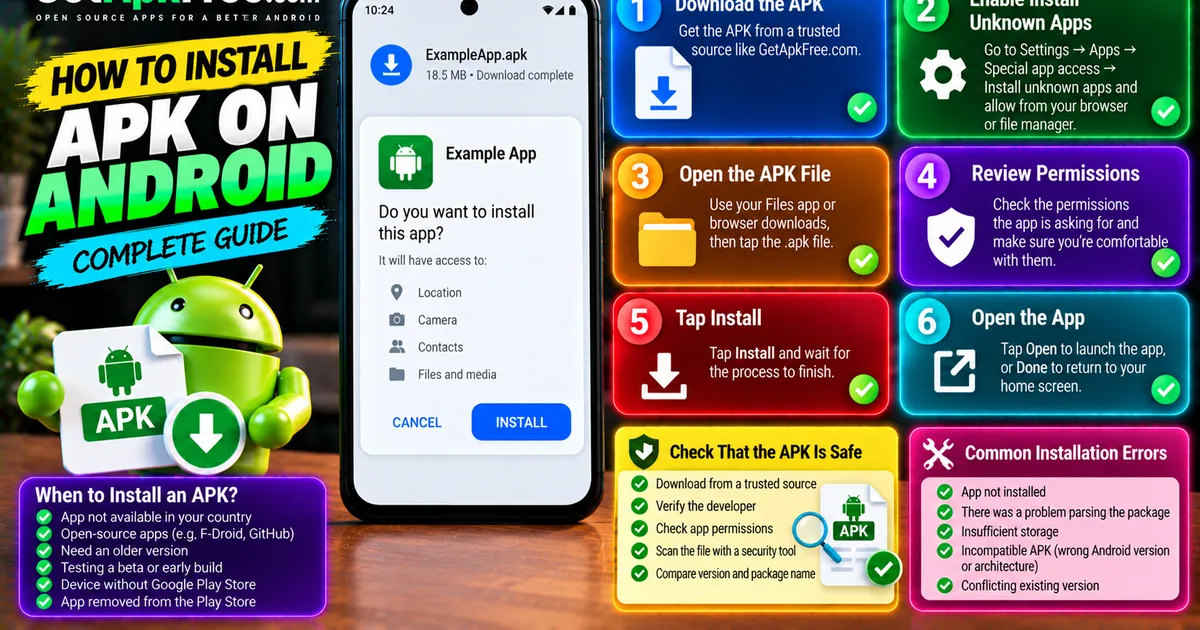
Manually installing an APK is normal and legitimate in a number of situations:
- The app isn't listed in your country. Some apps are region-locked on the Play Store for licensing or regulatory reasons, even though the developer distributes the APK directly.
- The app is open-source. Many privacy-focused Android apps are published through F-Droid, GitHub releases, or the developer's own site instead of (or alongside) the Play Store — our own Tools category is a good place to browse ones that are already scanned and hosted here.
- You need an older version. An update might have removed a feature you rely on — some developers keep older release APKs available for exactly this reason.
- You're testing a beta or early build, shared directly by the developer ahead of a public rollout.
- Your device doesn't have Google Play services. Some tablets, TVs, and budget phones ship without the Play Store, so APK installation is the normal way to get any app.
- The app was removed from the Play Store, but the developer still distributes it directly.
None of these are edge cases — they're common, everyday reasons people install APKs. The difference between a safe sideload and a risky one is almost always where the file came from.
How to Check Whether an APK Is Trustworthy
Before you get to the installation steps below, it's worth making sure the file itself deserves your trust — where it came from, who actually built it, and whether its permissions match what it claims to do. That's a big enough topic to cover properly on its own: see our guide on how to tell if an APK is safe for the full framework, including how to check the source, verify the developer, and scan the file before installing.
Step-by-Step: How to Install an APK on Android
Once you're confident the file comes from a source you trust, the actual APK installation process is short.
- Download the APK from the trusted source, using your phone's browser or a file transfer from your computer.
- Open your Files app (or your browser's Downloads screen) and locate the downloaded
.apkfile. - Tap the file to begin installation.
- If this is the first time you're installing from that app (usually your browser or file manager), Android will prompt you to allow installs from this source — more on this in the next section.
- Review the permissions screen Android shows you, and confirm you're comfortable with what the app is asking for.
- Tap Install and wait for the process to finish.
- Tap Open to launch the app, or Done to return to your home screen.
That's the entire APK installation flow. The extra care happens before step 1, in deciding whether the file is worth installing at all.
How to Enable "Install Unknown Apps" Safely
Since Android 8 (Oreo), the system no longer has a single global "unknown sources" toggle. Instead, permission is granted per app — meaning you specifically allow your browser, file manager, or another app to install APKs, rather than opening the door for anything on your phone to do so.
Here's how to enable it correctly:
- Go to Settings.
- Search for or navigate to Apps → Special app access → Install unknown apps (the exact wording varies slightly by manufacturer).
- Select the app you'll use to open the APK — typically your browser or Files app.
- Toggle on Allow from this source.
A few good habits: only enable this for the specific app you're actually using, not every app on the list; consider turning it back off afterward if you don't sideload regularly; and know that it doesn't disable any other security feature — it only lets that one app trigger installs.
How to Scan an APK Before Installing It
Scanning a file for malware and confirming you trust it belongs before you tap install, not after. Our guide on evaluating whether an APK is safe covers how to scan with a multi-engine tool, compare checksums, and read Play Protect's warnings correctly — worth a look if you haven't already.
If Android or Play Protect blocks the install itself, don't just dismiss the warning — the troubleshooting section below covers what a block usually means.
Common Android Installation Errors and Solutions
Even a legitimate APK can fail to install. Here are the errors people run into most often, and what they usually mean.
"App not installed"
This generic error has a few common causes:
- A different version is already installed with a different signature. If you previously installed the app from the Play Store and are now sideloading a version from elsewhere, Android blocks it because the signatures don't match. Uninstall the existing version first (back up any data you need), then try again.
- The download is incomplete or corrupted. Delete the file and download it again.
- Not enough storage space. Free up space and retry.
"Parse error" or "There was a problem parsing the package"
This usually means the file itself is damaged, incomplete, or not a valid APK. Re-download it from the original source rather than trying to fix the existing file.
"App isn't compatible with your device"
Some APKs are built for a specific processor architecture or a minimum Android version. Check the app's listed requirements against your device's Android version (Settings → About phone) before installing.
Blocked by Play Protect
If Play Protect flags a file, it's worth pausing rather than dismissing the warning immediately. You can view the scan details and choose to proceed, but only do so if you're confident in the source — this is exactly the kind of warning that exists to catch real problems.
Installation blocked by device policy
On work or managed devices, an IT policy may block sideloading entirely. This isn't a bug — it's a deliberate restriction, and you'd need to check with whoever manages the device.
How to Uninstall an APK-Installed App
An app installed from an APK uninstalls exactly the same way as one from the Play Store:
- Long-press the app's icon on your home screen or app drawer.
- Tap Uninstall (or drag it to the uninstall option, depending on your launcher).
- Confirm when prompted.
Alternatively:
- Open Settings → Apps.
- Find and tap the app.
- Tap Uninstall.
Uninstalling removes the app and, in most cases, its data. If you want to reinstall the same app later, you'll need the APK file again (or the Play Store listing, if it has one).
Security Mistakes to Avoid
One habit specific to sideloading is worth calling out: unlike Play Store apps, a sideloaded app doesn't update itself automatically, so it's on you to check back for new versions and security fixes.
Frequently Asked Questions
Is it legal to install APK files? Yes. APK installation is a normal, supported feature of Android. What matters is where the file comes from and whether you're authorized to use the app it contains — installing unauthorized copies of paid software is a separate issue from sideloading in general.
Is it safe to install APK files on Android? It can be, as long as you're deliberate about the source, check permissions, and scan the file first. The steps in this guide are how to bring that risk close to what you'd get installing from the Play Store.
Do I need an antivirus app to install APKs safely? Not necessarily. Play Protect already scans sideloaded apps on most devices. A separate scan through a tool like VirusTotal before installing adds a useful second opinion for files from less-established sources.
Why does Android say "app not installed" even though the file downloaded fine? Most often it's a signature mismatch with an existing install, insufficient storage, or a corrupted download. See the troubleshooting section above.
Can I install an APK without enabling "install unknown apps"? No — Android requires you to explicitly allow the specific app you're using (browser, file manager, etc.) to install packages from outside the Play Store. This is a deliberate safeguard, not an inconvenience to work around.
Where should I get APKs for paid apps? From the Play Store, the developer's official store, or another source you're authorized to purchase from. Sideloading is meant for legitimate use cases like open-source apps, region availability, and beta testing — not for bypassing payment on software you haven't purchased.
Final Thoughts
Installing an APK isn't inherently risky — it's a standard part of how Android works, and there are plenty of legitimate reasons to do it. The habits that keep it safe are simple: check the source first, read what permissions an app is asking for, scan the file if you're unsure, and leave "install unknown apps" turned on only for the app you're actively using.
Do that consistently, and installing an APK is no riskier than installing anything from the Play Store.
Related Articles
Roblox Not Loading Games on Android? How to Fix It
Roblox games not loading on Android? Fix endless loading screens, failed connections, and games that close unexpectedly with practical checks for your network.
GetApkFree Team
Reddit Notifications Not Working on Android? How to Fix It
Reddit notifications not working on Android? Fix missing replies, comment alerts, chat notifications, and delayed updates by checking Reddit settings,
GetApkFree Team
Snapchat Camera Not Working on Android? How to Fix It
Is Snapchat’s camera showing a black screen or refusing to take photos on Android? Check camera permissions, update the app, clear its cache, and follow these practical troubleshooting steps.
GetApkFree Team
Pinterest Images Not Loading on Android? How to Fix It
Pinterest images not loading on Android? Fix blank Pins, missing pictures, endless loading, and feed problems with these practical troubleshooting steps.
GetApkFree Team