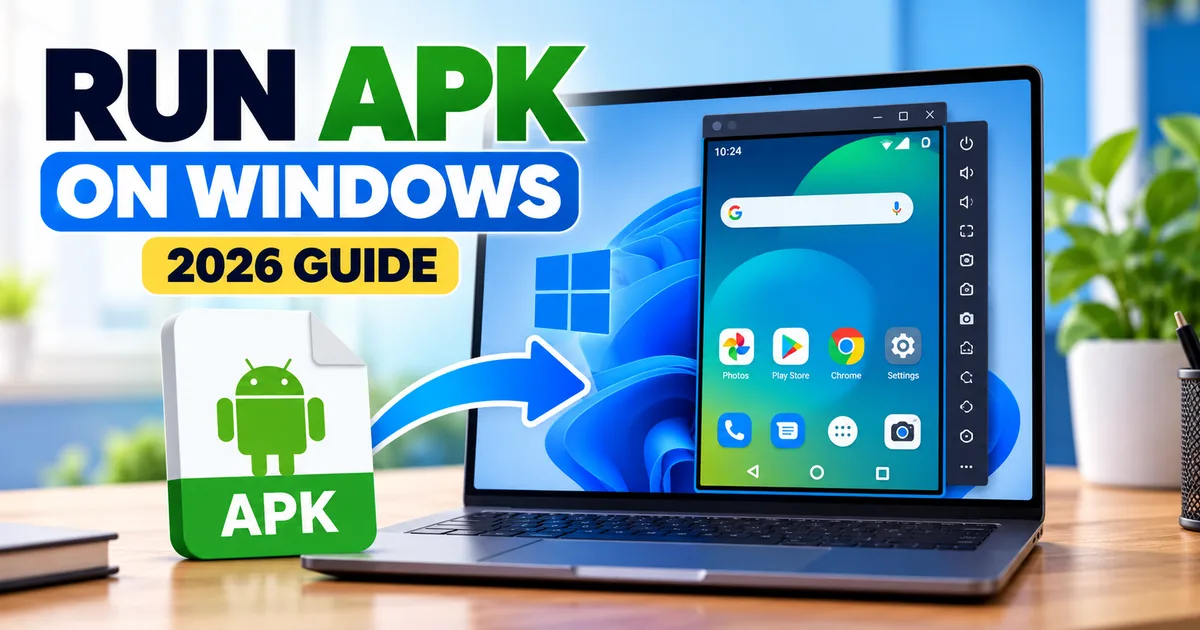
How to Run APK Files on a Windows PC in 2026
GetApkFree Team
Learn how to run APK files on a Windows PC using an Android emulator, install APKs manually, and understand why Windows Subsystem for Android is no longer available.
Quick Answer
Learn how to run APK files on a Windows PC using an Android emulator, install APKs manually, and understand why Windows Subsystem for Android is no longer available.
How to Run APK Files on a Windows PC in 2026
If you have an Android APK file on your Windows PC, you may want to open it and use the Android app without transferring it to your phone.
Windows does not natively install Android APK files like regular .exe or .msi programs. The practical way to run an APK on a Windows PC is to use an Android environment such as an Android emulator.
There is also an important change for Windows users: Windows Subsystem for Android (WSA) and the Amazon Appstore were removed from the Microsoft Store on March 5, 2025. Older guides that recommend WSA as the normal way to run Android apps on Windows are therefore outdated.
This guide explains how APK files can be run on Windows today, how to install an APK in an Android emulator, and what to do when an APK does not work.
Can Windows Run APK Files Directly?
No.
An APK is an Android application package. Windows does not normally treat .apk files as native Windows applications.
For comparison:
| File type | Normally used on |
|---|---|
.apk |
Android |
.exe |
Windows |
.msi |
Windows |
.dmg |
macOS |
.ipa |
iPhone/iPad |
If you double-click an APK in Windows, Windows does not install it as a normal Windows program.
To use the Android application, you need an Android environment running on the PC.
What Happened to Windows Subsystem for Android?
Windows 11 previously included support for Android applications through Windows Subsystem for Android.
However, Microsoft ended availability of Windows Subsystem for Android and the Amazon Appstore through the Microsoft Store on March 5, 2025.
That means many older tutorials that tell users to install WSA and then run Android apps should no longer be treated as current instructions.
If you find an old tutorial recommending WSA, check its publication date before following it.
The Current Option: Android Emulator
An Android emulator creates a virtual Android device on your Windows computer.
Google's Android Emulator is included with Android Studio. It can simulate Android devices and different Android versions and can be used to install APK files manually.
You can create a virtual Android device, start it, and then install your APK inside that virtual environment.
This is particularly useful when you want to test an APK without using your physical Android phone.
What You Need
For Google's Android Emulator, your PC needs suitable hardware and virtualization support.
Google currently lists 16 GB RAM and 16 GB disk space among the recommended system requirements for the emulator, along with a supported 64-bit operating system. Higher API levels and larger virtual devices can require more resources.
Your actual experience will depend on your processor, graphics hardware, storage, available memory, and virtualization configuration.
If your computer is relatively old or has limited RAM, an Android emulator may feel slow even when it technically runs.
How to Run an APK on Windows Using Android Studio
Step 1: Install Android Studio
Download and install Android Studio from the official Android Developers website.
Android Studio includes the Android Emulator, so you do not normally need to install the emulator as a completely separate application.
After installation, open Android Studio.
Step 2: Open Device Manager
In Android Studio, open the Device Manager.
The Device Manager lets you create and manage Android Virtual Devices, commonly called AVDs.
An AVD defines the virtual device's hardware and Android system image.
Step 3: Create a Virtual Android Device
Choose the option to create a new virtual device.
Select a suitable device profile and Android system image.
For a general-purpose test, you can use a standard phone profile.
The available Android versions and system images depend on what you have installed through the Android SDK.
Step 4: Start the Emulator
Start the virtual device.
The emulator opens a window that behaves like an Android device.
You can use your mouse to interact with the virtual touchscreen and your keyboard to enter text.
The first startup may take longer than later launches.
How to Install an APK in the Android Emulator
Once the emulator is running, installing a standalone APK is straightforward.
Method 1: Drag and Drop
This is usually the simplest method.
- Start the Android Emulator.
- Find the APK file on your Windows PC.
- Drag the APK onto the emulator window.
- Android's APK installation dialog appears.
- Wait for the installation to finish.
- Open the app from the emulator's application list.
Google's Android documentation specifically supports installing an APK on the emulator by dragging the APK file onto the emulator screen.
You do not need to copy the APK into a particular Windows folder first.
Method 2: Install the APK With ADB
Advanced users can also use Android Debug Bridge, commonly called ADB.
With the emulator running and available to ADB, a basic installation command looks like:
adb install "C:\path\to\your-app.apk"
Replace the example path with the actual location of your APK.
For example:
adb install "C:\Users\John\Downloads\example-app.apk"
The exact command may differ when multiple Android devices or emulators are connected.
Google documents ADB as another way to install applications on an Android virtual device.
If you are new to ADB, the drag-and-drop method is usually easier.
What Happens After the APK Is Installed?
After installation, the app appears in the Android environment just as an installed application would appear on an Android device.
You can:
- Open the application.
- Navigate through its interface.
- Enter text with your keyboard.
- Use the mouse as a touchscreen pointer.
- Test supported Android features.
- Uninstall the app from the virtual device.
However, not every Android application will behave exactly like it does on a physical phone.
Why Some APKs Do Not Work in an Emulator
An APK can install successfully and still fail to work correctly.
Several things can cause this.
1. The App Requires Specific Hardware
Some Android applications depend on hardware or sensors that may not be available or may behave differently in an emulator.
Examples can include:
- Certain cameras
- Specialized sensors
- Bluetooth hardware
- GPS-related behavior
- Biometric hardware
- Telephony functions
The emulator can simulate some device capabilities, but simulation is not identical to having the physical hardware.
2. CPU Architecture
Android applications can contain native code compiled for particular processor architectures.
An APK designed for one architecture may not work correctly in a virtual device using another architecture.
This is one reason understanding APK variants and device-specific builds can be useful when troubleshooting compatibility.
3. Google Play Services
Some applications depend on Google Play services or other Google components.
Whether those components are available depends on the Android system image used by your virtual device.
If an application expects a Google-enabled environment and your virtual device does not provide the required services, the application may not behave as expected.
4. Android Version
An application may require a particular Android version or API level.
If the virtual device is too old, installation or runtime behavior may fail.
If the APK requires newer Android functionality than your virtual device provides, creating another AVD with a newer Android version may resolve the compatibility issue.
5. The APK Is Not a Complete Package
Not every Android application is distributed as one standalone APK.
Some applications use split APKs or other package formats.
If you have an XAPK, APKM, or another package containing multiple components, simply dragging one file into the emulator may not be enough.
See our guide on APK vs XAPK vs APKM to understand the differences between these formats.
Can You Run Any APK on Windows?
No.
An emulator provides an Android environment, but it does not guarantee that every Android application will work.
An APK can fail because of:
- Android version requirements
- CPU architecture
- Missing Google services
- Required hardware
- Application restrictions
- Incompatible package components
- Unsupported features
- Network or account requirements
Compatibility should therefore be checked before assuming that an APK will work perfectly on a Windows PC.
Is an Android Emulator the Same as a Real Android Phone?
No.
An emulator is a virtual Android device running on your computer.
It can reproduce many Android behaviors, but it does not provide exactly the same hardware or environment as a physical smartphone.
For example, a real phone may have:
- Physical cameras
- Cellular connectivity
- A fingerprint sensor
- Specific GPS hardware
- Device-specific graphics hardware
- Manufacturer-specific software
The emulator provides virtualized or simulated equivalents where supported.
This distinction matters especially for apps that depend heavily on device hardware.
Can You Install APKs Without Android Studio?
Yes, depending on the Android environment you choose.
Android Studio is Google's official development environment and includes the Android Emulator, but other Android emulation solutions exist.
If your goal is simply to run Android applications rather than develop Android software, you may prefer an emulator designed primarily for end-user application use.
However, the exact features, Android versions, Google services, performance, and APK compatibility vary between emulator products.
Before installing any third-party emulator, download it from its official source and check its current requirements.
How to Check an APK Before Running It
Running an APK inside an emulator does not automatically make the file trustworthy.
Before opening an unfamiliar APK, consider checking:
Package Name
The package name identifies the Android application internally.
You can learn more in our guide to APK package names and how to verify them.
Version
Check the APK's version name and version code where available.
This helps you understand exactly which release you have.
Our guide explains APK version names and version codes.
File Integrity
If a trusted source publishes a SHA-256 checksum for the exact APK, you can calculate the file's SHA-256 hash and compare the complete value.
A matching checksum tells you that your file has the same contents as the file represented by that trusted reference. It does not, by itself, prove that the application is safe.
Permissions
Review the permissions requested by the application when appropriate.
Permissions can provide useful context, although they cannot reveal everything an application does at runtime.
For a broader checklist, see our guide on how to tell if an APK is safe.
What If the APK Says "App Not Installed"?
If you are installing an APK in an Android environment and receive an installation error, do not assume that the APK itself is necessarily broken.
Possible causes include:
- Incompatible Android version
- Unsupported architecture
- Conflicting package
- Invalid or incomplete APK
- Signing mismatch
- Missing required components
- Insufficient emulator storage
Our guide to why Android says "App not installed" covers the common causes in more detail.
Can You Play Android Games With an Emulator?
Some Android games can run in an emulator, but compatibility and performance vary.
Games can place much higher demands on:
- CPU
- GPU
- RAM
- Storage
- Input handling
An emulator can also behave differently from a physical Android gaming device.
If a game is designed around touch controls, you may need to configure keyboard or mouse controls where supported by the emulator.
Can You Use the Google Play Store in an Emulator?
Some Android Emulator system images include Google Play support.
Google's Android Emulator documentation describes virtual devices with different configurations, including configurations that can access Google Play.
The availability of Google services depends on the system image and virtual-device configuration you choose.
If an app requires Google Play services, choose an appropriate system image rather than assuming every AVD has identical capabilities.
Android Emulator vs Windows APK Installation
The important difference is simple:
| Method | Runs Android apps? | Current relevance |
|---|---|---|
| Windows directly | No | Not a native APK solution |
| Windows Subsystem for Android | No longer available through Microsoft Store | Discontinued |
| Android Emulator | Yes | Current option |
| Physical Android phone | Yes | Best for real-device behavior |
The Android Emulator is particularly useful when you want to test an APK without moving it to a physical phone.
A Simple APK-on-Windows Checklist
Before running an APK on Windows:
- Confirm that the file really is an APK.
- Check the app's package name and version.
- Check compatibility requirements.
- Use an appropriate Android system image.
- Start the Android Emulator.
- Drag the APK onto the emulator or install it with ADB.
- Wait for installation to complete.
- Open the app from the emulator.
- If it fails, check Android version, architecture, package type, and required services.
- Do not assume that successful installation means the APK is trustworthy.
Frequently Asked Questions
Can I open an APK directly on Windows?
Not as a normal Windows application. An APK is an Android package, so you need an Android environment such as an emulator to run it on Windows.
Can Windows 11 run APK files?
Windows 11 does not natively install APK files like Windows .exe applications. An Android emulator can provide an Android environment in which the APK can be installed.
Is Windows Subsystem for Android still available?
Microsoft states that Windows Subsystem for Android and the Amazon Appstore were no longer available in the Microsoft Store starting March 5, 2025.
What is the easiest way to install an APK in an Android emulator?
With Google's Android Emulator, you can drag the APK file directly onto the emulator window. Android then displays its APK installation dialog.
Can I install an APK using ADB?
Yes. ADB can install an APK on a running Android virtual device. A basic command is adb install "path-to-file.apk".
Why does an APK install but not open?
The app may require a different Android version, processor architecture, Google services, hardware feature, or another component that the virtual device does not provide.
Can I run every Android app on Windows with an emulator?
No. Emulator compatibility varies by application. Apps that depend on specific hardware, services, architecture, or device features may not work correctly.
Is an APK safe because it runs successfully in an emulator?
No. Successful installation only tells you that the APK was accepted by that Android environment. It does not prove that the file is safe or trustworthy.
Final Takeaway
Running an APK on a Windows PC requires an Android environment rather than Windows treating the APK as a native Windows program.
In 2026, Google's Android Emulator provides a documented way to create a virtual Android device and manually install APK files. You can drag an APK onto the emulator or use ADB when you need a command-line method.
Windows Subsystem for Android is no longer the current route because Microsoft ended its availability through the Microsoft Store in March 2025.
Before running an APK, check its source, package name, version, compatibility, and other relevant details. If the application does not work in the emulator, investigate compatibility and required services rather than assuming the APK itself is defective.
Related Articles
Roblox Not Loading Games on Android? How to Fix It
Roblox games not loading on Android? Fix endless loading screens, failed connections, and games that close unexpectedly with practical checks for your network.
GetApkFree Team
Reddit Notifications Not Working on Android? How to Fix It
Reddit notifications not working on Android? Fix missing replies, comment alerts, chat notifications, and delayed updates by checking Reddit settings,
GetApkFree Team
Snapchat Camera Not Working on Android? How to Fix It
Is Snapchat’s camera showing a black screen or refusing to take photos on Android? Check camera permissions, update the app, clear its cache, and follow these practical troubleshooting steps.
GetApkFree Team
Pinterest Images Not Loading on Android? How to Fix It
Pinterest images not loading on Android? Fix blank Pins, missing pictures, endless loading, and feed problems with these practical troubleshooting steps.
GetApkFree Team