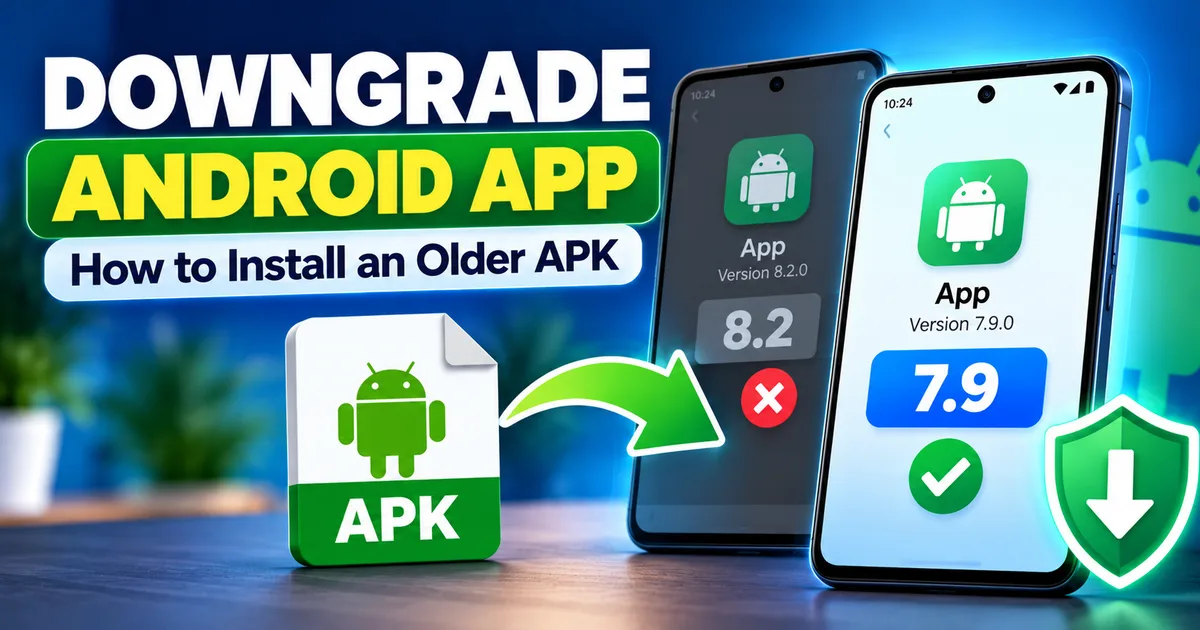
How to Downgrade an Android App Using an Older APK
GetApkFree Team
Learn how to downgrade an Android app using an older APK, what happens to your app data, why Android blocks downgrades, and what to check before installing an older version.
Quick Answer
Learn how to downgrade an Android app using an older APK, what happens to your app data, why Android blocks downgrades, and what to check before installing an older version.
How to Downgrade an Android App Using an Older APK
Sometimes the newest version of an Android app isn't the version you want to use.
A new update may change the interface, remove a feature you liked, introduce a bug, increase the app's size, or simply behave differently from the version you were comfortable with. In those situations, you may want to install an older APK and return to a previous version.
This process is called downgrading an Android app.
However, downgrading is different from installing a normal APK update. Android normally prevents an older version from replacing a newer version because the older APK has a lower version code. There can also be signing, package, compatibility, and app-data issues.
This guide explains what to check before downgrading, how the process works, when uninstalling is necessary, and how to avoid losing important app data.
What Does Downgrading an Android App Mean?
Downgrading means replacing the version of an installed Android app with an older release.
For example:
- Currently installed: App version 8.2
- Older APK: App version 7.9
- Goal: Return from 8.2 to 7.9
A normal APK update moves in the opposite direction. Android normally expects the incoming version to have a version code that is equal to or higher than the installed version.
That is why simply downloading an old APK and tapping it may result in an error such as "App not installed."
Downgrading is therefore a more complicated process than installing a newer APK.
Why Would You Want to Downgrade an Android App?
There are several legitimate reasons someone might prefer an older version.
A New Update Introduced a Bug
An application may work correctly before an update but start crashing, freezing, or behaving unexpectedly afterward.
Returning to an earlier release can sometimes help determine whether the problem is related to the newer version.
A Feature Was Changed or Removed
Developers sometimes redesign interfaces or change how features work.
If an older version provides functionality that is no longer available in the latest release, you may want to return to that version.
The New Version Requires a Newer Android Version
Some releases increase their minimum Android requirement. If your phone cannot run the newest release, an older compatible version may be an option.
You should still check the APK's Android requirements before installing it.
The New Version Uses More Storage or Resources
A newer release may be larger or behave differently on older hardware.
An older version can sometimes be a better fit for a particular device, although older software may also lack important security and compatibility fixes.
Why Does Android Block APK Downgrades?
Android uses version information to determine whether an APK represents an update.
One important field is called versionCode.
The version name is the human-readable version, such as:
7.9.0
The version code is an internal number used by Android to compare releases.
For example:
| Release | Version name | Version code |
|---|---|---|
| Older release | 7.9.0 | 709000 |
| Newer release | 8.2.0 | 802000 |
If version 8.2.0 is already installed, Android normally won't accept a package with a lower version code through the ordinary installation path.
This protection helps prevent an installed application from being silently replaced with an older release.
Check Your Installed App Version Before Downgrading
Before looking for an older APK, find out exactly which version is currently installed.
The menu names can differ between Android phones, but a common path is:
- Open Settings.
- Tap Apps or Apps & notifications.
- Find and select the application.
- Open its app information page.
- Look for the version information.
Write down the installed version.
For example:
Installed version: 8.2.0
You should then look for an older release such as 8.1.5 or 7.9.0 rather than choosing an APK only because its filename looks older.
Version Name vs Version Code
Do not rely only on the version name.
Android uses the internal versionCode when determining whether one release is newer than another.
A filename can also be misleading because APK filenames can be changed without changing the actual package information inside the file.
Before installing an older APK, check:
- App name
- Package name
- Version name
- Version code
- Minimum Android version
- CPU architecture or APK variant
- Developer/signing identity where possible
Our guide on checking APK version, package name, and app details explains these details in more depth.
Back Up Your Important App Data First
This is the most important step before attempting a downgrade.
An older version of an app may not understand data created by a newer version.
For example, a newer app could change its local database structure. If you successfully install an older build afterward, that older build may fail to read the newer data correctly.
Possible results include:
- The app crashes.
- Settings disappear.
- Local data becomes inaccessible.
- The app asks you to sign in again.
- Saved progress is lost.
- The app refuses to start.
Android backups can help, but not every app backs up every piece of its data. Google also notes that backup and restore behavior varies by device, Android version, and app.
Before proceeding, use the app's own backup or export function if one exists.
For important files, also consider making a separate copy outside the app.
Find the Correct Older APK
Once you know which version you want, locate the corresponding APK.
Don't choose an older APK based only on the filename.
Check the following information.
1. Package Name
The package name should correspond to the application already installed.
For example, two apps can have very similar names while being completely different packages.
2. Version
Make sure the release is actually older than your installed version.
3. Android Compatibility
An older APK can still require a particular Android version.
Check the minimum Android requirement before installing.
4. CPU Architecture
Some applications have different APK variants for different processor architectures.
Depending on the app, you may encounter variants such as:
- arm64-v8a
- armeabi-v7a
- x86
- x86_64
- universal
Choosing the wrong variant can cause installation or compatibility problems.
See our APK compatibility guide before selecting a variant.
5. File Type
Make sure you know whether you have a normal APK or another package format such as XAPK or APKM.
A normal APK can generally be installed directly. Other package formats may require additional handling.
You can learn more in our guide to APK, XAPK, and APKM differences.
Method 1: Try Installing the Older APK Normally
The simplest approach is to try the APK installation normally.
Before doing this, make sure you have already backed up important data.
Then:
- Download the correct older APK.
- Open your file manager.
- Locate the APK.
- Tap the file.
- Review the installation prompt.
- Continue if Android allows the installation.
If Android accepts the package, check the app version afterward.
If Android reports that the app cannot be installed because the version is older, don't repeatedly retry random APK files. The system is enforcing the normal version relationship.
Method 2: Use ADB for an Advanced Downgrade
For technically experienced Android users, Android Debug Bridge (ADB) provides a controlled way to install an APK with a lower version code.
ADB includes an installation option called -d, which allows a version-code downgrade.
The general command is:
adb install -d app-old.apk
Replace app-old.apk with the actual APK filename.
This is an advanced method and is not appropriate for everyone.
Before using it:
- Make sure ADB is installed on your computer.
- Enable the appropriate developer settings on your Android device.
- Confirm that the APK belongs to the same application.
- Make sure the APK is from a source you trust.
- Back up important app data.
- Understand that successfully installing the older version does not guarantee that the app's existing data will work correctly.
ADB does not magically make incompatible APKs compatible. Package identity, signing, Android compatibility, and application data still matter.
If you're not comfortable using ADB, don't use this method simply to force an installation.
What If ADB Still Fails?
A downgrade can still fail even when you use ADB.
For example, the APK may have:
- A different package name
- A different signing certificate
- An incompatible architecture
- An unsupported Android requirement
- Corrupted or incomplete files
- Data that the older application cannot handle
Android requires APKs to be digitally signed, and application updates normally need the appropriate signing identity to match the installed application.
A different signing certificate can therefore prevent an APK from replacing the installed version.
Should You Uninstall the Current App First?
Sometimes uninstalling the current version is the simplest way to install an older APK.
However, do not uninstall the app as your first step if its data is important.
Uninstalling an application can remove its locally stored app data.
That means you could lose:
- Offline files
- Local settings
- Game progress
- Downloaded content
- Local databases
- Account information stored only on the device
If you have already confirmed that your important data is backed up or can be restored, you can consider uninstalling the current version and then installing the older APK as a fresh installation.
The process is generally:
- Back up important data.
- Confirm the backup works or the data can be restored.
- Uninstall the current app.
- Install the older APK.
- Open the app.
- Restore or sign in to your account if necessary.
This is different from a true in-place downgrade because the application is being installed again rather than simply replacing the existing version while preserving its installation data.
For more information, see our guide on how to uninstall an APK-installed app on Android.
Why Can an Older APK Break Existing App Data?
This is one of the biggest risks of downgrading.
Imagine that version 8 of an app changes the way it stores information. You then install version 7.
Version 7 may not know how to interpret the data created by version 8.
The result could be:
Newer app data → Older app → Compatibility problem
This is why a downgrade should not be treated as simply "installing an old APK."
The application itself and its stored data are two different things.
Even if Android successfully installs the older APK, the application developer may never have designed that older release to handle data produced by the newer one.
How to Stop the App From Immediately Updating Again
If you successfully return to an older version, the app may later be updated again through Google Play if automatic updates are enabled.
Google Play provides a per-app setting for automatic updates.
A common method is:
- Open Google Play Store.
- Find the application.
- Open its app page.
- Tap the three-dot menu.
- Turn off Enable auto update if that option is available.
Google's current help documentation confirms that automatic updates can be controlled for an individual app.
Remember that keeping an old version indefinitely can mean missing bug fixes, security updates, and newer compatibility improvements. Consider the reason for the downgrade before deciding how long to remain on an older release.
What If You See "App Not Installed"?
The message "App not installed" doesn't necessarily mean the APK is broken.
After a downgrade attempt, possible causes include:
Lower Version Code
The APK is older than the installed version and Android rejected the downgrade through the normal installation path.
Signature Mismatch
The APK was signed differently from the version already installed.
Wrong Package
The APK belongs to a different application even though the names look similar.
Wrong Architecture
You downloaded an APK variant that isn't appropriate for your device.
Android Compatibility
The APK may require an Android version that your device doesn't support.
Corrupted APK
The download may be incomplete or damaged.
Our guide to fixing the "App Not Installed" error covers these problems in more detail.
Don't Ignore APK Safety During a Downgrade
An older APK isn't automatically safer simply because it is an official older release.
Older versions can contain security vulnerabilities that were fixed in later releases.
Also, downloading an APK from an unfamiliar source introduces additional risk.
Google recommends caution when installing apps from sources outside Google Play and uses Play Protect to check apps for potentially harmful behavior.
Before installing an older APK, consider:
- Where the file came from
- Whether the package name matches
- Whether the version information makes sense
- Whether the APK's signature can be compared with a trusted release
- Whether the file has been modified
- Whether you actually need that particular old version
You can also read our guide on how to check if an APK is safe.
When Should You Avoid Downgrading?
Downgrading may not be a good idea when:
- The older version has known security problems.
- The app contains important financial or sensitive information.
- The newer release is required for your account to function.
- The app's server no longer supports the older version.
- Your important data cannot be backed up.
- You don't know where the older APK came from.
- The older version requires an Android configuration your phone no longer supports.
Some apps also enforce minimum supported versions on their servers. In those cases, installing an older APK may succeed but the app may still refuse to work.
What About System Apps?
System and preinstalled applications can behave differently from ordinary user-installed apps.
Depending on the device and manufacturer, you may be able to uninstall updates rather than completely remove the application.
If you're dealing with a system app, don't assume that the normal APK downgrade procedure applies.
Manufacturer software, Android system components, and applications with special privileges can have additional restrictions.
Can You Downgrade Without Losing Data?
Sometimes, but there is no universal guarantee.
If the older APK can be installed over the existing version and the application's data format remains compatible, the data may remain available.
However, a successful APK installation does not guarantee that the older application can correctly use data created by the newer release.
If the downgrade requires uninstalling the current application, locally stored app data may be removed.
That is why backing up important information before attempting a downgrade is more important than the APK installation itself.
A Simple Downgrade Checklist
Before you downgrade an Android app, run through this checklist:
- Identify the currently installed version.
- Find the exact older release you need.
- Check the package name.
- Compare version information.
- Check Android compatibility.
- Check the APK architecture or variant.
- Make sure the file is actually an APK.
- Back up important app data.
- Try a normal installation first.
- Use ADB only if you understand the advanced method.
- Avoid uninstalling unless necessary.
- Check the app after installation.
- Disable per-app auto-update if you need to remain on the older release.
- Remember that older versions may lack important security fixes.
Frequently Asked Questions
Can I install an older APK over a newer Android app?
Usually not through the normal installation process. Android generally blocks a package whose version code is lower than the installed version.
Why does Android say "App not installed" when I try an old APK?
A lower version code is one possible reason. Other causes include a signature mismatch, incompatible APK variant, incorrect package name, unsupported Android version, or a corrupted file.
Will downgrading delete my app data?
Not necessarily. If the downgrade can be performed without uninstalling the existing app, data may remain. However, the older version may not understand data created by the newer version. Uninstalling the app can remove locally stored data.
Do I need to uninstall the current app before installing an older APK?
Not always. Try the appropriate installation method first. If Android requires the existing version to be removed, back up important data before uninstalling.
What is the difference between version name and version code?
The version name is the human-readable label, such as 8.2.0. The version code is an internal number Android uses when comparing releases.
Can ADB install an older APK?
ADB includes a -d option that allows a version-code downgrade. However, the APK still needs to be appropriate for the installed application and device, and the app's data may not remain compatible.
Can I stop Google Play from updating the downgraded app?
Google Play provides a per-app automatic-update setting. You can turn off automatic updates for the application if that option is available.
Is an older APK safer than the newest version?
Not necessarily. Older releases can miss security fixes and may contain vulnerabilities that were corrected in later versions.
Final Thoughts
Downgrading an Android app can be useful when a recent update causes problems or removes something you still need, but it isn't as simple as installing any older APK.
Android normally protects installed applications from version-code downgrades, and signing, package identity, device compatibility, and application data can all affect the result.
The safest approach is to identify the exact version you need, verify the APK details, back up important data, and understand the consequences before changing the installed version.
If the downgrade requires uninstalling the current app, treat the operation as a fresh installation and make sure you have a reliable backup first.
An older APK can solve a specific compatibility or usability problem, but remember that staying on an old release can also mean missing security fixes and newer features.
Related Articles
Truecaller Caller ID Not Showing on Android? How to Fix It
Truecaller Caller ID not showing on Android? Fix missing caller names and caller ID pop-ups by checking permissions, display-over-other-apps settling
GetApkFree Team
Gemini App Not Working on Android? How to Fix It
Gemini not working on Android? Fix “Something went wrong” errors, failed prompts, endless loading, and app problems with practical checks for your connection, app updates, cache, and Google account.
GetApkFree Team
Canva App Keeps Crashing on Android? How to Fix It
Canva keeps crashing, freezing, or closing unexpectedly on Android? Troubleshoot app updates, Android System WebView, internet problems, storage, cache, and device settings with these practical fixes.
GetApkFree Team
ChatGPT App Login Error on Android: How to Fix “Something Went Wrong”
Getting a “Something went wrong” error when logging in to ChatGPT on Android? Check Google Play Store updates, browser sign-in settings, connectivity, and other safe troubleshooting steps.
GetApkFree Team