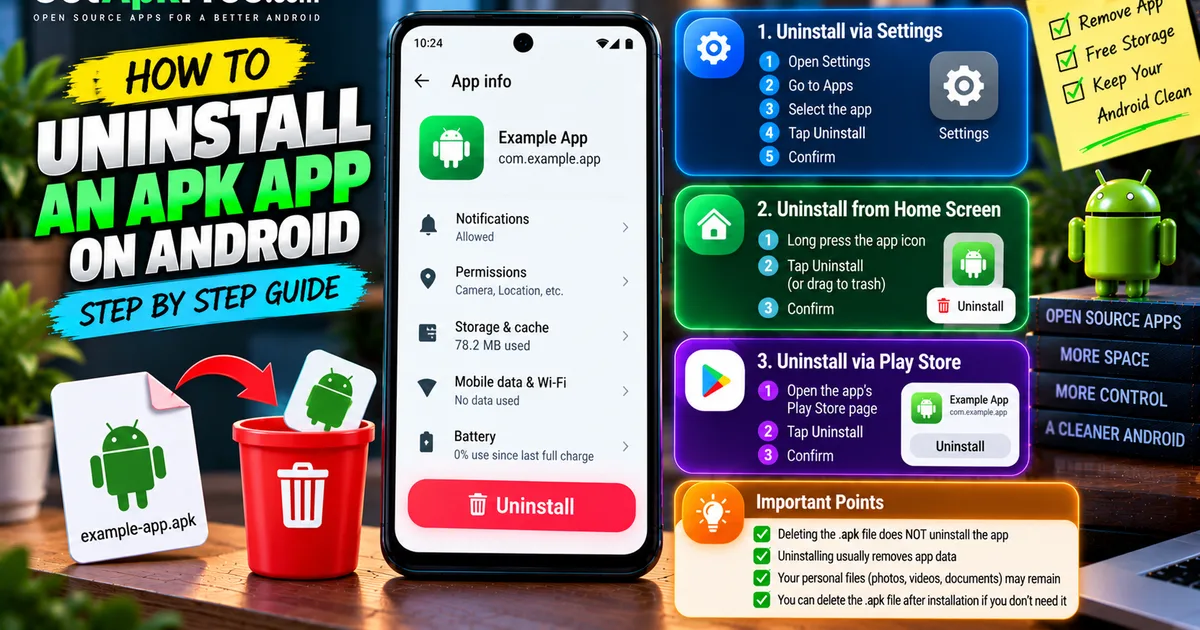
How to Uninstall an APK on Android: Remove Apps Safely
GetApkFree Team
Learn how to uninstall an app installed from an APK on Android, remove leftover files safely, and troubleshoot apps that won't uninstall normally.
Quick Answer
Learn how to uninstall an app installed from an APK on Android, remove leftover files safely, and troubleshoot apps that won't uninstall normally.
If you installed an app from an APK and now want it gone, the instinct is often to find the downloaded .apk file and delete it. That's a reasonable guess, but it's not how Android actually works: deleting the original file doesn't uninstall the app itself. Once installed, the app exists on its own; removing it means uninstalling it the normal way, the same as any app regardless of where it came from. As with most Android instructions, the exact menu names shift a bit between manufacturers and Android versions, so treat the steps below as the general shape rather than an exact match for every phone.
APK File vs Installed App: What's the Difference?
An APK is the installation package — the file Android reads once to set up the app on your device. Once that install finishes, Android registers the app as its own entry: it gets its own storage space, its own permissions, and its own listing in Settings. The original .apk file isn't referenced again after that; it just sits wherever you downloaded it, doing nothing.
This is why deleting the file doesn't remove the app. The two are only related for as long as the install takes — covered in more detail in our guide on installing an APK step by step — after which they live independent lives, and removing one has no effect on the other.
How to Uninstall an APK-Installed App on Android
This is the most reliable method, and it works regardless of where the app came from:
- Open Settings.
- Find Apps (sometimes Apps & notifications, or App management on some phones).
- Locate the app in the list, or use the search bar if there are a lot of apps installed.
- Tap it to open its app info page.
- Tap Uninstall.
- Confirm when prompted.
The exact wording changes between manufacturers — what one phone calls "Apps," another might call "Application manager" — but the general path (Settings → Apps → the app → Uninstall) holds up across most Android devices and versions.
Method 2: Uninstall From the Home Screen or App Drawer
On many phones, you can skip Settings entirely:
- Find the app's icon on your home screen or in the app drawer.
- Press and hold it until a menu appears.
- Look for Uninstall (sometimes represented by a trash-can icon, or available after dragging the icon to a specific area of the screen).
- Confirm the removal.
Some launchers handle this differently — a few require an extra tap to reveal app-specific options before Uninstall appears — so if long-pressing doesn't show what you expect, the Settings method above always works as a fallback.
Method 3: Uninstall Through Google Play When Available
If the app you installed from an APK also happens to be listed on the Play Store — the same app, just obtained a different way — you can often open its Play Store page and uninstall from there. This doesn't mean the app had to come from Google Play in the first place; it's simply an alternative removal path when a Play Store listing for it exists on your device. If there's no matching listing, the Settings or home-screen methods above are the ones to use.
What Happens to App Data When You Uninstall an App?
Uninstalling an app normally removes the app itself along with the data it stored in its own private space — settings, caches, and anything the app kept for its own use. What it doesn't reliably remove is anything the app saved to shared storage that you'd recognize as your own files: photos, videos, documents, or downloaded media the app created or saved outside its private folder.
Whether that happens depends entirely on how the specific app chose to store things — there's no single rule that applies to every app equally. If an app you're removing might hold onto files you actually want, it's worth checking its folder in your file manager before uninstalling, rather than assuming everything either stays or goes.
Should You Delete the Original APK File?
Once the app is installed, the APK file itself is no longer doing anything — deleting it does not uninstall the app, and keeping it doesn't keep the app running or updated in any special way. Whether to delete it comes down to whether you'll want it again:
- If you're confident you won't need to reinstall this exact version, there's no real downside to deleting the file once the app is installed and working.
- If you specifically want the ability to reinstall the same package later — without downloading it again — keeping the file around is genuinely useful for that one purpose. Just note that reinstalling over an existing app and installing fresh after uninstalling aren't quite the same thing; our guide on APK updates vs new installs covers what actually changes between the two.
Neither choice is automatically better. A kept APK is just a file taking up storage until you either use it or delete it; it doesn't add any risk to your device sitting there, but it doesn't do anything for you either unless you actually reinstall from it. If you're not sure where the file even is anymore, our guide on finding downloaded APK files covers the usual places to look.
How to Remove Leftover Files Safely
It helps to think of three separate things when cleaning up after an app: its own private data (removed automatically on uninstall), your own files in shared storage the app happened to use (untouched by uninstalling, and yours to manage), and the original APK installer file (never part of the installed app to begin with).
If you go looking for leftover files, be conservative:
- Only delete files and folders you can clearly identify as belonging to the app or its content.
- Don't delete anything inside system folders, or folders you don't recognize, on the assumption that it's "probably fine."
- If a folder's name doesn't obviously match the app or content you're trying to clean up, leave it alone rather than guessing.
When in doubt, leaving a folder behind costs you a small amount of storage. Deleting the wrong thing can cost you data or break something unrelated — the safer mistake to make is doing nothing.
What If an APK-Installed App Won't Uninstall?
A few specific situations come up more than others.
Uninstall option is missing
If there's no Uninstall button at all, or it's grayed out where the icon usually sits, a few things can explain it: the app may have device administrator privileges, which need to be revoked first (Settings → Security, or a similarly named section, usually has a list of apps with this access); the device might be a work or managed profile, where an organization controls what can be removed; or the app might be a system or preinstalled app, which some phones restrict from normal uninstallation. Checking device administrator permissions is the first thing worth trying, since it's the one most within your own control.
Uninstall button is disabled
This usually points to the same causes as above — most often a management profile or a permission the app was granted that Android treats as a reason to block removal until it's cleared first.
The app keeps coming back
If an app reappears after you've uninstalled it, it's worth checking whether the device is enrolled in any kind of management (a work profile, a family-control app, or similar), since those can reinstall apps automatically as part of what they're configured to do. It can also mean another app on your device is the one reinstalling it, intentionally or not. Treat this as something to investigate on your specific device rather than assuming a cause — there's no single explanation that fits every case.
The app crashes before uninstalling
This isn't actually a problem for uninstalling. You never need to open an app to remove it — Settings → Apps → the app → Uninstall works regardless of whether the app opens, crashes, or doesn't respond.
How to Check an APK Before Installing It Again
If you're planning to reinstall the app later — from the same file or a fresh download — it's worth treating it the same way you would any new install rather than assuming it's fine because you've used it before. Worth checking: where the file is actually coming from, the app's package name and version details, whether it's compatible with your device, and CPU architecture if the app offers separate builds for different processors. None of these checks amount to a guarantee that a file is malware-free — they catch the ordinary, common problems, not every possible one.
Frequently Asked Questions
Does deleting an APK uninstall the app? No. Once an app is installed, the original APK file is no longer connected to it — deleting the file has no effect on the installed app.
How do I uninstall an app installed from an APK? The same way as any other app: Settings → Apps → the app → Uninstall, or by long-pressing its icon and choosing Uninstall if your launcher supports it.
Where do I uninstall an APK app on Android? Settings is the most reliable place, under Apps (naming varies by manufacturer). The home screen long-press method works too, when your launcher supports it.
Will uninstalling an APK delete my files? It removes the app's own private data, but files you'd recognize as yours — photos, documents, downloaded media — may remain in shared storage depending on how the app stored them.
Why can't I uninstall an APK-installed app? Usually device administrator permissions, a managed/work profile, or the app being a system app the device restricts from normal removal.
Can I reinstall an app after deleting its APK file? Yes, as long as you can get the installation file again — either by downloading it again or from a backup copy you kept.
Should I keep APK files after installing an app? Only if you think you'll want to reinstall that exact file later. Otherwise there's little reason to keep it.
Final Thoughts
Uninstalling an app and deleting its APK are two different actions, and mixing them up is an easy, common mistake. To actually remove an app, use Settings → Apps → Uninstall (or your launcher's long-press option) rather than hunting down the original file. Check for anything you'd want to keep in shared storage before you uninstall, leave unfamiliar system folders alone, and if you're reinstalling later, take a minute to verify the file the same way you would for any new install.
Related Articles
Roblox Not Loading Games on Android? How to Fix It
Roblox games not loading on Android? Fix endless loading screens, failed connections, and games that close unexpectedly with practical checks for your network.
GetApkFree Team
Reddit Notifications Not Working on Android? How to Fix It
Reddit notifications not working on Android? Fix missing replies, comment alerts, chat notifications, and delayed updates by checking Reddit settings,
GetApkFree Team
Snapchat Camera Not Working on Android? How to Fix It
Is Snapchat’s camera showing a black screen or refusing to take photos on Android? Check camera permissions, update the app, clear its cache, and follow these practical troubleshooting steps.
GetApkFree Team
Pinterest Images Not Loading on Android? How to Fix It
Pinterest images not loading on Android? Fix blank Pins, missing pictures, endless loading, and feed problems with these practical troubleshooting steps.
GetApkFree Team