How to Check APK Version, Package Name, and App Details on Android
GetApkFree Team
Learn how to check an APK's version, package name, app identity, and other details on Android before installing it.
Quick Answer
Learn how to check an APK's version, package name, app identity, and other details on Android before installing it.
Before you install an APK, it's worth knowing exactly what you're looking at — not just the app's name, but its version, package name, and a few other technical details that tell you more than the icon and title do. This isn't about proving a file is safe on its own; it's about having enough information to notice when something doesn't add up.
This guide covers what you can actually check on an APK, how to find it, and what each field does and doesn't tell you.
What Information Can You Check in an APK?
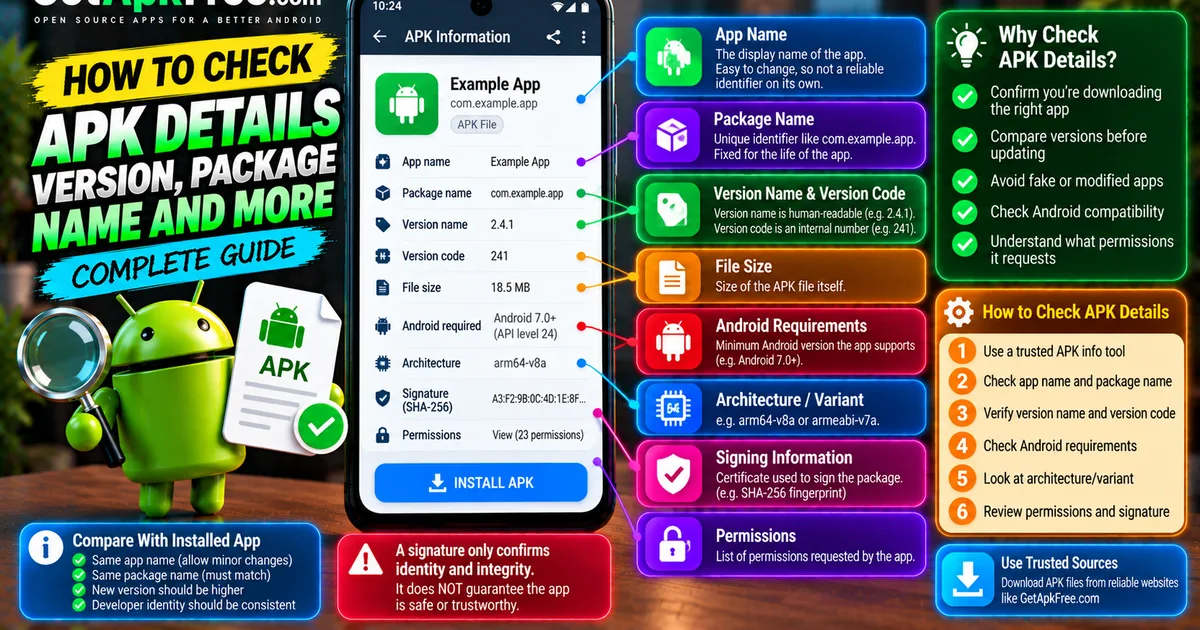
An APK carries several pieces of identifying information, some more accessible than others depending on the tool you use:
- App name — the display name, which is easy to change and not a reliable identifier on its own.
- Package name / application ID — a unique identifier like
com.example.app. - Version name — the human-readable version, like "2.4.1".
- Version code — an internal integer Android uses to compare versions.
- File size — the size of the APK file itself.
- Android requirements — the minimum Android version the app supports, where exposed.
- Architecture/variant — which CPU architecture a build targets, for apps distributed as multiple variants.
- Signing information — details about the certificate used to sign the package.
- APK filename — whatever the file happens to be named, which is separate from everything above.
Some of these are always present in the package itself; others depend on what the tool you're using chooses to expose.
What Is an APK Package Name?
The package name — also called the application ID — is a unique identifier every Android app has, formatted like a reversed domain: com.example.app. Unlike the display name, which a developer can change freely between versions, the package name is fixed for the life of the app. Two apps can share a display name; they can't share a package name — which makes it the more reliable way to confirm you're looking at the app you think you are, especially for anything with a generic-sounding title.
How to Check an APK Version Before Installing It
Android itself doesn't offer a built-in "inspect this APK" screen before installation — what you see depends on your file manager or a dedicated APK-information tool, several of which read a package's manifest and display its version, package name, and permissions before you tap install.
It's worth distinguishing two version fields that are easy to conflate: version name is the human-readable label a developer chooses, like "2.4.1", meant for people rather than for Android's own comparison logic; version code is the integer Android actually uses internally to decide whether one build is newer than another. A version name doesn't have to sort intuitively — the version code is what actually determines update behavior, which is part of why relying on the visible label alone can be misleading.
How to Find an APK Package Name
A few practical ways to see a package name before or after installing:
- A reputable APK-information tool — many file managers and dedicated inspection apps read a package's manifest and display its application ID directly.
- Android's own app settings, once installed — most Android versions show it somewhere in an app's details page, sometimes only after enabling developer options.
- Trustworthy metadata sources — an app's official listing (Play Store, F-Droid, or the developer's own site) states its real package name, which you can compare against the file you have.
Avoid downloading a "package name viewer" from an untrusted source purely for convenience — the safest inspection tool is one from a source you already trust, the same standard you'd apply to any app.
How to Compare an APK With an Installed App
If you already have a version of an app installed and you're holding a new APK, comparing a few fields tells you whether the new file is genuinely meant to update it:
| Field | What to compare |
|---|---|
| App name | Should match (allowing for minor rebranding) |
| Package name | Must match exactly |
| Developer identity | Should be consistent |
| Installed version | Should be older than the new file |
| Downloaded version | Should be newer than what's installed |
If the package name matches and the new version is genuinely higher, the file is very likely intended as an update. If anything here doesn't line up — a different package name, an unfamiliar developer — treat that as a reason to pause. Our guide on APK updates vs new installs covers what Android actually does when these details don't match.
How to Check APK Details Without Installing It
A fair amount is available before you tap install: an inspection tool can typically show the app name, package name, version, permissions, and often the minimum Android version, all by reading the file directly. What you can't see without installing is runtime behavior — what the app actually does once running isn't something static inspection reveals. Being able to read these fields tells you what the package claims about itself, not whether those claims are trustworthy.
What Does the APK File Name Tell You?
A filename like appname-2.4.1-arm64.apk can be a useful hint — it might suggest the app, a version, and an architecture — but it's just a string someone chose, not something read from a manifest. Nothing stops a file from being renamed to whatever a distributor likes. It doesn't prove authenticity, developer identity, the version number, or anything about safety. Treat it as a label, not a source of truth — the fields read from inside the file are what actually matter.
How to Check Android Compatibility
Where exposed by an inspection tool, an APK's minimum supported Android version tells you whether it'll run on your device at all, and its architecture (ARM64 being most common on modern phones) tells you whether a specific build variant matches your hardware. Some apps ship as multiple architecture-specific variants, or as bundled formats covering several at once — our guide on APK vs XAPK vs APKM covers those formats. There's no single requirement that applies to every app — what a specific app needs depends entirely on how its developer built it, so check per app rather than assume.
How to Check APK Signing Information
Every Android package is signed with a certificate, and that signature establishes continuity between versions of the same app — it's how Android confirms an update genuinely comes from the same source as what you already have. This mostly shows up as a consequence rather than something you check proactively: if a new APK's signature doesn't match what's installed, Android refuses to install it as an update. That mismatch itself is informative — it tells you the file came from a different signing source, worth understanding rather than working around.
Can APK Details Prove That an APK Is Safe?
No. Checking version, package name, and other metadata tells you what a file claims to be — it doesn't verify the claim is true, and says nothing about what the app does once running. It's one input among several, alongside checking the source, reviewing permissions, and scanning the file. Our guide on how to tell if an APK is safe covers that fuller picture.
Warning Signs to Look For Before Installing an APK
None of these alone proves a file is malicious, but each is a reason to slow down:
- A package name that doesn't match the app's official listing.
- An unfamiliar, inconsistent, or missing developer identity.
- Version information that doesn't make sense — lower than what's already installed on a file claiming to be an update, for instance.
- A filename that doesn't correspond to what the app appears to be.
- An architecture that doesn't match your device, from a source that should know better.
- A package that looks repackaged or modified from what you'd expect.
- A source you don't already have reason to trust.
- Permission requests inconsistent with the app's stated purpose.
A Simple APK Verification Checklist
- Check the app name.
- Check the package name.
- Check the version name.
- Check the version code, where available.
- Check the developer identity.
- Check Android compatibility.
- Check the architecture/variant.
- Check signing information, where available.
- Check the source.
- Compare the details against trusted, official information about the app.
Frequently Asked Questions
How do I check the version of an APK file? An APK-information tool or file manager that reads the package manifest shows both the version name and version code before you install it.
How do I find the package name of an APK? The same kind of inspection tool exposes it directly, or you can check it against the app's official listing for comparison.
Is the APK filename reliable? No — it's just a label chosen by whoever distributed the file, not something read from the package. Use the version and package name fields instead.
Can I check APK details without installing it? Yes, for most static fields — app name, package name, version, and often permissions and minimum Android version. What you can't see this way is runtime behavior.
What is the difference between version name and version code? Version name is the human-readable label a developer chooses; version code is the integer Android actually uses to determine whether one build is newer than another.
Does the package name prove an APK is safe? No. It confirms identity relative to what a source claims, not whether that source or the file is trustworthy.
Can APK details tell me if an APK is fake? They can raise a warning — a mismatched package name or inconsistent developer identity is a real red flag — but they can't conclusively prove a file is fake or genuine on their own.
Final Thoughts
Checking an APK's version, package name, and related details before installing gives you real, useful information — enough to confirm whether a file is likely a genuine update, and enough to notice when something doesn't line up. What it doesn't give you is proof of safety. Treat metadata inspection as one solid step in a larger process, not the whole process.
Related Articles

Roblox Not Loading Games on Android? How to Fix It
Roblox games not loading on Android? Fix endless loading screens, failed connections, and games that close unexpectedly with practical checks for your network.
GetApkFree Team
Reddit Notifications Not Working on Android? How to Fix It
Reddit notifications not working on Android? Fix missing replies, comment alerts, chat notifications, and delayed updates by checking Reddit settings,
GetApkFree Team
Snapchat Camera Not Working on Android? How to Fix It
Is Snapchat’s camera showing a black screen or refusing to take photos on Android? Check camera permissions, update the app, clear its cache, and follow these practical troubleshooting steps.
GetApkFree Team
Pinterest Images Not Loading on Android? How to Fix It
Pinterest images not loading on Android? Fix blank Pins, missing pictures, endless loading, and feed problems with these practical troubleshooting steps.
GetApkFree Team