
This article is about
Snapchat
Snap Inc · Internet
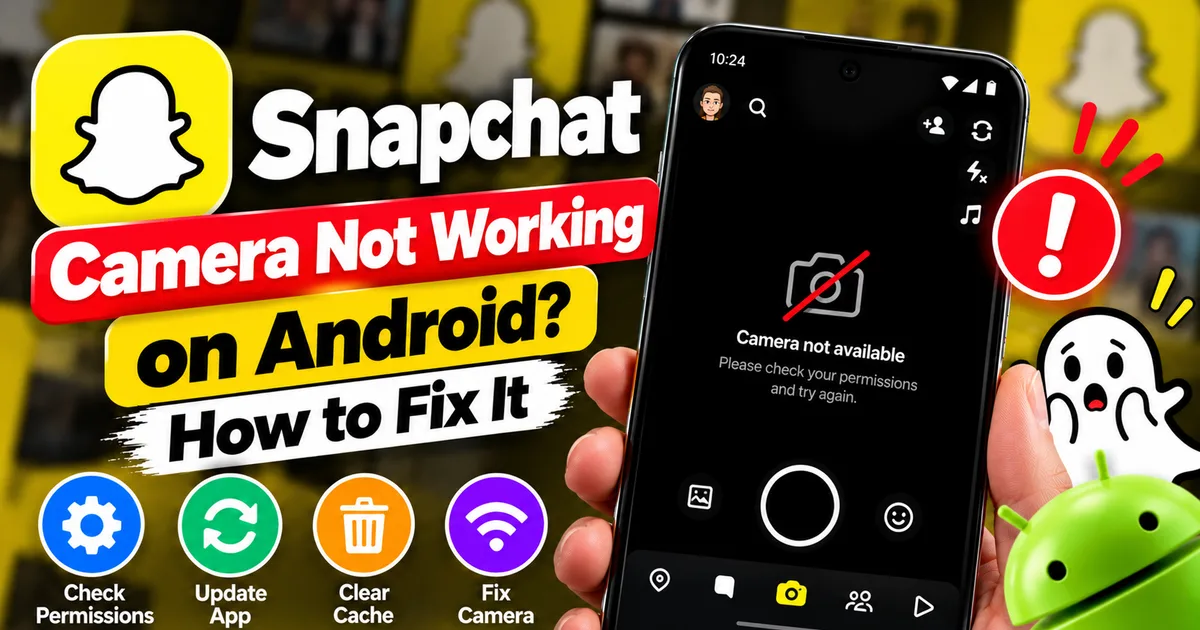
Snapchat Camera Not Working on Android? How to Fix It
GetApkFree Team
Is Snapchat’s camera showing a black screen or refusing to take photos on Android? Check camera permissions, update the app, clear its cache, and follow these practical troubleshooting steps.
- Version
- Latest
- Source
- Google Play
- Package
- com.snapchat.android
Snapchat Camera Not Working on Android? How to Fix It
Is Snapchat’s camera showing a black screen, freezing when you open it, or refusing to take photos and videos? The problem can come from camera permissions, a temporary app glitch, an outdated version of Snapchat, or an issue with your phone’s camera system.
Before reinstalling Snapchat or changing important settings, try the simpler checks first. This guide explains how to identify the cause and troubleshoot Snapchat’s camera on Android step by step.
Why Is the Snapchat Camera Not Working?
Snapchat’s camera may stop working properly for several reasons:
- Camera permission is disabled: Snapchat cannot access your phone’s camera.
- Temporary app problem: Snapchat may freeze or fail to initialize the camera.
- Outdated software: An older version of Snapchat or Android may have compatibility issues.
- Camera access is blocked: Android’s device-wide camera control may be turned off.
- Cache-related issue: Temporary app files may be contributing to unexpected behavior.
- Another camera app is active: A different app may be interfering with camera access.
- Phone camera problem: The issue may affect the device’s camera system rather than Snapchat alone.
The exact cause depends on the symptoms. A black screen, a permission warning, and a camera that works in the native Camera app but not in Snapchat may require different solutions.
1. Close Snapchat and Open It Again
Start by restarting Snapchat. A temporary software glitch may prevent the camera from opening correctly.
Follow these steps:
- Open your phone’s recent apps screen.
- Swipe Snapchat away to close it completely.
- Open Snapchat again.
- Tap the camera screen and test the front and rear cameras.
If the camera starts working, the issue may have been temporary.
If Snapchat still shows a black screen, continue to the next step.
2. Check Snapchat’s Camera Permission
Android allows you to control which apps can use your camera. If Snapchat does not have permission, its camera features may not work as expected.
To check the permission:
- Open your phone’s Settings.
- Tap Apps or Applications.
- Find and open Snapchat.
- Select Permissions.
- Tap Camera.
- Allow camera access using the available option, such as Allow only while using the app.
- Return to Snapchat and test the camera.
The exact menu names may differ between Samsung, Xiaomi, OnePlus, Motorola, Pixel, and other Android phones.
If camera access was already allowed, leave the setting unchanged and continue troubleshooting.
You can also check the microphone permission if Snapchat’s camera opens but videos do not record sound.
3. Check Android’s Device-Wide Camera Access
Some Android phones have a separate privacy control that can block camera access across the device.
On Android 12 and later, a Camera access control may appear in Quick Settings.
To check it:
- Swipe down from the top of your screen twice.
- Look for the Camera access tile.
- Make sure camera access is enabled.
- Open Snapchat and test the camera again.
If you cannot find the tile, open Quick Settings editing options or check your phone’s Privacy settings.
This control is separate from Snapchat’s individual camera permission. Both need to permit camera access for Snapchat to use the camera.
4. Test Your Phone’s Built-In Camera
This is one of the most useful ways to narrow down the problem.
Open your phone’s default Camera app and try taking a photo with the front and rear cameras.
If the built-in Camera app works: The problem may be specific to Snapchat, its permissions, or its interaction with Android.
If the built-in Camera app also shows a black screen or crashes: The issue may involve the phone’s camera system, operating system, or hardware.
If only one camera fails, test the other one as well. If multiple camera apps have the same problem, follow your phone manufacturer’s camera troubleshooting guidance before assuming Snapchat is responsible.
5. Switch Between Wi-Fi and Mobile Data
Snapchat recommends testing another network when camera-related features are not working properly.
Although a camera preview problem is not always caused by the internet, connectivity can affect Snapchat’s loading and related features.
Try the following:
- If you are using Wi-Fi, temporarily switch to mobile data.
- If you are using mobile data, try a stable Wi-Fi connection.
- Close and reopen Snapchat.
- Test the camera and see whether the same problem remains.
If switching networks resolves the issue, investigate the connection that failed. A network change is a diagnostic test, not proof that the camera itself was broken by your internet connection.
6. Update Snapchat From Google Play
An outdated app can contain bugs that have already been addressed in a newer release.
To check for an update:
- Open the Google Play Store.
- Search for Snapchat.
- Open its official app listing.
- Tap Update if the option is available.
- Once the update finishes, reopen Snapchat and test the camera.
If you see Open instead of Update, an update may not currently be available for your device.
Avoid downloading modified Snapchat applications from unofficial sources to fix camera problems. They may introduce security risks, compatibility issues, or account restrictions.
7. Clear Snapchat’s Cache
Snapchat stores temporary files to help the app operate. Clearing its cache may help troubleshoot certain app problems.
Snapchat provides an in-app cache-clearing option, and it states that clearing the cache does not delete Memories, Snaps, or Chats.
To clear the cache:
- Open Snapchat.
- Tap your profile or Bitmoji icon.
- Tap the gear icon to open Settings.
- Look for App & Privacy and My Privacy & Data, or the equivalent options in your version.
- Find the cache-clearing option.
- On Android, you may need to select Clear Data within Snapchat's settings before choosing Clear Cache.
- Confirm the cache-clearing action and reopen Snapchat.
Menu labels can change between versions, so follow the options displayed in your app.
Important: Snapchat’s in-app Clear Cache option is not the same as Android’s system-level Clear storage or Clear data option. Do not use the latter as a substitute unless you understand the consequences, as it can reset local app data or sign you out.
8. Restart Your Android Phone
If the camera still does not work, restart your phone.
A restart can help resolve temporary operating-system or camera-service problems.
- Save any work in other apps.
- Open your phone’s power menu.
- Tap Restart, or power the phone off and turn it on again.
- Wait for Android to finish starting.
- Open Snapchat and test the camera.
If another app was temporarily interfering with camera access, restarting the device may help. It is not a guaranteed fix, but it is a low-risk troubleshooting step.
9. Check for an Android System Update
If Snapchat’s camera problem started after a system update or has continued despite updating Snapchat, check whether another Android update is available.
- Open your phone’s Settings.
- Look for System update, Software update, or a similar option.
- Check for available updates.
- Follow the manufacturer’s instructions if an update is available.
- Restart the phone if required, then test Snapchat.
Settings vary by device manufacturer and Android version. Do not install unofficial firmware or attempt a factory reset simply to fix Snapchat’s camera.
10. Reinstall Snapchat as a Last Resort
If none of the previous steps works, reinstalling Snapchat may help resolve a persistent app installation problem.
Before doing this, make sure your Snapchat Memories are fully backed up and that you know your login details.
Then:
- Open the Google Play Store.
- Find the official Snapchat listing.
- Uninstall Snapchat if necessary.
- Install it again from Google Play.
- Sign in and test the camera.
Reinstalling is not guaranteed to fix the problem. If you cannot sign in, do not risk losing access to your account just to test this step.
When Should You Contact Snapchat Support?
Contact Snapchat Support if the camera remains broken after you have checked permissions, restarted the app and phone, updated Snapchat, and cleared its cache.
If Snapchat opens, you may also be able to report the problem through the app. Open Settings and look for Bugs and Suggestions or the current bug-reporting option.
Include useful details such as:
- Your phone model.
- Your Android version.
- Your Snapchat app version.
- Whether the front camera, rear camera, or both fail.
- Whether the native Camera app works.
- Any error message displayed.
- When the problem started and which troubleshooting steps you tried.
If the phone’s built-in Camera app also fails, contact your phone manufacturer or a reputable repair service if necessary.
For additional help, visit the official Snapchat Camera troubleshooting guide or Snapchat’s general app troubleshooting page.
Frequently Asked Questions
Why is my Snapchat camera showing a black screen on Android?
Possible causes include disabled camera permissions, a temporary app issue, blocked device-wide camera access, outdated software, or a phone camera problem. Check permissions and test the built-in Camera app before trying more disruptive fixes.
Why does Snapchat say it needs camera access?
Snapchat needs camera permission to take photos and record videos. Open Android Settings, select Apps, choose Snapchat, and check its Camera permission. Also check Android’s device-wide Camera access control if your phone provides one.
Will clearing Snapchat’s cache delete my Memories?
Snapchat states that clearing its cache does not delete Memories, Snaps, or Chats. Use Snapchat’s in-app cache option rather than confusing it with Android’s separate Clear storage or Clear data setting.
Why does my phone camera work everywhere except Snapchat?
If the built-in Camera app works normally but Snapchat does not, the problem may be specific to Snapchat’s permissions, app version, or temporary app state. Update Snapchat, check permissions, clear its in-app cache, and restart the phone.
Should I uninstall Snapchat if the camera is not working?
Not immediately. Check camera permissions, device-wide access, updates, and the app cache first. If you decide to reinstall Snapchat, make sure Memories are backed up and you can sign in again.
Final Thoughts
When Snapchat’s camera is not working on Android, start with the simplest checks: restart the app, verify camera permissions, check Android’s Camera access control, and test your phone’s built-in Camera app.
If the camera works elsewhere, update Snapchat, clear its in-app cache, and restart your device. Reinstall only if necessary, and protect your account and backed-up Memories before doing so.
If the problem affects multiple camera apps or persists after these checks, seek help from Snapchat Support or your phone manufacturer rather than assuming the cause is Snapchat alone.
Related Articles

Roblox Not Loading Games on Android? How to Fix It
Roblox games not loading on Android? Fix endless loading screens, failed connections, and games that close unexpectedly with practical checks for your network.
GetApkFree Team
Reddit Notifications Not Working on Android? How to Fix It
Reddit notifications not working on Android? Fix missing replies, comment alerts, chat notifications, and delayed updates by checking Reddit settings,
GetApkFree Team

Pinterest Images Not Loading on Android? How to Fix It
Pinterest images not loading on Android? Fix blank Pins, missing pictures, endless loading, and feed problems with these practical troubleshooting steps.
GetApkFree Team

Netflix Not Playing Videos on Android? How to Fix It
Netflix not playing videos on Android? Troubleshoot loading screens, playback errors, black screens, buffering, and app problems with these practical fixes.
GetApkFree Team