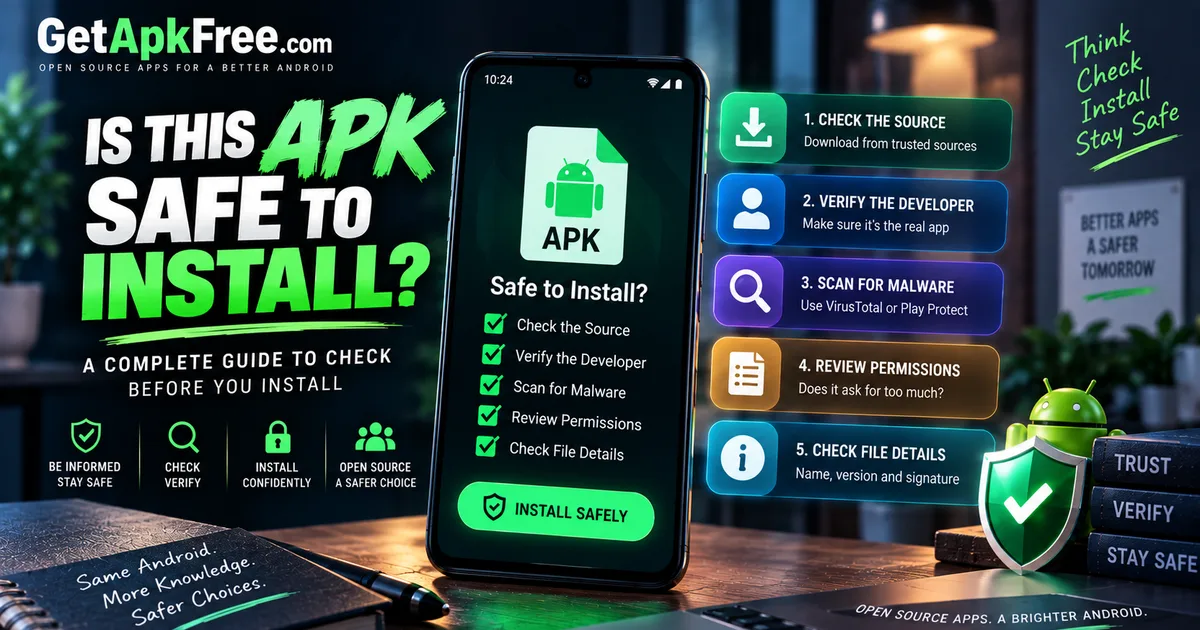
How to Tell If an APK Is Safe Before Installing It: A Practical Security Guide
GetApkFree Team
Is this APK safe? A practical guide to checking an APK's source, developer, permissions, and file integrity before you install it on Android.
Quick Answer
Is this APK safe? A practical guide to checking an APK's source, developer, permissions, and file integrity before you install it on Android.
You've got an APK file sitting in your downloads folder and one question in mind: is this APK safe to install? It's a reasonable thing to stop and ask — and the good news is that answering it doesn't require special tools or deep technical knowledge, just a habit of checking a few things before you tap install.
An APK file isn't automatically dangerous just because you're installing it manually instead of through the Play Store. Sideloading is a normal, supported part of how Android works. What actually determines whether a given file is safe is a combination of things: where it came from, whether it's genuinely from the developer it claims to be, what it asks permission to do, and whether the file itself is intact and unaltered. This guide walks through how to check each of those, in a practical order.
What Does "Safe APK" Actually Mean?
Before checking a file, it helps to know what you're actually distinguishing between. Not every APK that isn't from the Play Store falls into the same category:
- A legitimate APK — an unmodified build, distributed by the actual developer or an authorized distributor, matching what you'd get from an official source.
- A modified APK — a build someone has altered from the original, sometimes to add features, sometimes to remove licensing checks or ads. Modification itself introduces risk, even when the intent behind it seems harmless.
- A repackaged APK — a file rebuilt to look like a legitimate app, sometimes with malicious code added, distributed under a familiar name to trick people into installing it.
- A malicious APK — built specifically to harm the user in some way: stealing data, displaying intrusive ads, or granting an attacker further access to the device.
- An outdated or vulnerable APK — not malicious on its own, but built against old libraries or missing security fixes present in a current release, which can leave it exposed to problems that have since been patched elsewhere.
Most of the checks below are really about telling these apart — starting with where the file came from.
Start With the Source
The single biggest factor in APK safety is where you downloaded the file from. In order of preference:
- Google Play, where Google reviews apps before listing them and continues scanning installed apps afterward.
- The official developer — their own website or their official release channel (a GitHub releases page, for instance).
- Reputable open-source repositories, like F-Droid, where the source code itself is available for anyone to review.
- Established, trusted app distribution sources that publish scan results and have a track record, rather than an anonymous file-sharing link.
None of this means every third-party source is automatically safe, and it's worth being precise about that: even a well-known catalogue can host something problematic, and a source being "established" reduces risk without eliminating it. The source is a strong signal, not a guarantee.
Check the App Developer
Once you've found a source, look at who actually built the app:
- Identify the developer name shown on the app's listing or in the APK's own metadata.
- Compare it against the developer's official website, if one exists — a mismatch, or a developer name that doesn't show up anywhere official, is worth pausing over.
- Check whether the app has an established presence — a real website, a support channel, a history of updates — rather than appearing out of nowhere.
- Be cautious when developer information is missing, generic, or inconsistent between the download page and the file itself.
This won't catch everything on its own, but a developer with a verifiable, consistent identity is a meaningfully different situation from one you can't find any information about at all.
Check the APK File Name and Version
A quick look at the file itself is worth doing before you install:
- Does the app name match what you actually meant to download?
- Does the version number look reasonable — not wildly older or newer than what the official listing shows?
- If the source specifies architecture or build variant information, does it match your device?
- Does the filename look like something a developer would actually name their release, or does it look engineered to seem trustworthy — stuffed with extra words like "official," "verified," or "100% safe"?
It's worth being direct about the limits here: a normal-looking filename does not prove a file is safe. Filenames are just text — anyone can name a file whatever they want. This check filters out the most obviously mislabeled files, not the well-disguised ones.
Check the APK Before Installing
A few practical steps before you tap install:
- Scan the file with a reputable malware scanner. A multi-engine tool like VirusTotal checks a file against dozens of antivirus engines at once and is free to use.
- Let Google Play Protect do its job. On most Android devices, it scans sideloaded apps at install time automatically, without you needing to do anything extra.
- Revisit the source and file details one more time before installing, especially if anything about the download felt off.
- Take multiple credible warnings seriously. One scanner flagging a file can sometimes be a false positive; several independent, reputable engines flagging the same file is a different situation.
Two things worth being honest about: a scan is a useful check, not a guarantee, and scanners can both miss real threats (false negatives) and flag harmless files (false positives). Treat a scan as one input alongside the source and developer checks above, not as the final word on its own.
Once you've done these checks, the actual installation steps matter too — our guide on how to install APK files safely covers the install process itself, including how to grant "install unknown apps" permission correctly.
Understand App Permissions
The permissions an app requests can be a genuinely useful signal — as long as you read them with some judgment rather than reacting to any request at all.
A few examples of requests worth a second look:
- A calculator app requesting SMS access has no obvious reason to need it.
- A simple wallpaper app requesting contacts, call logs, or location is asking for more than its stated purpose requires.
At the same time, it's important not to overcorrect: plenty of legitimate apps genuinely need permissions that sound sensitive at first glance. A messaging app needs contacts. A navigation app needs location. A photo editor needs storage access. Unusual permissions are a reason to ask "does this make sense for what the app does," not an automatic sign of malware on their own — learn how to evaluate APK permissions for a fuller framework.
Verify the App's Identity
Every Android app has a package name — something like com.example.app — tied to the developer's signing key and consistent across versions. Learn how APK signatures work for more on what that signing key actually establishes. It's worth checking a few things here:
- Does the package name match what you'd expect for this app, rather than something generic or unrelated?
- Is the developer identity consistent with what you saw on the download page?
- Does anything suggest this is an unofficial, repackaged version of a real app rather than the genuine build — inconsistent branding, an unfamiliar publisher name attached to a well-known app, or a version that doesn't match the developer's own release history?
None of these checks are complicated individually, but together they build a picture of whether a file is what it claims to be.
Be Careful With Modified and Cracked APKs
APKs advertised as unlocking paid features for free, or as "cracked" or "modded" versions of premium apps, carry additional risk beyond the ordinary sideloading considerations above. Modifying an app means altering what the developer actually built and signed, and there's no way to fully verify what else changed in the process. These files are a common way malware gets distributed, partly because people expect them to trigger warnings and are primed to dismiss those warnings as "normal" for a cracked app.
This guide doesn't cover how to obtain, modify, or crack apps, or how to bypass licensing — if an app is paid, the safe path is getting it from the Play Store, the developer's official store, or another source you're actually authorized to purchase from.
Check APK vs XAPK vs APKM
Not every Android app file is a plain .apk. Some come as .xapk or .apkm — container formats that bundle a base APK with additional resources or split packages, and which behave differently during installation than a standard APK. Knowing which format you're dealing with matters for how you install it safely, not just whether you can. For a full breakdown of what each format actually contains, see our guide on APK vs XAPK vs APKM.
Don't Ignore Android Security Warnings
If Android or Play Protect shows a warning during installation, the right response is to read it and think about what it's telling you — not to dismiss it as a routine obstacle. These warnings exist specifically to catch situations like the ones this guide covers: unverified publishers, altered files, and behavior patterns associated with harmful apps.
Disabling Play Protect or other built-in protections just to get past a warning removes exactly the safeguard that might be catching something real. If you're confident in a file after doing the checks above, most legitimate installs don't require turning anything off in the first place.
What If an APK Won't Install?
It's worth being clear about this: an installation failure does not automatically mean the file is malicious. Several ordinary, non-security causes are actually far more common:
- An incompatible Android version — the app requires a newer OS than your device runs.
- An incompatible CPU architecture for your device.
- A corrupted or incomplete download.
- A conflicting existing install with a different signature.
- Split-package requirements not being met if the file is part of a set.
If you run into this, our guide on fixing the "App not installed" error walks through each of these causes and how to resolve them.
A Safe APK Checklist
Before installing, it's worth running through:
- ☐ Trusted source
- ☐ Developer identity checked
- ☐ Correct app and version
- ☐ File downloaded completely
- ☐ Security scan performed
- ☐ Permissions make sense for the app
- ☐ No unexplained or repeated warnings
- ☐ Android version and device compatibility checked
- ☐ Important data backed up, if you're replacing an existing app
When You Should NOT Install an APK
Some situations are a clear enough signal to stop rather than keep troubleshooting:
- The source is unknown, with no credible developer information anywhere.
- Multiple credible security warnings flag the same file.
- The permissions requested don't match the app's purpose, with no reasonable explanation.
- It's a modified or cracked version of a paid app.
- The download page is misleading — unclear who published it, or designed to look like an official store.
- You're redirected somewhere unexpected partway through the download.
- You're told to disable a security feature as a routine step just to get the file installed.
In any of these cases, the better move is finding the app through the Play Store, the developer directly, or another source you're actually confident in — not pushing past the warning signs.
Frequently Asked Questions
How can I tell if an APK is safe? Check the source, verify the developer's identity, look at the permissions requested, scan the file, and confirm the package name and version match what you expect. No single check is conclusive on its own — together, they give you a reasonable picture.
Can an APK contain malware? Yes, any executable file format can be used to distribute malware, and APKs are no exception. This is exactly why source and developer checks matter as much as, or more than, the file itself.
Is downloading an APK illegal? No. Downloading and installing an APK is a normal, supported part of using Android. What can be illegal is downloading unauthorized copies of paid software you haven't purchased — that's a separate issue from sideloading in general.
Is every APK from outside Google Play dangerous? No. Plenty of legitimate software — open-source apps, region-restricted apps, developer betas — is distributed outside the Play Store entirely legitimately. The risk depends on the specific source and file, not on being outside Google Play as such.
Can Google Play Protect detect malicious APKs? It can detect many known threats and suspicious behavior patterns, and it scans sideloaded apps on most devices automatically. Like any scanner, it isn't guaranteed to catch everything, which is why source and permission checks still matter.
Should I scan an APK before installing it? Yes, it's a reasonable and easy precaution, particularly for files from less-established sources. Just don't treat a clean scan as an absolute guarantee — it's one input among several, not a final verdict.
Why does an APK request so many permissions? Sometimes because the app genuinely needs them for what it does — a camera app needs the camera, a messaging app needs contacts. Other times a request doesn't match the app's stated purpose, which is worth questioning rather than assuming is normal.
Are modified APKs safe? Modified or cracked APKs carry meaningfully more risk than unmodified builds, because you can't fully verify what changed from the original. They're also a common vector for malware. The safer path for a paid app is an authorized source.
Can an APK steal my data? An app with excessive or unnecessary permissions, or one built maliciously, potentially could — which is exactly why checking permissions and the app's origin before installing matters, rather than assuming any installed app is automatically trustworthy.
Final Thoughts
Asking "is this APK safe" before you install something is exactly the right instinct — and answering it well doesn't require paranoia, just a consistent habit: check the source, verify the developer, read the permissions, scan the file, and pay attention when something looks off. None of these checks is perfect in isolation, but together they cover the great majority of real risk, while leaving plenty of room to install the legitimate apps that make sideloading worth doing in the first place.
Related Articles
Roblox Not Loading Games on Android? How to Fix It
Roblox games not loading on Android? Fix endless loading screens, failed connections, and games that close unexpectedly with practical checks for your network.
GetApkFree Team
Reddit Notifications Not Working on Android? How to Fix It
Reddit notifications not working on Android? Fix missing replies, comment alerts, chat notifications, and delayed updates by checking Reddit settings,
GetApkFree Team
Snapchat Camera Not Working on Android? How to Fix It
Is Snapchat’s camera showing a black screen or refusing to take photos on Android? Check camera permissions, update the app, clear its cache, and follow these practical troubleshooting steps.
GetApkFree Team
Pinterest Images Not Loading on Android? How to Fix It
Pinterest images not loading on Android? Fix blank Pins, missing pictures, endless loading, and feed problems with these practical troubleshooting steps.
GetApkFree Team