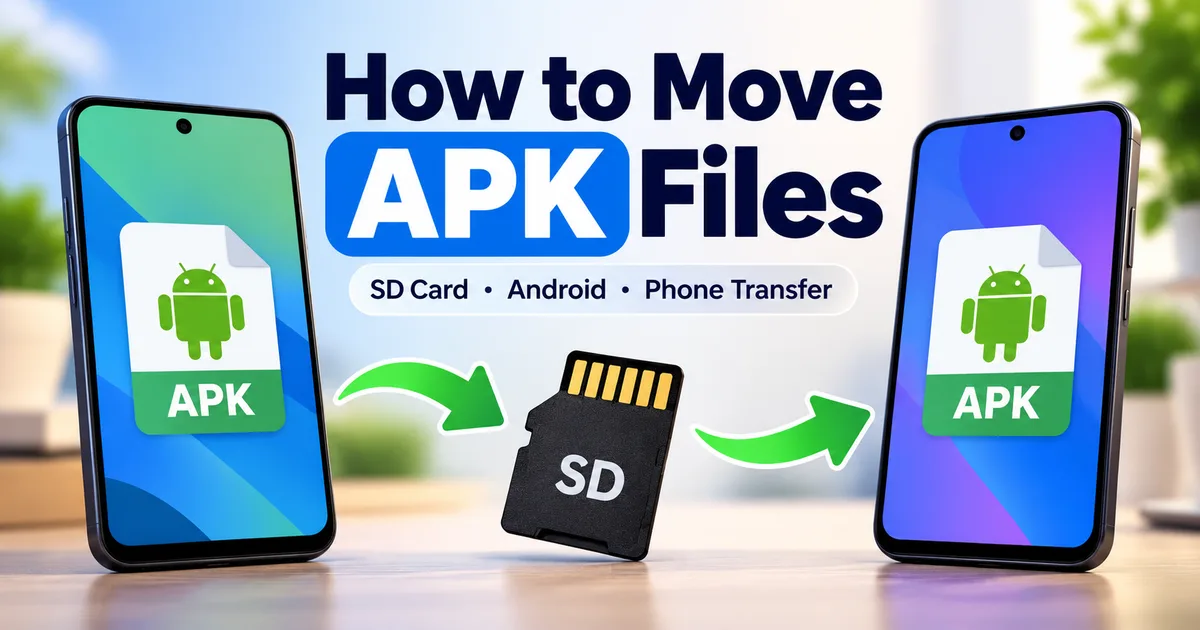
How to Move APK Files to an SD Card or Another Phone
GetApkFree Team
Learn how to move APK files to an SD card or transfer them to another Android phone using a file manager, Quick Share, USB, or cloud storage.
Quick Answer
Learn how to move APK files to an SD card or transfer them to another Android phone using a file manager, Quick Share, USB, or cloud storage.
How to Move APK Files to an SD Card or Another Phone
An APK is a file, so you can move it around your Android device just like other downloaded files. You can copy an APK to an SD card, transfer it to another phone, move it to a computer, or keep a backup copy for later.
The important part is understanding the difference between moving an APK file and moving an installed app. Moving the .apk file does not move the installed app, its settings, or its app data. It simply moves the installation file.
This guide explains how to move APK files to an SD card and how to transfer them to another Android phone without unnecessarily complicating the process.
APK File vs. Installed App
Before moving anything, it helps to understand what you are actually transferring.
An APK is the installation package for an Android application. Once an app has been installed, the original APK file and the installed application are separate things.
For example, if you downloaded example-app.apk and installed it:
- The APK remains a file wherever you saved it.
- Android installs the application separately.
- Moving or deleting the APK does not normally uninstall the installed app.
- Copying the APK to another phone gives you the installation file, not the original app's private data.
So if your goal is simply to keep a backup of an APK, moving the file is straightforward. If your goal is to move the complete application and its data to a new phone, you need a proper device-transfer or app-data migration method instead.
How to Move an APK to an SD Card
If your Android phone has a physical SD card and it is configured as portable storage, you can use a file manager to copy or move the APK.
Step 1: Find the APK
Open your phone's file manager. Depending on the manufacturer, it might be called Files, My Files, File Manager, or something similar.
Open the Downloads folder if you downloaded the APK from a browser.
Look for the file ending in:
.apk
If you are not sure where it is, search for .apk using the file manager's search function.
Step 2: Select the APK
Press and hold the APK file until the file manager displays its selection options.
Look for an option such as:
- Move
- Copy
- Move to
- Copy to
The exact wording depends on your file manager.
If you want to keep the original APK in internal storage, choose Copy rather than Move.
Step 3: Choose the SD Card
Select the SD card as the destination.
You can create a folder such as:
APK Backup
or:
Apps
Then select the option to move or copy the file into that folder.
Google's Files by Google documentation supports moving or copying files to an SD card through the file manager. The exact menu layout can vary by Android version and device.
Move or Copy: Which Should You Use?
Use Copy if you want the APK to remain in both locations.
For example:
Internal storage → APK Backup on SD card
This gives you a backup copy while leaving the original untouched.
Use Move if you no longer need the original copy in internal storage.
For important APK files, copying is usually more useful because you keep an additional copy.
Important: Not Every SD Card Works the Same Way
Android can configure an SD card as either portable storage or internal/adoptable storage, depending on the device and Android implementation.
With portable storage, files can be transferred between compatible devices.
When an SD card is configured as internal storage, it is associated with the device and is not intended to be moved between phones as a simple removable file card.
If you plan to use an SD card to carry APK files between phones, portable storage is the relevant setup.
Do not format an SD card just to move one APK unless you understand what the formatting option will do. Formatting can erase data already stored on the card.
How to Transfer an APK to Another Android Phone
There are several ways to transfer an APK from one Android phone to another.
Method 1: Quick Share
For nearby Android phones, Quick Share is one of the simplest options.
On the phone containing the APK:
- Open your file manager.
- Find the APK file.
- Select the file.
- Tap Share.
- Select Quick Share.
- Choose the receiving phone.
- Wait for the other phone to accept the transfer.
On the receiving phone, accept the transfer when prompted.
Google's current Android documentation supports Quick Share for sending files between nearby Android devices. The receiving device needs to be discoverable according to its Quick Share settings.
After the transfer, look in the receiving phone's Downloads or Quick Share folder for the file.
Method 2: Transfer Using a USB Cable
You can also transfer the APK through a computer.
For example:
Phone → Computer → Other Phone
First, connect the original Android phone to your computer with a USB cable.
Unlock the phone and select File Transfer when Android asks how the USB connection should be used.
Copy the APK from the phone to a folder on the computer.
Then disconnect the first phone, connect the second phone, and copy the APK onto it.
This method can be useful when the APK is large or when wireless transfer is inconvenient.
Method 3: Use Cloud Storage
Another option is cloud storage.
Upload the APK from the first device to a cloud storage service, then open the same service on the second phone and download the file.
This is useful when the two phones are not physically close to each other.
Keep in mind that the APK is still just a file. Uploading it to cloud storage does not install the app on the second device.
Can You Transfer an APK Through Bluetooth?
Some Android devices and file-sharing tools may support Bluetooth-based file transfers, but the exact experience depends on the devices and Android versions involved.
For nearby Android devices, Quick Share is generally the more straightforward option when it is available.
The important thing is not which transfer method you use. The result should be a complete APK file on the receiving device.
How to Install the APK on the Second Phone
Once the APK has been transferred:
- Open the file manager on the second phone.
- Find the transferred
.apkfile. - Tap the file.
- Review Android's installation prompt.
- Follow the instructions shown by Android.
The exact prompts can differ between Android versions and phone manufacturers.
If Android blocks the installation, do not assume that the APK is broken. The problem could be related to the device's installation settings, Android compatibility, package type, or the APK itself.
For a complete installation walkthrough, see our guide on how to install APK files on Android.
What If the APK Does Not Install on the Other Phone?
Moving the file successfully does not guarantee that the APK will install on every Android device.
There are several possible reasons.
Different Android Requirements
An APK may require an Android version that the receiving phone does not support.
Check the APK's Android requirements before attempting the installation.
Different CPU Architecture
Some applications are distributed in variants intended for different processor architectures.
A file intended for one architecture may not be appropriate for another device.
Split APK or Other Package Format
Not every Android application is distributed as one standalone APK.
Some applications use split APKs or other package formats containing multiple components.
If you have only one file from a multi-file package, transferring that single file may not be enough to reproduce the complete installation.
You can learn more about this in our guide to split APKs and how multiple APK files work.
Existing App Has a Different Package Identity
If the receiving phone already has an app installed with a different package identity or signing configuration, Android may reject the installation rather than treating the file as an update.
If you are unsure what is inside an APK, check its package name, version, and other details before installing it.
Our guide on checking an APK's version and package name explains what these fields mean.
Does Moving an APK Move App Data?
No.
Moving or copying the APK file does not normally move the application's private data.
For example, suppose an app has:
- Login information
- Settings
- Saved preferences
- Locally stored app data
Those things are not automatically included simply because you copied the APK.
If you are replacing a phone and want to transfer your applications and data, use Android's supported device-transfer process rather than relying on the APK file alone.
Can You Move an APK Back From an SD Card?
Yes.
If the APK is stored on a portable SD card, you can use a file manager to copy or move it back to internal storage.
You can also insert the portable SD card into another compatible device and access the files stored on it.
Remember that an SD card configured as internal storage works differently and is not designed to be moved between devices as a normal portable file card.
How to Keep APK Backups Organized
If you regularly keep APK files, a simple folder structure can make them easier to manage.
For example:
APK Backup
-
App Name
- Version 1
- Version 2
- Version 3
You can also include the version number in the filename if it is not already there.
For example:
example-app-2.4.1.apk
Avoid removing the .apk extension when renaming the file.
It is also useful to check the file's version and package information before keeping several releases of the same application. A filename alone is not a reliable way to determine everything inside an APK.
Should You Delete the APK After Installing?
That depends on whether you need the file later.
If you only needed the APK for a one-time installation and have no reason to keep it, you can delete the downloaded file after installation.
If you want an offline backup or may need to reinstall the same version later, keeping a copy can be useful.
Remember that deleting the APK file does not normally uninstall the application that is already installed.
Frequently Asked Questions
Can I move an APK file to an SD card?
Yes. If your phone supports a usable SD card, a file manager can usually copy or move an APK to it. The exact steps depend on your device and file manager.
Can I send an APK from one Android phone to another?
Yes. You can transfer an APK using methods such as Quick Share, a computer and USB cable, cloud storage, or another file-transfer method supported by your devices.
Does transferring an APK transfer my app data?
No. An APK is the installation package. Transferring the file does not automatically transfer the application's private data, accounts, settings, or saved information.
Can I install an APK directly from an SD card?
If the SD card is accessible to your file manager and Android allows the installation, you can open the APK from its location and follow the installation prompt.
Why won't an APK install on another phone?
The APK may be incompatible with the phone's Android version or processor architecture, may be part of a split package, or may conflict with an existing installation. Checking the package and version details can help identify the problem.
Can I move an installed app to another phone just by copying its APK?
No. Copying an APK gives you the installation file, not a complete copy of the installed application's private data. For a phone-to-phone migration, use the device's supported data-transfer process.
Is it better to copy or move an APK?
If you want to keep a backup, copying is usually the better choice because the original file remains available. Moving removes the original from its previous location.
Final Takeaway
Moving an APK is essentially a file-management task. You can copy it to a portable SD card, send it to another Android phone with Quick Share, transfer it through a computer, or use cloud storage.
The key distinction is that the APK file is not the same thing as the installed app and its data.
Before installing the transferred file on another phone, check its Android compatibility, package details, version, and package type. If it is a split package, you may need the complete set of files rather than a single APK.
For the safest results, keep important APK backups organized and use a trusted source when obtaining the files in the first place.
Related Articles

Roblox Not Loading Games on Android? How to Fix It
Roblox games not loading on Android? Fix endless loading screens, failed connections, and games that close unexpectedly with practical checks for your network.
GetApkFree Team
Reddit Notifications Not Working on Android? How to Fix It
Reddit notifications not working on Android? Fix missing replies, comment alerts, chat notifications, and delayed updates by checking Reddit settings,
GetApkFree Team
Snapchat Camera Not Working on Android? How to Fix It
Is Snapchat’s camera showing a black screen or refusing to take photos on Android? Check camera permissions, update the app, clear its cache, and follow these practical troubleshooting steps.
GetApkFree Team
Pinterest Images Not Loading on Android? How to Fix It
Pinterest images not loading on Android? Fix blank Pins, missing pictures, endless loading, and feed problems with these practical troubleshooting steps.
GetApkFree Team