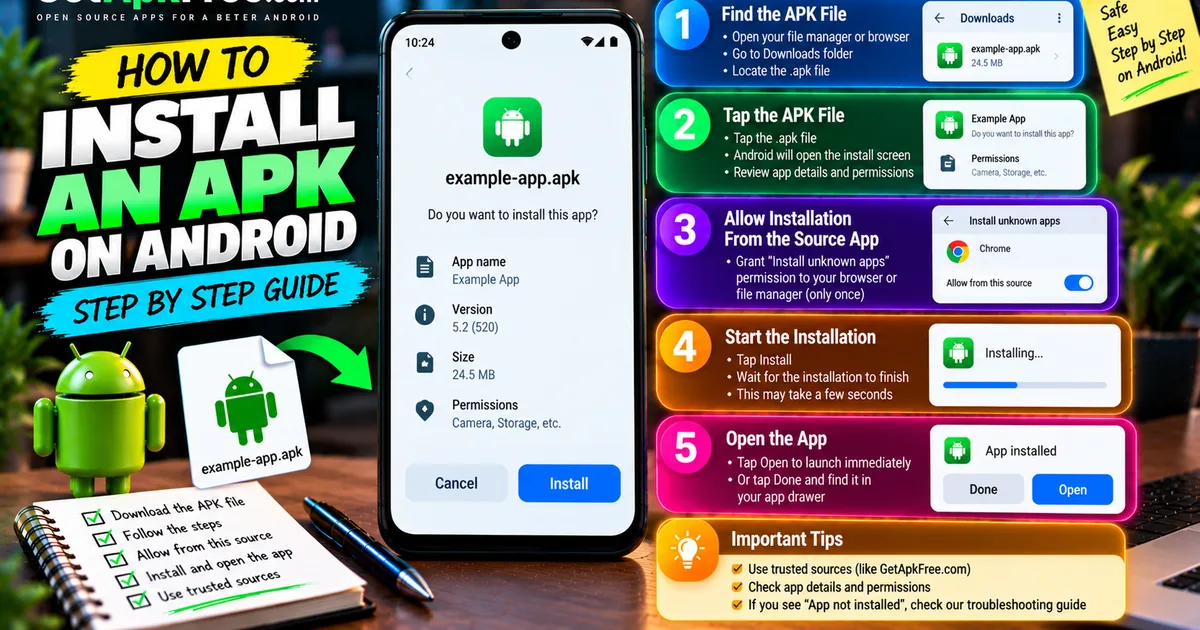
How to Install an APK on Android: A Complete Step-by-Step Guide
GetApkFree Team
Learn how to install an APK on Android step by step, including how to open the file, allow APK installation when required, troubleshoot common issues, and verify the app.
Quick Answer
Learn how to install an APK on Android step by step, including how to open the file, allow APK installation when required, troubleshoot common issues, and verify the app.
You've got an APK file sitting on your phone and you're ready to install it — but the process looks a little different from tapping "Install" in the Play Store. It's genuinely simple once you know the sequence, though the exact wording and menu locations shift a bit between phone brands and Android versions. This guide walks through the actual installation workflow from start to finish, step by step.
Before You Start
Make sure you actually have the APK file already downloaded and accessible on your device — this guide picks up from there, not from finding a file to download. If you're starting from scratch, GetApkFree's app catalogue is a reasonable place to find one. It's worth a brief note before you go further: use a source you trust for the file itself. This guide focuses on the mechanics of installing; if you want the fuller picture on evaluating a file before you install it, see our guide on installing APK files safely.
Step 1: Find the APK File
Most downloaded files land in one predictable place: your device's Downloads folder, accessible through your file manager app or through your browser's own downloads screen. If you downloaded the file through Chrome or another browser, you'll often see a download notification you can tap directly, which skips the file-manager step entirely. If some time has passed, opening your file manager app and browsing to Downloads is the more reliable path.
Step 2: Tap the APK File
Tapping an .apk file hands it to Android's built-in package installer, which reads the file and shows you a screen with the app's name, icon, and the permissions it's requesting. This is the same interface regardless of where the file came from — your file manager and your browser both hand off to the same system component at this point.
Step 3: Allow Installation From the Source App
If this is the first time you're installing an APK through this particular app (your browser or file manager, for instance), Android will interrupt with a permission prompt rather than proceeding straight to install. This is the "Install unknown apps" permission, and it's worth understanding what it actually does: since Android 8, there's no single global toggle for sideloading. Instead, you grant this permission per app — specifically to the browser or file manager attempting the install, not to your device as a whole.
To grant it:
- Follow the prompt Android shows you, or go to Settings.
- Find Apps → Special app access → Install unknown apps (this is an example path — exact wording and location vary by manufacturer and Android version).
- Select the specific app you're using to install the APK.
- Toggle on Allow from this source.
Grant this only to the app you're actually using right now, not every app on the list. This permission doesn't disable any other protection on your phone — it only lets that one app hand files to the installer.
Step 4: Start the Installation
Back at the install screen, tap Install. Android extracts and sets up the app, which usually takes a few seconds to a minute depending on the app's size. You may see a brief progress indicator; larger apps naturally take longer. Once it finishes, you'll see either an Open button or a completion message.
Step 5: Open the Newly Installed App
Tap Open to launch it immediately, or Done to return to what you were doing — the app will be waiting in your app drawer or home screen either way, exactly like anything installed from the Play Store.
What If the App Is Already Installed?
If a matching version of the app is already on your device, Android treats a new, compatible APK as an update rather than a fresh install — your data and settings generally carry over, and the process looks identical to what's described above. Whether Android accepts it as a valid update depends on the file genuinely matching what's already installed: same package identity, and a compatible signing identity. A file that doesn't match on those points isn't treated as an update — see the next two sections for what that looks like in practice.
How to Install an APK Update
The workflow is the same one covered above — find the file, tap it, confirm the permission if needed, and install. The only difference from a fresh install is what happens behind the scenes: Android checks whether the new file is a legitimate continuation of what you already have before replacing it. For a deeper look at what separates an update from a new installation, and what happens to your data either way, see our guide on APK updates vs new installs.
What If Android Says "App Not Installed"?
This generic message covers several distinct causes — most commonly a signing mismatch with an existing install, a corrupted download, or insufficient storage. Rather than duplicating that troubleshooting here, our dedicated guide on fixing "App not installed" walks through each cause and how to resolve it.
What If Android Says "There Was a Problem Parsing the Package"?
This is a different, earlier failure — Android couldn't read the file's structure well enough to even begin installing, usually because of a corrupted or incomplete download, or a file that isn't actually a plain APK. Our guide on fixing the parsing package error covers this specific message in full.
What If the APK Won't Open?
A few practical possibilities if tapping the file does nothing or produces an immediate error, before you even reach the permissions screen:
- An incomplete download — the file transfer was interrupted and never finished.
- The wrong file entirely — double-check the extension; a file that only looks like an APK (renamed, or actually a different package format) won't open correctly.
- A file association issue — occasionally a file manager doesn't recognize the file as an APK at all; try opening it from a different app, like your browser's downloads list.
- An unsupported package format — some downloads are actually XAPK, APKM, or one piece of a split APK set rather than a plain APK, and need a different handling approach entirely.
- A corrupted file — re-downloading from the original source resolves this more often than anything else.
What If Android Says the App Is Incompatible?
Compatibility can depend on more than one factor: your Android OS version, your device's CPU architecture, or requirements built into the package itself. A build meant for a different processor architecture than your device has, for instance, simply won't run — our guide on ARM64 vs ARMv7 APKs explains this specific angle in detail if that's the issue you're running into.
What Happens After Installation?
A few things worth knowing once the app is installed:
- Permissions — you can review and adjust what the app can access anytime under Settings → Apps → [app name] → Permissions.
- First launch — the app may ask for additional permissions the first time it actually needs them, separate from what you saw during install.
- Updates — an app installed from an APK doesn't update itself automatically the way a Play Store app does; you're responsible for checking back for new versions yourself.
- Uninstalling later — long-press the app's icon and choose Uninstall, or remove it through Settings → Apps, exactly the same as any other app.
Quick Installation Checklist
- Download the APK.
- Find it in your Downloads folder or browser downloads.
- Tap the file to open Android's installer.
- Allow the source app when Android requests the "install unknown apps" permission.
- Tap Install.
- Wait for the process to finish.
- Tap Open, or find the app in your app drawer.
- Review permissions, and note whether this was a fresh install or an update.
Frequently Asked Questions
Why can't I install an APK? Most often because "install unknown apps" hasn't been allowed for the app you're using, the download is incomplete, or there's a compatibility or signature conflict with an existing install.
Where do APK files go after downloading? Typically your device's Downloads folder, visible through your file manager or your browser's own downloads screen.
Why does Android ask for permission to install unknown apps? It's a deliberate, per-app safeguard — you're granting the specific browser or file manager attempting the install permission to do so, rather than opening that ability up device-wide.
Can I install an APK over an existing app? Yes, when the package identity and signing information match — Android treats it as an update. If they don't match, the install is blocked rather than silently replacing something it can't verify.
Why is the Install button missing? This can happen if Android is still processing the file, if the permission step hasn't been completed yet, or if a device policy (on a managed work device, for instance) blocks the install outright.
What should I do if an APK won't open? Check that the download actually completed, confirm it's genuinely a plain APK rather than another package format, and try re-downloading from the original source if anything looks off.
Can I uninstall an APK-installed app normally? Yes — exactly the same way as any other app, through a long-press or through Settings → Apps.
Why does my phone say the app is incompatible? Usually an Android version requirement, a CPU architecture mismatch, or a package built with requirements your device doesn't meet.
Final Thoughts
Installing an APK is a short, predictable sequence once you understand what each step is actually doing — find the file, let Android's installer read it, grant the one-time permission to the app you're using, and confirm the install. When something doesn't go as expected, take the time to understand what the specific message means rather than working around it blindly; Android's installation checks exist to catch real problems, not just to slow you down.
Related Articles
Roblox Not Loading Games on Android? How to Fix It
Roblox games not loading on Android? Fix endless loading screens, failed connections, and games that close unexpectedly with practical checks for your network.
GetApkFree Team
Reddit Notifications Not Working on Android? How to Fix It
Reddit notifications not working on Android? Fix missing replies, comment alerts, chat notifications, and delayed updates by checking Reddit settings,
GetApkFree Team
Snapchat Camera Not Working on Android? How to Fix It
Is Snapchat’s camera showing a black screen or refusing to take photos on Android? Check camera permissions, update the app, clear its cache, and follow these practical troubleshooting steps.
GetApkFree Team
Pinterest Images Not Loading on Android? How to Fix It
Pinterest images not loading on Android? Fix blank Pins, missing pictures, endless loading, and feed problems with these practical troubleshooting steps.
GetApkFree Team