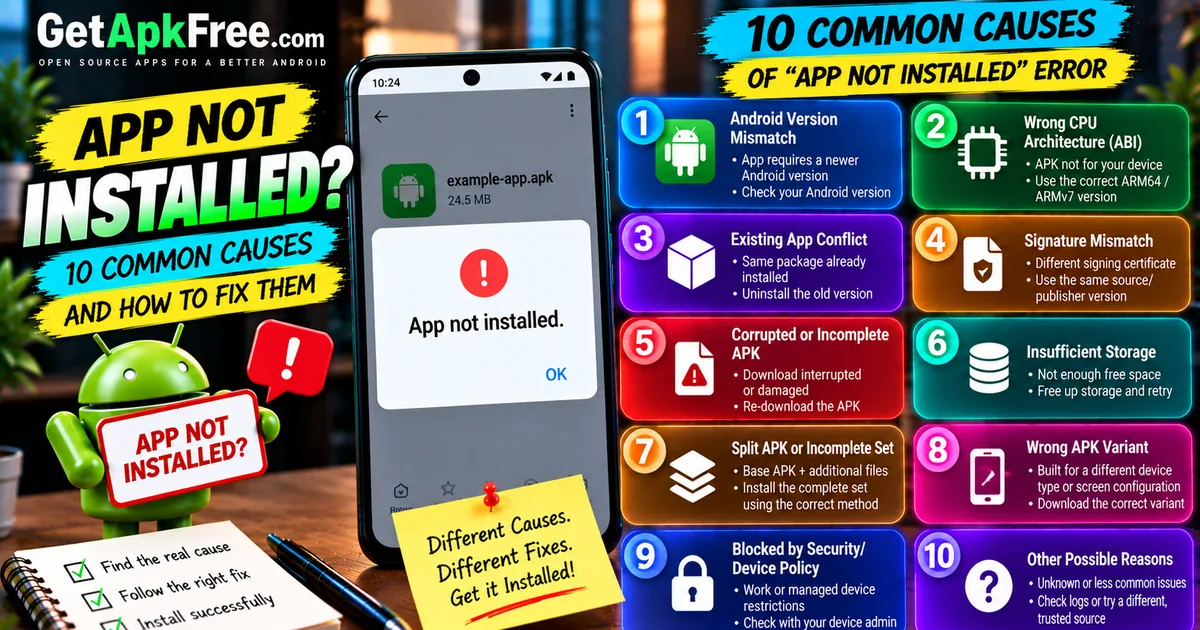
Why APK Says "App Not Installed": 10 Common Causes and Fixes
GetApkFree Team
Why does an APK say "App not installed"? Learn the most common causes, including compatibility, signatures, storage, package conflicts, and incomplete APK files.
Quick Answer
Why does an APK say "App not installed"? Learn the most common causes, including compatibility, signatures, storage, package conflicts, and incomplete APK files.
"App not installed." No code, no explanation — Android just stops and leaves you guessing. The frustrating part isn't the failure itself, it's that this one message covers a genuinely wide range of underlying problems, and Android doesn't tell you which one you're looking at. This guide is about figuring out which cause actually applies to your situation, so you're not just retrying the same install and hoping.
What Does "App Not Installed" Actually Mean?
Behind the scenes, Android's package manager runs through a series of checks before it'll accept a new app or update — verifying the file's structure, its signing identity, its compatibility with your device, and whether it conflicts with anything already installed. "App not installed" is what you see when any one of those checks fails. It's a catch-all failure notice, not a diagnosis — the same text appears whether the real problem is a corrupted download or a fundamental architecture mismatch. Figuring out which one you're dealing with means looking at your specific situation, not the message itself.
The 10 Most Common Causes
This isn't an exhaustive list — Android's package manager can reject an install for reasons outside these ten — but they cover the situations people run into most often.
1. Android Version or App Requirement Mismatch
Every app declares a minimum supported Android version. If your device runs an older release than the app requires, the install fails outright. Signs: the app is described as needing a recent Android release; your device hasn't received an OS update in a while. What to check: your Android version, under your device's settings, against whatever the app's own listing states it needs.
2. Wrong CPU Architecture / ABI
Some APKs are built for a specific processor architecture rather than every device universally. Installing a build meant for a different architecture than your device has will fail. Signs: the download offered multiple architecture-labeled variants and you're not sure which you picked. What to check: your device's architecture against the file's — our guide on ARM64 vs ARMv7 APKs covers how to tell the difference.
3. Existing App/Package Conflict
If a different build of the same app — same package name, different origin — is already installed, Android may refuse to install over it rather than risk an inconsistent state. Signs: you already have the app from a different source (Play Store vs. direct download, for instance). What to check: whether an existing install under the same package name predates this attempt.
4. APK Signature Mismatch
Closely related to the above: Android checks that a new file's signing identity matches what's already installed before treating it as a valid update. A file signed by a different certificate than your existing install gets rejected, not silently merged. Signs: you're trying to replace an app that came from a different distributor than the one you originally installed it from. What to check: whether the new file genuinely comes from the same publishing lineage as what you have.
5. Corrupted or Incomplete APK
A download that didn't finish cleanly, or a file damaged in transfer, can fail the package manager's integrity checks. Signs: the file size looks smaller than expected, or the download was interrupted. What to check: re-download the file fresh from the original source rather than retrying the same copy.
6. Insufficient Storage
Android needs working space to process an install, not just enough room for the app's final installed size. Signs: your device has been reporting low storage generally. What to check: available storage under your device's settings — there's no single fixed amount that applies to every app, so free up a reasonable amount and retry rather than assuming a specific threshold.
7. Split APK or Incomplete Package Set
Some apps are distributed as a base APK plus additional split files rather than one standalone package. Installing only part of that set — or mixing pieces from different releases — doesn't produce a working install. Signs: you downloaded what was described as multiple related files, and only installed one. What to check: whether what you have is genuinely a split APK set that needs to be installed together, not a single standalone file.
8. Wrong APK Variant for the Device
Beyond architecture specifically, some apps offer other device-tailored variants — different screen configurations or device classes. A variant built for a different device type than yours can fail to install cleanly.
9. Installation Blocked by Security/Device Policy
On a work-managed or otherwise restricted device, an administrative policy can block sideloading entirely, independent of the file itself. Signs: the device belongs to an organization, or you recall installation restrictions being mentioned when it was set up. What to check: with whoever manages the device's policy, if this applies.
10. Other Package-Manager or Installation-State Conditions
A handful of less common situations — a partially failed previous install left the package manager in an inconsistent state, or a system-level condition unrelated to the file itself — can also surface as this same generic message. These are less predictable and often resolve with a device restart before you assume something is fundamentally wrong with the file.
How to Figure Out Which Cause You Have
Work through these questions in order — each answer narrows things down:
- Does the APK open at all when tapped? If it fails before showing the permissions screen, that's usually a different error entirely (parsing), not this one.
- Is the app already installed? If yes, you're likely looking at causes 3 or 4 (conflict or signature).
- Is this meant to be an update? If so, version and signing compatibility both matter — see the update-specific section below.
- Did the download offer multiple architecture options? If you're not sure which you picked, that's cause 2.
- Is your Android version current relative to the app's requirements? Cause 1.
- Did the download complete without interruption? If not, cause 5.
- Was this described as multiple files? Cause 7.
- Is your device low on storage? Cause 6.
- Is this a managed or restricted device? Cause 9.
Quick Checks Before Trying Again
- Re-download the file rather than reusing the same copy.
- Confirm your device's Android version and architecture against the app's stated requirements.
- Check whether a conflicting version is already installed.
- Check available storage.
- Confirm whether the file is part of a split set that needs installing together.
- Use a source you actually trust.
- Don't dismiss a security warning just to force the install through — read it first.
When "App Not Installed" Is an Update Problem
If you already have the app and the new file is meant to replace it, two things specifically have to line up: the signing identity has to match what's installed, and the version generally needs to be newer, not older. A file that's otherwise perfectly legitimate can still fail here if it comes from a different signing source than your existing install — that's Android doing exactly what it's designed to do, not a bug to work around. Our guide on APK updates vs new installs covers this relationship in full.
When to Read the Detailed Troubleshooting Guide
This article is about identifying which cause applies to you — once you've narrowed it down, our existing guide on fixing "App not installed" walks through the actual remedies for each cause in much more depth.
Related Installation Issues
"App not installed" is a distinct failure from a few other messages worth telling apart: "There was a problem parsing the package" happens earlier, when Android can't even read the file's structure; an APK that won't open at all is usually a file-handling issue rather than an installation rejection; and an explicit "incompatible device" message is a more specific version of cause 1 or 2 above.
Frequently Asked Questions
Why does my APK say App Not Installed? Because one of several checks Android runs before accepting an install failed — a version mismatch, an architecture mismatch, a signature conflict, a corrupted file, low storage, or a handful of other conditions. The message itself doesn't say which.
Why does an APK work on one phone but not another? Most often architecture, Android version, or device-specific compatibility differences between the two phones.
Can an old APK cause App Not Installed? Yes, if it requires an Android version older than what's actually a compatibility problem, or if it's an outdated build with a signature that doesn't match a newer install already on your device.
Can insufficient storage cause APK installation failure? Yes — Android needs working space during installation itself, not just room for the final app size.
Can a signature mismatch prevent an APK update? Yes — this is one of the most common reasons an update specifically fails while a fresh install of the same file might not.
Why does an APK fail when the app is already installed? Usually a conflict between the existing install and the new file — different signing source, or a package state Android won't silently overwrite.
Can a split APK cause App Not Installed? Yes, if only part of the required set is installed, or if pieces from different releases are mixed together.
Is App Not Installed the same as a parsing error? No — a parsing error means Android couldn't read the file at all; "App not installed" means Android read it but rejected the install for a separate reason.
Final Thoughts
"App not installed" is a symptom, not a diagnosis — the real value is in narrowing down which of several genuinely different problems you're actually facing, rather than retrying the same file or bypassing a warning to force it through. Work through the likely causes methodically, and once you've identified yours, the detailed troubleshooting guide has the specific fix.
Related Articles
Roblox Not Loading Games on Android? How to Fix It
Roblox games not loading on Android? Fix endless loading screens, failed connections, and games that close unexpectedly with practical checks for your network.
GetApkFree Team
Reddit Notifications Not Working on Android? How to Fix It
Reddit notifications not working on Android? Fix missing replies, comment alerts, chat notifications, and delayed updates by checking Reddit settings,
GetApkFree Team
Snapchat Camera Not Working on Android? How to Fix It
Is Snapchat’s camera showing a black screen or refusing to take photos on Android? Check camera permissions, update the app, clear its cache, and follow these practical troubleshooting steps.
GetApkFree Team
Pinterest Images Not Loading on Android? How to Fix It
Pinterest images not loading on Android? Fix blank Pins, missing pictures, endless loading, and feed problems with these practical troubleshooting steps.
GetApkFree Team