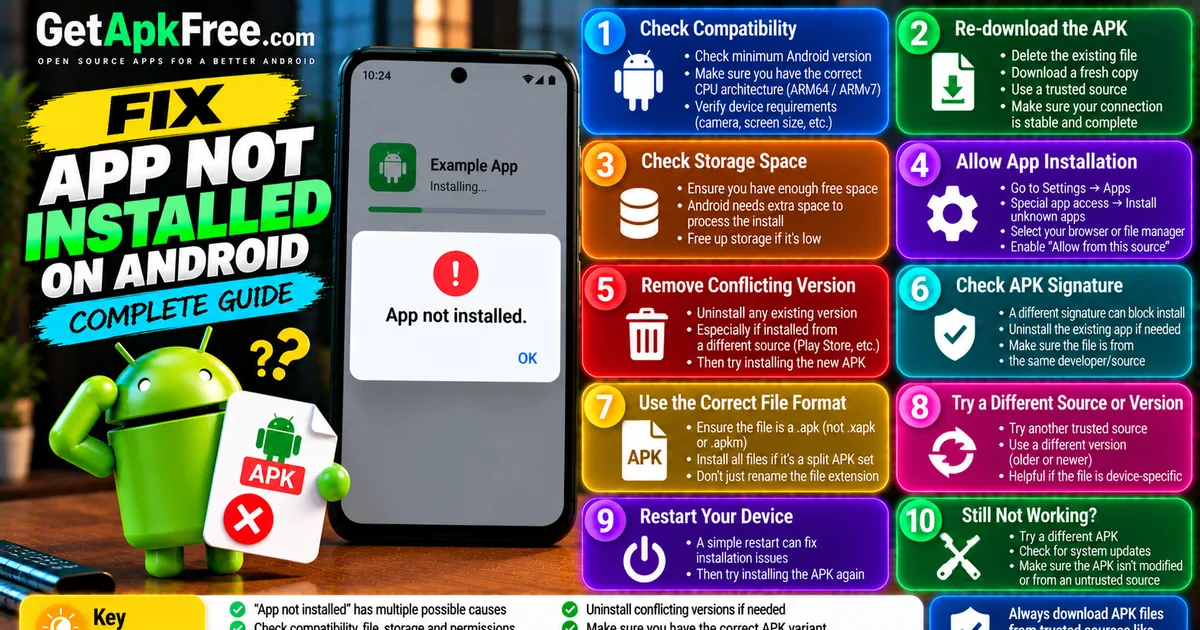
How to Fix "App Not Installed" Error on Android: 12 Solutions That Work
GetApkFree Team
App not installed on Android? Here are 12 practical fixes for compatibility, storage, permissions, corrupted downloads, and conflicting installs.
Quick Answer
App not installed on Android? Here are 12 practical fixes for compatibility, storage, permissions, corrupted downloads, and conflicting installs.
You tap install, wait a few seconds, and instead of opening the app you get a flat, unhelpful message: "App not installed." No error code, no explanation — just a dead end.
The app not installed Android error is one of the most common installation problems, and it doesn't have a single cause. It can mean anything from a corrupted download to a storage problem to a conflict with an app already on your phone. This guide walks through the fixes that actually address the real causes, in a sensible order to try them, plus when you shouldn't install the file at all.
Why Android Says "App Not Installed"
Android's package installer is deliberately vague with this message. It doesn't distinguish between "this file is corrupted," "this app already exists with a different signature," and "your device doesn't support this," even though those are completely different problems with completely different fixes.
That's the first thing worth knowing: there's no single universal fix. The solutions below cover the causes that come up most often, roughly in the order worth trying them, but which one applies depends on your specific situation.
1. Check Whether the APK Is Compatible
Not every APK works on every device, and a lot of "app not installed" errors are really compatibility errors in disguise.
Android version
Every app has a minimum supported Android version. If your phone is running an older version than the app requires, installation can fail outright, sometimes with this exact message. Check your Android version under Settings → About phone, and compare it against what the app's listing specifies.
CPU architecture (ABI)
Some apps are compiled for a specific processor architecture — most Android phones today use ARM64, but older or budget devices sometimes use ARMv7 or, rarely, x86. An APK built only for one architecture generally won't install on a device using a different one. You don't need to become an expert here — just know that "wrong architecture" is a real, if less common, cause of installation failures.
Device compatibility
Some apps are also restricted by screen size, hardware features (a camera-dependent app on a device without one, for instance), or manufacturer-specific requirements. If an app's own listing mentions device requirements, that's worth checking before assuming the problem is something else.
2. Make Sure the APK Download Finished Correctly
A partial or corrupted download is one of the most common — and most fixable — causes of an Android app installation error.
- Re-download the file rather than trying to repair it. A damaged APK almost never becomes installable by retrying the same file.
- Get it from the original, trusted source again, not a cached copy or a link someone forwarded you.
- Check your connection was stable during the download — an interruption partway through is the most common reason a file ends up incomplete.
One thing worth being explicit about: if a warning appears during or after download, the right response is to investigate it, not to disable the protection that raised it. Turning off scanning or security prompts just to force a broken file to install treats the symptom while ignoring what the warning might actually be telling you.
3. Check Available Storage
Android needs working space beyond just the app's final installed size — it needs room to extract and process the package during installation. If your device is nearly full, installation can fail even though the app itself would easily fit once installed.
Check your available storage under Settings → Storage, and free up some space if it's low. As a general habit, it's worth leaving some breathing room rather than filling storage right to the edge — Android and individual apps both use free space for temporary files during normal operation, not just during installs.
4. Check Android's App Installation Permissions
Since Android 8, there's no single global "unknown sources" switch. Instead, permission to install apps from outside the Play Store is granted per app — you specifically allow your browser, file manager, or another app to trigger installs, rather than opening that ability up system-wide.
General steps:
- Open Settings.
- Go to Apps → Special app access → Install unknown apps (wording and location vary by device).
- Select the app you're using to open the APK.
- Toggle on Allow from this source.
Keep in mind that Samsung, Xiaomi, OnePlus, Pixel, Motorola, and other manufacturers all lay out their settings menus a little differently, and the exact path can shift between Android versions too. If you can't find "Install unknown apps" exactly where described, searching "unknown apps" or "install unknown" in your Settings search bar usually gets you there faster than hunting through menus.
5. Remove a Conflicting Existing Version
If you already have a version of the app installed — especially one from a different source, like the Play Store — a new install can be blocked because the two versions have different signing signatures. Android treats this as a security boundary, not a bug: it won't silently let one publisher's update replace a different publisher's build of what looks like the same app.
If you're confident about the source of the new file:
- Back up anything important — save data, settings, logins — since uninstalling can remove the app's local data, depending on the app.
- Uninstall the existing version through Settings → Apps, or by long-pressing its icon.
- Try installing the new file again.
Don't skip the backup step. Whether uninstalling wipes local data varies by app — some sync everything to an account, others store data only on your device.
6. Check Whether the APK Is Actually the Correct Package
Not every Android app file you'll encounter is a plain .apk. Some are .xapk or .apkm — container formats that bundle a base APK together with extra resources or split packages. If you're trying to install one of these by treating it like a regular APK, that alone can produce an "app not installed" style failure, because Android's built-in installer doesn't know how to unpack either format on its own.
If your file ends in .xapk or .apkm, you need the installer tool built for that specific format, not the standard installer. For a full breakdown of what each format actually contains and how installing them differs, see our guide on APK vs XAPK vs APKM.
7. Be Careful With Split APKs
Some apps — particularly ones published as Android App Bundles — are distributed as a base APK plus several split APKs, each covering something like a specific screen density, CPU architecture, or language. The Play Store installs all the necessary pieces together automatically; outside the Play Store, they need to be installed as a set.
If you only have one split file rather than the full set, installing it on its own will typically fail, because it's not a complete, self-contained app. This isn't something you can work around by forcing a partial install — the fix is getting the complete package (often via an APKM file or a matching set of split APKs) from a source that provides the whole thing, not by trying to bypass what the split is there for.
8. Check for a Damaged or Invalid APK
Beyond a simple incomplete download, a file can also be improperly packaged in the first place — assembled incorrectly, missing required components, or altered after it was originally built. Android's installer generally rejects these outright rather than installing something broken, and "app not installed" is exactly the kind of message that shows up in that case.
If you've ruled out storage, compatibility, and a conflicting install, and the file still won't install, the most reliable next step is getting a fresh copy from a trusted or authorized source rather than continuing to troubleshoot the same file.
9. Restart the Phone and Try Again
It sounds too simple to matter, but a restart clears temporary system state that can occasionally interfere with installation — a stuck background process, a filesystem cache that didn't release properly, that sort of thing. It won't fix a genuinely incompatible or corrupted file, but it's a quick, harmless step worth trying before you assume the problem is more serious than it is.
10. Update Android
An outdated Android version can occasionally be the actual root cause behind compatibility-related install failures, and keeping your OS updated is generally good practice for security reasons regardless. Check for updates under Settings → System → System update (naming varies by manufacturer).
That said, don't treat this as a guaranteed fix — most "app not installed" errors come from the causes covered above, and updating Android won't resolve a corrupted download, a storage problem, or a signature conflict.
When You Should NOT Install the APK
Not every "app not installed" situation should be solved by getting the file to install. Sometimes the right response is to stop and reconsider the source entirely:
- The source is unknown or unverifiable. If you can't tell who published the file or where it originally came from, that uncertainty doesn't go away just because you found a workaround for the install error.
- The permissions don't make sense for the app. A simple utility asking for contacts, SMS, or call logs is a reason to stop, not to troubleshoot harder.
- It's a modified or "cracked" version of a paid app. Beyond the authorization issue, these are a common way malware gets distributed — and installation failures on files like this are sometimes the file being what it looks like, not just bad luck.
- The download page redirected you somewhere unexpected, or the file doesn't match what you clicked to download.
In any of these cases, the better move is getting the app from the Play Store, the developer's own site, or another source you're actually authorized to use — not pushing harder to force a questionable file to install.
A Quick Troubleshooting Checklist
If you want the short version to work through in order:
- Confirm your Android version meets the app's minimum requirement.
- Re-download the file from the original trusted source.
- Check you have enough free storage.
- Confirm "install unknown apps" is allowed for the app you're using to install.
- Uninstall any conflicting existing version (back up data first).
- Confirm the file is actually a plain APK, not an XAPK/APKM you're treating as one.
- If it's a split APK, get the full set rather than a single piece.
- Get a fresh copy of the file if you suspect it's damaged.
- Restart your phone.
- Check for a pending Android update.
- Stop and reconsider the source if anything about it looks off.
Frequently Asked Questions
Why does Android say "App not installed"? It's a generic message covering several distinct problems — incompatibility, a corrupted download, insufficient storage, a conflicting existing install, or an improperly packaged file. There's no single cause behind it.
Why won't an APK install on my phone? The most common reasons are a signature conflict with an existing version, an incomplete or corrupted download, low storage, or a compatibility mismatch with your Android version or device. Working through the checklist above covers each of these in order.
Can an old Android version cause the error? Yes. If the app requires a newer Android version than your device is running, installation can fail. Not every failure is version-related, though, so it's worth checking rather than assuming.
Can low storage cause APK installation failure? Yes — Android needs working space to process the package during installation, not just enough room for the final installed app. Free up some storage and try again.
Why won't a split APK install normally? A single split APK usually isn't a complete app on its own — it's one piece of a set that's meant to be installed together. Installing just one piece typically fails because the rest of what the app needs isn't present.
Is it safe to install APK files? It can be, provided you check the source, review the permissions being requested, and get the file from a developer, catalogue, or store you actually trust. For a full walkthrough of doing this safely, see our guide on how to install APK files on Android safely, and our quick install walkthrough for the shorter version.
Final Thoughts
An "app not installed" error is frustrating precisely because Android doesn't tell you which of several possible problems you're actually facing. Working through compatibility, storage, permissions, and conflicting installs in order will resolve the large majority of cases — and for the ones it doesn't, that's often a sign the file itself, or its source, deserves a second look rather than another workaround.
Related Articles
Roblox Not Loading Games on Android? How to Fix It
Roblox games not loading on Android? Fix endless loading screens, failed connections, and games that close unexpectedly with practical checks for your network.
GetApkFree Team
Reddit Notifications Not Working on Android? How to Fix It
Reddit notifications not working on Android? Fix missing replies, comment alerts, chat notifications, and delayed updates by checking Reddit settings,
GetApkFree Team
Snapchat Camera Not Working on Android? How to Fix It
Is Snapchat’s camera showing a black screen or refusing to take photos on Android? Check camera permissions, update the app, clear its cache, and follow these practical troubleshooting steps.
GetApkFree Team
Pinterest Images Not Loading on Android? How to Fix It
Pinterest images not loading on Android? Fix blank Pins, missing pictures, endless loading, and feed problems with these practical troubleshooting steps.
GetApkFree Team