The Android Setting That Undoes Every Permission You Forgot About
GetApkFree Team
Android quietly revokes permissions from apps you stop using. Here's how to check it's actually on.
Quick Answer
Android quietly revokes permissions from apps you stop using. Here's how to check it's actually on.
Think about the apps on your phone you haven't opened in six months. A parking app from a trip. A store app you installed for one discount. A game you finished.
Now think about what they still have access to. Location. Camera. Contacts. Files.
You granted those permissions when the app was useful to you. Nothing revoked them when it stopped being useful.
Android has a fix for this, and you may not have noticed it
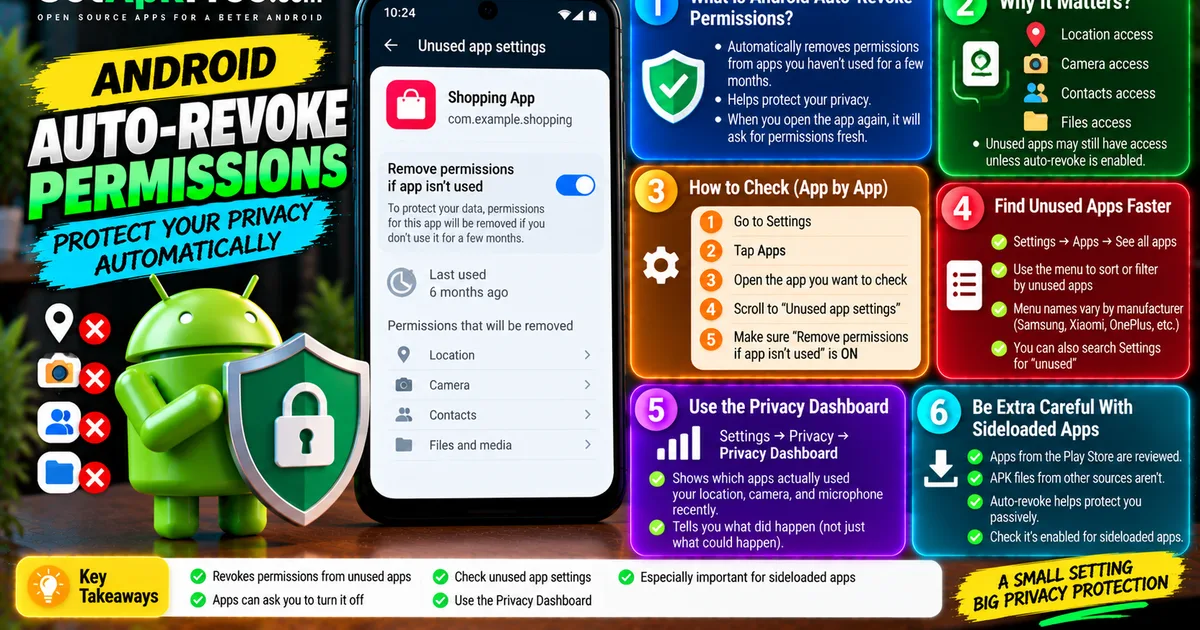
Android includes a feature that automatically revokes permissions from apps you haven't used in a few months. Stop opening an app, and after a period of inactivity the system takes back what it was granted. Open it again and it simply asks you fresh.
It's one of the better privacy features Android has shipped, partly because it requires nothing from you once it's on. The problem is that it's per-app, and it can be switched off per-app — sometimes by you, in a hurry, months ago, without registering what you were agreeing to.
Why apps ask you to turn it off
You may have seen a prompt asking you to disable "remove permissions if app isn't used" for a specific app. Some apps have a genuine reason to ask: a security camera app that needs to keep working in the background, a backup tool that runs on a schedule, an alarm or medical reminder you'd want functioning even if you don't open it for weeks.
Plenty of others ask because the permission is the point. An app that wants standing location access and knows you'll rarely open it has an obvious interest in that access surviving your inattention.
The prompt looks identical either way. That's the issue.
How to check what's exempt
Settings → Apps → [app name] → scroll to "Unused app settings" — this is where you'll find the toggle for pausing activity and removing permissions.
Doing this app by app is tedious. Faster route: Settings → Apps → See all apps → the three-dot menu → sort or filter by unused apps, if your phone offers it. Menu paths vary between manufacturers — Samsung, Xiaomi, and OnePlus each move things around — so if the exact wording differs on your device, search your Settings for "unused" and it'll usually surface.
What you're looking for is any app where auto-revoke is switched off that you can't immediately justify. A camera security app, fine. A shopping app you used once, less fine.
The related habit worth building
While you're in there, the Privacy Dashboard is the natural companion. Settings → Privacy → Privacy Dashboard shows which apps actually used your location, camera, and microphone recently.
The two views answer different questions. Auto-revoke settings tell you what could happen while you're not looking. The dashboard tells you what did happen. An app appearing in your location history that you don't remember opening is worth investigating.
This matters more if you sideload
Apps from the Play Store go through automated review. APKs installed directly don't, which means the permission list and what an app does with it are more your responsibility.
That doesn't make sideloading reckless — it makes the post-install habits matter more. Auto-revoke is one of the few protections that works passively, without you remembering to check anything. It's worth confirming it's actually enabled for the apps you install this way, rather than assuming.
The short version
- Android revokes permissions from apps you stop using — but only where the setting is enabled.
- Apps can prompt you to turn it off, and the prompt looks the same whether the reason is legitimate or not.
- Check under Settings → Apps → [app] → Unused app settings.
- Pair it with the Privacy Dashboard: one shows what could happen, the other shows what did.
Five minutes now, and it keeps working without you.
Related Articles
Truecaller Caller ID Not Showing on Android? How to Fix It
Truecaller Caller ID not showing on Android? Fix missing caller names and caller ID pop-ups by checking permissions, display-over-other-apps settling
GetApkFree Team
Gemini App Not Working on Android? How to Fix It
Gemini not working on Android? Fix “Something went wrong” errors, failed prompts, endless loading, and app problems with practical checks for your connection, app updates, cache, and Google account.
GetApkFree Team
Canva App Keeps Crashing on Android? How to Fix It
Canva keeps crashing, freezing, or closing unexpectedly on Android? Troubleshoot app updates, Android System WebView, internet problems, storage, cache, and device settings with these practical fixes.
GetApkFree Team
ChatGPT App Login Error on Android: How to Fix “Something Went Wrong”
Getting a “Something went wrong” error when logging in to ChatGPT on Android? Check Google Play Store updates, browser sign-in settings, connectivity, and other safe troubleshooting steps.
GetApkFree Team