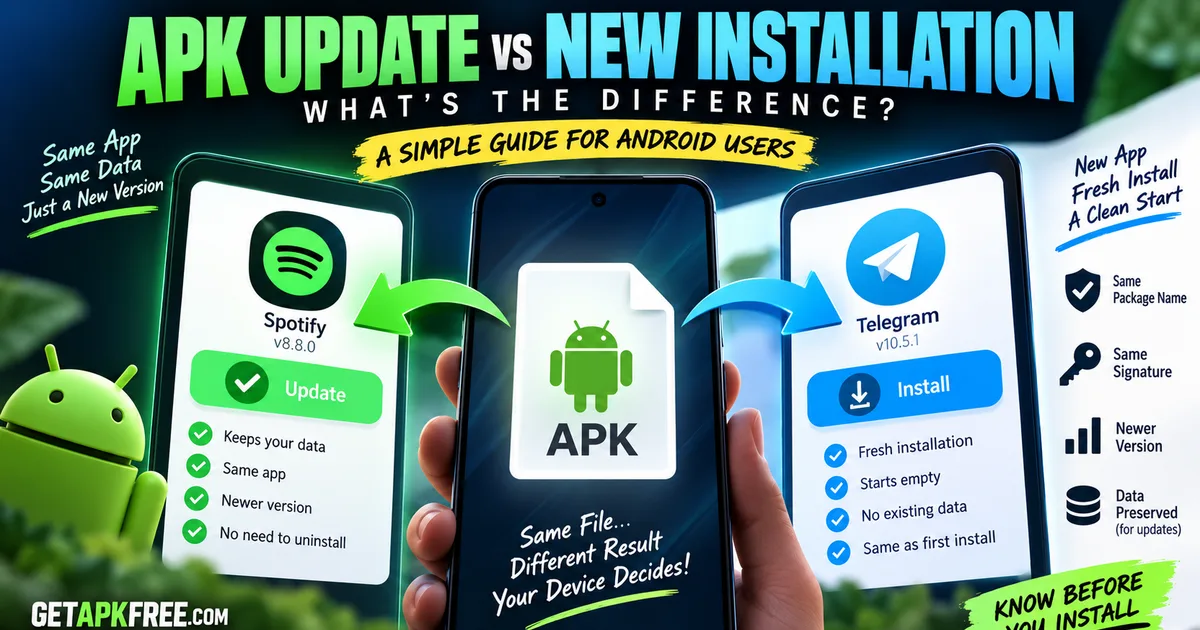
APK Update vs New APK: What's the Difference and Which Should You Install?
GetApkFree Team
Learn the difference between updating an APK and installing a new APK, how Android handles app versions, and what to check before replacing an existing app.
Quick Answer
Learn the difference between updating an APK and installing a new APK, how Android handles app versions, and what to check before replacing an existing app.
If you've ever downloaded an APK for an app you already have installed, you've probably paused for a second: is this going to update the app, install a second copy, or break something? It's a reasonable question — an APK update vs new APK situation looks identical from the file itself. The difference is in what's already on your device, not in the file you downloaded.
This guide covers what actually separates an APK update from a fresh install, what Android checks before deciding which one happens, and what to look at before installing anything over an app you're already using.
What Is an APK?
APK stands for Android Package Kit — the standard file format Android uses to install apps. Every app on your phone, Play Store included, is an APK underneath; the Play Store just handles the download and install automatically. Installing one yourself is usually called sideloading.
An APK bundles the app's code, its resources, and a digital signature identifying the developer. That signature is central to everything below — it's how Android tells whether a new file is genuinely a newer version of an app you have, or something else entirely.
What Is an APK Update?
An APK update is what happens when you install a new file and Android recognizes it as a newer version of an app already installed. For that, the file needs to match in a few specific ways: same package name (the unique identifier like com.example.app), same signing signature, and a version number Android considers newer.
When those conditions are met, Android replaces the app's code with the new version while leaving its data — settings, saved files, login state, local databases — largely intact. It's the same mechanism the Play Store uses automatically; installing a matching APK by hand just does it manually.
A couple of concrete cases make this easier to picture. These are explanatory only, not GetApkFree assessments of any specific file:
- Example A. Installed: WhatsApp. Incoming file: same package, compatible signing, newer version. → Android can treat it as an update.
- Example C. Installed: an app under package X. Incoming file: the same package X, but signed with a different key. → Android can reject it as an update, regardless of how identical the two look.
What Is a New APK Installation?
A new installation is simpler: nothing matching that package name exists on your device yet, so Android installs the app fresh, with no existing data to preserve — the same thing that happens the first time you install any app at all.
- Example B. Installed: an app under package X. Incoming file: a different package identity entirely, even with a similar or identical display name. → Android treats it as a different application, installed alongside the first.
The distinction matters because the same APK file can trigger either outcome depending on your device's current state. Install it where the app's never existed — new installation. Install it where an older, matching version exists — update. Install it where a different, non-matching version exists — and that's where things go wrong, covered below.
APK Update vs New Installation
| APK Update | New Installation | |
|---|---|---|
| App already installed? | Yes, a matching version | No |
| Package name | Must match exactly | N/A — nothing to match |
| Signature | Must match the existing app | N/A |
| Version requirement | Must be equal or newer (or Android may reject it) | None |
| App data | Generally preserved | Starts empty |
| Result if signatures don't match | Blocked — "App not installed" | Installs normally |
| User experience | Icon and position unchanged; app closes briefly and reopens | New icon appears; app runs first-time setup |
What Happens to Your App Data During an Update?
For a genuine, matching update, app data is generally preserved — saved logins, local files, settings, and databases usually carry over, the same way a Play Store update wouldn't wipe your data. This isn't guaranteed in every case: an app's own update logic can occasionally restructure its data, and a major version jump sometimes handles storage differently than expected. Because of that, it's worth backing up anything genuinely important before installing an update from outside the Play Store.
Uninstalling first is a different, riskier operation for your data: removing an app can remove what it stored along with it, depending on the app and Android's own backup behavior. Don't assume it's recoverable — back up first if you're uninstalling deliberately rather than letting a compatible file update in place.
How to Check Whether an APK Is Likely an Update
Before installing an APK over an app you already have, it's worth checking:
- The package name, against what's actually installed — see finding an APK's package name and checking installed version and package details.
- The version code, not just the displayed version name — our version code guide explains why the ordinary update path can reject a lower one as a downgrade.
- Signing information, where you can check it — see our APK signature guide.
- Android version and device compatibility — an incompatible variant can fail regardless of package or signing; see our compatibility guide.
- Who built it and where it came from — a developer's own site, a catalogue that scans what it hosts, or somewhere unverifiable. See our guide on checking whether an APK is safe for how to evaluate a source.
- You've backed up anything you'd mind losing, just in case.
If all of that checks out, installing it is functionally the same operation the Play Store performs automatically.
When Might You Need to Uninstall the Existing App?
When Android blocks an install over a signature mismatch, uninstalling the existing app first (after backing up anything you need) lets the new APK install as a fresh copy instead. This isn't something to do routinely — only once Android has actually blocked the update over a genuine mismatch, not as a first troubleshooting step, and never before a normal, matching update, which needs no uninstall step at all.
Why Does Android Say "App Not Installed"?
This generic message covers several distinct causes, and a signature mismatch during what you intended as an update is one of the most common. Others include a corrupted download, insufficient storage, or a compatibility mismatch with your device. Since the message doesn't distinguish between these, it's worth working through them methodically rather than guessing — our dedicated guides on why this happens and fixing the "App not installed" error cover each cause and how to resolve it.
Does Updating an APK Delete the Old Version?
It's worth separating two different things here: the installed app and the downloaded APK file sitting in your Downloads folder. Updating replaces the installed app — the old version stops being the one that runs. The downloaded APK file you used to install it, though, is just a regular file; Android doesn't automatically delete it. It'll sit in storage until you remove it yourself, which is worth doing once you've confirmed the update works, just to reclaim the space.
Should You Always Install the Latest APK?
Not automatically. "Newer" isn't the same as "better for your situation." A brand-new release can introduce a bug, drop support for an older Android version, or change something you relied on in the previous one. It's reasonable to check an app's changelog before jumping on every update, particularly for an app you depend on daily — the same caution you'd apply to any software update, not something unique to APKs.
What About Downgrading an APK?
Installing an older version over a newer one is called downgrading, and Android generally resists it — the system compares version codes and blocks an install where the new file's version is lower than what's already there, a deliberate safeguard rather than a bug. Even when a downgrade does go through, it can cause real problems: the app's data may already be in a format the older version doesn't understand, leading to crashes or corrupted data rather than a clean rollback.
- Example D. Installed: an app at version code 40. Incoming file: same package, compatible signing, but version code 35. → the ordinary update path can reject it as a downgrade.
Can I Update a Play Store App With an APK?
In principle, yes — the same conditions apply: matching package identity, compatible signing, and an acceptable version. In practice, this is where Play Store apps often trip people up. Many apps on Google Play are signed using Play App Signing, where Google holds and applies the actual signing key rather than the developer's own — so an APK obtained elsewhere may carry a different signing identity than what Play installed, and Android treats that as a mismatch no matter how identical the files look. Whether a specific app can be updated this way isn't universal; it depends on whatever signing identity that installed copy actually has.
What About XAPK, APKM, and Split APK Files?
Not every Android app comes as one self-contained APK. Some large apps are distributed as .xapk or .apkm files, or as a base APK plus several split APKs — formats that bundle extra resources or device-specific pieces alongside the main package, and need to be installed as a complete set rather than treated like a single plain APK. If you're not sure which format you're looking at, our guides on split APKs and APK vs XAPK vs APKM break down what each one contains.
A Safe Way to Update an APK Manually
- Check the currently installed version — open the app's info page in Android settings to see what you already have.
- Verify the APK — confirm it's the same app, from a source you trust, before doing anything else.
- Check compatibility — make sure it supports your Android version and device.
- Back up important information — export or sync anything you'd mind losing.
- Install the APK — following the same steps as any sideloaded install; see our quick install walkthrough if you need the full process.
- Open and test the app — confirm your data is intact and everything works before deleting anything.
- Remove the downloaded APK if you no longer need it, to free up storage.
Frequently Asked Questions
Can I install a newer APK over an existing app? Yes, as long as the package name and signing signature match and the new file is genuinely newer. Android treats this as a standard update.
Will an APK update delete my app data? Generally no — a matching update usually preserves your data. It's still worth backing up anything important first, since this isn't guaranteed for every app.
Why can't I update an app with an APK? Most often a signature mismatch — the installed app and the new file were signed by different keys, often because they came from different sources. Other causes include a corrupted download or an incompatible device.
Can two APKs with the same name update each other? Only if they share the same package identity and compatible signing. The display name Android shows you isn't what it actually checks — two apps can look identical and still be entirely unrelated to Android.
Should I uninstall the old app before installing an APK? Only if Android has already blocked the install over a genuine conflict — not as a routine step for a normal update.
Can I install an older APK over a newer version? Usually not. Android blocks version downgrades by default, and even a successful one can cause data or compatibility problems.
Is every newer APK safe? No. A higher version number, or a successful, compatible install, says nothing about the file's safety — passing Android's package-matching checks only means it looks like the same app to the system, not that it's trustworthy. Always check where an APK came from, regardless of its version.
Final Thoughts
An APK update and a new installation are really the same underlying action — Android just decides which one you get based on whether the new file's package identity, signing, and version genuinely match what's already on your device. That distinction explains most of the confusing moments: why an install gets blocked, why data does or doesn't survive, and why "newer" isn't automatically "safer." Check the source, check compatibility, back up what matters, and the rest works the way it's supposed to.
Related Articles
Roblox Not Loading Games on Android? How to Fix It
Roblox games not loading on Android? Fix endless loading screens, failed connections, and games that close unexpectedly with practical checks for your network.
GetApkFree Team
Reddit Notifications Not Working on Android? How to Fix It
Reddit notifications not working on Android? Fix missing replies, comment alerts, chat notifications, and delayed updates by checking Reddit settings,
GetApkFree Team
Snapchat Camera Not Working on Android? How to Fix It
Is Snapchat’s camera showing a black screen or refusing to take photos on Android? Check camera permissions, update the app, clear its cache, and follow these practical troubleshooting steps.
GetApkFree Team
Pinterest Images Not Loading on Android? How to Fix It
Pinterest images not loading on Android? Fix blank Pins, missing pictures, endless loading, and feed problems with these practical troubleshooting steps.
GetApkFree Team