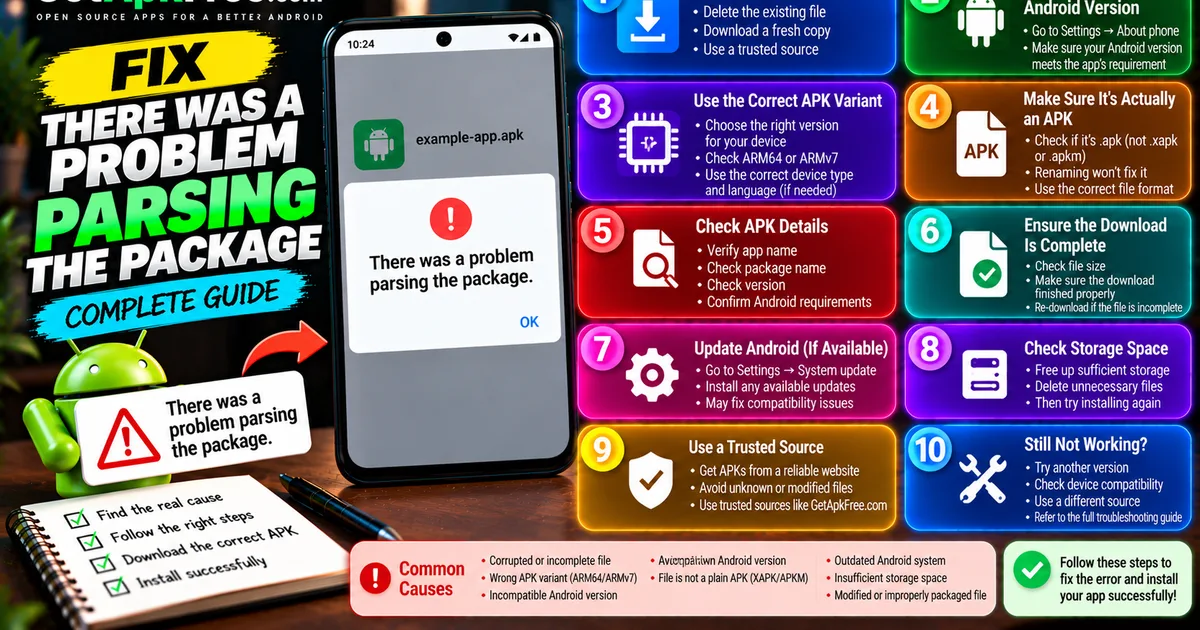
How to Fix "There Was a Problem Parsing the Package" Error on Android
GetApkFree Team
Seeing "There was a problem parsing the package" on Android? Learn the common causes and practical ways to fix APK parsing errors before installing an app.
Quick Answer
Seeing "There was a problem parsing the package" on Android? Learn the common causes and practical ways to fix APK parsing errors before installing an app.
You tap an APK to install it, and instead of the usual permissions screen, Android stops you cold with "There was a problem parsing the package." No install button, just a dead end before installation even begins — a different failure from most Android install errors, because it happens before Android gets far enough to check permissions or compatibility in the usual sense.
This guide covers what causes this specific error and the practical steps worth trying, in order.
What Does "There Was a Problem Parsing the Package" Mean?
"Parsing" is the step where Android reads an APK's structure — its manifest, its internal layout — before an actual install can begin. This error means that step failed: Android couldn't read or validate the package well enough to proceed. That's different from an install being blocked for a policy reason like a signature mismatch; here, Android isn't rejecting the app, it's saying the file itself isn't something it can process. There's no single cause — it's a generic failure at an early stage, and several different problems can trigger the exact same message.
Why Does Android Show the Parsing Package Error?
The most common categories, roughly in order of likelihood:
- A corrupted or incomplete file — the download didn't finish or got damaged in transit.
- Incompatibility with your Android version — the package targets a newer Android release than your device runs.
- The wrong APK variant — some apps ship multiple builds for different architectures or configurations.
- An incompatible CPU architecture (ABI) — a build compiled for hardware your device doesn't have.
- The file isn't actually a plain APK — it might be an XAPK, APKM, or a single piece of a split-APK set.
- An outdated Android system — an older OS version missing something the package format expects.
- A package that's been altered or improperly reassembled in a way that breaks its structure.
Not every modified or unofficial APK causes this specific error — a modified file can just as easily install fine and fail for other reasons, or install without any error while behaving in ways you wouldn't want. This error specifically means "unreadable file," not "suspicious file."
1. Download the APK Again
The single most common cause is a download that didn't complete cleanly. Rather than trying to repair or reopen the existing file, delete it and get a fresh copy from the same trustworthy source — a partial or corrupted file essentially never becomes installable by retrying the same attempt.
2. Check Your Android Version
If the app requires a newer Android release than your device runs, the package can fail to parse rather than showing a clearer compatibility message. Check your version under Settings → About phone (wording and location vary by manufacturer), then compare it against whatever the app's listing states it requires.
3. Check Whether You Downloaded the Correct APK Variant
Some apps are published as several different builds — split by CPU architecture, Android version, device type, or language/region — rather than one universal file. Installing a build meant for a different configuration than your device can produce exactly this failure. If a source offers multiple download links for what looks like the same app, make sure you picked the one that actually matches your device.
4. Check Whether the File Is Actually an APK
Not everything you download that ends in a package extension is a plain, installable APK. Some are .xapk or .apkm files, or one piece of a split-APK set — container formats Android's standard installer can't parse directly. Renaming a file's extension doesn't change its actual format, so relabeling an .xapk to .apk won't make it installable. If you're not sure which format you have, our guide on APK vs XAPK vs APKM explains what each one contains and how installing them differs.
5. Check the APK Version and Package Details
Before troubleshooting further, confirm the file is actually what you think it is. Checking the app name, package name, version, and stated Android requirements can reveal you've downloaded a build for a different device, an outdated release, or the wrong app under a similar name. Our guide on checking an APK's version and package details covers how to read these fields.
6. Make Sure the Download Is Complete
An interrupted download is one of the most common root causes here. Signs to look for: a file noticeably smaller than expected, a download manager reporting an error partway through, or a file manager that fails to show basic details for the file. If anything looks off, treat it as incomplete and get a fresh copy rather than forcing the install.
7. Update Android if an Update Is Available
A pending system update can resolve compatibility gaps between an older Android build and a newer package format. This isn't guaranteed to fix a parsing error — plenty come from a bad download or wrong variant and have nothing to do with OS version — but it's a reasonable, low-effort thing to rule out under Settings → System → System update.
8. Check for a Signature or Package Conflict
Less commonly, an issue with how a package was signed or structured can surface as a parsing failure rather than the more typical signature-mismatch message. Our guide on what an APK signature is explains how signing works, without covering anything about bypassing it, which isn't something to attempt.
9. Try a Known-Compatible Version
If the newest release genuinely requires a newer Android version than your device supports, an older compatible release may be appropriate — but only from a trustworthy source that legitimately offers older versions, not an arbitrary download promising a workaround. Downgrading isn't automatically safe either; an older build misses whatever security fixes came after it.
10. Check Available Storage
Low storage can interfere with installation generally, though it's a distinct problem from a parsing error specifically. Still, it's cheap to rule out: check Settings → Storage and free up space if it's tight.
11. Restart the Device and Try Again
A restart clears temporary system state that can occasionally interfere with installation. It won't fix a genuinely corrupted or incompatible file, but it's a harmless step worth trying first.
Parsing Error vs "App Not Installed"
These are two different messages with overlapping but distinct causes:
| "Problem Parsing the Package" | "App Not Installed" | |
|---|---|---|
| When it appears | Before installation begins | During or after Android attempts the install |
| Typical cause | Unreadable/incompatible file structure | Signature conflict, storage, or compatibility |
| File itself readable? | No — Android can't process it | Usually yes — Android reads it, then blocks the install |
The troubleshooting steps overlap (a fresh download and a compatibility check help with both), but they're not the same failure. Our dedicated guide on fixing "App not installed" covers that error's own causes in full — or see why Android says "App not installed" if you want to work out which specific cause applies before jumping to fixes.
Parsing Error vs APK Safety
Fixing a parsing error only means Android could read the file — it says nothing about whether the app is trustworthy. A perfectly safe file can fail to parse for a mundane reason like a bad download, and a file that installs without any error can still be something you shouldn't have installed. Getting past this error isn't a safety check; see our guide on how to tell if an APK is safe for that separate question.
A Practical Troubleshooting Checklist
- Re-download the APK from the original source.
- Confirm it's actually a plain APK, not an XAPK/APKM/split file.
- Check your Android version against the app's requirements.
- Check you have the right architecture/variant.
- Check the APK's version and package name.
- Confirm the download finished completely.
- Check available storage.
- Install a pending Android system update, if one exists.
- Consider whether a package/signing issue could be involved.
- If nothing works, get a legitimate, compatible build from a trustworthy source rather than continuing to force the same file.
When Should You Stop and Find Another APK?
Some situations are a better reason to stop than to keep troubleshooting:
- The source isn't one you have real reason to trust.
- The file fails to parse repeatedly across multiple re-downloads.
- The app clearly doesn't support your device, no matter what you try.
- Package or signing details don't match what you'd expect for the real app.
- The source makes claims that don't add up.
- The only "fix" being suggested involves bypassing Android's security checks.
That last one is worth being direct about: never follow instructions that involve disabling or working around Android's signature verification or other install protections just to force a file through. If a file only "works" that way, that's a reason to find a different, legitimate source — not a reason to bypass the check.
Frequently Asked Questions
What causes "There was a problem parsing the package"? Most often a corrupted or incomplete download, but also an incompatible Android version, the wrong architecture variant, or a file that isn't actually a plain APK.
How do I fix a parsing package error on Android? Start with a fresh download, then check your Android version and device architecture against what the app requires, and confirm the file is genuinely a single APK.
Can an old Android version cause a parsing error? Yes — if the package requires a newer release, your device may not be able to parse it correctly.
Can a corrupted APK cause the parsing error? Yes, and it's the most common cause. Re-downloading resolves this more often than any other single step.
Can the wrong APK version cause parsing problems? Yes — a build meant for a different architecture, Android version, or configuration than yours can produce this error.
Is a parsing error the same as "App Not Installed"? No. A parsing error means Android couldn't read the file at all; "App not installed" means Android read it but blocked the install for a separate reason.
Can I fix the error by renaming the APK file?
No. Renaming a file's extension doesn't change its internal format — an XAPK renamed to .apk is still an XAPK.
Should I download the APK from another source? Only if you have good reason to think the original file was the problem — genuinely too old, the wrong architecture, or interrupted mid-download — not purely to skip a legitimate warning.
Final Thoughts
A parsing error is Android telling you it couldn't make sense of the file before installation even started — usually a download problem, a compatibility mismatch, or the wrong package format, rather than anything sinister. Work through the causes in order, starting with a fresh download and a compatibility check, and if a file keeps failing to parse from a source you're not fully confident in, that's a reasonable point to look for a legitimate, compatible copy elsewhere rather than keep pushing on the same one.
Related Articles
Roblox Not Loading Games on Android? How to Fix It
Roblox games not loading on Android? Fix endless loading screens, failed connections, and games that close unexpectedly with practical checks for your network.
GetApkFree Team
Reddit Notifications Not Working on Android? How to Fix It
Reddit notifications not working on Android? Fix missing replies, comment alerts, chat notifications, and delayed updates by checking Reddit settings,
GetApkFree Team
Snapchat Camera Not Working on Android? How to Fix It
Is Snapchat’s camera showing a black screen or refusing to take photos on Android? Check camera permissions, update the app, clear its cache, and follow these practical troubleshooting steps.
GetApkFree Team
Pinterest Images Not Loading on Android? How to Fix It
Pinterest images not loading on Android? Fix blank Pins, missing pictures, endless loading, and feed problems with these practical troubleshooting steps.
GetApkFree Team