What Are APK Permissions? How to Check App Permissions Before Installing
GetApkFree Team
Learn what APK permissions mean, how Android uses them, how to check permissions before installing an APK, and what permissions deserve extra attention.
Quick Answer
Learn what APK permissions mean, how Android uses them, how to check permissions before installing an APK, and what permissions deserve extra attention.
Before installing an APK, it's reasonable to want to know what the app inside it might ask to access — your camera, your location, your contacts. Permissions are genuinely useful information for that. What they aren't is a simple pass/fail label: a long permission list doesn't automatically mean an app is dangerous, and a short one doesn't mean it's trustworthy. This guide covers what permissions actually are, how to check them before installing, and how to judge whether a request makes sense.
What Are APK Permissions?
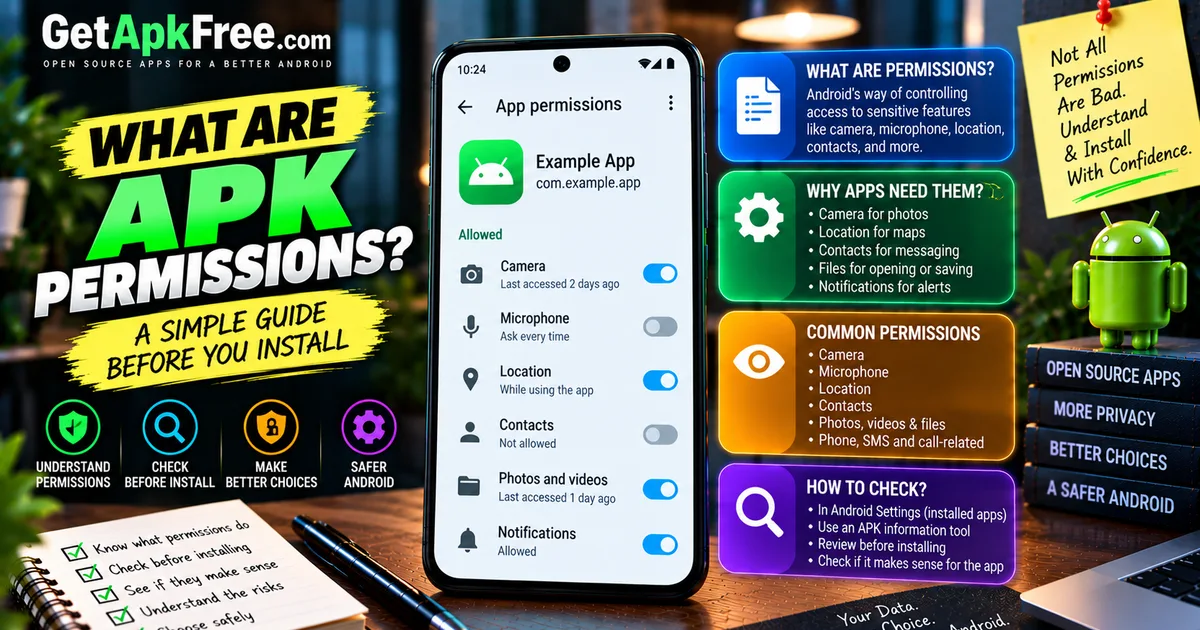
A permission is Android's way of gating access to something sensitive — hardware like the camera or microphone, personal data like contacts or location, or a capability like sending notifications. An app declares which permissions it wants, and depending on the permission, Android may also require direct approval before the app can use it.
Some common examples:
- Camera — for an app that takes photos or scans documents.
- Microphone — for voice recording or calling.
- Location — for maps, weather, or anything tied to where you are.
- Contacts — for messaging or calling apps that let you pick a recipient.
- Photos, media, or files — for anything that opens, saves, or edits files.
- Notifications — for apps that need to alert you outside the app itself.
None of these is inherently risky on its own — it depends on whether the requesting app actually has a reason to.
APK Permissions vs App Permissions
People commonly say "APK permissions," but strictly speaking, permissions belong to the installed application, not the file. An APK's manifest declares which permissions the app wants — metadata you can inspect before installing. What actually gets granted is a separate step Android controls: some permissions are granted automatically at install time, while more sensitive ones require approval at runtime, the first time the app tries to use that feature. A permission listed in an APK doesn't mean the app has it — only that it's asking.
Why Do Android Apps Need Permissions?
Permissions exist because apps need access to do their job:
- A camera app needs camera access — that's the point of the app.
- A navigation app needs location to show where you are.
- A messaging app may request contacts so you can pick who to message.
- A photo editor may need photo or media access to edit them.
- A voice recorder needs microphone access to record anything.
The useful question is never "does this app want a sensitive permission?" — plenty of ordinary apps do. It's whether the permission matches what the app is for.
Common Types of Android Permissions
Rather than listing every permission Android defines, here are a few common categories.
Camera
Reasonable for anything that captures photos or video, or scans something (a document, a QR code, a barcode). Less obviously justified without a visible camera feature.
Microphone
Expected in calling, voice-recording, and voice-assistant apps. Worth a second look where voice input isn't part of the advertised functionality.
Location
Used for maps, weather, delivery tracking, and similar. Android distinguishes coarser and more precise location access, and how that's presented has shifted across versions — precise location is generally the more sensitive ask.
Contacts
Common in messaging, calling, and social apps that let you find or select people you know. Less obviously justified in an app with no social or communication feature.
Photos, Videos, and Files
Android's own model here has changed across several versions — newer releases handle media and file access more narrowly than older ones did, and the exact permission requested can differ by which version an app targets. The practical point stays the same: this access matters most for apps that genuinely open, save, or share your files.
Phone, SMS, and Call-Related Access
These sit toward the sensitive end, since they touch communications directly. A dialer or messaging-replacement app has an obvious reason to want them; most other apps don't.
How to Check an App's Permissions on Android
For an app already installed, Android's own Settings show exactly what it has:
- Open Settings.
- Go to Apps (sometimes Apps & notifications or Application manager).
- Select the app.
- Open Permissions.
- Review what's allowed and what isn't.
Menu names and layout shift between manufacturers and Android versions, so treat this as the general shape rather than an exact match for every device. This only covers an app already installed — it doesn't help before you've decided whether to install.
How to Check APK Permissions Before Installing
To see what an APK requests before installing it, look at the file's own metadata rather than Android's installed-app permission screen, which doesn't exist yet for something you haven't installed. An APK-information tool that reads a package's manifest can display its declared permissions alongside other details like version and package name — the same inspection covered in our guide on checking an APK's version, package name, and other details. Worth pairing this with a compatibility check, since you're already looking at the metadata.
How to Tell Whether APK Permissions Make Sense
This is the part that actually matters. A simple, repeatable framework:
- Identify what the app does — its stated purpose.
- Look at the permissions it requests.
- Ask whether each one relates to a real feature of the app.
- Pay extra attention to anything that seems unrelated to that purpose.
- Check the developer and the source the file came from.
- Compare against a trusted listing, like an official Play Store page, when one exists.
- Consider the version and package name, covered in our guide on what an APK package name is.
- Consider the signature when authenticity genuinely matters.
One unusual permission isn't proof of anything malicious — it might have a good explanation you haven't found yet. Equally, a short permission list doesn't prove an app is safe. The framework is about noticing when something doesn't add up, not issuing a verdict from one data point. Once everything checks out, our step-by-step installation guide covers what happens next.
Which Android Permissions Deserve Extra Attention?
A few permissions deserve a closer look because of what they can expose:
- Microphone and camera — real-time access to what's around you.
- Precise location — where you actually are, not just a general area.
- Contacts — your personal network.
- SMS and phone-related access — your communications and call activity.
Worth noting separately: powerful capabilities like accessibility services aren't handled through the same runtime prompt as camera or location. They're granted through their own dedicated settings screen, deliberately more involved to turn on, given how much access they provide. An app legitimately needing that access is the exception, not the rule.
None of this makes these permissions inherently unsafe — just worth a moment's thought about whether the app in front of you has a real reason to want them.
For a real example of a permission that's broader than its function suggests, see DNS Toggle — a Quick Settings utility that also requests location access without a stated reason.
Do APK Permissions Prove an App Is Safe?
No. Permissions are one signal among several, not a verdict:
- A permission list doesn't prove who built the app.
- It doesn't prove the APK hasn't been modified since it was built.
- It doesn't guarantee the app is free of anything harmful.
Permissions are worth reading alongside the source, the developer's identity, the package name, the version, and — when authenticity genuinely matters — the APK's signature. No single check proves safety alone; together, they give a reasonably informed picture — see our guide on how to evaluate whether an APK is safe for the fuller picture.
What Should You Do If an APK Requests Unusual Permissions?
- Pause before installing rather than tapping through automatically.
- Verify the source the file came from.
- Check the package name against what you'd expect.
- Check the developer's identity against a trusted listing.
- Compare the app's stated purpose with what it's asking for.
- Inspect the APK's metadata directly, rather than guessing from the filename.
- Check signature information when it matters.
- Skip the install if you can't reasonably verify the source or identity.
An unusual permission is a reason to look closer, not a conclusion that something is wrong.
Can You Change App Permissions After Installing?
Yes, generally — Android exposes permission controls through the app's own settings page, the same screen covered above. What you can toggle, and how, varies by Android version and permission: some can be turned on or off at any time, others prompt you again the next time the app needs them, and a few work a little differently depending on your device. It's worth revisiting permissions occasionally rather than assuming whatever you approved once still holds.
Frequently Asked Questions
What are APK permissions? Declarations in an APK's metadata describing what access the app wants — camera, location, contacts, and similar. What's actually granted is a separate step Android controls.
How do I check APK permissions before installing? Use an APK-information tool that reads the file's metadata directly, rather than the installed-app permission screen, which only applies to apps already on your device.
Are APK permissions dangerous? Not inherently. A permission is only meaningful in context — whether it matches what the app is supposed to do.
Can an APK request too many permissions? It can request more than seems necessary, which is worth questioning — but the number alone isn't the deciding factor; relevance is.
Does a permission list prove an APK is safe? No. It's one signal among several — source, developer identity, package name, version, and signature all matter alongside it.
Can I change app permissions after installing an APK? Generally yes, through the app's settings page, though what's adjustable depends on the Android version and the permission itself.
Which Android permissions are sensitive? Microphone, camera, precise location, contacts, and SMS/phone-related access expose the most — along with special access like accessibility services, granted through their own settings rather than a standard prompt.
Why does an app need permissions that seem unrelated to its purpose? Sometimes there's a genuine reason you haven't considered — but if nothing reasonable comes to mind, treat it as a reason to verify the source before installing.
Final Thoughts
Permissions are useful information, not a safety score. What matters is whether what an app asks for lines up with what it does — a camera app wanting your camera makes sense; a flashlight app wanting your contacts doesn't. Read permissions alongside the source, the developer, the package name, the version, and the signature when it counts, and pause to verify when something doesn't add up. That combination gets you further than treating any single permission as an automatic red flag or a guarantee of safety.
Related Articles

Roblox Not Loading Games on Android? How to Fix It
Roblox games not loading on Android? Fix endless loading screens, failed connections, and games that close unexpectedly with practical checks for your network.
GetApkFree Team
Reddit Notifications Not Working on Android? How to Fix It
Reddit notifications not working on Android? Fix missing replies, comment alerts, chat notifications, and delayed updates by checking Reddit settings,
GetApkFree Team
Snapchat Camera Not Working on Android? How to Fix It
Is Snapchat’s camera showing a black screen or refusing to take photos on Android? Check camera permissions, update the app, clear its cache, and follow these practical troubleshooting steps.
GetApkFree Team
Pinterest Images Not Loading on Android? How to Fix It
Pinterest images not loading on Android? Fix blank Pins, missing pictures, endless loading, and feed problems with these practical troubleshooting steps.
GetApkFree Team