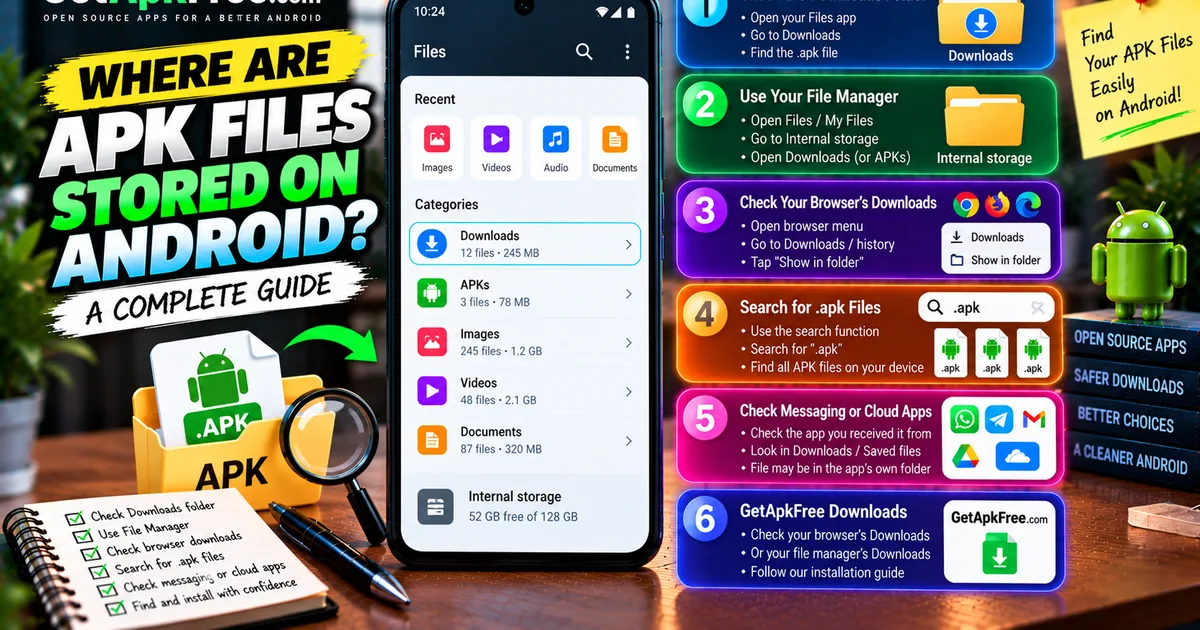
How to Find APK Files on Android: Where Downloads Are Stored
GetApkFree Team
Can't find an APK you downloaded? Learn where Android stores APK files, how to locate them with a file manager, and what to do when an APK seems missing.
Quick Answer
Can't find an APK you downloaded? Learn where Android stores APK files, how to locate them with a file manager, and what to do when an APK seems missing.
You download an APK, the progress bar finishes, and then — nothing. No obvious pop-up telling you where it went, and when you go looking, the file isn't where you expected. This happens more often than it should, mostly because Android doesn't have one single, guaranteed place every APK lands. Where a file ends up depends on your Android version, your phone's manufacturer, which browser or app downloaded it, and which file manager you're using to look. This guide walks through the actual places to check, in a sensible order, rather than assuming your phone works exactly like everyone else's.
Where Are APK Files Stored on Android?
Most of the time, a browser download lands in a shared storage area with a name like Downloads or Download — the same general folder that catches PDFs, images, and anything else you download from the web. Android exposes this as internal storage, not somewhere buried in a system folder you'd need special access to reach. That said, "most of the time" isn't "always": some manufacturers add their own download managers, some browsers let you pick a save location, and some apps (a messaging app, a cloud storage client) save files somewhere entirely their own. Treat Downloads as the first place to check, not the only place.
1. Check the Downloads Folder
This is the fastest path for a typical browser download:
- Open your file manager or Files app.
- Look for a folder named Downloads or Download — both spellings show up depending on the phone.
- Sort by date if the list is long, so the most recent file sits at the top.
- Look for the file by name, or by the
.apkicon if your file manager shows one.
If nothing's there, it doesn't necessarily mean the download failed — some browsers use a slightly different location, which is worth checking next.
2. Use Your Phone's File Manager
Every Android phone ships with some kind of file manager, though the name and layout vary — Files, My Files, File Manager, or a manufacturer's own branded app. Whichever one you have, the general path is the same:
- Open the app (check your app drawer if you don't see it on the home screen).
- Choose Internal storage (sometimes labeled Phone or Device storage).
- Open Downloads, then browse for the APK.
Menu wording differs between brands, and some file managers group files by type (Images, Documents, APKs) rather than by folder — if yours does, an "APKs" or "Apps" category is often a faster route than browsing by folder.
If your phone's built-in file manager makes this harder than it should be, Fossify File Manager is a free, open-source alternative built for exactly this kind of browsing.
3. Check Your Browser's Download Location
If the file manager route comes up empty, your browser's own download history is usually more reliable, since it points at the exact file it saved rather than requiring you to guess a folder name.
- Open your browser and find its menu (usually three dots or lines).
- Look for Downloads or Download history.
- Find the APK in the list — recent downloads sort to the top.
- If there's an option like Open or Show in folder, use it. This takes you straight to the file instead of leaving you to search for it.
Exact menu wording varies by browser and version, so treat this as the general idea rather than a fixed set of taps.
4. Search for .apk Files
If you're fairly sure the file downloaded but genuinely can't tell where, most file managers include a search function. Open it and search for .apk rather than trying to guess the exact filename — this surfaces every APK on your device regardless of which folder it landed in, which is useful when a browser or app saved it somewhere you wouldn't have thought to check.
5. Check Messaging or Cloud Storage Apps
Not every APK arrives through a browser. A file sent over a messaging app, or downloaded through a cloud storage client, typically saves to that app's own storage area rather than the shared Downloads folder — a chat app might keep it under its own media folder, and a cloud storage app might keep a local copy tied to its own file browser. If you received the file rather than downloading it directly from a website, check the app you got it from first; its own "downloads" or "saved files" section is often where the copy actually is.
6. Find APK Files Downloaded From GetApkFree
If you downloaded an APK from GetApkFree specifically, the same two starting points apply: your browser's Downloads list, or your phone's file manager under Downloads. Nothing about downloading from here changes where Android decides to save the file — that's determined by your browser and device, not the source site. Once you've located it, our step-by-step installation guide covers exactly what to do next.
Why Can't I Find the APK I Downloaded?
A few genuinely common reasons, roughly in order of likelihood:
- The download didn't actually finish. A dropped connection or a closed browser tab mid-download can leave nothing behind, or leave a partial file your file manager doesn't recognize as a real APK.
- It saved somewhere other than Downloads. Some browsers let you choose a save location, and it's easy to pick something once and forget.
- The file manager isn't showing file extensions. If extensions are hidden, an APK can look like a generic, unlabeled file rather than something obviously identifiable.
- It was moved or renamed — by you, by another app, or as part of a "clean up storage" action you don't remember taking.
- It's sitting in an app's own storage, not shared storage — see the messaging/cloud point above.
Android doesn't routinely delete APK files you've downloaded on its own. If a file is genuinely gone, one of the reasons above is almost always the actual explanation. The most reliable way to confirm a download completed is to check your browser's download history directly, since it records the outcome of the download itself rather than requiring you to go hunting through folders afterward.
How to Open an APK File Once You Find It
Once you've located the file, tapping it hands it to Android's installer, which shows the app's name, icon, and requested permissions before anything is installed. Depending on your Android version and settings, you may be prompted to allow installs from whichever app you used to open the file — this is a one-time, per-app permission, not a device-wide setting. Our full installation walkthrough covers this step by step; there's no need to repeat it all here.
How to Move or Rename an APK Safely
It's generally fine to move an APK to a different folder, or give it a clearer name, using your file manager the same way you'd manage any other file. A few things worth keeping in mind:
- Keep the
.apkextension. Removing or changing it can stop your file manager from recognizing it as an installable file. - Don't rename or move a file while it's still downloading. Wait until the download finishes.
- A clear filename helps later — "app-v2.apk" is more useful to future-you than a long string of random characters some download processes generate.
- Renaming the file doesn't change the app inside it. The package name, version, and everything else the installer reads stay exactly the same regardless of what you call the file.
How to Check an APK Before Installing It
Finding the file is only half the job — it's worth a quick check before installing anything, especially if you're not completely sure where it came from. A few things worth confirming:
- The source. Did it come from somewhere you trust, or a link you're less sure about?
- The app's identity and version, which our guide on checking an APK's version and package details walks through.
- Compatibility with your device — Android version and, where it matters, CPU architecture. Our guides on APK compatibility and ARM64 vs ARMv7 cover both.
- Whether this is meant to update an app you already have, which works a little differently from installing something new — see our guide on APK updates vs new installs if that applies to you.
- Whether the download actually completed, per the troubleshooting section above — a truncated file can cause problems that have nothing to do with the app itself.
None of these checks alone guarantees a file is safe, but together they catch most of the ordinary problems people run into.
Frequently Asked Questions
Where is the APK file stored on Android? Most browser downloads land in a shared Downloads folder, but the exact location can vary by browser, phone, and Android version — it isn't identical on every device.
How do I find an APK I just downloaded? Check your browser's Downloads list first, since it points directly at the file. If that doesn't help, check your file manager's Downloads folder next.
Why can't I find my downloaded APK? Usually because the download didn't finish, it saved to a different location than expected, or it was moved, renamed, or saved inside another app's own storage rather than the shared Downloads folder.
How do I search for APK files on my phone?
Most file managers have a built-in search. Searching for .apk will surface every APK on your device, regardless of which folder it's actually sitting in.
Can I move an APK to another folder? Yes — file managers let you move APKs like any other file. Just wait until the download has fully finished first.
Can I rename an APK file?
Yes, as long as you keep the .apk extension. Renaming the file doesn't change anything about the app itself.
Can I install an APK directly from the Downloads folder? Yes — tapping it from wherever it's saved, Downloads included, opens Android's installer the same way regardless of which folder the file happens to be in.
Final Thoughts
There's no single guaranteed location for every APK on every Android phone, but there is a sensible order to check: your browser's Downloads list first, your phone's Downloads folder second, a .apk search if neither turns it up, and a quick check of the file itself before you install anything. Work through it in that order and a "missing" APK is almost always just sitting somewhere you haven't looked yet.
Related Articles
Roblox Not Loading Games on Android? How to Fix It
Roblox games not loading on Android? Fix endless loading screens, failed connections, and games that close unexpectedly with practical checks for your network.
GetApkFree Team
Reddit Notifications Not Working on Android? How to Fix It
Reddit notifications not working on Android? Fix missing replies, comment alerts, chat notifications, and delayed updates by checking Reddit settings,
GetApkFree Team
Snapchat Camera Not Working on Android? How to Fix It
Is Snapchat’s camera showing a black screen or refusing to take photos on Android? Check camera permissions, update the app, clear its cache, and follow these practical troubleshooting steps.
GetApkFree Team
Pinterest Images Not Loading on Android? How to Fix It
Pinterest images not loading on Android? Fix blank Pins, missing pictures, endless loading, and feed problems with these practical troubleshooting steps.
GetApkFree Team