
This article is about
Meta Platforms, Inc. · Internet
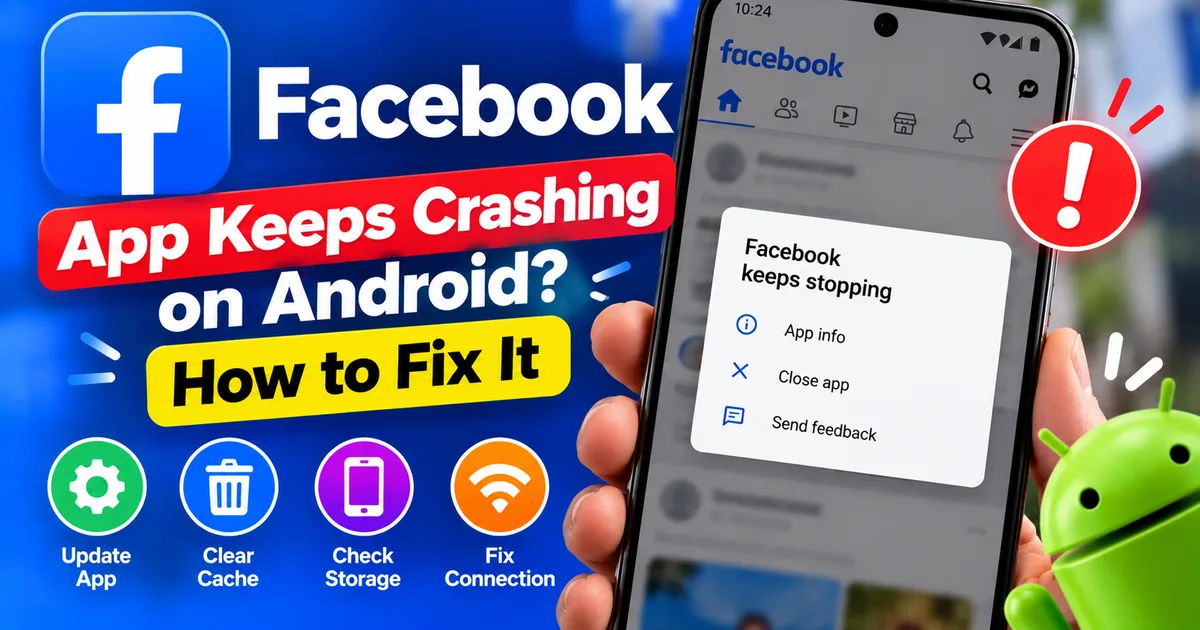
Facebook App Keeps Crashing on Android? How to Fix It
GetApkFree Team
Is Facebook crashing, freezing, or refusing to open on Android? Follow these troubleshooting steps to fix app crashes, clear cache safely, and restore normal use.
- Version
- Latest
- Source
- Google Play
- Package
- com.facebook.katana
Facebook App Keeps Crashing on Android? How to Fix It
If Facebook keeps crashing on Android, closes unexpectedly, freezes while scrolling, or refuses to open, the problem may involve temporary app data, an outdated version, limited device storage, or an Android software issue.
The best solution depends on when the crash happens. Facebook might close immediately after opening, freeze while loading the News Feed, or stop responding when you open photos, videos, or comments.
This guide walks through practical troubleshooting steps in order, starting with fixes that are unlikely to affect your account or locally stored data.
Quick Answer: How to Fix Facebook Crashing on Android
Try these steps in order:
- Close Facebook and reopen it.
- Restart your Android phone.
- Update Facebook through the official app store.
- Force-stop Facebook in Android settings.
- Clear Facebook's cache.
- Check available storage and install Android updates if available.
- Check whether the problem affects other apps.
- Reinstall Facebook only if the simpler fixes fail.
Avoid clearing app storage or uninstalling Facebook before understanding what data might be lost.
1. Close Facebook and Open It Again
A temporary app glitch may cause Facebook to freeze or close without warning.
Try the following:
- Open your phone's Recent apps screen.
- Swipe Facebook away to close it.
- Wait a few seconds.
- Open Facebook again.
- Navigate through the News Feed and check whether the crash returns.
If Facebook works normally afterward, the problem may have been temporary. If it crashes repeatedly, continue with the next steps.
2. Restart Your Android Phone
Restarting your phone can resolve temporary software problems and release resources being used by stuck processes.
- Save any work in other apps.
- Open your phone's power menu.
- Select Restart, if available.
- Wait for the phone to boot fully.
- Open Facebook and test it again.
The exact restart procedure depends on your phone manufacturer.
3. Update Facebook
An outdated version of Facebook may contain bugs that have already been addressed in a newer release.
To check for an update:
- Open Google Play Store or the official app store available on your device.
- Search for Facebook.
- Open the app listing.
- If an Update option appears, install the update.
- Open Facebook again and check whether the crashes continue.
If Facebook is already up to date, move to the next step rather than repeatedly reinstalling it.
You can also check for an Android system update under Settings. Menu names vary by manufacturer, but the option is commonly found under System, Software update, or About phone.
4. Force-Stop Facebook
Force-stopping Facebook ends its running processes so you can launch it afresh.
Follow these general steps:
- Open Android Settings.
- Select Apps or App management.
- Find and open Facebook.
- Tap Force stop.
- Confirm if prompted.
- Launch Facebook again.
The menu names may differ on Samsung, Xiaomi, OnePlus, Motorola, Pixel, and other Android phones.
Force-stopping the app normally does not delete your account or remove posts you have already published.
5. Clear Facebook's Cache
Facebook stores temporary files to help parts of the app load more efficiently. If cached data contributes to a problem, clearing it may help.
To clear the cache through Android:
- Open Settings.
- Tap Apps or App management.
- Select Facebook.
- Open Storage or Storage and cache.
- Tap Clear cache.
- Reopen Facebook and test it.
The exact labels depend on your Android version.
Important: Choose Clear cache, not Clear storage or Clear data, for this first attempt. Clearing storage can remove local app data and sign you out, so you may need to log in again.
Google also recommends restarting and updating an app, force-stopping it, and checking its cache when an Android app crashes or stops responding. See the official Google Play troubleshooting guide.
6. Check Your Phone's Available Storage
When your phone has very little free storage, apps and Android processes may not have enough room for temporary files and other operations.
To check:
- Open Settings.
- Select Storage.
- Review the available space.
- Remove unnecessary downloads or files you no longer need, after checking that important data is backed up.
- Restart your phone and test Facebook again.
Do not delete unfamiliar system files or remove app data indiscriminately to free space.
7. Check Your Internet Connection
A connection problem is more likely to affect loading than to cause every type of crash, but it is worth checking if Facebook freezes while refreshing the News Feed or opening media.
Try these tests:
- Switch from Wi-Fi to mobile data, or the other way around.
- Open a website in your browser.
- Try another app that uses the internet.
- Move closer to your Wi-Fi router if the signal is weak.
- Temporarily disconnect a VPN or network filter if you use one and can safely do so.
If several apps have connectivity problems, investigate the network first. If Facebook alone keeps closing, focus on the app and device troubleshooting steps.
8. Check Whether Other Apps Are Crashing
Notice whether the problem occurs only in Facebook or across your phone.
- Only Facebook crashes: Focus on updating Facebook, clearing its cache, and checking its app settings.
- Several apps crash: Restart the phone and check for Android system updates and available storage.
- Facebook crashes when opening a particular feature: Test other parts of the app to see whether the issue is limited to one screen or activity.
- Facebook works after a restart but fails again later: Check for app updates and note whether the issue happens after a particular action.
These patterns help narrow down the problem, but they do not prove a specific cause.
9. Check Android's Battery and Data Restrictions
Some Android devices use aggressive battery management or data restrictions. These settings are more commonly associated with background activity and connectivity than with every kind of crash, but checking them may be useful if Facebook behaves differently after you switch apps or lock your phone.
Depending on your device:
- Open Settings.
- Select Apps and then Facebook.
- Review Battery settings.
- Check Mobile data or Data usage.
- Make sure the app has the access it needs for your normal use.
Settings vary by phone and Android version. Avoid changing unrelated security settings or granting permissions that Facebook does not need for the feature you use.
10. Reinstall Facebook as a Last Resort
If Facebook continues crashing after the earlier steps, reinstalling the app may help resolve a damaged installation.
Before you uninstall it:
- Confirm that you know your login details and can access any required account recovery method.
- Make sure important account information is available to you.
- Remember that local app data may be removed.
- Prefer reinstalling through Google Play Store or another official app distribution source.
Then:
- Uninstall Facebook through Android settings or the app's available uninstall option.
- Restart your phone if needed.
- Reinstall Facebook from the official app store.
- Sign in and test the app.
If you encounter an installation error, do not repeatedly download random APK files. First identify the cause. Our guide to fixing the “App Not Installed” error on Android explains common installation problems and safe troubleshooting steps.
Reinstalling may not solve a problem caused by an incompatible device, an operating-system issue, or a temporary Facebook service problem.
11. Check Whether Facebook Is Experiencing a Wider Problem
Sometimes an app issue affects more than one user. Before making major changes to your phone, check whether Facebook is experiencing a broader disruption.
You can:
- Ask someone using Facebook whether they have the same issue.
- Check whether Facebook behaves differently on another device or network.
- Consult the official Facebook Help Center.
- Wait and test again if the issue appears widespread.
Do not assume there is an outage based on a single crash. A problem with your device, account, or app installation can produce similar symptoms.
When Should You Contact Facebook Support?
If Facebook keeps crashing after you have updated the app, restarted your phone, cleared the cache, and checked your storage, report the issue through Facebook's available support or problem-reporting options.
Include useful details such as:
- Your phone model and Android version.
- Whether Facebook crashes on startup or during a particular action.
- Whether other apps work normally.
- Which troubleshooting steps you have already tried.
Never include your password or verification codes in a problem report.
Frequently Asked Questions
Why does Facebook keep closing as soon as I open it?
Possible causes include a temporary app glitch, an outdated version, corrupted temporary data, limited storage, or a device software issue. Restart your phone, update Facebook, and clear its cache before trying more disruptive steps.
Will clearing Facebook's cache delete my account?
No. Clearing the cache removes temporary files and does not normally delete your Facebook account. Clearing storage or data is different and can remove local app information or sign you out.
Why does Facebook crash when I scroll through the News Feed?
The issue may involve temporary app data, the current app version, device performance, or content that triggers a particular problem. Update the app, restart your phone, and check whether the crash occurs in other parts of Facebook.
Should I uninstall Facebook if it keeps crashing?
Not immediately. Try restarting your phone, updating Facebook, force-stopping it, and clearing the cache first. Reinstall only after simpler troubleshooting fails, and make sure you can access your account again.
Why does Facebook crash while other apps work normally?
The issue may be specific to Facebook's current installation, app version, or behavior on your device. Focus on Facebook-specific troubleshooting and consult the official Help Center if the problem persists.
Can low storage make Facebook crash?
Low storage can affect overall phone performance and may contribute to app instability. Check your available space and remove files you no longer need, while protecting important data.
Final Thoughts
If Facebook keeps crashing on Android, start with the least disruptive fixes: close the app, restart your phone, update Facebook, and clear its cache. Then check storage, system updates, and whether other apps are affected.
Save reinstalling for later, and be careful not to confuse clearing cache with clearing app data. Working through the steps in order can help you narrow down the cause without unnecessarily losing local information or putting your account at risk.
Related Articles
TikTok Videos Not Loading on Android? How to Fix It
TikTok videos not loading on Android? Troubleshoot endless buffering, black screens, failed playback, and loading errors with these practical steps.
GetApkFree Team
YouTube Videos Not Playing on Android? How to Fix It
YouTube videos not playing on Android? Troubleshoot buffering, playback errors, black screens, connection problems, and app issues with these practical fixes.
GetApkFree Team
Instagram Reels Not Playing on Android? How to Fix It
Instagram Reels not playing on Android? Fix buffering, black screens, loading errors, and playback problems with these practical troubleshooting steps.
GetApkFree Team
WhatsApp Backup Stuck at 99% on Android? How to Fix It
Fix a WhatsApp backup stuck at 99% on Android. Check storage, Google Account, internet connection, backup settings, and safe troubleshooting steps without risking your chats.
GetApkFree Team