This article is about
CapCut Premium
capcutdownload.com.pk · Tools
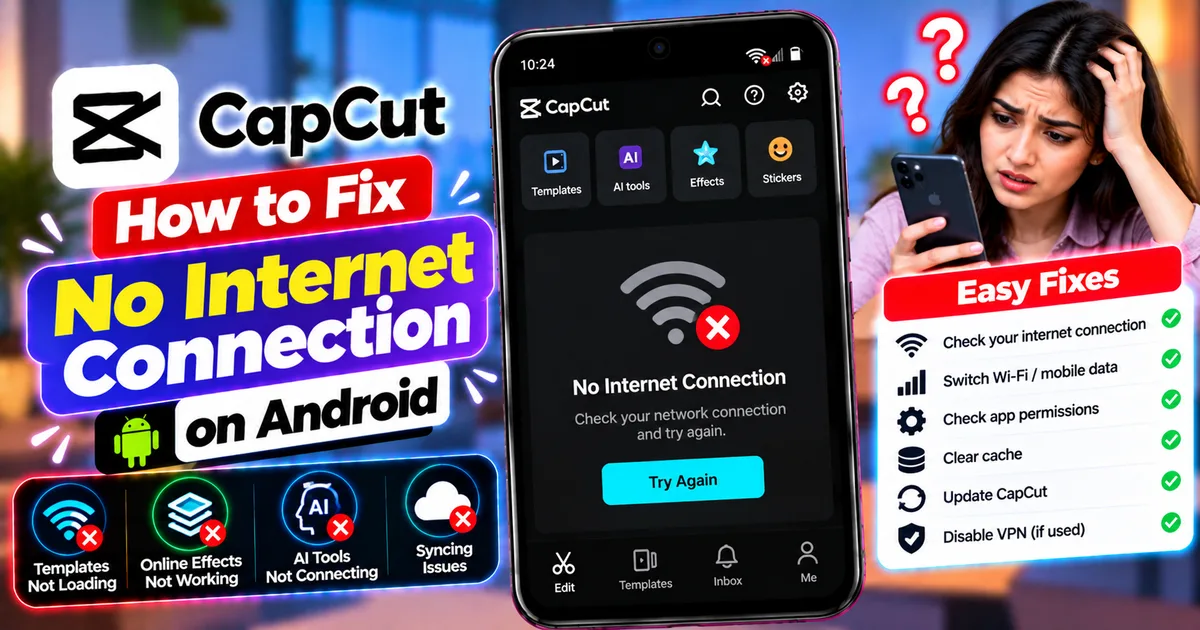
How to Fix CapCut No Internet Connection on Android
GetApkFree Team
CapCut says No Internet Connection on Android? Fix templates that won't load, online effects, AI tools, and syncing issues with these troubleshooting steps.
- Source
- Developer
- Package
- CapCut Premium
How to Fix CapCut No Internet Connection on Android
CapCut can work normally for basic video editing but still display a “No Internet Connection” message when you try to load templates, use certain online effects, generate AI content, or access account-related features. This can be frustrating when your phone is connected to Wi-Fi or mobile data and other apps work without any problems.
The issue does not always mean your internet connection is completely unavailable. It may be caused by restricted app network access, an unstable connection, a VPN or DNS filter, a temporary app problem, or a service-side issue.
The best approach is to identify whether the problem affects your entire phone, only CapCut, or just one particular feature.
In this guide, you'll learn how to fix CapCut showing No Internet Connection on Android, troubleshoot templates and online tools that will not load, and protect your editing projects while diagnosing the problem.
Quick Answer: How to Fix CapCut No Internet Connection on Android
If CapCut cannot connect to the internet on your Android phone, try these solutions in order:
- Open another app to confirm that your internet connection works.
- Switch between Wi-Fi and mobile data.
- Turn Airplane mode on briefly, then turn it off.
- Check whether CapCut is allowed to use mobile data and Wi-Fi.
- Disable Data Saver or background data restrictions temporarily if they are interfering.
- Close CapCut completely and reopen it.
- Restart your Android phone.
- Clear CapCut's temporary cache from within the app.
- Temporarily disable your VPN, private DNS filter, or network-blocking app.
- Update CapCut using a trusted installation source.
- Check whether the problem affects only one online feature.
- Wait and try again if the service appears to be temporarily unavailable.
Important: Do not immediately clear CapCut's app data or uninstall the app. These actions may put locally stored projects or drafts at risk.
Why Does CapCut Say No Internet Connection?
CapCut uses the internet for certain functions, including accessing online resources and services. Depending on the current version and feature, connectivity may be required to load templates, retrieve online assets, synchronize supported content, or process some AI tools.
Several issues can prevent these functions from working.
1. Unstable Internet Connection
Your phone may show a Wi-Fi or mobile signal even when the connection is unreliable.
A weak connection, interrupted mobile data, or an unstable router can prevent CapCut from communicating with its services.
2. CapCut Is Restricted From Using the Internet
Some Android phones include settings that restrict mobile data, background data, or network access for individual applications.
If CapCut cannot access the network it needs, certain features may fail even when other apps work.
3. VPN or Private DNS Interference
A VPN, DNS filtering service, firewall, or network-blocking application may interfere with connections to particular services.
This is especially worth checking when CapCut works on one network but fails on another.
4. Temporary CapCut Problem
A temporary application glitch, outdated version, or expired sign-in session can sometimes prevent online features from loading correctly.
5. A Specific Feature Is Unavailable
If templates load but an AI feature does not, the problem may be limited to that feature rather than the entire application.
Availability can also vary by app version, region, account, and feature requirements.
6. Temporary Service-Side Issue
Sometimes the problem is not on your phone at all. A temporary interruption affecting CapCut's online services may prevent certain functions from working.
If you have checked your connection and device settings without success, trying again later may be appropriate.
Step 1: Check Whether Your Internet Actually Works
Start with the simplest test.
Test Your Connection
- Exit CapCut.
- Open your browser.
- Visit a website you have not recently opened.
- Check whether the page loads completely.
- Open another online application if necessary.
If other apps also fail, troubleshoot your phone's internet connection before changing CapCut settings.
If other apps work normally, continue to the next step.
Why This Test Matters
This helps distinguish a general connectivity problem from one that affects CapCut specifically.
For example, if websites and streaming apps work but CapCut templates do not load, the issue may involve app permissions, network filtering, or CapCut's online services.
Step 2: Switch Between Wi-Fi and Mobile Data
One of the easiest ways to isolate a network problem is to try another connection.
If You Are Using Wi-Fi
- Open Android Settings.
- Go to Wi-Fi or Network and Internet.
- Disconnect from the current network.
- Enable mobile data.
- Open CapCut and test the feature again.
If You Are Using Mobile Data
- Open Settings.
- Go to Network and Internet or Connections.
- Connect to a working Wi-Fi network.
- Open CapCut.
- Try loading the same feature.
Menu names vary by Android version and phone manufacturer.
What the Results Mean
If CapCut works on Wi-Fi but not mobile data, investigate mobile-data restrictions, your carrier connection, or data-saving settings.
If it works on mobile data but not Wi-Fi, the router, network filtering, or Wi-Fi configuration may be responsible.
If neither connection works, continue troubleshooting CapCut itself.
Step 3: Toggle Airplane Mode
Airplane mode can help refresh your phone's wireless connections.
Follow these steps:
- Open Quick Settings by swiping down from the top of the screen.
- Enable Airplane mode.
- Wait approximately 10–15 seconds.
- Disable Airplane mode.
- Reconnect to Wi-Fi or mobile data.
- Open CapCut and try again.
This step may resolve a temporary connection problem, but it will not fix a blocked service or incorrect network permission.
Step 4: Check CapCut's Network Permissions
Android settings can restrict how an app accesses mobile data and Wi-Fi.
The exact controls depend on your phone and Android version.
Check Mobile Data Access
- Open Settings.
- Tap Apps.
- Select CapCut.
- Look for Mobile data, Data usage, or Mobile data and Wi-Fi.
- Check whether mobile data access is enabled.
- Review any background-data restrictions that could affect the feature you are using.
On some phones, the available options may include Allow background data usage or Unrestricted data usage.
You do not necessarily need to enable every option. Change only the settings relevant to your problem.
Check Wi-Fi Access
If your phone provides per-app Wi-Fi restrictions, make sure CapCut is not blocked from using Wi-Fi.
Some Android devices do not provide a separate Wi-Fi permission switch for individual apps. If you cannot find one, do not assume anything is wrong.
After checking the available settings, reopen CapCut and test the connection.
Step 5: Turn Off Data Saver Temporarily
Android's Data Saver feature can restrict background data for apps that do not have unrestricted access.
Although this feature helps reduce data usage, it may interfere with certain online operations.
How to Check Data Saver
- Open Settings.
- Go to Network and Internet, Connections, or the equivalent menu.
- Find Data Saver.
- Check whether it is enabled.
- Temporarily turn it off or review CapCut's unrestricted-data setting.
- Open CapCut and test the affected feature.
If this fixes the problem, you can decide whether to keep Data Saver disabled or allow the required access for CapCut.
Remember that unrestricted data access can increase data usage.
Step 6: Disable VPNs and Network Filters for Testing
If you use a VPN, private DNS service, firewall, or ad-blocking application, it may be interfering with CapCut's connection.
Test Without a VPN
- Close CapCut.
- Temporarily disconnect your VPN.
- If you use a network-filtering app, temporarily pause its filtering feature where appropriate.
- Reopen CapCut.
- Test the feature that previously failed.
If you use a custom Private DNS provider, you can also temporarily test with your normal network configuration.
Do not permanently disable security protections just to make an app work. If the issue disappears when a particular service is disabled, investigate its configuration or choose a trusted alternative.
Why Does CapCut Work Without a VPN?
A VPN changes how your traffic reaches online services. Some network routes, filtering rules, or service restrictions can interfere with particular connections.
However, this does not mean that every VPN causes CapCut problems. The result depends on the network, service, and configuration.
Step 7: Restart CapCut Completely
Temporary app problems can sometimes be resolved by closing and reopening the application.
How to Restart CapCut
- Open Android's recent-apps screen.
- Swipe CapCut away to close it.
- Wait a few seconds.
- Open CapCut again.
- Try loading the affected online feature.
If the problem continues, you can also use Android's Force stop option.
Go to:
Settings → Apps → CapCut → Force stop
Then reopen CapCut.
Force stop closes the running application. It is not the same as clearing app data or uninstalling the app.
Step 8: Clear CapCut's Cache
Temporary cached files can occasionally contribute to application problems.
CapCut provides a cache-clearing option in its settings, although the precise menu can change between versions.
Clear Cache Inside CapCut
- Open CapCut.
- Go to your profile or settings area.
- Look for Clear Cache.
- Review the option before confirming.
- Close and reopen CapCut.
- Test the affected feature.
If you cannot open the app's settings, Android may offer a separate Clear Cache option under:
Settings → Apps → CapCut → Storage
Use Clear Cache, not Clear Data.
Clear Cache vs Clear Data
These options are not interchangeable.
- Clear Cache: Removes temporary cached files.
- Clear Data: Can reset the app and remove locally stored information, depending on the app's storage design.
Do not use Clear Data as a routine internet troubleshooting step. Protect your important drafts and projects before considering any action that resets the app.
Step 9: Update CapCut
An older version may contain bugs or compatibility issues that affect online functions.
How to Update CapCut
- Open the Google Play Store if CapCut was installed from Google Play.
- Search for CapCut.
- Open its app listing.
- Check whether an update is available.
- Install the update if appropriate.
- Reopen CapCut and test the connection.
If you installed CapCut from another source, use a trusted source and verify that the update is compatible with your existing installation.
Avoid installing an unfamiliar APK just to fix a network error.
An update may help with software issues, but it will not necessarily resolve network restrictions or a temporary service interruption.
Step 10: Check Whether Only One Feature Is Failing
Not every internet-related error means the entire app is offline.
Test a few different functions to narrow down the cause.
| What happens | What to investigate |
|---|---|
| Templates do not load | Network access, app version, template availability |
| Online effects remain loading | Connection, service availability, feature compatibility |
| AI tools fail to process | Network stability, feature requirements, account or service issues |
| Account-related functions fail | Connection, sign-in session, service availability |
| Existing local projects open normally | Whether the issue is limited to online features |
| Nothing online works in CapCut | Network restrictions, app-level issues, possible service interruption |
These are diagnostic clues, not guaranteed explanations.
Test More Than One Online Feature
If possible, try a second feature that normally requires online access.
For example, if one template fails, try another template.
If every template fails but local editing works, investigate connectivity and template-service availability rather than rebuilding your project.
If only one particular effect fails, that effect may be unavailable or experiencing a separate issue.
Step 11: Check Your Date and Time Settings
Incorrect device date or time settings can interfere with some secure online connections.
To check them:
- Open Android Settings.
- Find Date and time.
- Enable automatic date and time if available.
- Enable automatic time zone if appropriate.
- Reopen CapCut and test the connection.
This is not the most common cause, but it is a useful check if other solutions fail.
Step 12: Restart Your Android Phone
If CapCut still reports no internet connection, restart your phone.
A restart can refresh network services and clear temporary system problems.
After restarting:
- Connect to your usual network.
- Open another app to confirm connectivity.
- Launch CapCut.
- Try the feature again.
If possible, repeat the test on a second network to determine whether the problem follows your phone or remains specific to one connection.
Step 13: Check for a Temporary CapCut Service Problem
Sometimes the cause is outside your control.
If CapCut's online services are experiencing a temporary interruption, changing phone settings may not help.
What You Can Do
- Check CapCut's official help pages.
- Review official announcements if available.
- Test another online feature.
- Try a different network.
- Wait and try again later.
- Contact CapCut Support if the issue persists.
If the same feature fails across different networks while other apps work normally, a service-side issue becomes one possibility worth investigating.
Do not assume an outage simply because one feature is unavailable.
Step 14: Check Whether Your Network Blocks the Service
Some school, workplace, public, or managed networks restrict access to certain online services.
If CapCut works at home but not on a particular Wi-Fi network, the network may be filtering or blocking the required connection.
Try a trusted alternative network that you are authorized to use.
If the issue occurs only on a managed network, contact the network administrator rather than attempting to bypass restrictions you are not permitted to change.
Step 15: Reinstall CapCut Only as a Last Resort
Reinstalling may help if the app installation itself is damaged, but it is a more disruptive step than restarting or clearing the cache.
Before uninstalling:
- Confirm that important projects are backed up or safely exported.
- Check whether drafts are stored locally.
- Make sure you can sign back into your account.
- Verify that you can reinstall CapCut from a trusted source.
- Understand that local drafts may not automatically be recoverable.
If you have valuable projects that are not backed up, do not uninstall the app simply because it displays a connection error.
Try the less disruptive solutions first and consult CapCut Support if necessary.
How to Fix CapCut Templates Not Loading on Android
If your main problem is that templates do not appear or remain stuck loading, follow this focused checklist:
- Confirm that the internet works in another app.
- Switch between Wi-Fi and mobile data.
- Check whether CapCut has permission to use the available network.
- Disable a VPN or network filter temporarily for testing.
- Restart CapCut.
- Clear its temporary cache.
- Update the app.
- Try a different template.
- Check whether templates are available in your region and current app version.
- Try again later if the service may be temporarily unavailable.
Templates and other online resources may not be available in every version, region, or account. A missing template does not always indicate an internet problem.
For more template-specific guidance, see our guide on How to Use CapCut Templates on Android.
How to Fix CapCut AI Features Not Connecting
If an AI feature does not start, gets stuck processing, or displays a connection message, first confirm that your network is stable.
Then:
- Close and reopen CapCut.
- Check whether other online features work.
- Update the app if an update is available.
- Check whether the feature has additional account, eligibility, or usage requirements.
- Try again on another network.
- Wait and retry if the service appears temporarily unavailable.
Some AI features rely on online processing, but requirements differ between tools.
If basic editing works while only one AI tool fails, focus on that tool's requirements rather than assuming the entire app has lost internet access.
How to Fix CapCut No Internet Connection on Mobile Data
If CapCut works on Wi-Fi but displays a connection error when using mobile data, follow these steps:
- Confirm that mobile data is enabled.
- Check whether your data allowance has been exhausted.
- Open Settings and review CapCut's mobile-data permissions.
- Check whether Data Saver is restricting the app.
- Review any per-app data limits configured on your phone.
- Toggle Airplane mode and reconnect.
- Restart the phone.
- Test another online feature in CapCut.
If other apps also fail on mobile data, contact your mobile carrier or troubleshoot the mobile connection.
If only CapCut fails, investigate the app's network settings and whether its services are reachable on that connection.
How to Fix CapCut No Internet Connection on Wi-Fi
If CapCut works on mobile data but not Wi-Fi:
- Restart the Wi-Fi connection.
- Restart your router if you control it.
- Test another Wi-Fi network if available.
- Check whether the network uses filtering or access restrictions.
- Temporarily test without a VPN or custom DNS filter.
- Restart CapCut.
- Try the feature again.
If CapCut fails only on one network, that network's configuration may be involved.
You do not need to reset your entire phone's network settings as the first step.
Common Mistakes to Avoid
Clearing App Data Too Early
Clearing app data can have more serious consequences than clearing cache. Protect important local projects before considering it.
Reinstalling Without Backing Up Drafts
Uninstalling may remove locally stored drafts. Confirm your backup options first.
Assuming Every Missing Feature Is a Network Error
Features can vary by region, account, app version, and eligibility. Check availability before repeatedly changing network settings.
Installing Random APKs to Fix Connectivity
A different APK will not necessarily fix a network problem and may introduce security or compatibility risks. Prefer trusted installation sources.
Changing Too Many Settings at Once
Test one change at a time. Otherwise, it becomes difficult to determine which change helped.
Ignoring the Possibility of a Service Interruption
If the problem affects a particular online service across multiple networks, local troubleshooting may not solve it immediately.
Frequently Asked Questions
Why does CapCut say No Internet Connection when my Wi-Fi works?
Your Wi-Fi may be working while CapCut is restricted by app settings, network filtering, a VPN, or a temporary service issue. Test CapCut on mobile data to help identify whether the problem is specific to your Wi-Fi network.
Why are CapCut templates not loading?
Templates may fail to load because of an unstable connection, app restrictions, temporary service problems, or feature availability. Check your connection, restart the app, update it, and try another template.
Why does CapCut work on Wi-Fi but not mobile data?
Mobile data may be restricted for CapCut, Data Saver may be limiting access, or your carrier connection may be unstable. Check the app's data permissions and compare the results with other apps.
Why does CapCut work on mobile data but not Wi-Fi?
The Wi-Fi network, router configuration, VPN, DNS filter, or network restrictions may be interfering with CapCut. Test another trusted network before making more disruptive changes.
Can a VPN cause CapCut connection problems?
Yes, a VPN or network filter can sometimes interfere with access to online services. Temporarily disconnect it for testing, then review the configuration if the problem disappears.
Will clearing CapCut cache delete my projects?
Clearing temporary cache is different from clearing app data, but you should still review the exact option before confirming. Avoid Clear Data and uninstalling until you have protected important drafts.
Can I edit videos in CapCut without the internet?
Some local editing tasks may work without a connection, provided the required media and features are already available on your device. Online templates, cloud functions, and some AI tools may require connectivity.
Why is CapCut connected but AI tools do not work?
An AI tool may require a stable connection, supported app version, account eligibility, or other feature-specific conditions. Test another online function and review the tool's requirements.
Should I reinstall CapCut to fix No Internet Connection?
Not as your first step. Try changing networks, checking permissions, restarting the app, clearing temporary cache, and updating CapCut first. Back up important drafts before considering reinstallation.
What if none of these fixes work?
If CapCut fails across multiple networks while other apps work, contact CapCut Support with your phone model, Android version, CapCut version, the affected feature, and the troubleshooting steps you have tried.
Final Thoughts
When CapCut displays No Internet Connection on Android, start by confirming that your phone's internet works. Then switch between Wi-Fi and mobile data, review CapCut's network permissions, check Data Saver, and temporarily test without VPNs or network filters.
If the problem continues, restart CapCut, clear its temporary cache, update the app, and determine whether the error affects every online feature or only one specific tool.
Remember that a missing template or unavailable AI function does not always mean your entire connection is broken. Feature availability and temporary service issues can also play a role.
Most importantly, protect your local editing projects. Avoid clearing app data or uninstalling CapCut until you have checked your backup options.
By testing one solution at a time, you can narrow down the cause without unnecessarily resetting your phone or risking your drafts.
Related Articles

How to Fix CapCut Video Lagging After Export on Android
Fix CapCut video lagging after export on Android. Learn how to troubleshoot choppy playback, frame-rate mismatches, heavy effects, storage issues, and export settings.
GetApkFree Team

How to Fix CapCut Preview Not Matching Export on Android
Fix CapCut preview not matching the exported video on Android. Troubleshoot missing effects, text, transitions, timing, colors, and rendering differences.
GetApkFree Team

How to Fix Couldn't Apply AI Background in CapCut on Android
Getting "Couldn't Apply AI Background" in CapCut on Android? Check usage limits, clip selection, video quality, app updates, and practical troubleshooting steps.
GetApkFree Team

How to Fix CapCut Effects Not Applying on Android
CapCut effects not working on Android? Check clip selection, effect layers, timeline timing, conflicting adjustments, and app performance with these practical fixes.
GetApkFree Team