This article is about
CapCut Premium
capcutdownload.com.pk · Tools
How to Fix Black Screen When Importing Videos in CapCut on Android
GetApkFree Team
CapCut showing black screens when importing videos or photos on Android? Fix blank previews, unsupported formats, slow loading, and media access problems.
- Source
- Developer
- Package
- CapCut Premium
How to Fix Black Screen When Importing Videos in CapCut on Android
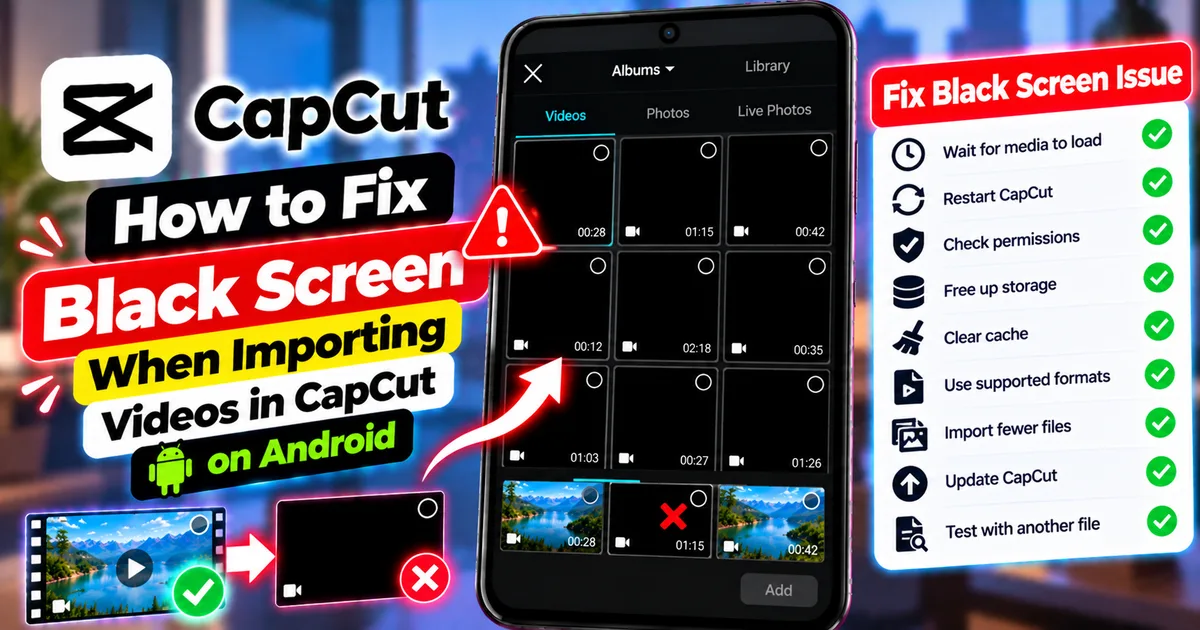
Trying to import a video into CapCut, only to see a black thumbnail or blank preview? This problem can make it difficult to identify your footage, select the right clips, or begin editing your project.
Sometimes every file in the media picker appears black. In other cases, only a few videos or photos have blank previews, even though the files are visible in your phone's gallery.
These situations can have different causes. CapCut may still be loading thumbnails, the media files may be too large, Android permissions may be restricted, or a particular file may use an unsupported format or contain corrupted data.
The best approach is to identify whether the problem affects every file or only certain files before changing your settings or converting your media.
This guide explains how to fix a black screen when importing videos or photos into CapCut on Android, including blank thumbnails, slow media loading, unsupported files, permission problems, and files that appear correctly in your gallery but not in CapCut.
Quick Answer
If CapCut shows black screens when importing videos or photos on Android, try these steps:
- Wait for the media picker to finish loading.
- Close and reopen CapCut.
- Import a smaller number of files at a time.
- Check whether the original media plays correctly in your gallery.
- Verify that CapCut can access your photos and videos.
- Test a different video or image.
- Check whether the affected file uses a supported format.
- Clear CapCut's temporary cache if appropriate.
- Restart your phone.
- Update CapCut through an official source.
- Convert or replace a file only if testing indicates a compatibility or file problem.
If all files appear black, begin with loading, permissions, and app troubleshooting. If only a few files are affected, focus on those files and their formats.
Important: Do not delete your original videos, clear CapCut's app data, or uninstall the app before protecting your unfinished projects.
Why Does CapCut Show a Black Screen When Importing Media?
A black preview does not always mean that your video is broken. The cause depends on where the black screen appears and which files are affected.
1. Media Previews Are Still Loading
If your phone contains many videos, photos, or large media files, CapCut may need additional time to display their previews.
You may see black thumbnails temporarily while the app processes the media library.
2. The Media Files Are Large
Large files can take longer to load and generate previews, particularly when your phone is under heavy workload.
If the problem affects many files at once, try importing a smaller selection.
3. The File Format Is Unsupported
CapCut cannot necessarily import every format or encoding that your phone can open.
A video may play in one application but still fail to display correctly in the CapCut media picker.
4. A File Is Damaged
An incomplete download, corrupted video, or damaged image may not produce a usable preview.
If only one file consistently appears black, testing that file separately can help identify the problem.
5. Media Permissions Are Restricted
Android permissions determine which photos and videos an app can access.
If CapCut does not have the appropriate access, some media may not appear as expected.
6. A Temporary App Problem
A temporary loading or caching issue can affect the media picker.
Restarting CapCut may help restore normal preview loading.
1. Wait for CapCut to Finish Loading Media
Before changing settings, give CapCut time to load the media library.
This is especially useful when your phone contains hundreds of photos and videos or when you have just opened the import screen.
What to do
- Open CapCut.
- Start a new project or open the media import screen.
- Wait for the thumbnails to appear.
- Avoid repeatedly tapping the same blank thumbnails while the library is loading.
- Check whether the previews gradually become visible.
If the thumbnails appear after waiting, the problem was likely related to loading time rather than a permanently broken media file.
If the previews remain black, continue with the following steps.
2. Import Fewer Files at a Time
Selecting a large number of files can make media loading more demanding.
CapCut's official guidance recommends waiting for large media collections to load or trying to import fewer files at a time.
How to test it
- Close the current import screen.
- Reopen CapCut.
- Start a new import.
- Select just one or two known-good files.
- Wait for the previews to load.
- Check whether the files can be added to the timeline.
If a small selection works but a large selection produces black previews, the number or size of the files may be contributing to the issue.
You can continue by importing the media in smaller batches rather than selecting everything at once.
This is a practical workaround for large camera folders, travel footage collections, and projects with many source clips.
3. Restart CapCut
A temporary problem in the media picker may disappear after restarting the app.
Steps
- Exit CapCut.
- Open Android's recent-apps screen.
- Close CapCut.
- Launch the app again.
- Open the media import screen.
- Wait for the thumbnails to load.
If the previews return, the issue may have been temporary.
If the same files remain black, investigate permissions and file compatibility.
Restarting CapCut should not require you to delete your drafts or reinstall the app.
4. Check Whether the Original Video or Photo Works
Before converting a file or changing CapCut settings, test the original media outside the editor.
This helps distinguish a file problem from a CapCut import problem.
Test a video
- Open your phone's Gallery or Photos app.
- Locate the original video.
- Play it from beginning to end.
- Check whether it displays normally.
- Return to CapCut and try importing it again.
Test a photo
- Open the original image in your gallery.
- Confirm that the image displays correctly.
- Return to CapCut.
- Try importing the image again.
If the original file is also damaged or cannot be opened, obtain a clean copy if possible.
If it works normally outside CapCut but not in the import screen, investigate file compatibility, permissions, and app loading.
Remember that successful playback in your gallery does not guarantee that every editor supports the same file format or encoding.
5. Check CapCut's Photo and Video Permissions
CapCut needs appropriate access to the media you want to import.
Android permission menus differ between devices and operating-system versions, so the exact wording may vary.
How to check permissions
- Open your phone's Settings.
- Select Apps or App Management.
- Find CapCut.
- Open Permissions.
- Look for Photos and videos, Files, or the relevant media permission available on your device.
- Allow the access required for the files you want to import.
- Return to CapCut and test the media picker again.
Some Android versions let you grant access only to selected photos and videos. If you have selected limited access, make sure the affected media is included.
Do not grant unrelated permissions simply because the import screen is not working.
If CapCut already has the appropriate media access, continue to the next step.
6. Check Whether the File Format Is Supported
A video can appear in your gallery but fail to display properly in CapCut because the editor may not support its format or encoding.
CapCut's official help documentation lists several Android media formats it supports, including common formats such as MP4, MOV, AVI, MKV, and 3GP, as well as image formats such as JPEG, PNG, and WebP. Support can still depend on the file's specific encoding and the app version.
How to investigate the format
- Locate the original file in your phone's file manager.
- Check the filename extension or media information if available.
- Compare the format with CapCut's current supported-format guidance.
- Test a different file in the same format if possible.
- If the file remains unreadable, consider converting it to a compatible format.
Why the extension is not enough
Two videos can both use an MP4 extension but contain different video or audio encodings.
Changing a filename from one extension to another does not convert the underlying media.
If you suspect a compatibility problem, use a trusted media converter to create a genuine compatible copy. Keep the original file until you confirm that the converted version works.
For official guidance, see CapCut's help article on local assets not being recognized during import.
7. Fix Black Thumbnails Affecting Only Some Files
If most media previews work but a few remain black, focus on the affected files rather than changing every CapCut setting.
Possible explanations include unsupported formats, damaged media, incomplete downloads, or unusual file encodings.
Troubleshooting steps
- Choose one affected file.
- Open it outside CapCut.
- Check whether it plays or displays correctly.
- Test a different file from the same folder.
- Try importing the affected file by itself.
- If necessary, obtain a clean copy or convert it to a compatible format.
- Reopen CapCut and test again.
If the replacement file works, the original may be damaged or incompatible.
If several files from the same source fail, investigate how those files were created, downloaded, transferred, or converted.
Do not convert your entire media collection unless testing shows that conversion is necessary.
8. Fix Black Previews Affecting Every File
When every thumbnail appears black, the problem may be broader than one damaged file.
Start with the media-loading process, app state, and Android permissions.
Try this sequence
- Wait for the media library to load.
- Close and reopen CapCut.
- Check media permissions.
- Import one known-good video.
- Close unnecessary background apps.
- Restart your phone.
- Check for an official CapCut update.
If all files remain black, try a small test project using a short video that works in your gallery.
If the test also fails, record the behavior and contact CapCut support if necessary.
9. Clear CapCut's Temporary Cache
Temporary cached data can sometimes contribute to loading problems. Clearing the cache may be worth trying after checking permissions and restarting the app.
Clear cache through Android Settings
- Open Android Settings.
- Select Apps or App Management.
- Choose CapCut.
- Open Storage or Storage & cache.
- Tap Clear cache if the option is available.
- Reopen CapCut.
- Try importing the same media again.
You may also find a cache-clearing option inside CapCut's settings, depending on the version.
Do not confuse Clear cache with Clear storage or Clear data. Clearing app data can remove local information and may affect unfinished projects.
If you are unsure how your drafts are stored, avoid destructive storage operations.
10. Restart Your Android Phone
If the media picker continues to show black previews, restart your phone.
Steps
- Close CapCut.
- Open your phone's power menu.
- Choose Restart.
- Wait for the device to start.
- Open CapCut.
- Wait for the media library to load.
- Test a known-good file.
This can help resolve temporary system or app problems, although it will not repair a corrupted media file or make an unsupported format compatible.
If the problem persists after restarting, continue to the next step.
11. Update CapCut Through an Official Source
An outdated app version may have bugs or compatibility problems affecting media loading.
How to check for an update
- Open the Google Play Store.
- Search for CapCut.
- Open the app's official listing.
- Check whether an Update option is available.
- Review the update information.
- Install the update if appropriate.
- Reopen CapCut and test the import screen.
Avoid installing unknown or modified APKs as a troubleshooting shortcut. Unofficial packages may create security and compatibility risks.
Do not uninstall your current installation before protecting your unfinished projects and confirming how your drafts are stored.
12. Check Whether the Problem Is Limited to One Folder
Sometimes files from one folder import correctly while files from another folder produce black previews.
This can help you identify a source-specific issue.
How to compare folders
- Choose a working video from one folder.
- Import it into CapCut.
- Choose an affected file from another folder.
- Try importing it separately.
- Compare the results.
If one folder consistently contains problematic files, investigate their format, source, or condition.
For example, a group of videos may have been downloaded incompletely or encoded differently from footage recorded directly by your phone.
If files from every folder fail, focus on permissions, the app, and general media loading instead.
13. What If the Imported Video Becomes Black After Selecting It?
A black thumbnail in the media picker is different from a black video after it has been added to the timeline.
If the thumbnail looks normal but the imported clip turns black in the editor, investigate the source file and playback separately.
Try these steps
- Play the original video in your gallery.
- Reopen the project.
- Move the playhead to a different point in the clip.
- Test a different video in the same project.
- Import a fresh copy of the affected file if available.
- Check whether the problem occurs only with one clip.
If the original file is healthy but the imported clip consistently displays black, report the exact steps to CapCut support.
Avoid deleting the source media or rebuilding your entire project until you understand the scope of the problem.
14. What If CapCut Crashes While Loading Media?
If the app closes completely instead of displaying black thumbnails, treat the problem as a crash during media loading.
Try restarting CapCut, checking available storage, closing background apps, clearing the temporary cache, and updating the app through an official source.
If CapCut crashes only when you select a particular file, test that file separately.
For broader app stability problems, see our guide on how to fix CapCut crashing on Android.
If the app remains open but responds slowly while loading media, our guide on how to fix CapCut lagging on Android may also be useful once that article is published and its URL is confirmed.
15. What Not to Do When CapCut Shows Black Previews
Avoid unnecessary or destructive changes while troubleshooting.
Do not delete your original media immediately
The source files may still be usable in another editor or after conversion.
Do not rename the extension as a substitute for conversion
Changing .mov to .mp4, for example, does not convert the actual video data.
Do not clear app data as your first step
Clearing storage can remove local information and may affect unfinished projects.
Do not reinstall CapCut immediately
First test the files, permissions, cache, and app version.
Do not install an unknown modified APK
Unofficial packages may introduce security and compatibility problems.
Do not convert every file unnecessarily
Determine whether the problem affects one file, a particular folder, or the entire media library before converting anything.
Frequently Asked Questions
Why are all my videos black when I import them into CapCut?
Possible causes include media previews that have not finished loading, large media collections, temporary app issues, or restricted media access. Wait for loading to finish, restart CapCut, check permissions, and test a single known-good video.
Why do only some videos appear black in CapCut?
Those files may use an unsupported format or encoding, or they may be corrupted. Test the original files outside CapCut and compare them with videos that import correctly.
Why do my videos work in Gallery but appear black in CapCut?
Your gallery and CapCut may handle media differently. The file may use an encoding CapCut cannot process correctly, or the import preview may not have finished loading. Test another file and check the format before converting anything.
Will clearing CapCut's cache delete my projects?
Clearing the temporary cache is different from clearing app data, but you should not assume that every draft is backed up. Avoid clearing storage or uninstalling the app until you understand how your projects are stored.
Does CapCut support MP4 videos on Android?
CapCut lists MP4 among the supported Android video formats. However, support may still depend on the specific file encoding, the condition of the file, and the app version.
Why do thumbnails stay black even after waiting?
If waiting does not help, restart CapCut, check media permissions, and test the affected file separately. A persistent black preview may indicate a file-format or file-integrity problem.
Can low storage cause black previews?
Low storage can contribute to general app and media-handling problems, although it is not the only possible explanation for black thumbnails. Check available space and test a small number of files.
Should I convert a video if CapCut cannot import it?
Only after testing suggests a format or encoding compatibility issue. Use a trusted converter to create a compatible copy, and keep the original until the converted file works correctly.
Why does CapCut show a black screen when selecting photos?
The app may still be loading previews, may not have appropriate media access, or may be unable to process a particular image. Wait for loading, check permissions, and test another image.
What should I do if nothing fixes the black preview problem?
Record whether the issue affects all files or only certain ones, note your Android and CapCut versions, and contact CapCut support. Include the steps you tried and a screenshot or screen recording if possible.
Final Thoughts
When CapCut shows black screens during media import on Android, first determine whether the problem affects every file or only certain videos and photos.
If all previews are black, start with loading time, importing fewer files, app permissions, restarting CapCut, and clearing the temporary cache carefully. If only some files are affected, check their condition and compatibility before converting or replacing them.
Protect your original media and unfinished projects throughout the process. A few simple tests can help identify the cause without unnecessarily deleting files or reinstalling the app.
Related Articles

How to Fix CapCut Video Lagging After Export on Android
Fix CapCut video lagging after export on Android. Learn how to troubleshoot choppy playback, frame-rate mismatches, heavy effects, storage issues, and export settings.
GetApkFree Team

How to Fix CapCut Preview Not Matching Export on Android
Fix CapCut preview not matching the exported video on Android. Troubleshoot missing effects, text, transitions, timing, colors, and rendering differences.
GetApkFree Team

How to Fix Couldn't Apply AI Background in CapCut on Android
Getting "Couldn't Apply AI Background" in CapCut on Android? Check usage limits, clip selection, video quality, app updates, and practical troubleshooting steps.
GetApkFree Team

How to Fix CapCut Effects Not Applying on Android
CapCut effects not working on Android? Check clip selection, effect layers, timeline timing, conflicting adjustments, and app performance with these practical fixes.
GetApkFree Team