
This article is about
CapCut Premium
capcutdownload.com.pk · Tools
How to Fix CapCut Keeps Crashing on Android
GetApkFree Team
CapCut keeps crashing on Android? Fix unexpected app closures, startup crashes, project loading failures, freezing, and crashes during editing.
- Source
- Developer
- Package
- CapCut Premium
How to Fix CapCut Keeps Crashing on Android
CapCut can be frustrating to use when it keeps crashing on your Android phone. You might tap the app icon and find that it closes immediately, open a project only for the editor to disappear, or experience repeated crashes while applying effects or exporting a video.
These problems can have different causes. An outdated app version, limited device resources, insufficient storage, temporary app issues, or a particular project or media file may contribute to unexpected closures.
The most useful approach is to identify when the crash happens before attempting major fixes. An app that crashes during startup requires a slightly different troubleshooting process from one that closes only when you open a particular project.
In this guide, you'll learn how to fix CapCut crashing on Android, including startup crashes, crashes while editing, project loading failures, and unexpected closures during export. You'll also learn how to protect unfinished projects while troubleshooting.
Quick Answer
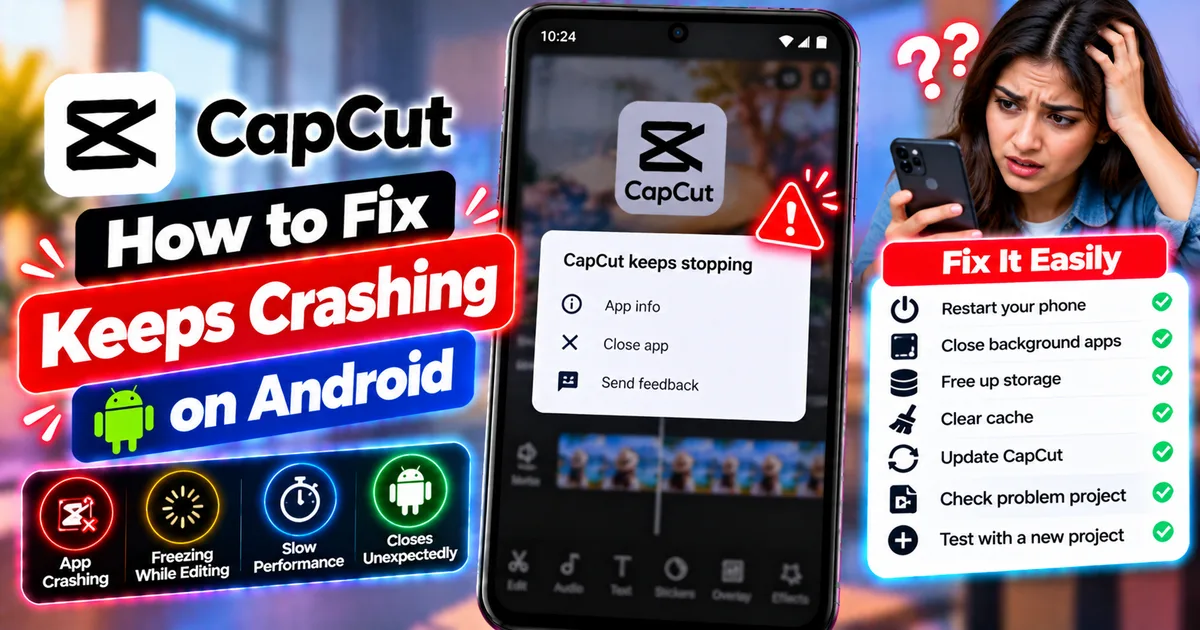
If CapCut keeps crashing on Android, try these steps in order:
- Restart your phone.
- Close unnecessary background apps.
- Check your phone's available storage.
- Force-stop CapCut and reopen it.
- Clear the app's temporary cache.
- Update CapCut through an official source.
- Test whether the crash happens in every project or only one.
- Check whether a particular video, effect, or imported file triggers the crash.
- Update Android if a compatible system update is available.
- Contact CapCut support if the problem continues.
Important: Do not clear CapCut's app data or uninstall the app before protecting your unfinished projects. Local drafts may be affected by destructive troubleshooting steps.
Why Does CapCut Keep Crashing on Android?
There is no single cause for every CapCut crash. The circumstances in which the app closes can help you identify the problem.
1. Temporary App Problems
CapCut may occasionally stop responding because of a temporary software issue. Closing and reopening the app can help determine whether the problem is temporary.
2. Limited Available Resources
Video editing can require substantial processing power and memory. A complex project with several video layers, effects, transitions, and animations may be more demanding than a simple edit.
3. Insufficient Storage
Your phone needs available storage to manage media and create exported files. A device with very little free space may experience problems when working with large projects.
4. An Outdated App Version
An older version of CapCut may contain bugs or compatibility issues that have been addressed in a newer release.
5. A Project-Specific Problem
If CapCut crashes whenever you open one particular draft but works with other projects, the issue may be associated with that draft, its media, or its editing elements.
6. Problematic Imported Media
A particular video, image, or audio file may cause problems when CapCut attempts to load or process it.
7. Device or System Compatibility
An older Android version, device-specific issue, or limited hardware capability may affect stability, especially when using demanding editing features.
The following troubleshooting steps help distinguish these possibilities without immediately deleting your projects.
1. Restart Your Android Phone
Start with a simple device restart, especially if CapCut began crashing unexpectedly.
Restarting can resolve some temporary system problems and close background processes that may be competing for resources.
How to restart your phone
- Save your work if CapCut is still accessible.
- Exit the app.
- Open your phone's power menu.
- Select Restart.
- Wait for the phone to start again.
- Open CapCut.
- Test the action that previously caused the crash.
If CapCut opens normally after restarting, the issue may have been temporary.
If it continues to crash at the same point, proceed to the next step.
2. Force-Stop CapCut and Reopen It
If restarting your phone does not help, force-stop CapCut through Android Settings.
This is useful when the app remains unresponsive, freezes during startup, or repeatedly closes after opening a project.
Steps
- Open your phone's Settings.
- Go to Apps or App Management.
- Find CapCut.
- Open the app information screen.
- Tap Force stop.
- Confirm if prompted.
- Launch CapCut again.
The exact menu names may vary by Android device.
Force-stopping the app is different from clearing its storage. It does not require you to delete your local app data.
If CapCut still crashes, continue with the following checks.
3. Close Unnecessary Background Apps
Video editing can be demanding, particularly when your phone has limited available memory.
Other resource-intensive applications may compete with CapCut while it loads media or processes effects.
What to do
- Close CapCut if it is open.
- Open Android's recent-apps screen.
- Close applications you do not need.
- Avoid running demanding games or other heavy apps during testing.
- Reopen CapCut.
- Try a simple project first.
You do not need to install a third-party RAM cleaner or force-stop every system service.
The goal is to reduce unnecessary activity and see whether CapCut becomes more stable.
If the app crashes only during complex edits, reducing background activity may help, but the project itself may still require troubleshooting.
4. Check Your Phone's Available Storage
Low available storage can cause problems when an app needs to load media, create temporary files, or export a video.
How to check storage
- Open Android Settings.
- Select Storage or the equivalent menu on your device.
- Review how much free space remains.
- Identify unnecessary downloads or duplicate files.
- Back up important files before deleting anything.
- Reopen CapCut and test it again.
Large video projects can require more working space than the installed app alone.
There is no single free-space figure that guarantees CapCut will work perfectly on every phone. The storage required depends partly on the media and project you are using.
Do not delete original footage or CapCut drafts just to free up space unless you know those files are safely preserved.
5. Clear CapCut's Cache Safely
Temporary cached files can sometimes contribute to app problems. Clearing the cache is a reasonable troubleshooting step if restarting the app and checking storage do not resolve the issue.
Option A: Clear cache inside CapCut
If your version includes a cache-clearing option:
- Open CapCut.
- Find the app's Settings menu.
- Look for Clear cache or a similarly named option.
- Review the option before confirming.
- Restart the app and test it again.
Option B: Clear cache through Android Settings
If CapCut cannot stay open long enough to access its settings:
- Open Android Settings.
- Select Apps or App Management.
- Choose CapCut.
- Open Storage or Storage & cache.
- Select Clear cache.
- Launch CapCut again.
Menu names vary between devices and Android versions.
Clear Cache vs. Clear Data
These options are not interchangeable.
- Clear cache: Removes temporary cached files.
- Clear data or Clear storage: Can reset the app and remove local information, potentially affecting unfinished projects.
Start with clearing only the cache.
If you cannot confirm how your drafts are stored or backed up, do not clear app data.
6. Update CapCut to the Latest Available Version
CapCut's official guidance recommends updating the app to benefit from stability improvements, bug fixes, and compatibility improvements.
An outdated version may contribute to crashes, especially if the problem began after an Android update or appears when using a newer feature.
How to update CapCut
- Open the Google Play Store.
- Search for CapCut.
- Open its official app listing.
- Check whether an Update option is available.
- Review the update information.
- Install the update if appropriate.
- Reopen CapCut and test the problem again.
If you installed CapCut from another source, verify that your version is legitimate and compatible with your device.
Avoid installing unknown or modified APKs to solve a crash. An unofficial package may introduce additional security and compatibility problems.
Do not uninstall your existing installation before updating unless you have first protected your local projects.
7. Find Out Whether CapCut Crashes in Every Project
This is one of the most useful diagnostic tests.
If CapCut crashes in every project, the problem may involve the app, the device, or a broader compatibility issue.
If it crashes only when opening one draft, the problem may be specific to that project or one of its media files.
Test with a new project
If CapCut stays open long enough:
- Launch CapCut.
- Create a new project.
- Import a short video that plays correctly outside CapCut.
- Make a simple edit.
- Preview the result.
- Check whether the app crashes.
Interpret the result
The new project works: Your original draft may contain a problematic file, effect, or complex editing arrangement.
The new project also crashes: Investigate the app installation, available storage, device resources, and system compatibility.
CapCut crashes before you can create a project: Focus first on restarting the phone, force-stopping the app, clearing cache, and checking for an update.
This test helps narrow the problem without requiring you to rebuild your main project.
8. Fix CapCut Crashing When Opening a Project
If CapCut opens normally but closes as soon as you select a particular draft, avoid deleting that draft immediately.
The project may contain a media file or editing element that the app struggles to load.
Try these steps
- Restart CapCut.
- Open a different project if one is available.
- Determine whether only one draft triggers the crash.
- Check whether the affected project uses large video files or many effects.
- If you can safely duplicate the draft, test the duplicate.
- Update CapCut if an official update is available.
If the app crashes only when opening a single project, repeatedly reinstalling CapCut may not solve the underlying issue.
Protect the original draft and source files before trying more disruptive fixes.
If the project is important and remains inaccessible, contact CapCut support and explain that the crash occurs specifically when loading that draft.
9. Fix CapCut Crashing While Editing
Sometimes the app opens and loads a project correctly but crashes when you perform a particular editing action.
For example, it might close when you add an effect, apply a filter, use an AI tool, or work with several overlays.
Simplify the test
- Open the project if possible.
- Identify the action that triggers the crash.
- Avoid repeating that action on your only copy of the project.
- If a safe duplicate is available, test the duplicate.
- Temporarily simplify the relevant section.
- Try the action with a shorter or simpler clip.
- Check whether the app remains stable.
If the crash occurs only with one demanding effect, the problem may involve the feature, project complexity, or device capability.
If every editing action causes a crash, investigate the app and device more broadly.
10. Check Whether a Specific Video or Audio File Causes the Crash
A particular media file may trigger a problem when CapCut tries to load, decode, or process it.
This is more likely to be worth investigating when the crash repeatedly happens at the same point in one project.
How to test the media
- Play the original video or audio outside CapCut.
- Confirm that it plays normally.
- Try a different known-good file in a test project.
- Compare the results.
- If one file repeatedly triggers the crash, obtain a clean copy if possible.
- Avoid deleting the original until you know you no longer need it.
A file playing normally in another app does not guarantee that every editor will handle it identically.
If necessary, create a compatible copy using a trusted media tool rather than simply changing the file extension.
11. Fix CapCut Crashing When Using Effects or AI Features
Some editing features require more processing than basic trimming and cutting.
If CapCut crashes when you use a particular effect, enhancement tool, or AI feature, first establish whether the issue is limited to that operation.
What to try
- Restart the app.
- Close unnecessary background apps.
- Check available storage.
- Test the same feature with a shorter clip.
- Reduce unnecessary effects in the surrounding timeline.
- Check for an official CapCut update.
- Compare the result with a simple project.
If only one feature repeatedly crashes, report that specific behavior to CapCut support.
Do not assume that every phone supports every demanding feature equally well, even if the app can be installed successfully.
12. Fix CapCut Crashing During Export
If CapCut works while editing but closes when you tap Export, focus on the export process rather than the app's general startup behavior.
Large projects, high-resolution footage, demanding effects, or insufficient storage may contribute to export problems.
Steps to try
- Check available storage.
- Close unnecessary background apps.
- Restart CapCut.
- Try exporting a short section if your workflow permits it.
- Test a lower resolution or frame rate.
- Check for problematic media in the project.
- Update CapCut through an official source.
If a short export succeeds but the full project crashes, investigate the larger project's media and complexity.
For a separate export issue, see our guide on how to fix CapCut export stuck at 99% on Android.
If the Export button itself does not respond, read how to fix the CapCut export button not working on Android.
13. Check for Android System Updates
If CapCut began crashing after a system change or has persistent compatibility problems, check whether your phone has a supported Android update available.
How to check
- Open Settings.
- Find System update or Software update.
- Check whether an update is available for your device.
- Review the update information.
- Install an appropriate update if you choose to proceed.
The exact steps depend on your phone manufacturer.
An Android update is not guaranteed to fix CapCut crashes, and not every device receives the same updates.
Do not attempt to install an unsupported operating system or unofficial firmware simply to troubleshoot the app.
14. Check Whether the Crash Is Related to Internet Connectivity
Not every CapCut function relies on the same network resources. Basic editing of local media can behave differently from downloading templates or accessing online features.
If CapCut crashes only when opening templates or loading online resources, check your connection separately.
Try these steps
- Open another app to confirm that the internet works.
- Switch between Wi-Fi and mobile data if available.
- Restart CapCut.
- Try the same online feature again.
- Check whether the problem affects only templates or other online functions.
If the entire app crashes even when editing local media offline, the network may not be the main cause.
For a specific connection problem, consult CapCut's official internet connection troubleshooting guide.
15. Reinstall CapCut Only as a Last Resort
Reinstalling the app may help in some cases, but it should not be the first troubleshooting step.
The most important consideration is your unfinished work.
Local drafts and project-related data may not be recoverable simply by reinstalling the app.
Before considering reinstallation
- Protect important source videos and audio files.
- Check whether your projects are safely backed up.
- Confirm how your current version stores local drafts.
- Try restarting the phone.
- Force-stop the app.
- Clear only the temporary cache.
- Check for an official update.
- Test whether the crash affects every project.
If you cannot safely preserve your unfinished projects, avoid uninstalling CapCut.
If all reasonable non-destructive steps fail and your projects are protected, you can consider reinstalling through an official distribution source.
16. Contact CapCut Support if the App Still Crashes
If CapCut continues to close unexpectedly, reporting the issue may be more useful than repeatedly trying the same fixes.
Collect the following information before contacting support:
- Your phone model.
- Your Android version.
- Your installed CapCut version.
- When the crashes began.
- Whether the crash happens at startup, while opening a project, during editing, or during export.
- Whether it affects every project or only one.
- The troubleshooting steps you have already tried.
If possible, provide a screenshot, screen recording, or the exact error message.
Avoid sharing private videos or personal information unless it is necessary and appropriate for the support request.
The more clearly you describe the circumstances, the easier it is to distinguish a general app problem from a project-specific issue.
CapCut Keeps Crashing: Quick Troubleshooting Checklist
Use this checklist to track the steps you have tried.
Basic checks
- Restart the phone.
- Force-stop CapCut.
- Close unnecessary background apps.
- Check available storage.
- Clear the temporary cache.
App checks
- Check for an official update.
- Confirm the app is from a legitimate source.
- Check whether the problem began after an update.
- Test a simple project.
Project checks
- Determine whether every project crashes.
- Check whether a particular draft causes the problem.
- Test a different source video.
- Check whether one effect or tool triggers the crash.
- Test a short export if export is the problem.
Before destructive troubleshooting
- Protect important drafts.
- Back up source media where possible.
- Avoid clearing app data without understanding the consequences.
- Avoid uninstalling the app until your projects are protected.
Frequently Asked Questions
Why does CapCut keep closing on Android?
Possible causes include temporary app problems, limited device resources, insufficient storage, an outdated version, compatibility issues, or a problematic project. The point at which the app crashes helps narrow down the cause.
Why does CapCut crash immediately after opening?
Try restarting your phone, force-stopping CapCut, checking available storage, clearing the temporary cache, and checking for an official update. If the app still crashes before reaching the editor, contact CapCut support with your device and app details.
Why does CapCut crash when I open one particular project?
The draft may contain a problematic media file, effect, or editing element. Test a different project and protect the original draft before making changes.
Will clearing CapCut's cache delete my projects?
Clearing the temporary cache is different from clearing app data or storage. However, you should not assume that every project is backed up. Avoid destructive storage operations if you are uncertain how your drafts are stored.
Should I uninstall CapCut if it keeps crashing?
Not immediately. Try non-destructive troubleshooting first, and protect your local drafts and source files before considering reinstallation.
Why does CapCut crash during export?
Exporting can be demanding, especially for complex projects. Check available storage, close background apps, test a short section, and try lower export settings if appropriate.
Why does CapCut crash when using effects?
A particular effect may be demanding or may trigger an app-specific issue. Test a shorter clip, simplify the surrounding project, and check whether an official update is available.
Can low storage cause CapCut to crash?
Insufficient storage can interfere with media handling and video export. Check your available space and safely remove unnecessary files if needed.
Can an outdated CapCut version cause crashes?
An outdated version may contain bugs or compatibility issues. CapCut recommends updating through official sources to receive available stability and compatibility improvements.
Why does CapCut crash only when using templates?
Templates may require online assets and additional processing. Check your internet connection, update the app, clear the temporary cache if appropriate, and test another template to determine whether the issue is specific to one item.
What should I do if CapCut crashes after an update?
Restart the phone, check for another available official update, clear the temporary cache, and test a simple project. If the problem began immediately after an update and persists, report the version and symptoms to CapCut support.
How can I tell whether my phone is the problem?
Test a simple project with a short video and minimal editing. If that works while one complex project crashes, the original project may be contributing to the problem. If every project crashes, investigate the app, storage, and device compatibility.
Final Thoughts
When CapCut keeps crashing on Android, the first step is to identify when the problem occurs. A startup crash, a project-loading crash, an editing crash, and an export crash may have different causes.
Start with non-destructive steps: restart your phone, force-stop the app, close unnecessary background apps, check storage, clear the temporary cache, and update CapCut through an official source.
If the app crashes only with one project or one feature, investigate that specific situation before changing the entire installation.
Most importantly, protect your unfinished projects before clearing app data or uninstalling CapCut. A careful, step-by-step diagnosis is safer than repeatedly reinstalling the app without knowing what caused the crash.
Related Articles

How to Fix CapCut Video Lagging After Export on Android
Fix CapCut video lagging after export on Android. Learn how to troubleshoot choppy playback, frame-rate mismatches, heavy effects, storage issues, and export settings.
GetApkFree Team

How to Fix CapCut Preview Not Matching Export on Android
Fix CapCut preview not matching the exported video on Android. Troubleshoot missing effects, text, transitions, timing, colors, and rendering differences.
GetApkFree Team

How to Fix Couldn't Apply AI Background in CapCut on Android
Getting "Couldn't Apply AI Background" in CapCut on Android? Check usage limits, clip selection, video quality, app updates, and practical troubleshooting steps.
GetApkFree Team

How to Fix CapCut Effects Not Applying on Android
CapCut effects not working on Android? Check clip selection, effect layers, timeline timing, conflicting adjustments, and app performance with these practical fixes.
GetApkFree Team