
This article is about
CapCut Premium
capcutdownload.com.pk · Tools
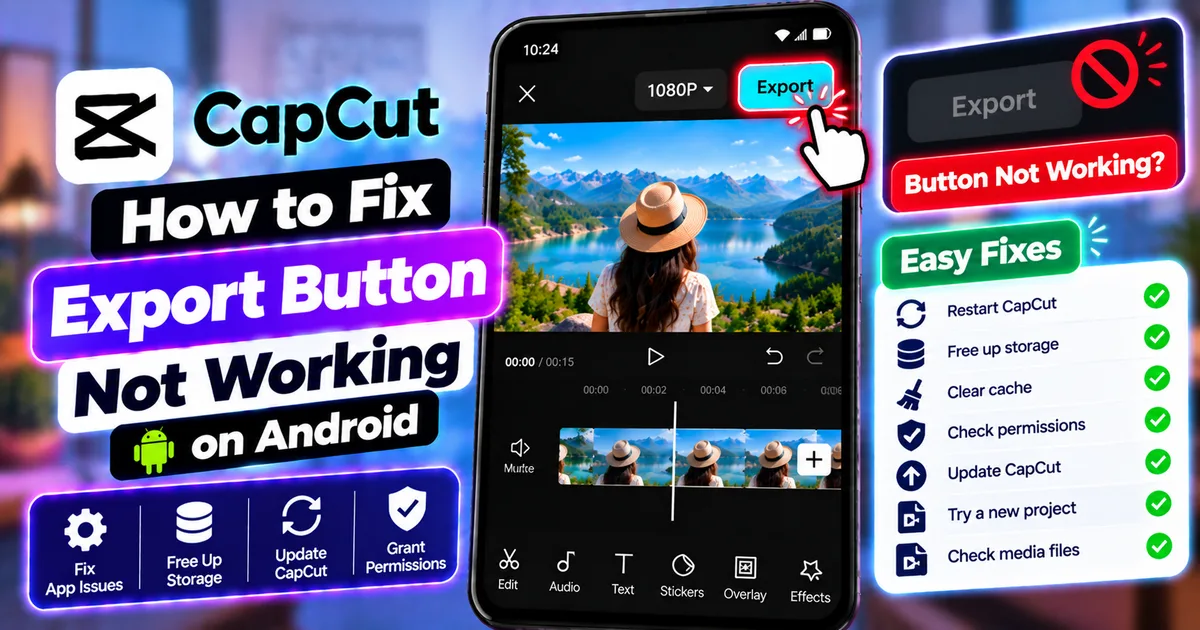
How to Fix CapCut Export Button Not Working on Android
GetApkFree Team
CapCut's Export button not working on Android? Try these fixes for an unresponsive button, frozen editor, app glitches, permissions, and export settings.
- Source
- Developer
- Package
- CapCut Premium
How to Fix CapCut Export Button Not Working on Android
Have you finished editing a video in CapCut, tapped the Export button, and nothing happened? Perhaps the button appears to respond, but the export screen never opens. In other cases, the editor may freeze, become unresponsive, or close when you try to save your video.
These problems can be frustrating, especially when you've spent a long time editing a project.
The good news is that an unresponsive Export button does not automatically mean your project is damaged. Temporary app glitches, limited device resources, project-specific problems, and outdated software can all contribute to export issues.
In this guide, you'll learn how to fix the CapCut Export button not working on Android, what to do when the export screen will not open, how to troubleshoot a frozen editor, and how to test whether the problem comes from your app, phone, or project.
Quick Answer
If CapCut's Export button is not working on Android, try these fixes in order:
- Wait a few seconds and tap Export once.
- Check whether CapCut is still responding.
- Close unnecessary background apps.
- Check your phone's available storage.
- Restart CapCut.
- Restart your Android phone.
- Clear CapCut's cache without clearing app data.
- Check the app's relevant permissions.
- Update CapCut from an official app source.
- Test a short video in a new project.
- Temporarily remove recently added effects or media.
- Try lower export settings if the export screen opens.
- Protect your drafts before considering reinstalling the app.
If the Export button works in a new project but not your existing project, investigate the original project's contents before making major changes to CapCut.
Why Is the CapCut Export Button Not Working?
The Export button normally starts the process of preparing and saving your edited video. If tapping it does nothing, CapCut may be unable to start that process.
Possible causes include:
- A temporary app glitch
- An editor interface that has stopped responding
- Limited device memory or processing resources
- Insufficient storage
- A large or complex project
- A problematic clip, effect, or other project element
- An outdated app version
- A temporary device or system issue
The exact cause can vary between Android phones and CapCut versions. The best approach is to begin with simple troubleshooting and then test whether the problem is specific to one project.
What Happens When You Tap Export?
Understanding the symptoms can help you choose the right fix.
Nothing Happens
You tap Export, but the button appears to do nothing. The export screen does not open, and no progress indicator appears.
This may indicate a temporary interface problem or an issue preventing CapCut from starting the export process.
The Editor Freezes
The screen stops responding after you tap Export. You may be unable to select clips, open settings, or return to the timeline.
This can happen when the app or device becomes unresponsive.
CapCut Closes Unexpectedly
CapCut may close or return to your phone's home screen when you try to export. This suggests that the app may be encountering a crash or resource-related problem.
The Export Screen Opens but Export Does Not Start
This is a different symptom. The button may be working, but the export process itself is not beginning.
In this case, check the available export settings, device resources, and project contents.
Export Starts but Stops at 99%
If the progress bar begins moving and eventually stops at 99%, you are dealing with a different problem.
Read our guide on how to fix CapCut export stuck at 99% on Android.
How to Fix the CapCut Export Button Not Working on Android
Follow these steps in order. Test the button after each major fix so you can identify what resolves the problem.
1. Wait Before Tapping Export Again
If you've just tapped Export, give CapCut a moment to respond.
Large projects can take time to prepare, particularly when they contain multiple video tracks, overlays, effects, transitions, animations, or high-resolution footage.
Repeatedly tapping the button may not help and can make it harder to determine what the app is doing.
Wait briefly and check whether the export screen appears.
If nothing changes, continue to the next step.
2. Check Whether CapCut Is Frozen
Try interacting with another part of the editor.
For example, see whether you can:
- Move the playhead
- Select a clip
- Open an editing tool
- Play the timeline
- Return to the previous screen
If other controls respond normally but Export does not, the problem may be associated with the export action or project.
If the entire editor is unresponsive, restart the app before troubleshooting individual export settings.
3. Close Unnecessary Background Apps
Video editing can use considerable processing power and memory.
If several demanding apps are running simultaneously, your phone may struggle to handle a complex project.
Before exporting:
- Save your current work if possible.
- Close unnecessary apps.
- Return to CapCut.
- Wait for the project to finish loading.
- Tap Export once.
This is particularly worth trying when editing long videos, applying multiple effects, or working with high-resolution footage.
Closing background apps does not guarantee a fix, but it can reduce competition for device resources.
4. Check Your Phone's Available Storage
Insufficient storage can interfere with exporting and saving videos.
Although a storage problem does not explain every unresponsive Export button, it is an important basic check.
On most Android phones, open:
Settings → Storage
Check how much space remains.
If your phone is nearly full, remove unnecessary downloads, duplicate files, or old exported videos after protecting anything important.
Video exporting may also require temporary working space, so having enough room for only the expected final file may not always be sufficient.
After freeing storage, reopen CapCut and try again.
5. Restart CapCut
A temporary app glitch may prevent the Export button from responding.
To restart CapCut:
- Save your project if possible.
- Open the recent-apps screen.
- Close CapCut.
- Launch CapCut again.
- Reopen your project.
- Wait for the timeline to load.
- Try exporting.
Avoid force-closing the app while it is actively saving important work unless it has become completely unresponsive.
If restarting CapCut fixes the problem, test another export later to see whether the issue returns.
6. Restart Your Android Phone
If restarting the app does not help, restart your phone.
A device restart can clear temporary system problems and release resources being used by background processes.
After the phone restarts:
- Open CapCut.
- Open the affected project.
- Wait for the media and timeline to load.
- Tap Export once.
- Check whether the export screen opens.
If the button remains unresponsive, continue with the following checks.
7. Clear CapCut's Cache
Temporary cached files can sometimes contribute to app problems.
On many Android phones, the steps are:
Settings → Apps → CapCut → Storage → Clear Cache
The exact menu labels can differ depending on your phone.
After clearing the cache, reopen CapCut and test the Export button.
Clear Cache vs. Clear Data
These options are not the same.
- Clear Cache: Removes temporary cached files.
- Clear Data: Can reset the app and remove locally stored application information.
Start with Clear Cache. Do not select Clear Data simply because you see it in the settings menu.
If you have important local drafts, protect them before attempting any more disruptive troubleshooting.
8. Check CapCut's App Permissions
CapCut needs the appropriate access to work with your imported media and save exported videos.
Open your Android settings and look for:
Settings → Apps → CapCut → Permissions
Review the permissions relevant to your current workflow.
If access to photos, videos, or other required media is denied, adjust it as appropriate for your Android version.
Permission settings differ between Android releases and phone manufacturers, so your menu may look different.
Do not enable unrelated permissions merely to troubleshoot the Export button.
9. Update CapCut
An outdated app version may contain bugs or compatibility problems.
Check for an available update through your normal app store or another official distribution source.
If an update is available:
- Protect important drafts.
- Install the update.
- Reopen CapCut.
- Load your project.
- Test the Export button again.
The interface and available export features can change between versions. A tutorial recorded on another version may not exactly match your screen.
Avoid installing modified or unofficial versions of CapCut as a troubleshooting shortcut.
10. Test the Export Button in a New Project
This is one of the most useful ways to narrow down the cause.
Create a simple test project:
- Open CapCut.
- Start a new project.
- Import one short video.
- Make a basic edit, such as trimming the clip.
- Tap Export.
- Check whether the export screen opens and the video can be saved.
If the New Project Works
The problem may be specific to your original project.
Possible causes include a problematic media file, effect, overlay, transition, or project structure.
If the New Project Also Fails
The issue may be related to CapCut itself, device resources, storage, permissions, or the current app installation.
Continue with the remaining steps rather than deleting the original project.
11. Check for Problematic Clips
If the Export button works in a new project but not the original one, investigate the original timeline.
A particular video or other media item may be causing a project-specific problem.
Look for:
- Recently imported clips
- Videos that do not play correctly
- Unusually large files
- Media imported from unfamiliar sources
- Clips that repeatedly cause the editor to freeze
- Files that have been moved or deleted from their original location
If you suspect one clip, test the project without it.
If the export button begins working, try importing a fresh copy of that media and rebuilding the affected section.
Do not remove multiple important clips at once unless you have a safe copy of the project.
12. Temporarily Remove Heavy Effects
Complex editing elements can increase the resources needed to process a project.
These may include:
- Multiple overlays
- Animated text
- Complex transitions
- Several video layers
- Visual effects
- Background-removal effects
- Keyframe animations
- High-resolution media
If the button fails only in a complicated project, simplify a copy of the project and test again.
Remove a small number of elements at a time so you can identify whether a particular component is involved.
If you discover that a specific effect is responsible, try rebuilding that section with a simpler effect or an alternative editing method.
13. Reduce the Project's Complexity
A long project with many clips and layers can be more demanding than a short, simple video.
If your project contains many editing elements, try creating a test copy with fewer effects and overlays.
You can also test shorter sections separately if your workflow allows it.
If a particular section consistently causes problems, inspect its media and effects.
The goal is to determine whether the problem is associated with the entire project or only one part of it.
14. Lower the Export Settings if the Menu Opens
If the Export button responds but the actual export fails to begin, try reducing the workload.
For example, if the project uses a high-resolution setting, test a lower resolution such as 1080P when available.
You can also try 30FPS instead of 60FPS if the source and intended result make that suitable.
Lower settings are a diagnostic step, not a guarantee that the original configuration is unsupported.
If the export menu never opens at all, changing resolution or frame rate will not directly solve that specific interface problem. Focus on app responsiveness, storage, permissions, and the project first.
15. Check Your Phone's Temperature
Video editing and rendering can place sustained demands on a phone.
If the device is unusually hot, pause editing and let it cool down before trying again.
Avoid exporting while the phone is exposed to direct sunlight or performing other demanding tasks.
Heat alone does not prove why the Export button is failing, but device performance can be affected when a phone becomes too hot.
Once the phone has cooled, reopen the project and test the button.
16. Check for an Android System Problem
If the Export button remains unresponsive in multiple projects, consider whether the problem affects other apps or the phone more broadly.
Check whether:
- Other apps are also freezing.
- The phone frequently runs out of memory.
- Storage is nearly full.
- The system is displaying errors.
- A recent system update coincided with the problem.
Restart the device and install available system updates through the normal settings interface when appropriate.
Avoid changing advanced system settings unless you understand their purpose.
17. Avoid Uninstalling CapCut Too Early
Reinstalling an app can sometimes resolve persistent software problems, but it should not be your first step.
Important drafts may be stored locally, and uninstalling or resetting the app can put that work at risk.
Before considering an uninstall:
- Protect important projects.
- Confirm which drafts are stored locally.
- Check whether any cloud-saved projects are accessible.
- Try clearing the cache.
- Restart the phone.
- Update CapCut.
- Test a simple project.
Only consider reinstalling after less disruptive fixes have failed and your important work is safely preserved.
What If the Export Button Is Greyed Out?
A greyed-out button is different from a button that looks active but does nothing.
If Export is disabled, check the current screen and project state.
Try returning to the main editing timeline and confirming that the project has loaded correctly.
If you are viewing a dialog, preview, or other screen that does not provide normal export controls, return to the editor and check again.
The exact interface depends on the current CapCut version.
If the button remains disabled in a normal editing project, test a new project to determine whether the issue is project-specific.
What If the Export Screen Opens but Nothing Happens?
If the export screen opens but pressing its final Export control does nothing, troubleshoot the export process rather than only the editor interface.
Try:
- Check available storage.
- Close unnecessary apps.
- Restart CapCut.
- Restart the phone.
- Clear the app cache.
- Test a short project.
- Lower export settings if available.
- Check for an app update.
If a new project exports normally, focus on the original project's media and editing elements.
What If CapCut Crashes When You Tap Export?
If CapCut closes unexpectedly, note whether the problem happens with every project or only one.
If It Happens in Every Project
Check storage, restart the phone, update CapCut, and test a simple project.
If It Happens in One Project
Investigate the timeline for problematic media or complex editing elements.
If It Happens Only With High Export Settings
Try a lower resolution or frame rate as a diagnostic test.
If the problem continues after these checks, contact CapCut support and provide your phone model, Android version, CapCut version, project details, and the steps that reproduce the crash.
How to Fix CapCut Export Button Problems After an Update
If the Export button stopped working immediately after an app update, start with the least disruptive checks.
- Restart CapCut.
- Restart your phone.
- Check available storage.
- Clear the cache.
- Test a new project.
- Check whether another update is available.
If only one older project fails, the problem may be associated with that project's contents or compatibility rather than the Export button itself.
Avoid deleting the project or reinstalling the app until you have protected your drafts.
How to Prevent CapCut Export Problems
A few habits can help you avoid recurring export issues.
Keep Enough Free Storage
Video projects and exported files can consume substantial storage. Review your available space regularly.
Save Your Work Frequently
Protect important projects before updating the app or making major changes.
Keep CapCut Updated
Use official app sources to receive available updates.
Avoid Unnecessary Background Work
Close demanding apps when editing or exporting a complex video.
Use Compatible Media
Check that imported clips and audio files play correctly.
Test Large Projects
For a long video, test a short section before attempting the final export.
Avoid Repeatedly Tapping Export
If the interface does not respond, investigate the cause instead of repeatedly pressing the button.
CapCut Export Button Troubleshooting Checklist
Use this checklist to work through the problem without skipping important checks.
Basic Checks
- Wait briefly after tapping Export.
- Check whether the editor is frozen.
- Close unnecessary background apps.
- Check available storage.
- Restart CapCut.
- Restart your Android phone.
App Checks
- Clear CapCut's cache.
- Review relevant media permissions.
- Check for an available update.
- Test a simple new project.
Project Checks
- Check recently imported clips.
- Test the project without suspicious media.
- Temporarily remove heavy effects.
- Test shorter sections.
- Reduce project complexity.
Export Checks
- Check whether the export screen opens.
- Try lower export settings if the menu is available.
- Check whether the problem occurs with every project.
- Note any error message.
Before Reinstalling
- Protect important local drafts.
- Confirm that important projects remain accessible.
- Try the less disruptive fixes first.
Frequently Asked Questions
Why is my CapCut Export button not working?
The button may be affected by a temporary app glitch, an unresponsive editor, limited device resources, or a problem with the current project. Check storage, restart CapCut, and test a simple project.
Why does nothing happen when I tap Export in CapCut?
CapCut may not be responding to the export command. Restart the app, check available storage, close background apps, and test whether the problem occurs in a new project.
Why is the Export button greyed out in CapCut?
The current screen or project state may not be providing the normal export controls. Return to the editing timeline and test a new project if the button remains disabled.
Why does CapCut freeze when I press Export?
The app or device may be struggling with the project, available resources, or a temporary software problem. Restart the app and test a shorter or simpler project.
Can low storage make the Export button stop working?
Low storage can interfere with exporting and saving videos. Check your phone's storage and free space before trying again.
Will clearing CapCut's cache delete my projects?
Clearing cache is different from clearing app data. Start with Clear Cache, and protect important drafts before attempting more disruptive changes.
Why does the Export button work in a new project but not my old one?
The original project may contain problematic media, effects, overlays, or other editing elements. Test a copy of the project and inspect the parts that cause the problem.
Why does CapCut close when I tap Export?
The app may be crashing during the export process. Restart the phone, check storage, update CapCut, and test a simple project.
Should I reinstall CapCut if Export does not work?
Not immediately. Try restarting the app, checking storage, clearing cache, updating CapCut, and testing a new project first. Protect your important local drafts before considering an uninstall.
Why does the Export button work but the video never starts exporting?
The button may be responding while the export process itself fails to start. Check available resources, project contents, and export settings.
Why does CapCut export work at 1080P but not 4K?
Higher-resolution exports can require more processing and storage. Try the lower setting as a diagnostic test and investigate whether the original project or device is contributing to the failure.
Why does CapCut export work at 30FPS but not 60FPS?
The higher frame-rate setting may increase processing requirements or expose a project-specific problem. Test a simpler project and compare the results.
What should I do if CapCut's Export button still does not work?
If the problem persists across simple projects after checking storage, permissions, cache, updates, and device resources, contact CapCut support. Include your device model, Android version, app version, and a clear description of the problem.
Final Thoughts
When CapCut's Export button stops responding on Android, you do not need to assume that your entire project is lost.
Start with simple fixes: wait briefly, check whether the editor is frozen, free up storage, close unnecessary apps, restart CapCut, and restart your phone.
If the problem continues, clear the cache, review relevant permissions, update the app, and test a short video in a new project.
The most important diagnostic step is to compare a simple project with the project that is failing. If the new project works, investigate the original timeline before making major changes to the app.
If the export screen opens but the video stops later, use the troubleshooting steps that match that stage of the process. An unresponsive Export button and an export stuck at 99% are different problems and may require different fixes.
Finally, protect your important drafts before clearing app data or uninstalling CapCut. A careful, step-by-step approach gives you a better chance of fixing the problem without losing your editing work.
Related Articles

How to Fix CapCut Video Lagging After Export on Android
Fix CapCut video lagging after export on Android. Learn how to troubleshoot choppy playback, frame-rate mismatches, heavy effects, storage issues, and export settings.
GetApkFree Team

How to Fix CapCut Preview Not Matching Export on Android
Fix CapCut preview not matching the exported video on Android. Troubleshoot missing effects, text, transitions, timing, colors, and rendering differences.
GetApkFree Team

How to Fix Couldn't Apply AI Background in CapCut on Android
Getting "Couldn't Apply AI Background" in CapCut on Android? Check usage limits, clip selection, video quality, app updates, and practical troubleshooting steps.
GetApkFree Team

How to Fix CapCut Effects Not Applying on Android
CapCut effects not working on Android? Check clip selection, effect layers, timeline timing, conflicting adjustments, and app performance with these practical fixes.
GetApkFree Team