This article is about
CapCut - Download
ByteDance Pte. Ltd. · Education
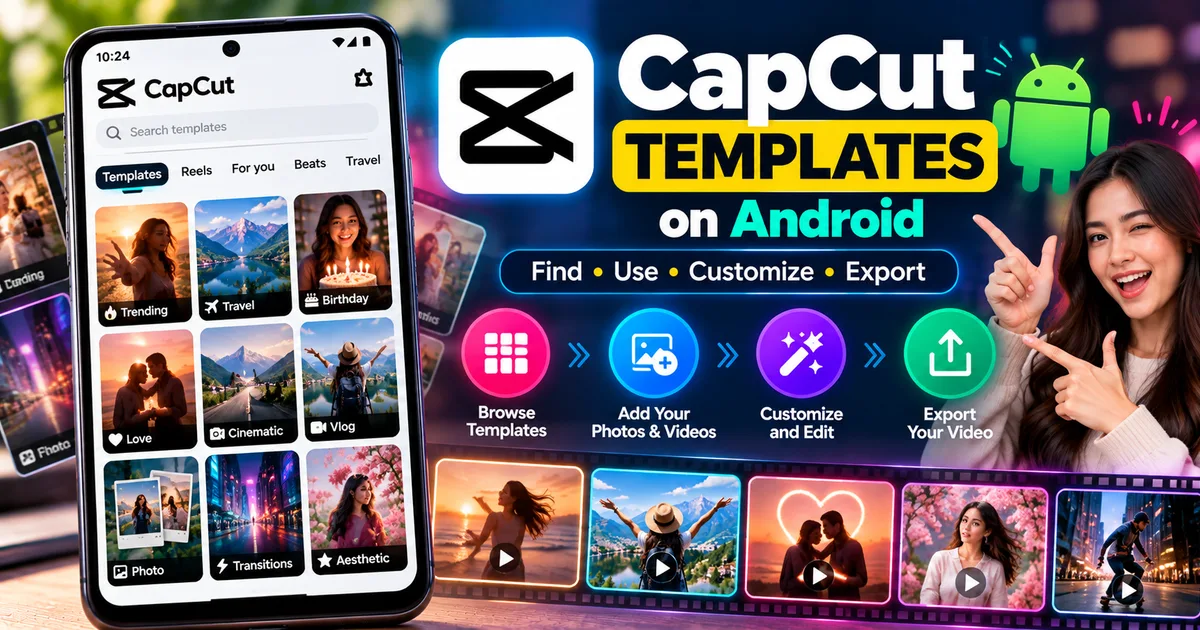
How to Use CapCut Templates on Android
GetApkFree Team
Learn how to use CapCut templates on Android, find trending templates, replace photos and videos, customize them, and export your finished edit.
- Version
- Latest
- Source
- Google Play
- Package
- external.capcut.en.softonic.com.capcut-download
How to Use CapCut Templates on Android
Creating a polished video from scratch can take a lot of time. You have to choose clips, arrange them, add transitions, select music, adjust text, and create effects.
CapCut Templates can simplify this process by giving you a pre-designed video structure that you can customize with your own photos and videos.
Instead of starting with an empty timeline, you can choose a template, replace the sample media with your own content, make adjustments, and export the finished video.
This guide explains how to use CapCut templates on Android, how to find templates, how to replace the template's photos or videos, and what to do when the Templates option is missing.
What Are CapCut Templates?
CapCut templates are pre-designed video projects that contain elements such as transitions, effects, text, stickers, music, and other editing components.
You provide your own photos or videos, and CapCut uses them within the template's structure.
Templates can be useful for creating:
- Instagram Reels
- TikTok videos
- YouTube Shorts
- Travel videos
- Photo montages
- Birthday videos
- Couple videos
- Slideshow videos
- Promotional videos
- Before-and-after edits
- Trend-based social media videos
The exact effects, transitions, music, and editing options depend on the template you choose.
How to Find CapCut Templates on Android
The easiest way to browse templates is through the CapCut mobile app when the Templates feature is available on your device and account.
Step 1: Open CapCut
Launch CapCut on your Android phone.
Make sure you are using a current version of the app.
Step 2: Open the Templates Section
Look at the bottom navigation area of the CapCut home screen.
If the feature is available, you should see a Templates option.
Tap it to open the template library.
CapCut's current documentation notes that the Templates button may not appear for every user because availability can depend on the app version or region.
Step 3: Browse the Templates
You can browse through the available template categories and recommendations.
Depending on the current CapCut interface, you may see categories or sections for different styles.
You can also search for a particular type of template.
For example, you might search for:
- Travel
- Birthday
- Love
- Photo
- Vlog
- Slow motion
- Beat sync
- Transition
- Cinematic
- 3D
- Before and after
Search terms can help you find a template that matches the type of video you want to create.
How to Search for a CapCut Template
If you already know what type of edit you want, searching is usually faster than browsing.
Open the Templates section and use the search field.
Enter a descriptive keyword related to the style you want.
For example:
"travel template"
or:
"photo transition"
or:
"beat sync"
Review the available results and tap a template to preview it.
CapCut currently documents template searching on mobile as well as other supported platforms, although the available template experience can differ between platforms.
How to Use a CapCut Template
Once you find a template you like, you can start customizing it.
Step 1: Open the Template
Tap the template thumbnail to open its preview.
Watch the template before using it.
Pay attention to:
- Number of clips required
- Video duration
- Type of transitions
- Text placement
- Music
- Effects
- Aspect ratio
- Overall style
This helps you determine whether your own photos or videos will fit the template.
Step 2: Tap "Use Template"
If you want to use the template, tap Use template.
CapCut will then ask you to select your own media.
Step 3: Select Your Photos or Videos
Choose the photos or videos you want to insert into the template.
Try to select media that matches the template's structure.
For example, if a template requires five short video clips, selecting five relevant clips can produce a more natural result.
Some templates may require a specific number of photos or videos.
Step 4: Preview Your Video
After selecting your media, CapCut creates the template-based video.
Preview the result before exporting.
Check whether:
- The correct clips were selected
- Important subjects are visible
- Cropping looks good
- Text is readable
- Transitions work correctly
- The music matches the video
- No important part of a photo has been cut off
Step 5: Edit the Template
Depending on the template, you may be able to make additional adjustments.
You can potentially replace media, crop clips, adjust audio, modify text, or make other changes supported by the template.
CapCut's current mobile template workflow allows users to replace the template media and make edits before exporting.
Step 6: Export the Video
When you're satisfied with the result, tap Export.
Choose the available export settings and save or share your finished video.
The exact resolution and export options can depend on your CapCut version, project, and account.
How to Replace Photos in a CapCut Template
Photo-based templates are useful when you want to create a quick slideshow or montage.
After selecting the template:
- Tap Use template.
- Select the required photos.
- Preview the generated video.
- Check the crop and positioning.
- Replace individual media where the template allows it.
- Make additional edits.
- Export the final video.
Choose high-quality photos with enough space around the main subject.
This is especially important when a template uses zooming, panning, or animated cropping.
How to Replace Videos in a CapCut Template
You can also use your own video clips in templates.
Choose clips that match the required duration and composition.
For example, if the template has several fast transitions, short clips may work better than long recordings.
After applying your footage:
- Preview every clip.
- Check the crop.
- Make sure faces or important objects aren't cut off.
- Replace unsuitable clips.
- Adjust the available editing options.
- Preview the entire video.
- Export when finished.
How to Find Trending CapCut Templates
CapCut's template library is regularly updated, so trending templates can change over time.
You can look for new templates directly inside CapCut.
CapCut also documents finding templates through TikTok. Some TikTok videos contain a CapCut template link that can open the template directly in the CapCut mobile app.
When you see a video using a CapCut template, look for the available CapCut template option and follow the link into the app.
This can be useful when you discover a particular editing style through social media.
How to Use a CapCut Template From TikTok
If a TikTok video contains a CapCut template link, the process can be straightforward.
Step 1: Open TikTok
Find a video that uses a CapCut template.
Step 2: Look for the CapCut Template Option
If the creator has provided a usable template link, you may see an option associated with the CapCut template.
Step 3: Open It in CapCut
Tap the option to use the template in CapCut.
Your Android phone may open the CapCut app automatically.
Step 4: Select Your Media
Choose the photos or videos you want to use.
Step 5: Preview and Export
Check the resulting video, make any available changes, and export it.
CapCut's official documentation describes this TikTok-to-CapCut workflow for supported templates.
Why Can't I See the Templates Tab in CapCut?
One common problem is opening CapCut and not seeing the Templates option.
This does not necessarily mean that your app is broken.
CapCut says template availability can depend on the app version or region.
Try the following steps.
Update CapCut
Check whether a newer version of CapCut is available from your normal app source.
An updated version may contain interface changes or newly available features.
Check the Home Screen
The Templates section is generally separate from the main editing timeline.
Return to the CapCut home screen and look at the main navigation options.
Check Your Region
Some CapCut features are not available everywhere at the same time.
If the Templates option remains unavailable after updating, regional availability may be a factor.
Check Your Internet Connection
Some template experiences require online access to browse or load template content.
Make sure your connection is stable.
Why Is a CapCut Template Not Loading?
If a template doesn't load correctly, try:
- Checking your internet connection
- Restarting CapCut
- Updating the app
- Reopening the template
- Trying another template
- Clearing temporary app data if appropriate
- Checking whether the feature is available in your region
If only one template fails while others work, the issue may be specific to that template rather than the entire CapCut app.
Can You Customize CapCut Templates?
Yes.
The amount of customization depends on the template.
You can generally replace the template's media with your own photos or videos.
Some templates also allow changes to text, effects, audio, cropping, or other elements.
However, not every component of every template can necessarily be changed.
If you need complete control over every element, starting a new project and editing manually may be better.
Are CapCut Templates Free?
CapCut has free templates, but not every template necessarily has the same availability or pricing.
CapCut's current documentation also describes paid templates on mobile.
Paid-template availability and purchasing options can change over time and may vary by platform or region.
If a template has a price or paid label, review the information shown in the CapCut app before confirming a purchase.
Can You Use CapCut Templates Without TikTok?
Yes.
You can browse and use templates directly through CapCut when the Templates feature is available in the app.
TikTok is simply another way to discover some CapCut templates.
You do not need to depend on TikTok for every template.
Can You Download CapCut Templates?
The term "download" can mean different things when talking about CapCut templates.
In many cases, you don't download a template as a separate APK or ordinary video file.
Instead, you open the template in CapCut and use it as an editable project structure.
CapCut's mobile workflow lets you select a template, replace its media, customize the result, and export the finished video.
Avoid downloading random "CapCut template APK" files or modified applications from unknown websites.
A template and an Android APK are completely different things.
Can You Use a CapCut Template With Your Own Music?
This depends on the particular template and the editing options available.
Some templates include music as part of their design.
If the available editing controls allow it, you can adjust or replace audio after applying the template.
Before publishing the final video, make sure you have the necessary rights to use any music you add.
Tips for Choosing the Right CapCut Template
Choosing the right template can make a bigger difference than simply choosing the most popular one.
Match the Template to Your Footage
A template designed for portraits may not work well with landscape travel footage.
Check the Number of Required Clips
Make sure you have enough suitable photos or videos.
Preview Before Selecting
Watch the complete template before committing your media.
Consider the Music
The music can strongly affect the mood of the finished video.
Check the Text
If a template contains text, make sure the style and placement suit your content.
Don't Overuse Effects
A highly animated template may not be appropriate for every type of video.
CapCut Templates vs Manual Editing
Templates are useful when speed is more important than complete control.
CapCut Templates
Useful for:
- Quick social media videos
- Trending edits
- Photo montages
- Simple promotional videos
- Beginners
- Fast experimentation
Manual Editing
Better suited for:
- Detailed projects
- Professional edits
- Precise storytelling
- Custom timing
- Original transitions
- Complete creative control
You can also combine both approaches.
Start with a template to save time and then make manual adjustments where necessary.
Are CapCut Templates Safe to Use?
Use templates through CapCut's official app or supported CapCut template pages.
Be careful with websites claiming to offer modified CapCut templates, cracked versions, or APK files.
A template does not require you to install an unofficial version of CapCut.
If you need CapCut itself, use a trusted source and verify what you are installing.
Final Thoughts
CapCut templates can make video editing much faster by giving you a ready-made structure for your photos and videos.
The basic workflow is:
- Open CapCut.
- Open the Templates section.
- Search or browse for a template.
- Preview the template.
- Tap Use template.
- Select your own photos or videos.
- Preview the generated video.
- Replace or adjust media where available.
- Make additional edits.
- Export the finished video.
Template availability and features can change between CapCut versions, platforms, accounts, and regions. If the Templates option is missing, update CapCut and check again.
For the best results, choose a template that matches your footage and always review the complete video before exporting or publishing it.
Related Articles

How to Fix CapCut Video Lagging After Export on Android
Fix CapCut video lagging after export on Android. Learn how to troubleshoot choppy playback, frame-rate mismatches, heavy effects, storage issues, and export settings.
GetApkFree Team

How to Fix CapCut Preview Not Matching Export on Android
Fix CapCut preview not matching the exported video on Android. Troubleshoot missing effects, text, transitions, timing, colors, and rendering differences.
GetApkFree Team

How to Fix Couldn't Apply AI Background in CapCut on Android
Getting "Couldn't Apply AI Background" in CapCut on Android? Check usage limits, clip selection, video quality, app updates, and practical troubleshooting steps.
GetApkFree Team

How to Fix CapCut Effects Not Applying on Android
CapCut effects not working on Android? Check clip selection, effect layers, timeline timing, conflicting adjustments, and app performance with these practical fixes.
GetApkFree Team