
This article is about
CapCut - Download
ByteDance Pte. Ltd. · Education
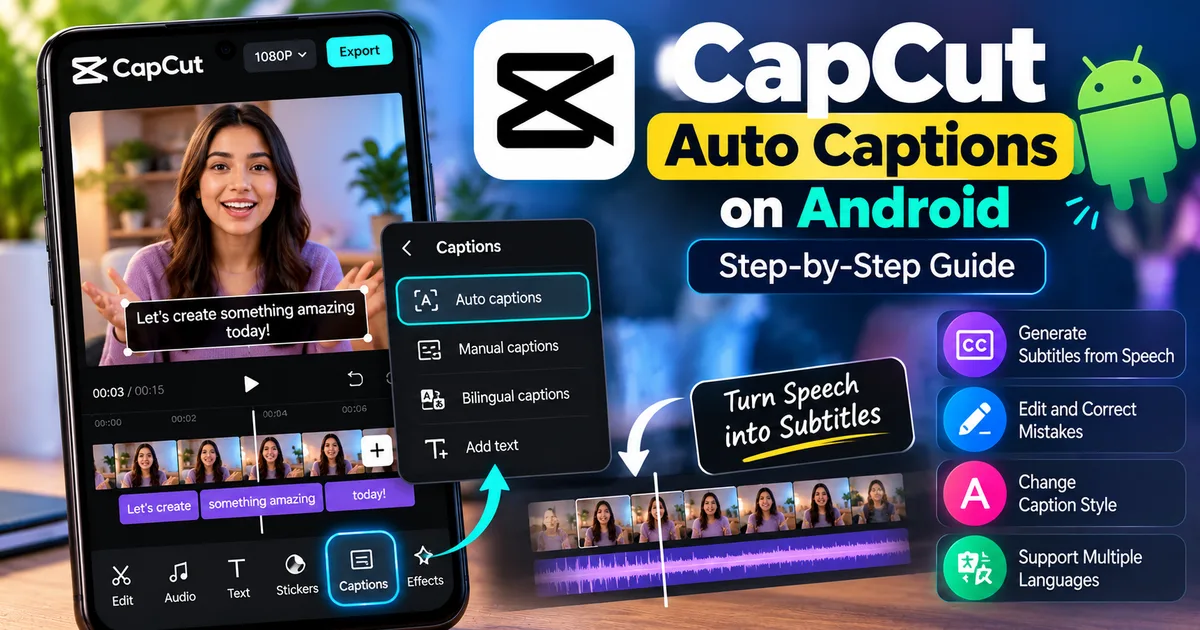
How to Add Auto Captions in CapCut on Android
GetApkFree Team
Learn how to add auto captions in CapCut on Android, generate subtitles from speech, edit mistakes, change caption styles, and improve accuracy.
- Version
- Latest
- Source
- Google Play
- Package
- external.capcut.en.softonic.com.capcut-download
How to Add Auto Captions in CapCut on Android
Adding captions manually to every line of a video can take a lot of time. CapCut makes this easier with its Auto Captions feature, which can recognize spoken audio and automatically turn it into subtitles.
On Android, you can generate captions from a video's speech, review the text, correct mistakes, adjust timing, and customize the appearance before exporting the finished video.
This guide explains how to use CapCut Auto Captions on Android step by step.
What Are Auto Captions in CapCut?
Auto Captions is a speech-to-text feature in CapCut that automatically creates subtitles from spoken audio in a video.
Instead of typing every sentence yourself, you let CapCut analyze the video's speech and generate caption segments that can then be edited in the timeline.
This can be useful for:
- YouTube Shorts
- Instagram Reels
- TikTok-style videos
- Tutorials
- Interviews
- Vlogs
- Educational videos
- Podcasts
- Talking-head videos
- Social media clips
The generated captions should still be reviewed because speech recognition can make mistakes, particularly when the recording contains background noise, unclear speech, accents, or fast talking.
How to Add Auto Captions in CapCut on Android
The exact position or wording of some buttons can change between CapCut versions and regions, but the basic workflow is straightforward.
Step 1: Open CapCut
Open the CapCut app on your Android phone.
If you haven't installed it yet, use a trusted source and make sure the app version is compatible with your device.
Step 2: Create or Open a Project
From the CapCut home screen, create a new project or open an existing project containing the video you want to caption.
For a new project:
- Tap the option to create a new project.
- Select your video.
- Add it to the editing timeline.
- Wait for the video to load.
You should now see your video inside the CapCut editor.
Step 3: Open the Captions Tool
With your project open, look at the editing toolbar.
Depending on your current CapCut version, you may see a Captions option directly or access caption-related tools through the text menu.
Tap the captions option.
Step 4: Select Auto Captions
Choose Auto Captions.
CapCut will ask you to select the appropriate recognition language.
Choose the language that is actually spoken in your video.
Selecting the correct language is important because speech recognition depends on the language being processed.
Step 5: Generate the Captions
After selecting the language, start the caption-generation process.
CapCut will process the video's audio and create subtitle segments based on the detected speech.
The processing time can vary depending on the length of the video and other factors.
Wait until the generation process finishes.
Step 6: Review the Generated Captions
Once the captions have been generated, play the video from the beginning.
Check each caption for:
- Incorrect words
- Missing words
- Spelling mistakes
- Incorrect punctuation
- Incorrect timing
- Captions appearing too early
- Captions disappearing too late
- Incorrect language recognition
Do not assume that automatically generated captions are perfect.
CapCut's own documentation notes that background noise, accents, fast speech, and poor audio quality can cause recognition errors.
How to Edit Auto Captions in CapCut
If CapCut gets a word wrong, you can manually correct the caption.
Tap the caption segment in the timeline and open its editing controls.
Change the incorrect text to the correct wording.
You can also adjust the timing if a subtitle does not appear at the right moment.
For example, if someone says:
"Today we're going to edit a video."
but CapCut generates:
"Today we're going to added a video."
you can simply edit the caption and replace the incorrect text.
How to Change the Caption Style
After generating captions, you can customize how they look.
Depending on the current version of CapCut, available options can include:
- Font
- Text size
- Text color
- Alignment
- Background
- Animation
- Text effects
- Position
Keep captions easy to read.
A complicated font or excessive animation may make the subtitles harder to follow, particularly on small smartphone screens.
How to Make CapCut Auto Captions More Accurate
The quality of your original audio has a major effect on automatic transcription.
Try these steps before generating captions:
Record Clear Audio
Use a microphone that produces clear speech whenever possible.
Reduce Background Noise
Fans, traffic, music, conversations, and other background sounds can make speech harder for automatic recognition.
Speak Clearly
Avoid speaking extremely quickly or combining words together.
Select the Correct Language
Make sure the language selected for recognition matches the language spoken in the video.
Choosing the wrong language can produce incorrect or unusable captions.
Check the Captions Manually
Even when the audio is clear, review the generated subtitles before exporting.
This is especially important for:
- Names
- Technical terms
- Brand names
- Locations
- Numbers
- Acronyms
- Slang
Why Are CapCut Auto Captions Wrong?
Automatic captions can contain mistakes for several reasons.
Background Noise
Noise can make speech difficult for the recognition system to understand.
Accents
Different accents and pronunciation patterns can sometimes cause words to be recognized incorrectly.
Fast Speech
Speaking quickly can make individual words harder to separate.
Poor Recording Quality
Distorted, muffled, or very quiet audio can reduce transcription accuracy.
Wrong Language Selection
If the selected recognition language does not match the spoken language, the generated captions may be incorrect.
CapCut recommends reviewing and manually correcting generated captions when necessary.
Can You Edit Multiple Captions in CapCut?
CapCut supports batch editing for auto-generated captions on its mobile app.
This can be useful when you want to make similar changes across multiple caption segments instead of editing every line individually.
The available batch-editing options can depend on the current version and interface.
If the batch-editing option is available:
- Generate your auto captions.
- Select a caption segment.
- Open the caption editing controls.
- Enter the editing or selection mode.
- Select the caption lines you want to modify.
- Apply the available text or style changes.
- Save the changes.
Always check the result afterward because changing multiple caption segments at once can affect more text than intended.
Can CapCut Create Bilingual Captions?
CapCut also supports bilingual subtitle workflows.
The general process is to generate captions from the video's speech and then select a target language for translation where the feature is available.
For example, a video spoken in English can potentially be captioned and translated into another supported language.
Availability and specific language options can vary by platform, app version, region, and account.
Why Are Auto Captions Not Working in CapCut?
If Auto Captions fails to generate, check the following:
1. Check Your Internet Connection
Some caption-generation functions can rely on online processing, so an unstable connection may interrupt the process.
2. Check the Audio
Make sure your video actually contains audible speech.
Very quiet, muted, or heavily distorted audio can cause problems.
3. Check the Selected Language
Make sure the recognition language matches the language being spoken.
4. Update CapCut
An older version may have bugs or a different interface.
Check whether a newer version of CapCut is available through your normal app source.
5. Try Again
Close and reopen the project and attempt the caption-generation process again.
If the problem continues, check CapCut's current help documentation because feature availability and troubleshooting steps can change between versions.
Does CapCut Auto Caption Work on Android?
Yes. CapCut's current documentation lists Auto Captions/Recognise Subtitles as supported on its mobile app, including Android.
The exact interface and available caption options can change as CapCut updates the app.
Some advanced caption capabilities may also vary depending on platform, region, or app version.
Tips for Better Captions in Short Videos
If you're creating Shorts, Reels, or other vertical videos, keep captions easy to read.
A few practical tips:
- Keep important text away from the edges of the screen.
- Use a readable font.
- Avoid excessively small text.
- Make sure captions contrast with the video.
- Correct names and technical words manually.
- Watch the complete video before exporting.
- Keep caption timing synchronized with speech.
- Avoid covering important visual elements.
Good captions should support the video rather than distract from it.
Should You Always Use Auto Captions?
Auto Captions can save significant editing time, especially for videos containing a lot of spoken dialogue.
However, automatic transcription should be treated as a starting point rather than a guarantee of perfect subtitles.
For casual social videos, a quick review may be enough.
For educational, professional, business, or informational content, carefully review every caption before publishing.
Final Thoughts
CapCut's Auto Captions feature makes it much easier to add subtitles to videos on Android. Instead of manually typing every sentence, you can let CapCut recognize the speech and create caption segments automatically.
The basic workflow is:
- Open your CapCut project.
- Import or select your video.
- Open Captions.
- Select Auto Captions.
- Choose the correct language.
- Generate the subtitles.
- Review the text.
- Correct mistakes.
- Customize the caption style.
- Preview the complete video.
- Export when everything looks correct.
For the best results, start with clear audio and always review the automatically generated captions before publishing your video.
Related Articles

How to Fix CapCut Video Lagging After Export on Android
Fix CapCut video lagging after export on Android. Learn how to troubleshoot choppy playback, frame-rate mismatches, heavy effects, storage issues, and export settings.
GetApkFree Team

How to Fix CapCut Preview Not Matching Export on Android
Fix CapCut preview not matching the exported video on Android. Troubleshoot missing effects, text, transitions, timing, colors, and rendering differences.
GetApkFree Team

How to Fix Couldn't Apply AI Background in CapCut on Android
Getting "Couldn't Apply AI Background" in CapCut on Android? Check usage limits, clip selection, video quality, app updates, and practical troubleshooting steps.
GetApkFree Team

How to Fix CapCut Effects Not Applying on Android
CapCut effects not working on Android? Check clip selection, effect layers, timeline timing, conflicting adjustments, and app performance with these practical fixes.
GetApkFree Team