
This article is about
WhatsApp LLC · Internet
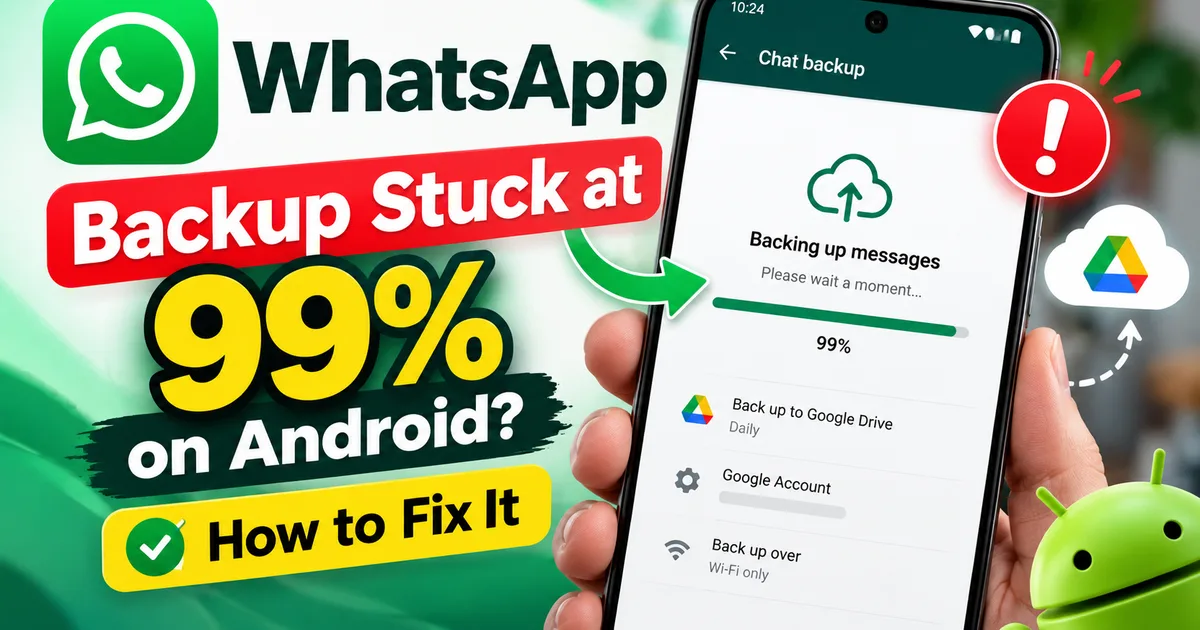
WhatsApp Backup Stuck at 99% on Android? How to Fix It
GetApkFree Team
Fix a WhatsApp backup stuck at 99% on Android. Check storage, Google Account, internet connection, backup settings, and safe troubleshooting steps without risking your chats.
- Version
- Latest
- Source
- Google Play
- Package
- com.whatsapp
WhatsApp Backup Stuck at 99% on Android? How to Fix It
Your WhatsApp backup reaches 99%, but the progress bar refuses to move. You wait a few more minutes, check again, and nothing seems to change. If you are preparing to switch phones or protect important conversations, this can be especially worrying.
A WhatsApp backup that appears stuck does not automatically mean your chats are lost or your backup is corrupted. Large media collections, an unstable internet connection, insufficient storage, Google Account problems, and temporary app issues can all interfere with the process.
The safest approach is to identify the problem without deleting the chat history or the backup you are trying to protect.
In this guide, you will learn how to troubleshoot a WhatsApp backup stuck at 99% on Android, what to check first, and which actions to avoid until you know your chats are safe.
Quick Answer: How to Fix a WhatsApp Backup Stuck at 99%
If your WhatsApp backup is stuck at 99% on Android, follow these steps in order:
- Keep your phone connected to a reliable internet connection and a charger.
- Allow additional time if you have a large chat history or many videos.
- Check your phone's available storage and your Google Account's available storage.
- Confirm that WhatsApp is using the correct Google Account for backups.
- Restart your phone if the backup shows no progress after a reasonable wait.
- Update WhatsApp and Google Play services if updates are available.
- Retry the backup and check whether the last backup timestamp or progress changes.
Important: Do not clear WhatsApp storage, uninstall the app, or delete an existing cloud backup as your first troubleshooting step. Make sure you understand what backup is available before taking actions that could put your chat history at risk.
Why Is WhatsApp Backup Stuck at 99%?
There is no single cause for every stalled backup. The percentage alone does not tell you exactly what is wrong.
Common possibilities include:
- Large media files: Numerous photos, videos, voice messages, and documents can make a backup take longer.
- Unstable internet: An interrupted connection can prevent the backup from completing.
- Insufficient storage: Your phone or Google Account may not have enough available space for the operation.
- Google Account problems: The account selected for WhatsApp backups may need attention or may not be syncing properly.
- App or service issues: An outdated app, a temporary software problem, or an issue with Google Play services can interfere with backup activity.
- Background restrictions: Battery-saving settings or restrictions on background activity may affect how the app operates on some devices.
These are possibilities to investigate, not proof that any particular one caused your problem.
1. Wait and Check Whether the Backup Is Still Working
Before changing settings, determine whether the backup has actually stopped.
A large backup can take considerably longer than a small one, especially when it includes videos and other media. A progress indicator that does not move for a short period is not enough to establish that the process has failed.
Try this:
- Keep your phone connected to a reliable Wi-Fi network.
- Connect the phone to a charger if possible.
- Avoid repeatedly cancelling and restarting the backup.
- Give the process additional time if your chat history contains a large amount of media.
- Recheck the backup status after waiting.
If the status, progress, or last-backup information changes, the process may still be working.
If there is no meaningful progress after a reasonable wait, continue with the checks below.
2. Check Your Phone and Google Account Storage
A WhatsApp backup may fail to complete if the available storage is insufficient.
Check your phone first:
- Open your Android phone's Settings.
- Find Storage. The location and wording vary by manufacturer.
- Check how much space is available.
- If storage is nearly full, remove unnecessary downloads or other files you no longer need.
Next, check the storage available to the Google Account associated with your WhatsApp backup.
Freeing up space on your phone does not automatically increase the storage available to your Google Account. These are separate storage locations.
If either is running low, address the shortage before retrying the backup.
Avoid deleting important WhatsApp media or an existing cloud backup just to free up space unless you have confirmed that you no longer need those files.
3. Check Your Internet Connection
An unstable connection can interrupt the transfer of backup data.
Try these checks:
- Confirm that your phone can open websites and other online services.
- Turn Wi-Fi off and back on.
- If possible, try another reliable Wi-Fi network.
- If your mobile data plan allows it, test a mobile data connection.
- Avoid repeatedly switching networks while a backup is running.
WhatsApp's official help guidance recommends testing the connection when a backup gets stuck. It also warns that switching between networks during a backup can cause the operation to time out.
After confirming that your connection is stable, return to WhatsApp and check the backup status.
4. Confirm the Correct Google Account Is Selected
On Android, WhatsApp uses the Google Account selected in its chat backup settings for cloud backups.
If the wrong account is selected or account access is not working correctly, the backup may fail.
To check the account:
- Open WhatsApp.
- Open Settings.
- Select Chats.
- Open Chat backup.
- Review the Google Account shown on the screen, if available.
- Confirm that it is the account you intend to use.
If the account is missing or unavailable, check that the Google Account is added to your phone and that account syncing is working.
Do not remove accounts or change backup settings without understanding which account contains your existing backup. If you are preparing to change phones, confirming the correct account is particularly important.
5. Restart Your Phone
A restart can help resolve a temporary problem affecting the app or Android system.
Before restarting, check whether the backup is actively progressing. Avoid interrupting a backup unnecessarily.
If it appears stalled:
- Close WhatsApp.
- Restart your Android phone.
- Reconnect to a stable internet connection.
- Open WhatsApp.
- Go to Settings → Chats → Chat backup.
- Review the backup status and try again if appropriate.
A restart does not guarantee that the problem will disappear, but it is a reasonable step before making more disruptive changes.
6. Update WhatsApp and Google Play Services
An outdated app or supporting service may contribute to backup problems.
First, check whether an update is available for WhatsApp through Google Play.
Then check Google Play services:
- Open your phone's Settings.
- Go to Apps.
- Find Google Play services.
- Open its app details.
- Check whether an update is available through the available system or Play Store options.
The exact menu names vary by phone.
After installing available updates, restart the phone if needed and check the backup again.
Do not download an unfamiliar APK from an unverified website just to troubleshoot a backup. Use trusted update sources.
7. Check WhatsApp's Background and Battery Settings
Some Android phones restrict background activity to conserve battery power. Depending on the manufacturer and settings, those restrictions can affect an app's ability to work normally in the background.
If your backup repeatedly stops when you leave WhatsApp or lock your phone, review the following:
- Battery Saver or power-saving mode.
- WhatsApp's battery usage settings.
- Background data restrictions.
- Data Saver settings.
- Any manufacturer-specific app sleeping or background restriction feature.
You can usually find these options under Settings → Apps → WhatsApp, although the exact path differs between Android devices.
Only change the setting relevant to your problem. Do not disable every battery or security feature on your phone.
After making an appropriate adjustment, reconnect to the internet and retry the backup.
8. Reduce the Size of the Backup if Necessary
If your WhatsApp account contains many large videos, the backup may take longer or encounter storage limitations.
WhatsApp provides an option to include or exclude videos from chat backups.
To review it:
- Open WhatsApp.
- Go to Settings → Chats → Chat backup.
- Find the option to include videos.
- If your backup is too large, consider turning off video inclusion for the next backup.
- Start the backup again and monitor its progress.
This can reduce the amount of media included in the backup, but it also means those videos will not be included in that cloud backup.
Before changing this setting, consider whether you need those videos when restoring your chats to another phone. Keep separate copies of important media when appropriate.
9. What If WhatsApp Backup Is Still Stuck?
If the backup remains stuck after these checks, avoid repeating the same steps indefinitely.
Instead:
- Record the exact status or error message displayed.
- Note whether the backup is stuck at 0%, 99%, or another percentage.
- Check when the last successful backup was completed.
- Confirm that you have not accidentally selected a different Google Account.
- Review WhatsApp's official backup and restore troubleshooting guidance.
- Contact WhatsApp support if the issue persists and you cannot identify the cause.
The last successful backup timestamp is particularly important if you need to move your chats to a new phone. A failed new backup does not necessarily mean an older backup is unavailable, but you should verify what exists rather than assume it is current.
Official reference: WhatsApp Help Center — Can't back up or restore your chat history.
What You Should NOT Do When WhatsApp Backup Is Stuck
Some troubleshooting actions can put your chat history at risk if you have not verified that a usable backup exists.
Avoid these mistakes:
- Do not clear WhatsApp storage or app data as a first step. This can remove local app data and may put chats that are not backed up at risk.
- Do not uninstall WhatsApp immediately. Confirm your backup situation before considering reinstallation.
- Do not delete the existing Google Account backup just to start over. You could remove a backup that you still need.
- Do not assume 99% means the backup is corrupted. A progress indicator alone cannot establish that.
- Do not switch phones or reset the current phone before checking your backup. Verify that the backup is usable and that you know which account it belongs to.
If your chats are important and no successful backup exists, preserving the data already on your phone should be your priority.
Frequently Asked Questions
Why is my WhatsApp backup stuck at 99% on Android?
Possible reasons include a large media collection, insufficient phone or Google Account storage, an unstable connection, account-sync problems, or a temporary app issue. The percentage alone does not identify the cause.
How long should I wait if WhatsApp backup is stuck at 99%?
There is no universal waiting time. Large backups can take longer than small ones. Check whether the status or progress changes, keep the phone connected to a reliable network, and avoid repeatedly interrupting the process. If it remains unchanged for an extended period, investigate storage, connectivity, and account settings.
Will I lose my WhatsApp chats if I cancel a backup?
Cancelling a backup does not automatically mean your existing chats are deleted, but it can leave you without a completed, up-to-date backup. The precise risk depends on your situation. Avoid clearing data, uninstalling the app, or resetting the phone until you have checked what chat history and backups are available.
Should I clear WhatsApp cache to fix a stuck backup?
Do not begin by clearing WhatsApp data or storage. If you consider clearing cache as a later troubleshooting step, make sure you select the cache option rather than Clear storage or Clear data. Clearing cache is not guaranteed to fix a backup that is stuck at 99%.
Does turning off video backup help?
It may help if videos account for a large portion of the backup or storage is limited. However, videos excluded from the cloud backup will not be included when you restore from that backup. Consider your media needs before changing the setting.
Can I restore my chats without a completed cloud backup?
It depends on whether another usable backup exists, including any applicable local backup, and on your device and transfer situation. Do not assume that a restore is possible until you have checked the available backup options. WhatsApp's official guidance explains the supported backup and restore process.
Should I reinstall WhatsApp if nothing else works?
Reinstallation may be part of later troubleshooting, but it should not be your first step when you are unsure whether your chats are backed up. Verify the backup status and account first. If you have important chats without a confirmed backup, seek guidance before taking a potentially destructive action.
Final Thoughts
A WhatsApp backup stuck at 99% on Android is frustrating, but the progress bar alone does not mean your chats are lost. Start with a stable internet connection, sufficient storage, the correct Google Account, and a careful review of the app's settings.
Give large backups time to finish, update WhatsApp and Google Play services when appropriate, and investigate background restrictions if the process repeatedly stops.
Most importantly, protect your existing chat history before trying disruptive fixes. Verify your backup situation before clearing data, reinstalling WhatsApp, or moving to a new phone.
Related Articles

Roblox Not Loading Games on Android? How to Fix It
Roblox games not loading on Android? Fix endless loading screens, failed connections, and games that close unexpectedly with practical checks for your network.
GetApkFree Team
Reddit Notifications Not Working on Android? How to Fix It
Reddit notifications not working on Android? Fix missing replies, comment alerts, chat notifications, and delayed updates by checking Reddit settings,
GetApkFree Team
Snapchat Camera Not Working on Android? How to Fix It
Is Snapchat’s camera showing a black screen or refusing to take photos on Android? Check camera permissions, update the app, clear its cache, and follow these practical troubleshooting steps.
GetApkFree Team

Pinterest Images Not Loading on Android? How to Fix It
Pinterest images not loading on Android? Fix blank Pins, missing pictures, endless loading, and feed problems with these practical troubleshooting steps.
GetApkFree Team