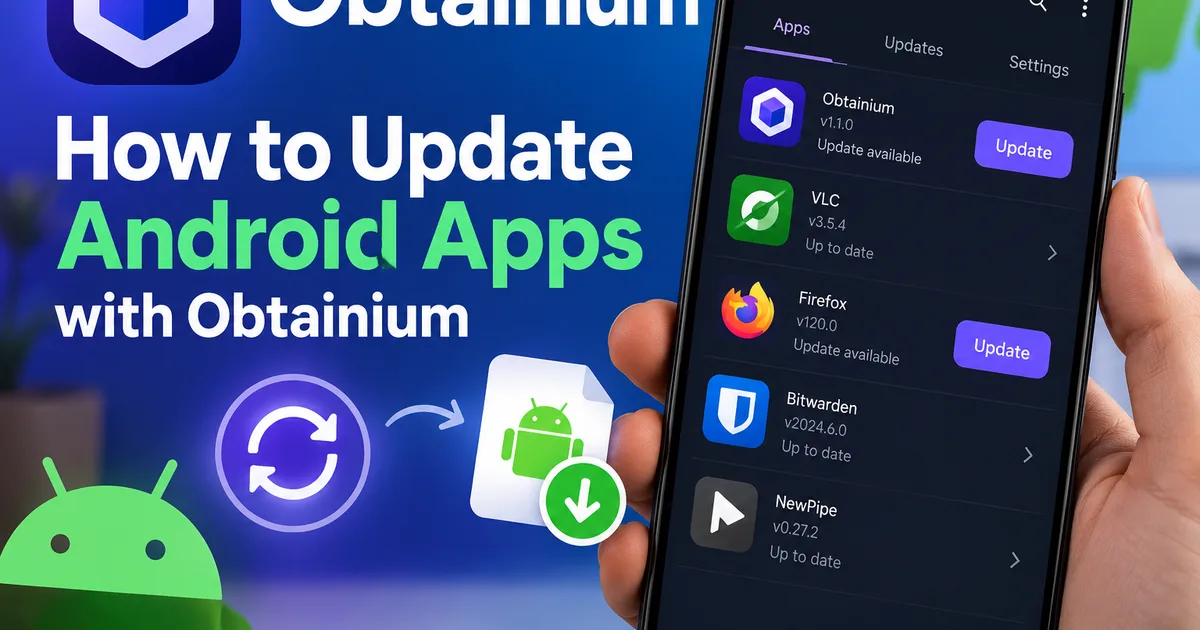

This article is about
Obtainium
Imran · System
How to Update Android Apps with Obtainium
GetApkFree Team
Learn how to update Android apps with Obtainium, check for new releases, configure background update checks, and troubleshoot updates that are not detected.
- Version
- 1.6.15
- Requires
- Android 8.0+
- License
- GPL-3.0-only
- Source
- F-Droid
- Package
- dev.imranr.obtainium.fdroid
How to Update Android Apps with Obtainium
Obtainium helps Android users install and track apps directly from their release sources instead of relying exclusively on a conventional app store. Once you add an app to Obtainium, it can check the source for newer releases and notify you when updates become available.
However, an update may not appear immediately. The source might not provide a recognizable version number, background checks may be delayed, or the app's release page may have changed.
In this guide, you'll learn how to check for updates manually, configure background update checks, understand automatic installation limitations, and troubleshoot apps that appear to be out of date.
Quick Answer: How Do You Update Apps with Obtainium?
To update an app with Obtainium:
- Open Obtainium on your Android device.
- Find the app you want to update in your tracked apps list.
- Check its displayed version and update status.
- Use the available update action when an update is detected, or select multiple apps and use the batch update controls.
- Follow any Android installation prompts that appear.
- Reopen the app's details to check its version after updating.
The exact options available depend on the app source, your Obtainium settings, Android's installation restrictions, and whether the update can be installed automatically.
For official guidance, see the Obtainium Wiki.
How to Check for App Updates in Obtainium
Obtainium tracks the apps you have added and compares the version reported by each source with the version installed on your device.
Step 1: Open Obtainium
Launch Obtainium and go to the main Apps page. This page lists the apps you are tracking, along with information about their versions and update status.
If you have not added the app you want to track yet, you must add it from a suitable release source first.
Step 2: Find the App You Want to Update
Scroll through your tracked apps and select the app you want to check.
Open its details when you need more information. Depending on the source, the detail view may show the current version, release date, changelog, and other release information.
Check whether Obtainium identifies a newer version. If no update is shown, continue to the troubleshooting section below rather than assuming the app is already up to date.
Step 3: Check for Updates
Obtainium supports background update checks and options for checking updates when you open the app or view an individual app's details.
You can also use the available update controls on the Apps page. For several apps, Obtainium supports selecting multiple entries and performing batch operations.
The names and placement of controls can vary by version, so consult the official UI overview if your screen looks different.
Step 4: Install the Available Update
When an update is available, use the relevant update action and follow the instructions shown on your device.
Some updates require Android's package installer to ask for confirmation. Do not assume every update will install silently.
After installation, return to Obtainium and inspect the app's details to confirm that the installed version has changed as expected.
How to Update Multiple Apps at Once
If you track many apps, updating them individually can be inconvenient.
Obtainium supports batch operations on the Apps page.
- Open Obtainium's Apps page.
- Long-press an app to enter multi-select mode, or use the selection controls provided by your version.
- Select the apps you want to update.
- Choose the available update operation.
- Review any confirmation or installation prompts.
- Check the result for each app afterward.
Selecting several apps does not guarantee that every update will succeed. Different apps may use different sources, release formats, or installation requirements.
If one app fails, troubleshoot it separately rather than assuming the entire batch has failed.
How to Enable Background Update Checks
You do not have to open every tracked app individually to look for a new release. Obtainium can check for updates in the background.
To review the relevant settings:
- Open Obtainium.
- Navigate to Settings.
- Find the Updates section.
- Review the background update interval and other available update settings.
- Choose suitable conditions for your device and usage.
Depending on your version, the available settings may include Wi-Fi-only checks, checks while charging, checking when the app starts, and foreground service mode.
Understand the Background Update Options
Background update interval: Controls how frequently Obtainium schedules update checks. A scheduled check does not guarantee that a new release will be detected immediately.
Wi-Fi-only checks: Useful if you want to limit mobile data usage. An update check may wait until the required network is available.
Charging-only checks: Can reduce background activity while the device is running on battery.
Check on start: Allows Obtainium to check for updates when you open it.
Foreground service mode: On supported Android versions, this can make background checking more reliable on devices that aggressively restrict background work. It also comes with a persistent notification.
The standard WorkManager-based method is designed to be battery-efficient, but Android or a device manufacturer's battery-management policies may delay scheduled tasks.
For details, read the official documentation on how Obtainium tracks apps.
Can Obtainium Automatically Install App Updates?
Sometimes, but not in every situation.
Obtainium distinguishes between detecting an update and being able to install it in the background. An update can be detected successfully even when manual confirmation is still required.
According to the official documentation, silent background installation depends on several conditions, including:
- The device runs Android 12 or later.
- The app meets the relevant Android target API requirements.
- The installed app was originally installed through Obtainium.
- Background updates are enabled globally and for the individual app.
- Obtainium can narrow the available update files to one suitable APK when multiple files are offered.
Even when these conditions are satisfied, background installation is best-effort rather than guaranteed.
If Obtainium reports an update but asks you to confirm installation, follow the on-screen instructions. That does not necessarily mean anything is broken.
Why Is Obtainium Not Detecting an Update?
If a developer has published a newer version but Obtainium does not show it, several things could be responsible.
1. The Release Source Has Not Been Checked Yet
Background checks can be delayed by scheduling restrictions, battery optimization, network conditions, or your configured update interval.
What to do: Open Obtainium and check the app manually. Review the background update settings and confirm that any Wi-Fi or charging requirements are satisfied.
2. The Release Page Has Changed
Some sources depend on extracting release information from a website. If that website changes its layout, Obtainium may no longer be able to identify the latest release correctly.
What to do: Open the app's configured source page in a browser and confirm that a newer release exists. If the page has changed, consult the source-specific options in the official Obtainium documentation.
Do not download an APK from an unrelated website just because the configured source stops working.
3. The Version Number Cannot Be Compared
Obtainium compares the installed Android version with the version supplied by the release source. Those values must be compatible for reliable version detection.
For example, a source might report a beta suffix or a different version format. If the values cannot be compared safely, update detection may be disabled for that app.
What to do: Open the app's details and compare the installed version with the source-reported version. Review the app's source settings if the values differ.
The official How Apps Are Tracked guide explains version detection and its limitations.
4. The New Release Does Not Match Your Device
A release page may contain multiple APK files for different processor architectures, Android versions, or distribution variants. Not every file is suitable for every device.
What to do: Check the release notes and the developer's installation instructions. Select a compatible build only when you understand which variant your device needs. If Obtainium cannot identify one suitable file automatically, review the app's source-specific options.
5. The App Was Updated Outside Obtainium
If another installer or app store updates a tracked app, Obtainium's internal version record may not always reflect the change immediately, particularly when version detection is disabled.
What to do: Compare the version shown by Android with the version displayed in Obtainium. Correct any mismatch using the options available for that app, and check the official documentation if you are unsure which setting applies.
What to Do When an Obtainium Update Fails to Install
An update being detected does not guarantee a successful installation.
Try these checks in order:
- Confirm that the download completed. A weak connection or unavailable release file can interrupt a download.
- Check the Android installation prompt. Read any error message instead of repeatedly retrying without identifying the problem.
- Verify the APK variant. The file must be compatible with your device and the installed app.
- Check the app's original installation source. Android may reject an update if its signing identity or package information does not match the installed app.
- Review the release page. The developer may have replaced, removed, or changed the available files.
- Try a manual update when appropriate. If background installation fails, use the supported update action and follow Android's prompts.
Avoid uninstalling the existing app as an initial troubleshooting step. Removing an app can also remove local data, settings, or files. Back up important information before considering any action that could delete it.
Is Obtainium Safe for Updating Android Apps?
Obtainium is a tool for tracking and installing releases from supported sources. Its use does not automatically guarantee that every app or APK it finds is safe.
Before installing an update:
- Prefer the developer's official release page or a trusted repository.
- Check that the app name and package identity match the app you intend to update.
- Review release notes and relevant permissions when appropriate.
- Be cautious when a source redirects you to an unfamiliar download page.
- Do not ignore an unexpected signature or package mismatch warning.
- Keep a backup of important app data when the app supports it.
A newer version is not automatically safer or more suitable for every user. Review the release information and consider whether the update addresses a problem you actually have.
For additional guidance, read GetAPKFree's guide to checking whether an APK is safe.
You can also visit the official Obtainium project on GitHub to review its documentation and releases.
Frequently Asked Questions
Does Obtainium update apps automatically?
Obtainium can check for updates in the background and can silently install certain updates when the required conditions are met. Other updates may still require manual confirmation.
Why does Obtainium show no update when a new version exists?
The source may not have been checked yet, the release page may have changed, or the source's version format may not be compatible with the installed version. Check the release page and review the app's tracking settings.
Can I update all my tracked apps together?
Obtainium supports selecting multiple apps and using batch operations. However, individual updates can still fail because of source-specific or device-specific requirements.
Will background update checks work when my phone is idle?
They can, but Android scheduling and device-specific battery restrictions may delay background work. Check Obtainium's update settings and your phone's battery-management configuration if checks appear inconsistent.
Why does Obtainium ask me to confirm an installation?
Not all updates qualify for silent background installation. Android version, app installation history, release-file selection, and other requirements can determine whether manual confirmation is needed.
Should I remove an app if its update fails?
Not as a first step. Uninstalling may remove local app data. Identify the installation error, check the source and APK compatibility, and back up important data before considering removal.
Where can I learn more about Obtainium's update settings?
Start with the official Obtainium Wiki and its UI overview. These resources explain how apps are tracked, how versions are detected, and which settings are available.
Final Thoughts
Obtainium can make it easier to keep Android apps updated by tracking their release sources and checking for new versions. To get the most out of it, configure background checks appropriately, verify that tracked sources remain accessible, and understand why some updates still require manual installation.
If an update is missing, compare the installed version with the version reported by the source before changing settings or reinstalling anything. This simple check can help you distinguish a delayed update check from a source or version-detection problem.
Always review the release source and compatibility before installing an APK, and keep backups of important app data.
Related Articles
How to Fix CapCut Transitions Lagging on Android
Fix CapCut transitions lagging on Android with practical steps for choppy previews, heavy effects, transition settings, device performance, and export testing.
GetApkFree Team
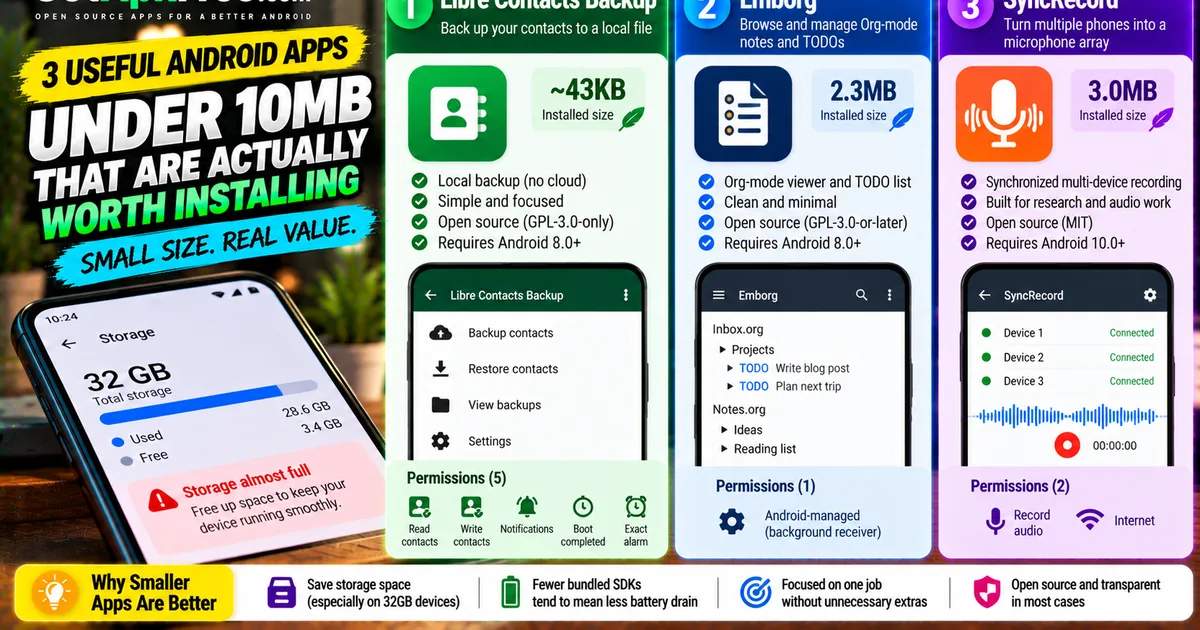
Top Lightweight Tools Under 10MB
Small, fast Android utilities that do one job well — every app here ships under 10MB and runs comfortably on older hardware.
GetApkFree Team