
This article is about
CapCut - Download
ByteDance Pte. Ltd. · Education
How to Add Music to a Video in CapCut on Android
GetApkFree Team
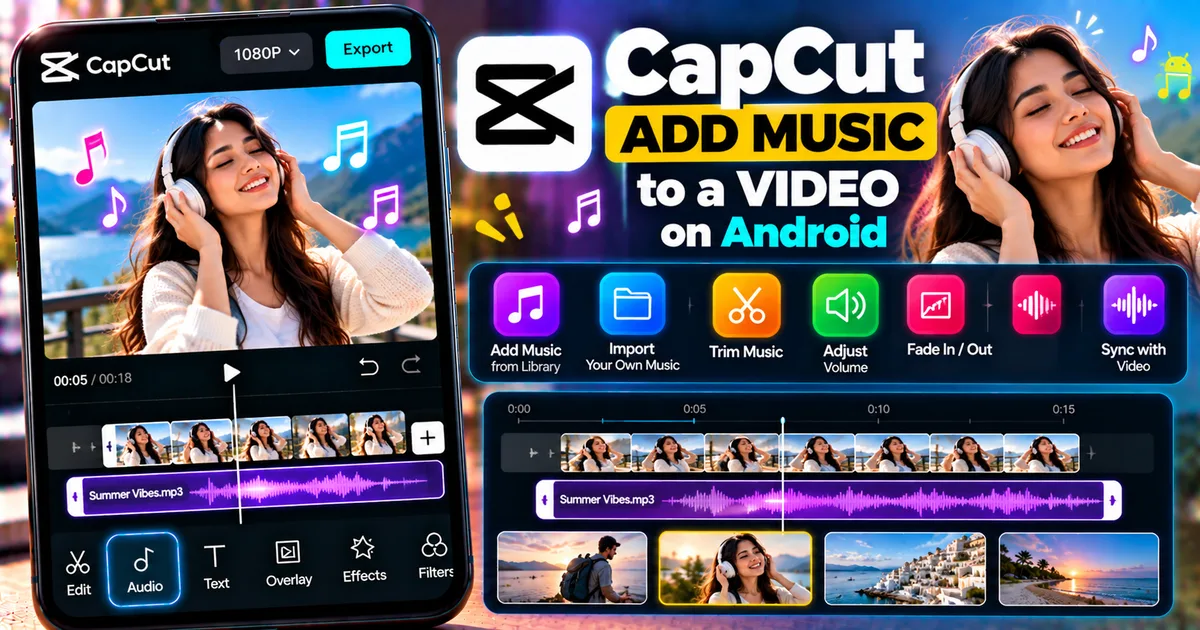
Learn how to add music to a video in CapCut on Android, import your own audio, trim music, adjust volume, add fades, and sync audio.
- Version
- Latest
- Source
- Google Play
- Package
- external.capcut.en.softonic.com.capcut-download
How to Add Music to a Video in CapCut on Android
Adding music can completely change the mood and pacing of a video. Whether you're editing a travel clip, short-form video, vlog, slideshow, gaming clip, or social media post, CapCut lets you add music directly from its editing interface.
On Android, you can add music from CapCut's available audio options or use an audio file from your device. You can then trim the track, position it on the timeline, adjust its volume, and use fades to make the audio transition more naturally.
This guide explains how to add music to a video in CapCut on Android and how to adjust the music so it fits your video.
Quick Answer
To add music to a video in CapCut on Android:
- Open CapCut.
- Start a new project.
- Select your video.
- Tap Audio.
- Choose the available music option or add audio from your device.
- Select the song or audio file.
- Add it to the timeline.
- Trim and position the music.
- Adjust the volume.
- Preview the video.
- Export the finished project.
The exact audio options can vary depending on your CapCut version and region.
How to Add Music to a Video in CapCut on Android
Step 1: Open CapCut
Open CapCut on your Android phone.
From the home screen, start a new project.
Select the video you want to edit and add it to the timeline.
You can use a single video or a project containing multiple clips.
Step 2: Open the Audio Tools
Once your video is loaded, look at the editing toolbar at the bottom of the screen.
Tap:
Audio
This opens CapCut's audio-related options.
Depending on your version, you may see options for music, sounds, extracting audio, recording, or other audio tools.
Step 3: Choose Your Music
You can select music from the options available in CapCut.
You may also be able to use an audio file stored on your Android device.
Choose a track that matches the type and mood of your video.
For example:
- Travel video → energetic or atmospheric music
- Workout video → energetic beat
- Vlog → light background music
- Cinematic footage → dramatic music
- Tutorial → subtle background music
- Slideshow → calm or emotional music
After selecting your track, add it to the project.
How to Add Your Own Music to CapCut
If you want to use a music file stored on your Android phone, use the available local-audio or device-audio option in the Audio section.
The exact wording can vary between versions.
A typical workflow is:
- Open your project.
- Tap Audio.
- Choose the option for adding or importing audio.
- Select the audio file from your device.
- Add it to the timeline.
- Adjust its position and length.
Your music will appear as a separate audio track beneath the video.
How to Add Background Music
Background music should normally support the video rather than overpower it.
After adding the music:
- Tap the music track.
- Adjust its position.
- Trim the beginning or end if necessary.
- Adjust the volume.
- Preview the video with the original audio.
- Make additional adjustments.
If your video contains speech, keep the background music low enough that the speaker remains easy to understand.
How to Trim Music in CapCut
You don't always need the entire song.
To use only part of a track:
- Select the music track.
- Move the playhead to the point where you want the music to begin or end.
- Use the available split or trimming controls.
- Remove the unwanted section.
- Drag the remaining audio into the correct position.
This is useful when the song is longer than your video.
For example, if your video is 15 seconds long but your music track is several minutes, you can use only the section that fits your edit.
How to Move Music on the Timeline
After adding a track, you can position it so the desired part of the song plays at the right moment.
For example, you might want:
- The beat to start when the first scene changes
- A chorus to begin when the main subject appears
- A musical drop to match a transition
- A specific sound to match an action
Select the audio track and adjust its position on the timeline.
Then preview the result.
How to Change Music Volume in CapCut
Music that is too loud can make a video difficult to watch.
To adjust it:
- Tap the music track.
- Open the volume controls.
- Lower or raise the volume.
- Preview the video.
- Adjust again if necessary.
For videos containing speech, start with relatively low background music and increase it gradually until it sounds balanced.
There is no single volume setting that works for every video because the result depends on the recording, music, speaker volume, and overall mix.
How to Add Fade In and Fade Out to Music
A music track can sometimes sound abrupt when it suddenly starts or stops.
A fade can make the transition smoother.
If the fade controls are available in your CapCut version:
- Select the music track.
- Open the audio adjustment options.
- Find Fade.
- Set a fade-in duration.
- Set a fade-out duration.
- Preview the result.
A short fade can work well at the beginning and end of background music.
How to Sync Music With Your Video
One of the most useful things you can do after adding music is synchronize important video moments with the soundtrack.
For example, you can match:
- Scene changes
- Camera movements
- Text animations
- Transitions
- Speed changes
- Product appearances
- Dance movements
with noticeable parts of the music.
Simple Music-Sync Workflow
- Add the music.
- Listen to the track.
- Identify strong beats or musical changes.
- Look at the video timeline.
- Move important edits toward those points.
- Preview the entire sequence.
- Fine-tune the timing.
You don't need to synchronize every cut.
Using only the strongest musical moments can produce a cleaner result.
How to Add Music to a Video With Voice
If your video already contains someone speaking, don't automatically remove the original audio.
Instead, balance the two tracks.
For example:
Voice: primary audio
Music: background audio
The voice should remain understandable while the music adds atmosphere.
You can also split the music and reduce its volume during important spoken sections.
How to Make Music Quieter During Speech
If the music is interfering with narration:
- Select the music track.
- Split the track around the speaking section.
- Select the section underneath the speech.
- Reduce its volume.
- Restore the volume afterward if appropriate.
This creates a simple manual volume change.
It can work well for:
- YouTube Shorts
- Tutorials
- Vlogs
- Travel videos
- Product demonstrations
- Voiceover videos
How to Add Music to Multiple Video Clips
You don't need a separate song for every video clip.
You can add one music track beneath multiple clips and adjust the video cuts to match the soundtrack.
For example:
Video Clip 1 → Video Clip 2 → Video Clip 3 → Video Clip 4
with one continuous music track underneath.
This can make the project feel more cohesive.
How to Add Music to a Slideshow
CapCut can also be used to create a photo slideshow with music.
A simple workflow is:
- Create a new project.
- Add your photos.
- Arrange them in the desired order.
- Add music from Audio.
- Adjust the duration of each photo.
- Trim the music.
- Add transitions if appropriate.
- Preview the slideshow.
- Export the project.
Choose music that matches the mood of the photos.
How to Use Music With Velocity Edits
Music can be especially useful when creating a velocity edit.
You can align speed changes with major beats or musical changes.
For example:
Normal → Fast → Slow → Fast
can be timed around the rhythm of the soundtrack.
If you're creating this type of edit, see our guide:
How to Make a Velocity Edit in CapCut on Android.
How to Use Music With Slow Motion
Music can also help emphasize slow-motion moments.
For example, you could:
- Play the video normally.
- Slow down the main action.
- Match the slow-motion section with a musical moment.
- Return to normal speed afterward.
This can work particularly well for sports, travel, dance, and cinematic footage.
See our related guide:
How to Make Slow Motion Videos in CapCut on Android.
How to Extract Audio From a Video
Sometimes the music or sound you want to use is already contained inside another video.
CapCut provides an Extract Audio function on its mobile app that can create a separate audio track from a video clip.
A typical workflow is:
- Add the source video to your project.
- Select the video clip.
- Find Extract Audio.
- Tap it.
- CapCut creates a separate audio track.
- Edit the extracted audio separately.
You can then trim, move, adjust the volume, or otherwise edit the separate audio track.
How to Remove the Original Video Sound
If you want the music to replace the video's original sound:
- Select the original video clip.
- Open its volume controls.
- Reduce the original audio volume.
- Keep your music track at the desired level.
- Preview the result.
You don't necessarily need to remove the original audio completely.
Sometimes keeping a small amount of natural sound makes a video feel more realistic.
How to Add Music Without Making the Video Sound Overcrowded
A common editing mistake is adding too many audio elements at once.
You might have:
- Original camera audio
- Background music
- Voiceover
- Sound effects
- Text-to-speech
- Other audio layers
If everything plays loudly at the same time, the result can become difficult to listen to.
Instead, decide which audio element is most important at each moment.
For example:
Speaking section: voice first, music lower
Montage: music stronger
Important sound effect: temporarily reduce music
This creates a clearer audio mix.
What Music Should You Choose?
The best music depends on your video.
Travel Videos
Try music that matches the energy and location of the footage.
Fitness Videos
A strong rhythmic track can support energetic footage.
Tutorials
Subtle background music is often less distracting.
Cinematic Videos
Atmospheric or dramatic music can reinforce the visual style.
Personal Vlogs
Choose music that matches the personality and mood of the video.
Most importantly, make sure you have the appropriate rights or permission to use music when publishing your video.
Why Is My Music Not Playing?
If the added music doesn't play correctly, check:
- Whether the audio track is muted.
- Whether its volume is set too low.
- Whether the track actually covers the current section of the timeline.
- Whether the original clip or another audio setting is affecting playback.
- Whether CapCut needs to be restarted.
- Whether the audio file itself plays correctly outside CapCut.
Preview the project again after making each adjustment.
Why Is My Music Too Loud?
Select the music track and lower its volume.
If speech is present, continue lowering the music until the voice is clear.
The correct level depends on the recording, so listen to the complete video rather than judging only one short section.
Why Is My Music Cut Off?
The audio may be shorter than the video.
You can:
- Extend the music if a longer version is available
- Add another track
- Move the track
- Duplicate audio when appropriate
- Use a fade-out near the end
If the music is longer than the video, trim it to match the final project.
Why Does My Music Start at the Wrong Part?
Select the audio track and move it along the timeline.
You can position the track so the desired section of the song starts at the moment you want.
This is particularly useful when you want a chorus, beat, or musical change to match a specific scene.
Final Thoughts
Adding music to a video in CapCut on Android is straightforward, but good audio editing is about more than choosing a song.
After adding your music, take time to position it correctly, trim unnecessary sections, adjust its volume, and use fades when needed.
If your video contains speech, make the voice the priority and keep the music in the background.
For more dynamic edits, you can also synchronize music with transitions, speed changes, slow motion, text, and other effects.
Once the audio sounds balanced, preview the complete video and export it using settings appropriate for where you plan to share it.
Related Articles

How to Fix CapCut Video Lagging After Export on Android
Fix CapCut video lagging after export on Android. Learn how to troubleshoot choppy playback, frame-rate mismatches, heavy effects, storage issues, and export settings.
GetApkFree Team

How to Fix CapCut Preview Not Matching Export on Android
Fix CapCut preview not matching the exported video on Android. Troubleshoot missing effects, text, transitions, timing, colors, and rendering differences.
GetApkFree Team

How to Fix Couldn't Apply AI Background in CapCut on Android
Getting "Couldn't Apply AI Background" in CapCut on Android? Check usage limits, clip selection, video quality, app updates, and practical troubleshooting steps.
GetApkFree Team

How to Fix CapCut Effects Not Applying on Android
CapCut effects not working on Android? Check clip selection, effect layers, timeline timing, conflicting adjustments, and app performance with these practical fixes.
GetApkFree Team