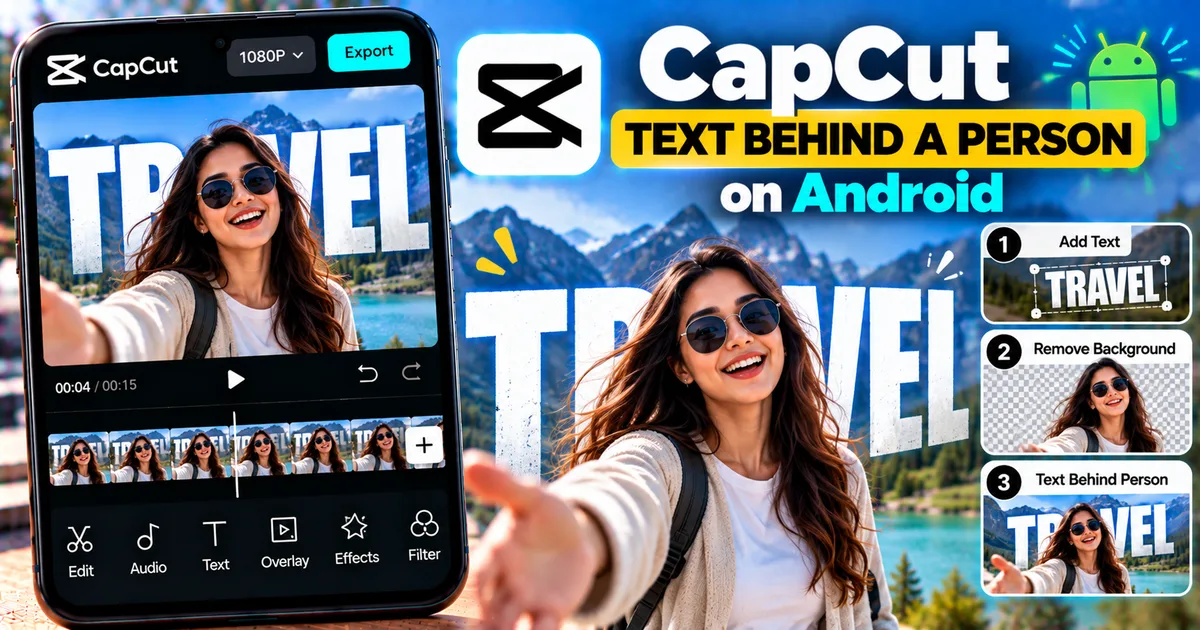

This article is about
CapCut - Download
ByteDance Pte. Ltd. · Education
How to Put Text Behind a Person in CapCut on Android
GetApkFree Team
Learn how to put text behind a person in CapCut on Android using layers and background removal to create a realistic depth effect.
- Version
- Latest
- Source
- Google Play
- Package
- external.capcut.en.softonic.com.capcut-download
How to Put Text Behind a Person in CapCut on Android
Want to make text appear behind a person in your video?
CapCut can create this popular depth effect by combining video layers, text, and background removal. The result makes the person appear in front of the text, creating the impression that the text is physically behind them.
This effect works especially well for Instagram Reels, YouTube Shorts, TikTok-style videos, travel clips, introductions, product videos, and other short-form content.
In this guide, you'll learn how to put text behind a person in CapCut on Android step by step.
Quick Answer
To put text behind a person in CapCut on Android:
- Open CapCut and create a new project.
- Add your video containing the person.
- Duplicate the video clip.
- Move the duplicated clip to an overlay layer.
- Add your text between the video layers.
- Remove the background from the upper subject layer.
- Position and style the text.
- Preview the result.
- Export the video.
The basic idea is to create a layered composition where the original video provides the background, the text sits in the middle, and the cutout person appears in front.
What Is the Text-Behind-Person Effect?
The text-behind-person effect is a layered video editing technique.
Instead of placing text directly over the entire video, you make the person appear in front of the text.
For example, imagine a person standing in the center of a video with the words:
"TRAVEL WITH ME"
The letters can appear behind the person's body while remaining visible on both sides.
This creates a sense of depth and makes a simple video look more dynamic.
How to Put Text Behind a Person in CapCut on Android
Step 1: Open CapCut
Open CapCut on your Android phone.
Start a new project and select the video you want to edit.
For the easiest result, choose footage where the person is clearly separated from the background.
Once the video is imported, it will appear on the timeline.
Step 2: Select the Video
Tap the video clip on the timeline.
Make sure the entire clip or the section where you want the effect is available.
If the person only appears during part of the video, you can later split the clip and apply the effect to the relevant section.
Step 3: Duplicate the Video
Duplicate the original video clip.
You now have two versions of the same footage.
The purpose of the duplicate is to create a separate layer containing the person who will appear in front of the text.
Step 4: Move the Duplicate to an Overlay Layer
Select the duplicated clip and use CapCut's Overlay option.
The duplicate should now function as a separate layer.
Your project will eventually have three visual layers:
- Original video at the bottom
- Text in the middle
- Cutout person above the text
This layering is the key to creating the effect.
Step 5: Add Your Text
Tap Text and choose Add Text.
Enter the words you want to appear behind the person.
For example:
"SUMMER VIBES"
"TRAVEL"
"NEW ADVENTURE"
"CREATE"
"2026"
You can change the font, size, color, alignment, spacing, and other available text settings.
Position the text approximately where you want it to appear.
Don't worry if the text currently appears completely over the person. The next steps will create the depth effect.
Step 6: Adjust the Text Layer
Extend the text layer on the timeline so it covers the part of the video where you want the effect.
Then position the text behind the person visually.
Large text can work particularly well because parts of the letters can remain visible on either side of the subject.
However, avoid making the text so large that it becomes difficult to read.
Step 7: Remove the Background From the Subject Layer
Now select the duplicated overlay video.
Look for CapCut's background removal or cutout tools.
Use the available automatic background-removal option when appropriate.
CapCut's current mobile workflow supports using the duplicated clip as an overlay and removing its background so the subject can sit above the text layer.
After the background is removed, the person's cutout should appear above the text.
Step 8: Check the Layer Order
The correct visual order should be:
Top: Cutout person
Middle: Text
Bottom: Original video
This arrangement makes the person appear in front of the text.
If the text is still covering the person completely, check the layer order.
Step 9: Position the Text
Move the text until it looks natural behind the person.
You can place large text across the center of the frame or position it slightly to one side.
Try to keep enough of the letters visible around the person's body.
For example, if the person is standing in the center, the beginning and ending portions of the text can remain visible on the left and right.
Step 10: Adjust the Text Style
Once the layering works, improve the appearance of the text.
You can experiment with:
- Font
- Size
- Color
- Stroke
- Shadow
- Spacing
- Alignment
- Animation
Use a font that remains readable against the background.
If the background is busy, a stronger text style or outline can help maintain contrast.
How to Make the Effect Look More Realistic
The layering technique creates the basic effect, but a few adjustments can make the result look much better.
Use a Clear Subject
Background removal works more reliably when the person's outline is easy to distinguish from the background.
Good footage usually has:
- Clear lighting
- Visible subject edges
- Reasonable contrast
- Limited motion blur
Use Large Text
Large text is often easier to position behind a person.
Instead of using tiny text in the middle of the frame, try a larger headline that extends across the scene.
Leave Some Text Visible
Don't hide the entire word behind the person.
Allow enough of the text to remain visible on both sides so viewers understand what it says.
Match the Text to the Video
Use text that fits the subject and scene.
A travel video might use:
"EXPLORE"
"ADVENTURE"
"PARIS"
A fitness video might use:
"NO EXCUSES"
"KEEP GOING"
"TRAIN HARD"
How to Put Moving Text Behind a Moving Person
The effect becomes more difficult when the person moves around the frame.
Start by creating the same layer structure.
Then check the cutout throughout the entire clip.
If the subject's position changes significantly, you may need additional adjustments to keep the effect aligned.
For complex movement, keyframes or other tracking techniques may be useful depending on the project and the tools available in your version of CapCut.
You can learn more about keyframes in our guide:
How to Add Keyframes in CapCut on Android.
Text Behind a Person vs Text Over a Person
These two effects are different.
Text Over a Person
The text remains in front of the subject.
The letters cover part of the person.
Text Behind a Person
The person appears in front of the text.
Parts of the text disappear behind the person's body.
The second technique creates more visual depth because the subject and text occupy different layers.
How to Put Text Behind a Person Without a Green Screen
You don't necessarily need a green screen for this effect.
The basic workflow can use background removal on the duplicated subject layer.
This is useful when your original video was recorded normally.
However, automatic background removal may not produce identical results on every video.
Hair, complicated backgrounds, fast movement, shadows, and low-light footage can make subject separation more difficult.
How to Fix Rough Edges Around the Person
If the cutout looks unnatural, first inspect the original footage.
Try to use footage with good lighting and a clear separation between the person and background.
If CapCut provides additional cutout or background-removal controls in your version, use them to refine the subject.
You can also shorten the effect to the cleanest section of the video instead of forcing it across a difficult portion.
How to Fix Text That Is Still in Front of the Person
If the text is covering the person, check your layer arrangement.
The desired structure is:
- Original video
- Text
- Cutout version of the person
The cutout subject must be visually above the text.
If the text layer is above the cutout layer, the text will continue appearing in front of the person.
How to Fix Background Removal Problems
If the person is partially disappearing, check the source video.
Common causes include:
- Poor lighting
- Similar colors between the person and background
- Motion blur
- Complex backgrounds
- Hair blending into the background
- Fast movement
Try another section of the footage or improve the source video if possible.
Creative Ideas for the Text-Behind-Person Effect
Once you understand the basic technique, you can use it in many types of videos.
Travel Videos
Put the destination name behind the traveler.
Example:
"GOA"
"PARIS"
"NEW YORK"
YouTube Shorts
Use a large title behind the presenter.
Example:
"5 EDITING TIPS"
Product Videos
Place a product name or feature behind the presenter or product model.
Fitness Videos
Add motivational words behind the athlete.
Example:
"NO LIMITS"
Fashion Videos
Use a large brand-style title behind the person.
Intro Videos
Place your name or channel name behind you.
This can create a clean introduction without needing a complicated animation.
Can You Animate the Text?
Yes, you can combine the text-behind-person effect with text animation where supported.
For example, the text could:
- Fade in
- Move into position
- Scale up
- Appear with an entrance animation
Be careful with excessive animation.
The depth effect is already visually noticeable, so a simple animation can often work better than several effects at once.
Can You Use Images Instead of Text?
The same general layering concept can also be adapted to other visual elements.
For example, you can experiment with:
- Logos
- Stickers
- Graphics
- Shapes
- Images
The key is controlling which element appears in front and which appears behind the subject.
Best Videos for This Effect
The effect works particularly well when:
- One person is clearly visible
- The camera is relatively stable
- The background is not extremely complicated
- The subject has clear edges
- There is enough empty space around the person
- The text can remain readable
Portrait-oriented footage can work especially well for short-form social media content.
Final Thoughts
Putting text behind a person in CapCut on Android is mainly a layering technique.
The most important part is creating the correct order:
Original video → Text → Cutout person
Once the background is removed from the duplicated subject layer, the person can appear in front of the text while the original video remains behind everything.
Start with a short clip and a simple word or phrase. Once you understand the layer structure, you can experiment with larger titles, animations, keyframes, and other CapCut effects to create more advanced edits.
For the cleanest results, use well-lit footage with a clearly visible subject and always preview the complete video before exporting.
Related Articles

How to Fix CapCut Video Lagging After Export on Android
Fix CapCut video lagging after export on Android. Learn how to troubleshoot choppy playback, frame-rate mismatches, heavy effects, storage issues, and export settings.
GetApkFree Team

How to Fix CapCut Preview Not Matching Export on Android
Fix CapCut preview not matching the exported video on Android. Troubleshoot missing effects, text, transitions, timing, colors, and rendering differences.
GetApkFree Team

How to Fix Couldn't Apply AI Background in CapCut on Android
Getting "Couldn't Apply AI Background" in CapCut on Android? Check usage limits, clip selection, video quality, app updates, and practical troubleshooting steps.
GetApkFree Team

How to Fix CapCut Effects Not Applying on Android
CapCut effects not working on Android? Check clip selection, effect layers, timeline timing, conflicting adjustments, and app performance with these practical fixes.
GetApkFree Team