
This article is about
YouTube
Google LLC · Multimedia
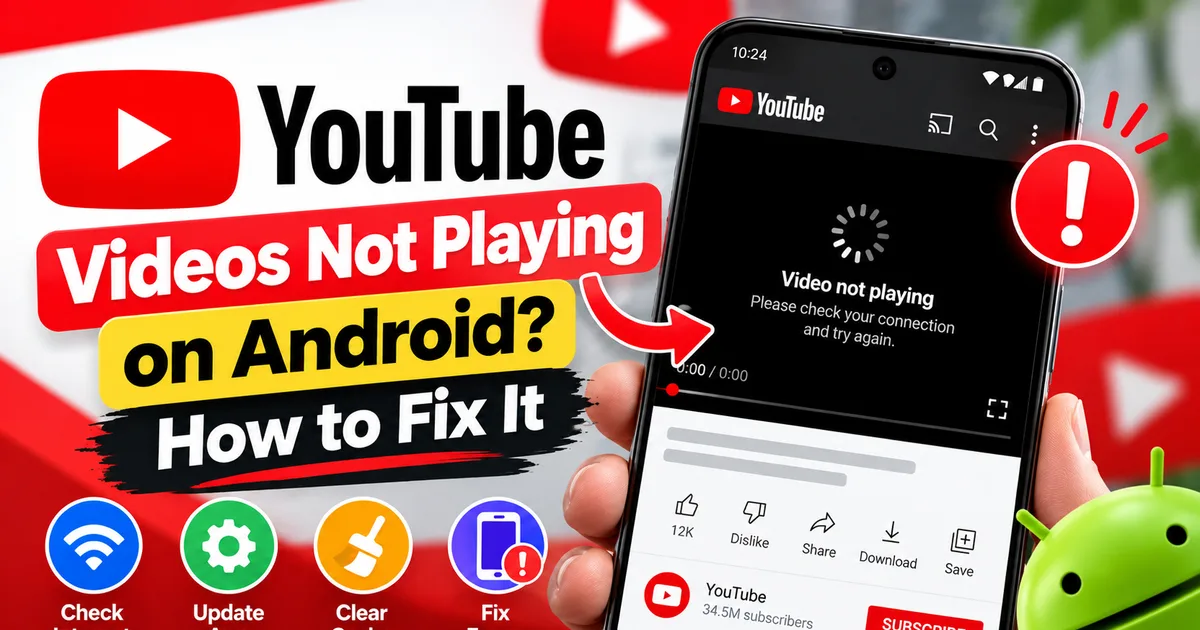
YouTube Videos Not Playing on Android? How to Fix It
GetApkFree Team
YouTube videos not playing on Android? Troubleshoot buffering, playback errors, black screens, connection problems, and app issues with these practical fixes.
- Version
- Latest
- Source
- Google Play
- Package
- com.google.android.youtube
YouTube Videos Not Playing on Android? How to Fix It
You open YouTube on your Android phone, tap a video, and expect it to start playing. Instead, the screen stays black, the loading circle keeps spinning, or an error message appears. Sometimes the video starts but stops every few seconds.
If YouTube videos are not playing on Android, the problem could involve your internet connection, temporary app data, an outdated app, device settings, or a temporary YouTube service issue.
The best solution depends on what happens when you try to play a video. This guide explains how to troubleshoot buffering, playback errors, black screens, and other common YouTube playback problems without immediately resorting to disruptive fixes.
Quick Answer: How to Fix YouTube Videos Not Playing
Try these steps in order:
- Play a different YouTube video to see whether the problem affects every video.
- Switch between Wi-Fi and mobile data to test your connection.
- Close YouTube and open it again.
- Restart your Android phone.
- Update YouTube through Google Play if an update is available.
- Clear the YouTube app cache.
- Check your phone's date, time, available storage, and data restrictions if the problem continues.
- Check whether YouTube is experiencing a wider service issue.
If videos still will not play, note the exact error message and whether the problem affects other apps. This helps you narrow down the cause instead of repeating the same fixes.
Why Are YouTube Videos Not Playing on Android?
YouTube playback problems can have several causes:
- Unstable internet connection: Videos may buffer indefinitely when the connection is slow or interrupted.
- Temporary app issue: YouTube may become unresponsive or fail to load a video correctly.
- Outdated app: An older version may contain a bug that has since been addressed.
- Cached data problem: Temporary app files may contribute to unexpected behavior.
- Data restrictions: Android settings may restrict YouTube's network access.
- Device or software issue: Low available storage, system problems, or an incompatible configuration may affect playback.
- Video-specific restriction: A video may have been removed, restricted, made private, or become unavailable in your location.
- Temporary service problem: YouTube itself may be experiencing an issue.
These are possible causes rather than a diagnosis. Start with the easiest checks and move to more involved troubleshooting only when necessary.
1. Check Whether Other YouTube Videos Play
First, determine whether the problem affects one video or the entire app.
- Open YouTube.
- Select another video from your Home feed or search results.
- Try a different video category or channel.
- If possible, open the same video in a browser at YouTube's official website.
- Check whether other online video services work normally.
If only one video fails, the issue may relate to that video's availability or restrictions. If every video fails, investigate your connection, app, and phone settings.
Do not reset your phone just because one video will not play.
2. Check Your Internet Connection
A weak or unstable connection is one of the first things to investigate when videos keep buffering or display a connection error.
Follow these steps:
- Open a website to confirm that your internet connection works.
- If you are using Wi-Fi, turn Wi-Fi off and back on.
- If your mobile data plan allows it, switch to mobile data and test YouTube.
- If you are using mobile data, check your signal and remaining data allowance.
- Move closer to your router if the Wi-Fi signal is weak.
- Pause other large downloads or streams temporarily.
If YouTube works on mobile data but not Wi-Fi, investigate your Wi-Fi connection. If it works on Wi-Fi but not mobile data, check your mobile data settings and network coverage.
A phone can show that it is connected to Wi-Fi even when the internet connection itself is not working properly.
3. Close YouTube and Open It Again
A temporary app problem may prevent videos from loading correctly.
To restart YouTube:
- Open Android Settings.
- Select Apps or Apps management.
- Find YouTube.
- Tap Force stop, if available.
- Return to your Home screen.
- Open YouTube and try playing the video again.
You can also dismiss YouTube from the recent-apps screen and reopen it, although this may not be identical to force-stopping the app.
If playback resumes, the issue may have been temporary. If not, continue with the following steps.
4. Restart Your Android Phone
Restarting your phone can resolve temporary system or app problems.
- Save any work in progress.
- Restart your phone using the normal power menu.
- Reconnect to your internet connection.
- Open YouTube.
- Try playing a video again.
This is worth trying if YouTube freezes, the playback controls stop responding, or other apps have also started behaving unusually.
A restart will not make a private, removed, or otherwise unavailable video accessible, so check more than one video before assuming the phone is the cause.
5. Update the YouTube App
An available YouTube update may contain fixes for bugs affecting playback.
To check for an update:
- Open Google Play Store.
- Search for YouTube.
- Open the official YouTube app listing.
- Tap Update if the option is available.
- Once the update finishes, reopen YouTube and test playback.
If the listing shows Open instead of Update, there may be no newer version available for your device at that time.
If Google Play displays an installation error while updating an app, our guide on how to fix the “App Not Installed” error on Android explains common causes such as storage, compatibility, and installation conflicts.
For YouTube playback issues, begin with the official app and its supported update path. Downloading an unfamiliar APK is not a necessary first step.
6. Clear the YouTube App Cache
YouTube stores temporary files to help the app operate efficiently. Clearing the cache can be useful if temporary app data appears to be contributing to playback problems.
On most Android phones:
- Open Settings.
- Tap Apps.
- Select YouTube.
- Open Storage or Storage and cache.
- Tap Clear cache.
- Open YouTube and try playing the video again.
The exact menu names vary by Android version and phone manufacturer.
Choose Clear cache, not Clear storage or Clear data. These options are different. Clearing storage or app data can reset local app settings and may require you to configure the app again.
Clearing the cache is not guaranteed to fix every playback problem, but it is a reasonable step before considering more disruptive troubleshooting.
7. Check Your Phone's Date and Time
Incorrect device date or time settings can interfere with some app and network operations.
To check them:
- Open Android Settings.
- Find System, General management, or the Date and time section.
- Enable automatic date and time if the option is available.
- Enable automatic time zone if appropriate.
- Reopen YouTube and test playback.
Menu names vary by device.
This is not the most likely cause of every YouTube playback error, but it is a useful check when the time on your phone is incorrect or several online services are behaving unexpectedly.
8. Check Data Saver and App Data Permissions
Android allows you to control how apps use mobile data and background network access.
If YouTube works on Wi-Fi but fails on mobile data, check whether the app is allowed to use mobile data.
- Open Settings.
- Select Apps.
- Choose YouTube.
- Open Mobile data, Data usage, or the equivalent option.
- Review whether mobile data and any relevant background data permissions are enabled.
- Check Android's Data Saver settings if you use them.
Some phones provide additional network restrictions or manufacturer-specific controls.
Change only the settings relevant to your problem. You do not need to disable all data-saving or battery-saving features on your device.
9. Lower the Video Quality
If a video starts playing but repeatedly buffers, the selected resolution may be too demanding for your current connection.
Try reducing the playback quality:
- Open a YouTube video.
- Tap the video player.
- Open the Settings menu.
- Select Quality.
- Choose a lower resolution, such as 480p or 360p, if available.
- Check whether playback becomes smoother.
Lower resolution reduces the amount of data needed to play the video at a given time. It can help on slow or congested connections, although it will not fix every playback error.
If lower quality works but higher quality does not, investigate your connection speed and network conditions.
10. YouTube Videos Show a Black Screen
A black screen can result from a video-loading problem, an app issue, or a problem specific to the video.
Try the following:
- Test another YouTube video.
- Switch between Wi-Fi and mobile data.
- Close and reopen YouTube.
- Restart your phone.
- Clear the YouTube cache.
- Check for an available app update.
- Try the video in a supported browser.
Notice whether audio plays while the screen remains black. If sound works but the picture does not, the issue differs from a video that never starts loading.
If only one video is affected, it may be unavailable or have a video-specific problem. If all videos show a black screen, investigate the app and device more broadly.
11. YouTube Keeps Saying “Playback Error”
YouTube can display messages such as “Playback error,” “An error has occurred,” or “Something went wrong.”
The wording can vary, and the message does not always identify the exact cause.
Try these steps:
- Confirm that your internet connection works.
- Play a different video.
- Close and reopen YouTube.
- Restart your phone.
- Clear the app cache.
- Update YouTube if an update is available.
- Check whether the same video works in a browser or on another supported device.
If the error occurs only with a particular video, it may involve the video's availability or restrictions. If every video fails, focus on your app, connection, and device.
For error messages that continue after these checks, consult YouTube's official video troubleshooting guidance.
12. Check Available Storage and Device Performance
A phone with very little free storage may struggle with normal app operations, especially when other apps are running or the device is already under pressure.
To check storage:
- Open Settings.
- Select Storage.
- Review the available space.
- If storage is nearly full, remove unnecessary downloads or files you no longer need.
- Close unused apps and try YouTube again.
Do not delete personal photos, videos, or important files without a backup.
If other apps also freeze or run slowly, the problem may involve the phone's overall performance rather than YouTube alone.
13. Check Whether YouTube Is Experiencing a Wider Problem
Sometimes a playback issue affects many users at once. If the problem is on YouTube's side, changing your phone settings may not help.
You can:
- Check whether other YouTube features load.
- Test YouTube over another reliable connection.
- Look for consistent reports from multiple independent users.
- Check YouTube's official support information.
- Wait and retry later if there is evidence of a wider service issue.
A few social media posts do not prove that YouTube is down globally. Compare reports with your own tests before concluding that the service is unavailable.
If many users are reporting the same problem, avoid uninstalling the app or resetting your phone just to fix a temporary service issue.
14. Should You Reinstall YouTube?
Reinstallation should generally come after the simpler troubleshooting steps.
On some Android phones, YouTube is a preinstalled system app. You may be able to uninstall updates or disable the app, but the available options depend on your device.
Before making changes:
- Try restarting the app and phone.
- Check your connection.
- Clear the cache.
- Install any available official update.
- Review the available app options in Android Settings.
If you are considering uninstalling updates or reinstalling the app, use the options provided by your phone and Google Play. Avoid third-party downloads or instructions that require disabling Android's security protections.
Reinstallation is not necessary for every playback issue and may not help when the cause is a network or service problem.
Frequently Asked Questions
Why are YouTube videos not playing on my Android phone?
Possible causes include a weak internet connection, temporary app problems, cached data, an outdated app, device settings, or a video that is unavailable. Test several videos and another connection before deciding which cause is most likely.
Why does YouTube keep buffering even with Wi-Fi?
Your phone may be connected to Wi-Fi while the internet connection remains slow or unstable. Try another network, reduce video quality, and check whether other online services work normally.
Why does YouTube show a black screen but still play sound?
This can indicate a video-rendering or playback problem rather than a complete connection failure. Test another video, restart the app, clear its cache, and check for an update.
Will clearing YouTube's cache delete my subscriptions?
Clearing the cache removes temporary files; it is different from clearing the app's storage or data. Avoid selecting Clear storage or Clear data unless you understand the consequences.
Why does YouTube work in a browser but not in the app?
The issue may be specific to the YouTube app, its cached data, or its settings. Restart the app, clear its cache, check for an update, and review the app's data permissions.
Why does only one YouTube video fail to play?
The video may have been removed, made private, restricted, or made unavailable in your location. Test other videos before changing your phone's settings.
Should I download a YouTube APK to fix playback problems?
Not as a first step. Start with the official YouTube app, Google Play updates, connection checks, and cache troubleshooting. An unfamiliar APK can introduce security risks without resolving the original problem.
Final Thoughts
When YouTube videos are not playing on Android, begin by checking whether the problem affects one video or the entire app. Then test your internet connection, restart YouTube, restart your phone, update the app, and clear its cache if needed.
If the problem continues, review data restrictions, video quality, device storage, and whether YouTube is experiencing a wider issue. Avoid disruptive changes until you have ruled out simpler causes.
A step-by-step approach helps you identify the likely source of the problem without unnecessarily resetting your phone or installing unofficial software.
Related Articles
Instagram Reels Not Playing on Android? How to Fix It
Instagram Reels not playing on Android? Fix buffering, black screens, loading errors, and playback problems with these practical troubleshooting steps.
GetApkFree Team
WhatsApp Backup Stuck at 99% on Android? How to Fix It
Fix a WhatsApp backup stuck at 99% on Android. Check storage, Google Account, internet connection, backup settings, and safe troubleshooting steps without risking your chats.
GetApkFree Team
How to Run APK Files on a Windows PC in 2026
Learn how to run APK files on a Windows PC using an Android emulator, install APKs manually, and understand why Windows Subsystem for Android is no longer available.
GetApkFree Team
How to Verify an APK SHA-256 Checksum Before Installing
Learn how to calculate an APK's SHA-256 checksum, compare it with a trusted published value, and understand what a matching or different hash means.
GetApkFree Team