
This article is about
Ambio: Focus Timer & Sounds
Jaime Barreto · Multimedia
Ambio Quick Settings: How to Start Your Last Sound Mix
GetApkFree Team
Learn how to use Ambio Quick Settings to quickly start your last ambient sound mix without opening the app on Android.
- Version
- 2.0.0
- Requires
- Android 12.0+
- License
- MIT
- Source
- F-Droid
- Package
- com.jbgsoft.ambio
Ambio Quick Settings: How to Start Your Last Sound Mix
If you regularly use Ambio for ambient sounds, you don't always want to open the full application just to start listening.
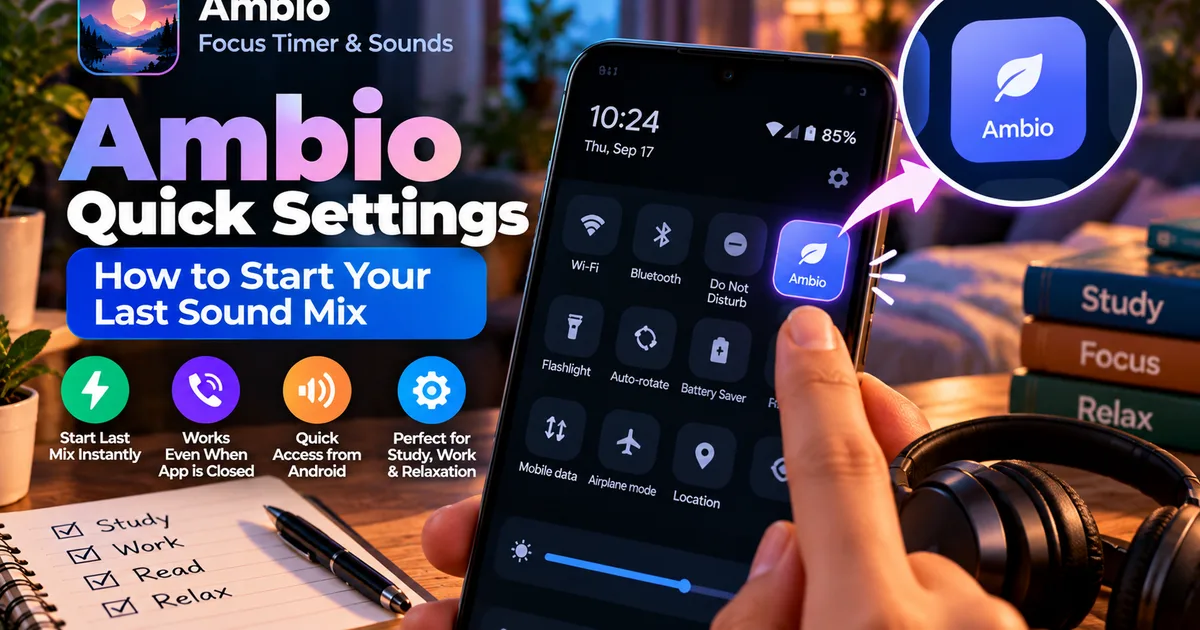
Ambio includes a Quick Settings tile that can make this process faster. The feature was introduced with Ambio 2.1 and is designed to start your last sound mix directly from Android's Quick Settings panel, even when the Ambio app is closed.
This can be particularly convenient if you already have a favorite mix for studying, reading, working, relaxing, or sleeping.
Instead of opening Ambio, navigating through the interface, selecting your sounds, and pressing play again, the Quick Settings tile can provide a faster way to start the mix you've already configured.
What Is Ambio Quick Settings?
Android Quick Settings is the panel you see when you swipe down from the top of the screen.
It normally contains shortcuts for features such as:
- Wi-Fi
- Bluetooth
- Airplane mode
- Flashlight
- Screen rotation
- Battery controls
- Mobile data
Ambio adds its own Quick Settings tile.
According to the current F-Droid release information, the Ambio tile can start your last mix even when the application itself is closed.
This makes the feature different from simply opening the Ambio app from your launcher.
What Does the Ambio Quick Settings Tile Do?
The main purpose of the tile is simple:
Start your last Ambio mix quickly.
Suppose your favorite mix contains:
Rain + Forest + Café
with your preferred volume levels.
After using that mix, you can use the Ambio Quick Settings tile later to start the last mix without going through the full mixer again.
This is useful when you already know what soundscape you want.
When Was Ambio Quick Settings Added?
The Quick Settings feature was introduced in Ambio 2.1.
The 2.1 release notes specifically mention that the Quick Settings tile can start the last mix while the app is closed.
F-Droid currently lists Ambio 2.1.1 as the latest release, added September 20, 2026. The current release requires Android 12 or newer.
How to Add Ambio to Android Quick Settings
The exact appearance of Android Quick Settings differs between manufacturers, but the general process is similar.
Step 1: Open Quick Settings
Swipe down from the top of your Android screen.
Depending on your phone, you may need to swipe down once or twice to see the complete Quick Settings panel.
Step 2: Find the Edit Option
Look for an option such as:
- Edit
- Pencil icon
- Rearrange
- Add
- More options
The exact label depends on your Android device.
Step 3: Look for the Ambio Tile
Find the Ambio Quick Settings tile in the available tiles.
If it isn't already visible in your active Quick Settings area, it may be located among the unused tiles.
Step 4: Add the Tile
Move the Ambio tile into your active Quick Settings area.
You can position it near the shortcuts you use most often.
For example, you might place it near your media controls or other frequently used shortcuts.
Step 5: Save the Arrangement
Exit the Quick Settings editor.
The Ambio tile should now be available from your Android Quick Settings panel.
How to Use the Ambio Quick Settings Tile
Once the tile has been added, using it is straightforward.
1. Create a Sound Mix
First, open Ambio normally.
Select your preferred ambient sounds.
Ambio supports 12 built-in sounds and lets you combine up to three at the same time, with an individual level for each sound.
For example:
Rain + Forest
or:
Ocean + Fireplace
or:
Café + Rain
2. Adjust the Sound Levels
Set each sound to the level you prefer.
You don't have to make every sound equally loud.
For example:
Rain — 70%
Forest — 40%
Café — 20%
The exact levels are entirely up to you.
3. Start the Mix
Play the mix and let Ambio establish it as your most recent mix.
4. Close Ambio
You can then leave the app.
The Ambio 2.1 release specifically introduced Quick Settings functionality that can start the last mix with the app closed.
5. Open Quick Settings Later
When you want the same soundscape again, swipe down from the top of the Android screen.
Tap the Ambio tile.
The tile is designed to start your last mix.
Why Is the Quick Settings Tile Useful?
The feature is most useful when you repeatedly listen to the same sound mix.
Imagine that you use Ambio every morning while studying.
Your preferred mix is:
Rain + Forest
You could open Ambio every day and manually select those sounds.
Or you can use the Quick Settings tile to start your last mix more quickly.
The fewer steps between you and your focus session, the easier it is to get started.
Use Ambio Quick Settings for Studying
Students can create one favorite study mix and use the Quick Settings tile whenever they begin studying.
For example:
Rain + Brown Noise
could become your regular study environment.
When you're ready to study:
- Swipe down.
- Tap Ambio.
- Start your focus routine.
You can then open your notes, textbook, PDF, or other study material.
For a complete guide to Ambio's focus timer, see:
Ambio Focus Timer: How to Use It for Study and Productivity
Use Ambio Quick Settings for Work
The same idea works for remote work.
You might create a mix such as:
Café + Rain
and use it whenever you start a work block.
Rather than searching for the app every time, the Quick Settings tile gives you a shortcut to the last mix.
This is particularly convenient when Ambio is something you use repeatedly throughout the day.
Use Ambio Quick Settings for Relaxation
The feature isn't limited to productivity.
You could create a relaxing mix such as:
Ocean + Wind
and start it from Quick Settings when you want some background ambience.
Ambio's Ambient Mode is designed for activities including reading, meditation, winding down, and sleep.
Can Quick Settings Start the Last Mix When Ambio Is Closed?
Yes.
This is one of the main reasons the feature exists.
The Ambio 2.1 release notes specifically state that the Quick Settings tile starts the last mix even when the app is closed.
That means you don't have to keep Ambio open on screen just to access the shortcut.
What Is the "Last Mix"?
The "last mix" refers to the most recently configured sound mix that Ambio can use for playback.
For example, suppose you create:
Rain + Forest + Birds
and adjust the levels.
If that becomes your most recent mix, the Quick Settings tile can be used as a shortcut for starting it later.
If you change your mix afterward, the most recent mix may change as well.
Therefore, think of the tile as a quick way to restart your latest soundscape, rather than a separate library of multiple favorite mixes.
Quick Settings vs Opening Ambio
Both methods ultimately give you access to Ambio, but they serve different purposes.
Opening Ambio
Useful when you want to:
- Create a new mix
- Change sound levels
- Choose different sounds
- Change timer settings
- Review session information
- Configure other features
Quick Settings
Useful when you simply want to:
- Start the last mix
- Get background sound quickly
- Avoid opening the full interface
The Quick Settings tile is therefore a shortcut rather than a replacement for the main Ambio interface.
Can You Change the Mix From Quick Settings?
The Quick Settings tile is primarily intended to start the last mix.
If you want to change the sounds or their individual levels, open Ambio and use the mixer.
Ambio's mixer supports up to three sounds simultaneously, with separate levels for each sound.
So the simplest workflow is:
Quick Settings = Start
Ambio Mixer = Customize
Can You Use Quick Settings With Background Playback?
Yes.
Ambio supports background playback with media controls available through Android's notification shade, lock screen, and Quick Settings.
This means you can start a mix and then put the phone down while continuing to listen.
You don't have to keep the Ambio interface visible throughout the session.
What If the Ambio Tile Isn't Visible?
If you cannot see the Ambio tile, first open Android's Quick Settings editor.
Unused tiles may not appear in the active panel automatically.
Look through the available tiles and add Ambio manually if it is listed.
If the tile still doesn't appear, check that you are using a recent Ambio version that includes the feature.
The Quick Settings tile was introduced in version 2.1, so older Ambio releases may not have it.
What If the Tile Doesn't Start My Expected Mix?
Remember that the Quick Settings tile is designed around the last mix.
If you recently changed your sounds, the latest mix may be different from the one you expected.
Open Ambio and check your current sound configuration.
You can then create or play the mix you want to use as your latest soundscape.
Does Ambio Quick Settings Require Internet?
Ambio's current listing states that the app works completely offline.
The Quick Settings feature is intended to interact with Ambio locally on the Android device.
Therefore, you don't need an internet connection simply to use Ambio's built-in ambient sound functionality.
For more information, see:
Ambio Offline: Does It Work Without Internet?
Does Quick Settings Require an Ambio Account?
No account is required to use Ambio according to its current listing.
The app is designed around local use rather than requiring an online account for its core functionality.
Which Android Version Supports the Current Ambio Release?
F-Droid currently lists Ambio 2.1.1 as requiring Android 12 or newer.
If you're installing an older APK, its requirements may differ.
Always check the specific version before installation.
Ambio Quick Settings and Privacy
Ambio's current listings describe the app as:
- Offline
- No account required
- No ads
- No tracking or analytics
- No data leaving the device
- Open source under the MIT License
These are developer-provided claims and should not be treated as an independent security certification.
If you install an APK from a third-party source, you should also verify the particular file and version rather than assuming that every modified or repackaged APK has the same properties.
Frequently Asked Questions
What is the Ambio Quick Settings tile?
It is an Android Quick Settings shortcut that can start your last Ambio sound mix.
When was Ambio Quick Settings introduced?
The feature was introduced in Ambio 2.1.
Can the Ambio tile work when the app is closed?
Yes. The Ambio 2.1 release notes specifically say the tile can start the last mix with the app closed.
Can I use Quick Settings to create a new sound mix?
The tile is designed to start the last mix. Open Ambio's mixer when you want to create or modify a mix.
How many sounds can Ambio mix?
Ambio can combine up to three of its 12 ambient sounds at the same time.
Does Ambio Quick Settings work offline?
Ambio's current listing states that the application works completely offline.
Does Ambio require an account?
No. The current listing says no account is required.
What Android version does current Ambio require?
The current F-Droid 2.1.1 release requires Android 12 or newer.
Final Thoughts
Ambio's Quick Settings tile is a small feature, but it can make repeated use of the app considerably simpler.
Once you've created a sound mix you like, you don't always need to open the full Ambio interface again.
The Quick Settings tile provides a shortcut for starting your last mix, including when the Ambio application is closed.
For people who repeatedly use the same soundscape for studying, working, reading, or relaxing, it provides a convenient bridge between Android's system controls and Ambio's ambient sound mixer.
If you want to customize your soundscape, use Ambio's mixer. If you simply want to start the mix you've already created, the Quick Settings tile provides the faster route.
Related Articles

How to Fix CapCut Video Lagging After Export on Android
Fix CapCut video lagging after export on Android. Learn how to troubleshoot choppy playback, frame-rate mismatches, heavy effects, storage issues, and export settings.
GetApkFree Team

How to Fix CapCut Preview Not Matching Export on Android
Fix CapCut preview not matching the exported video on Android. Troubleshoot missing effects, text, transitions, timing, colors, and rendering differences.
GetApkFree Team

How to Fix Couldn't Apply AI Background in CapCut on Android
Getting "Couldn't Apply AI Background" in CapCut on Android? Check usage limits, clip selection, video quality, app updates, and practical troubleshooting steps.
GetApkFree Team

How to Fix CapCut Effects Not Applying on Android
CapCut effects not working on Android? Check clip selection, effect layers, timeline timing, conflicting adjustments, and app performance with these practical fixes.
GetApkFree Team