
This article is about
CapCut - Download
ByteDance Pte. Ltd. · Education
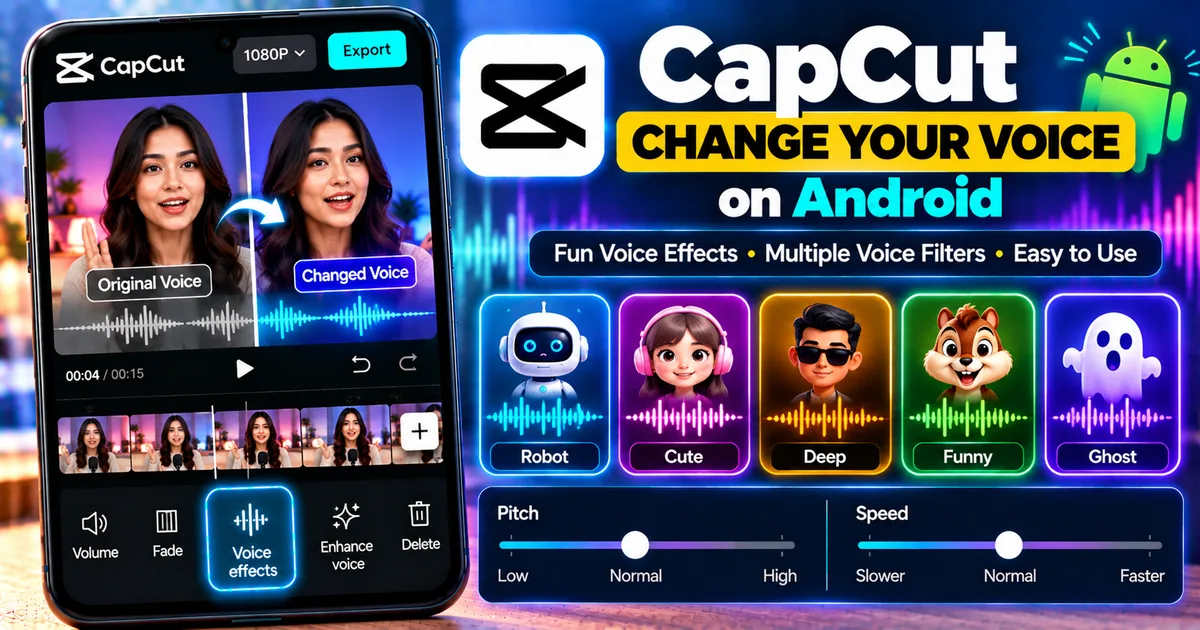
How to Change Your Voice in CapCut on Android
GetApkFree Team
Learn how to change your voice in CapCut on Android using voice effects, filters, and characters, plus tips for fixing common voice-effect problems.
- Version
- Latest
- Source
- Google Play
- Package
- external.capcut.en.softonic.com.capcut-download
How to Change Your Voice in CapCut on Android
Want to make your voice sound different in a video?
CapCut includes voice effects that can transform recorded audio into different styles and characters. On Android, you can apply voice effects to audio or video clips directly from the editing timeline.
Depending on your CapCut version, available effects may include voice filters, voice characters, and other audio effects. You may also have controls for adjusting characteristics such as pitch and speed.
In this guide, you'll learn how to change your voice in CapCut on Android, apply voice effects, preview different voices, adjust the result, and troubleshoot common problems.
Quick Answer
To change your voice in CapCut on Android:
- Open CapCut.
- Create a new project.
- Add the video or audio containing your voice.
- Select the clip on the timeline.
- Open Audio.
- Choose Voice effects or the corresponding voice-effect option.
- Browse the available voice filters or characters.
- Tap an effect to preview it.
- Apply the effect you want.
- Preview the complete video and export it.
The exact menu names and available effects can vary between CapCut versions, devices, languages, accounts, and regions.
What Is the CapCut Voice Changer?
CapCut's voice-changing tools let you modify the sound of recorded speech using different voice effects.
Instead of recording the same sentence repeatedly with different voices, you can record one clip and experiment with available effects.
Depending on your version of CapCut, the voice-effect library may include categories such as:
- Voice filters
- Voice characters
- Robot-style voices
- Cartoon-style voices
- Other creative effects
The available selection can change over time.
How to Change Your Voice in CapCut on Android
Step 1: Open CapCut
Launch CapCut on your Android phone.
Start a new project or open an existing project containing the audio you want to modify.
Step 2: Add Your Video or Audio
If you're creating a new project, tap New Project and select the video from your gallery.
Tap Add to place it on the timeline.
If your voice is already in a separate audio file, use the appropriate audio-import option available in your version of CapCut.
Step 3: Select the Clip
Tap the video or audio clip containing your voice.
This opens the editing controls for the selected media.
Make sure you have selected the correct clip before looking for voice effects.
Step 4: Open Audio
Look through the editing toolbar and select Audio.
Depending on the current CapCut interface, you may need to scroll through the available tools.
Step 5: Open Voice Effects
Look for Voice effects, Voice characters, or a similarly named option.
CapCut's current mobile documentation describes accessing voice effects through the Audio section.
Step 6: Browse the Available Effects
Browse the available effects.
Depending on the current version, you may see different categories and voice styles.
Tap an effect to preview how your recording sounds.
Step 7: Apply the Effect
Once you find an effect you like, select it to apply it to the clip.
Play the video again and listen carefully.
If you don't like the result, try another effect.
How to Make a Robot Voice in CapCut
A robot-style effect is one of the common creative voice effects found in voice-changing tools.
To try one:
- Select your video or audio clip.
- Open Audio.
- Choose the available voice-effect option.
- Browse the voice filters or characters.
- Look for a robot-style effect if it is available.
- Tap it to preview.
- Apply it when you're satisfied.
The exact name of the effect may change between CapCut versions.
How to Make a Funny Voice in CapCut
If you're creating a comedy, gaming, meme, or short-form video, a character or exaggerated voice effect can change the tone of your narration.
Try several available effects and compare them before choosing one.
A useful approach is to keep the original recording unchanged and test different effects until you find one that matches the video.
How to Change Voice Pitch in CapCut
Some CapCut voice-editing workflows provide controls for modifying characteristics such as pitch and speed.
If these controls are available in your version:
- Select the audio clip.
- Open the voice or audio effects controls.
- Apply your chosen voice effect.
- Look for pitch controls if available.
- Adjust the pitch gradually.
- Preview the result.
Small adjustments can produce a more natural result than extreme changes.
The exact controls available depend on the current CapCut version and selected effect.
How to Change Voice Speed in CapCut
Some voice effects provide speed-related controls.
If the option is available:
- Select the voice clip.
- Open the relevant voice-effect controls.
- Find the speed adjustment.
- Move it gradually.
- Preview the result.
Be careful with extreme speed changes because they can make speech difficult to understand.
How to Apply a Voice Effect to Only Part of a Video
You don't have to change the voice throughout the entire video.
If you want an effect on only one section, split the clip into separate sections first.
For example:
Normal voice → Voice effect → Normal voice
A practical workflow is:
- Place the playhead where the effect should begin.
- Split the clip.
- Move to the point where the effect should end.
- Split the clip again.
- Select only the middle section.
- Apply the voice effect to that section.
This can be useful for jokes, character dialogue, reactions, and transitions.
How to Use Different Voices in the Same Video
You can use different effects on separate audio sections.
For example:
- Introduction — normal voice
- Character 1 — character effect
- Character 2 — different voice effect
- Conclusion — normal voice
Split the relevant audio into separate sections and apply different effects to each section.
This can be particularly useful for storytelling and dialogue-based videos.
How to Change the Voice of an Existing Video
If your voice is already recorded inside a video, you don't necessarily need to record it again.
Add the video to CapCut and select the video clip.
Then open the audio-related controls and look for the available voice-effect options.
If your version allows the effect to be applied directly to the clip's audio, choose the effect and preview it.
If you want more control over the audio, you can also use CapCut's available audio extraction tools to create a separate audio layer.
How to Extract Audio Before Changing the Voice
CapCut's mobile app supports extracting audio from a video into a separate audio layer.
A general workflow is:
- Add the video to a project.
- Select the video clip.
- Choose Extract audio when available.
- CapCut creates a separate audio track.
- Select the extracted audio.
- Open the audio and voice-effect tools.
- Apply your chosen effect.
Separating the audio can make it easier to work with the voice independently from the original video.
How to Remove Background Noise Before Changing Your Voice
If your original recording contains a lot of background noise, clean the audio before applying a voice effect when appropriate.
CapCut provides voice-enhancement and noise-cleanup tools in current mobile workflows.
A useful sequence is:
Original voice → Noise cleanup → Voice effect → Volume adjustment
Don't over-process the original audio.
If noise reduction is too aggressive, the voice may already sound unnatural before the voice effect is applied.
Voice Effects vs Text-to-Speech
Voice effects and text-to-speech do different things.
Voice Effects
Voice effects modify an existing recording.
You record your voice first and then apply an effect.
Text-to-Speech
Text-to-speech generates spoken audio from written text.
You write the words and select an available generated voice.
For example:
Voice effect:
Your recorded voice → modified voice
Text-to-speech:
Written text → generated voice
Choose the method based on the type of video you're creating.
How to Make a Character Voice in CapCut
Character-style effects can be useful when a video contains fictional characters or comedic dialogue.
A simple workflow is:
- Record the dialogue.
- Add it to your CapCut project.
- Select the audio.
- Open the voice-effect tools.
- Browse available character effects.
- Preview several options.
- Apply the effect that fits the character.
- Adjust timing and volume.
- Preview the entire scene.
Different characters can be given different effects if the dialogue is divided into separate clips.
How to Make a Deep Voice in CapCut
If your current CapCut version provides pitch controls, you can experiment with lowering the pitch.
However, avoid extreme settings.
A very large pitch change can make speech sound unnatural or difficult to understand.
Start with a small adjustment and preview the result.
How to Make a High-Pitched Voice in CapCut
The same principle applies when creating a higher-pitched voice.
If pitch controls are available, increase the pitch gradually and listen to the result.
A moderate adjustment often sounds more usable than an extreme one.
How to Make a Voice Sound Better After Applying an Effect
A voice effect can change more than just pitch.
After applying an effect, check:
- Volume
- Clarity
- Background noise
- Speech speed
- Timing
- Music volume
If background music is present, lower it enough that the modified voice remains understandable.
Why Is CapCut Voice Changer Not Showing?
If you can't find the voice-effect option, several things could be happening.
The Interface Has Changed
CapCut regularly updates its interface.
A tool that appears in one tutorial may be located somewhere else in your version.
The Wrong Clip Is Selected
Select the audio or video containing the voice before searching for the effect.
Your Version Is Different
Different CapCut versions can contain different tools and layouts.
Check whether an update is available.
Feature Availability
Some features can vary by device, region, language, account, or version.
If a tutorial shows an effect that you don't have, it doesn't necessarily mean that your installation is faulty.
Why Is My CapCut Voice Effect Not Working?
Try these steps:
- Select the correct clip.
- Open Audio.
- Check the available voice-effect options.
- Try a different voice effect.
- Preview the original audio.
- Check your internet connection if the effect requires online processing.
- Restart CapCut.
- Check for an available update.
- Try a shorter audio clip.
- Export a short test before processing the entire project.
If one specific effect fails while others work, the problem may be related to that particular effect rather than your entire project.
Why Does the Voice Sound Robotic?
Some voice effects are intentionally designed to sound artificial.
However, excessive processing can also make speech sound unnatural.
If your version provides pitch or speed controls, reduce the adjustment.
You can also try a different voice effect.
For a natural-sounding narration, consider using the original recording with light audio enhancement instead of an aggressive voice-changing effect.
Does CapCut Have a Free Voice Changer?
CapCut provides voice effects in its mobile editor, but the exact selection of effects and which features require access to additional services or subscriptions can change.
Check the options shown in your own CapCut installation rather than assuming that every effect shown in an online tutorial is currently available for free.
Can You Change Your Voice Without Recording Again?
Yes, if you already have a suitable voice recording or video containing your voice.
You can import the media into CapCut and apply available voice effects to the existing audio.
This is one of the main advantages of a digital voice-effect workflow.
Can You Change the Voice of a YouTube Video in CapCut?
If you have the video file and are permitted to edit its audio, you can import it into CapCut and experiment with available voice effects.
If the video belongs to someone else, make sure you have the necessary rights or permission before republishing a modified version.
Changing the voice does not automatically give you ownership of the underlying video.
Tips for Better CapCut Voice Effects
Start With a Clean Recording
Voice effects generally work better when the original speech is clear.
Don't Overdo the Effect
A subtle change can sometimes sound better than an extreme transformation.
Match the Effect to the Video
A playful character effect may work for a comedy video but not for a serious tutorial.
Keep the Voice Understandable
Even creative effects should not make the dialogue impossible to understand.
Preview Before Exporting
Listen to the entire edited section before exporting.
Keep Your Original Audio
Don't delete your original recording immediately.
Keeping the original makes it easier to try another effect later.
Frequently Asked Questions
How do I change my voice in CapCut on Android?
Open a project, select the video or audio clip, open Audio, choose the available Voice effects or Voice characters option, preview an effect, and apply it.
Does CapCut have a voice changer?
Yes. CapCut's current mobile documentation describes voice effects and voice-changing tools for Android and iOS.
How do I make a robot voice in CapCut?
Select your voice clip, open the voice-effect tools, and choose a robot-style effect if it is available in your current version.
Can I change only part of my voice recording?
Yes. Split the clip into sections and apply the voice effect only to the section you want to modify.
Can I use different voice effects in one video?
Yes. Divide the dialogue into separate clips and apply different effects to each section.
Can I change pitch in CapCut?
Some current CapCut voice-editing workflows provide pitch controls. Availability depends on the selected effect and current app version.
Why can't I find Voice Effects in CapCut?
Check that the correct audio or video clip is selected and look under Audio. The location and name of the tool can change between CapCut versions.
Does changing my voice remove background noise?
Not necessarily. Voice effects and noise reduction serve different purposes. If your recording contains unwanted noise, use the available noise-cleanup or voice-enhancement tools separately.
Is CapCut voice changer available on Android?
CapCut's current documentation describes mobile voice-changing workflows for Android and iOS, although the exact effects available can vary.
Final Thoughts
CapCut's voice effects provide an easy way to experiment with different sounds without recording every version from scratch.
On Android, the general workflow is straightforward: add your video or audio, select the clip, open Audio, choose the available voice-effect tools, preview different options, and apply the effect you want.
For the best result, start with a clear recording, avoid excessive processing, and always preview the complete video before exporting.
Because CapCut regularly changes its interface and feature availability, the exact voice-effect names and controls may look different in your version of the app.
Related Articles

How to Fix CapCut Video Lagging After Export on Android
Fix CapCut video lagging after export on Android. Learn how to troubleshoot choppy playback, frame-rate mismatches, heavy effects, storage issues, and export settings.
GetApkFree Team

How to Fix CapCut Preview Not Matching Export on Android
Fix CapCut preview not matching the exported video on Android. Troubleshoot missing effects, text, transitions, timing, colors, and rendering differences.
GetApkFree Team

How to Fix Couldn't Apply AI Background in CapCut on Android
Getting "Couldn't Apply AI Background" in CapCut on Android? Check usage limits, clip selection, video quality, app updates, and practical troubleshooting steps.
GetApkFree Team

How to Fix CapCut Effects Not Applying on Android
CapCut effects not working on Android? Check clip selection, effect layers, timeline timing, conflicting adjustments, and app performance with these practical fixes.
GetApkFree Team