
This article is about
CapCut - Download
ByteDance Pte. Ltd. · Education
How to Remove Background Noise in CapCut on Android
GetApkFree Team
Learn how to remove background noise in CapCut on Android using Enhance Voice and Noise Cleanup, plus fix common audio problems.
- Version
- Latest
- Source
- Google Play
- Package
- external.capcut.en.softonic.com.capcut-download
How to Remove Background Noise in CapCut on Android
Recorded a video but the audio contains traffic, wind, fans, room noise, or other unwanted sounds?
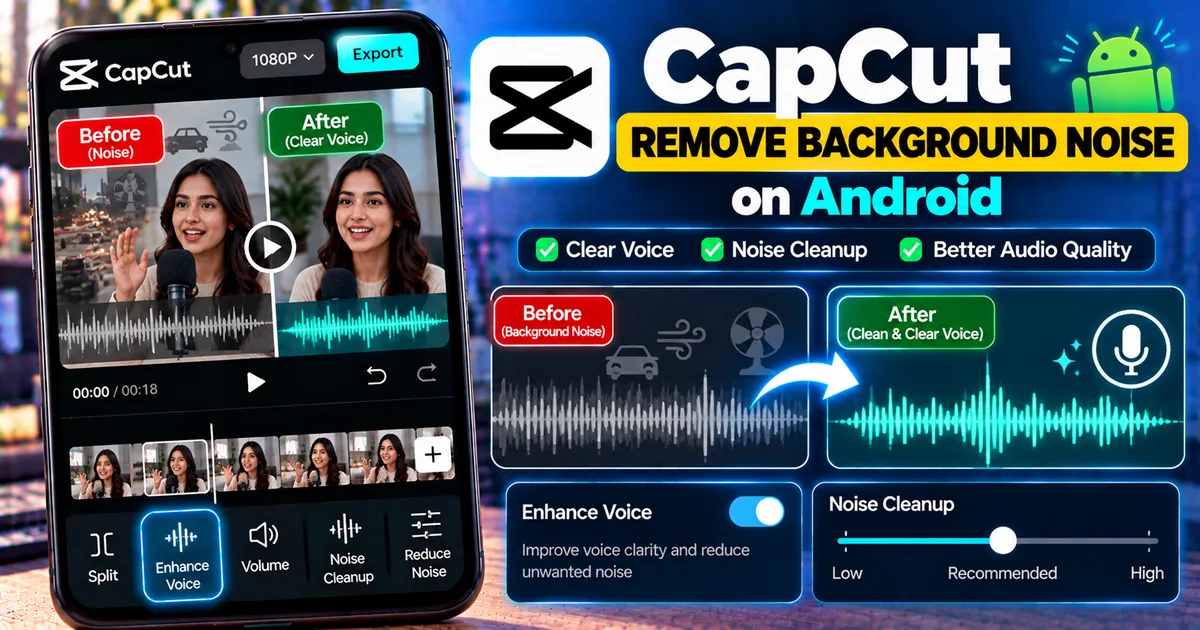
CapCut provides audio tools that can help clean up voice recordings and reduce distracting background noise directly on Android.
The current CapCut workflow includes an Enhance Voice feature with Noise Cleanup controls. Depending on your version and the type of audio you're editing, the exact controls may look slightly different.
In this guide, you'll learn how to remove background noise in CapCut on Android, improve voice clarity, reduce unwanted sounds, and troubleshoot common audio problems.
Quick Answer
To reduce background noise in CapCut on Android:
- Open your project.
- Select the video or audio clip containing the unwanted noise.
- Open the audio editing controls.
- Look for Enhance Voice or a similar audio-enhancement option.
- Enable the available noise-cleanup or noise-reduction control.
- Adjust the intensity when available.
- Preview the result.
- Export the video when the audio sounds clean.
The exact names and locations of audio controls can change between CapCut versions, devices, and feature availability.
What Does Background Noise Removal Do?
Background noise removal attempts to reduce unwanted sounds while keeping the important audio, such as speech, easier to hear.
Common unwanted sounds include:
- Air conditioners
- Fans
- Traffic
- Wind
- Humming
- Electrical noise
- Room ambience
- Keyboard sounds
- Low background chatter
- Other environmental sounds
Noise reduction works best when the unwanted sound is relatively consistent and the main voice is clearly recorded.
It is not a guarantee that every unwanted sound can be completely removed.
How to Remove Background Noise in CapCut on Android
Step 1: Open CapCut
Launch CapCut on your Android phone.
Open an existing project or create a new project.
If you're starting a new project, add the video containing the audio you want to clean.
Step 2: Select the Video Clip
Tap the video clip in the timeline.
The editing controls should appear.
If your audio has already been separated from the video, select the audio track instead.
Step 3: Open the Audio Controls
Look through the available editing tools for the audio options.
Depending on your CapCut version, you may see options related to:
- Audio
- Enhance Voice
- Noise reduction
- Noise Cleanup
- Volume
- Voice effects
The exact interface can vary.
Step 4: Enable Enhance Voice
If Enhance Voice is available, enable it.
CapCut's current documentation describes Enhance Voice as a tool for improving voice clarity and reducing unwanted sounds such as noise, pops, echoes, and mouth clicks.
Some versions also provide a Noise Cleanup control.
Step 5: Adjust Noise Cleanup
If a Noise Cleanup slider or intensity control appears, adjust it gradually.
Start with a moderate setting.
Then preview the result.
Increasing noise reduction too much can sometimes make speech sound unnatural or processed.
The goal isn't necessarily to remove every sound.
The goal is to make the important voice easier to hear.
Step 6: Preview the Audio
Play the video from several points.
Listen for:
- Clear speech
- Remaining background noise
- Distorted voice
- Robotic sound
- Missing words
- Sudden volume changes
If the voice sounds unnatural, reduce the amount of processing.
How to Remove Wind Noise in CapCut
Wind can be particularly difficult because it can overlap the frequency range of human speech.
Try the following:
- Select the affected clip.
- Open the audio controls.
- Enable Enhance Voice or the available noise-reduction option.
- Adjust Noise Cleanup gradually.
- Preview the voice.
- Compare the processed and original versions.
If the wind is extremely loud, software processing may not completely recover the original speech.
For future recordings, using a microphone windscreen or recording in a sheltered location can help prevent the problem before it happens.
How to Remove Fan or Air Conditioner Noise
Constant sounds such as fans and air conditioners are often easier to reduce than unpredictable sounds.
Select the clip and use the available noise-reduction or Enhance Voice controls.
Increase the processing gradually and listen to the result.
If the voice becomes metallic or unnatural, reduce the effect.
How to Make Voice Clearer in CapCut
Noise reduction is only one part of improving audio.
You can also check the volume of the voice track.
If the voice is too quiet:
- Select the audio clip.
- Open the volume controls.
- Increase the volume gradually.
- Preview the result.
Avoid making the voice unnecessarily loud because excessive volume can introduce distortion.
If Enhance Voice is available, test it alongside your volume adjustment.
How to Remove Background Noise From a Voiceover
If you recorded a voiceover directly for your video, the same basic workflow can be used.
A practical sequence is:
Record → Select Audio → Enhance Voice → Noise Cleanup → Adjust Volume → Preview
After cleaning the voice, add background music only if it improves the video.
Keep the music low enough that the narration remains easy to understand.
How to Remove Noise From Extracted Audio
CapCut can also extract audio from a video.
If you have a video containing useful speech and want to edit the audio separately:
- Create a project.
- Add the video.
- Select the video clip.
- Choose Extract audio when available.
- Select the resulting audio track.
- Open the audio enhancement controls.
- Apply noise reduction or Enhance Voice when available.
- Preview the cleaned audio.
CapCut's current mobile documentation describes Extract Audio as a way to create a separate audio layer from a video, after which the audio can be edited independently. :contentReference[oaicite:1]{index=1}
How Much Noise Reduction Should You Use?
There isn't one setting that works for every recording.
Start with a moderate amount of processing.
Then compare:
Original → Processed
Ask yourself:
- Is the voice clearer?
- Is the background noise lower?
- Does the voice still sound natural?
- Are words still easy to understand?
If the processed voice sounds robotic, hollow, metallic, or distorted, reduce the processing.
More noise reduction isn't always better.
Why Does My Voice Sound Robotic After Noise Removal?
Aggressive audio processing can change parts of the voice along with the unwanted noise.
This can create an artificial or robotic sound.
If that happens:
- Reduce the Noise Cleanup intensity.
- Reduce other enhancement effects.
- Preview again.
- Compare the processed audio with the original.
A small amount of remaining background noise can sometimes sound more natural than excessive processing.
Can CapCut Completely Remove Background Noise?
Not always.
Noise-removal tools work best when the unwanted sound is relatively predictable and the main voice is sufficiently clear.
For example, constant fan noise may be easier to reduce than a loud person talking directly over your voice.
If the unwanted sound overlaps heavily with speech, some of the voice may also be affected during processing.
It's better to think of noise removal as noise reduction, not a guarantee of perfect silence.
How to Remove Echo From a Video in CapCut
Echo is different from ordinary background noise.
If the recording was made in a large empty room, reflections can make the voice sound distant or hollow.
If your CapCut version provides voice enhancement or echo-related processing, test it carefully.
However, prevention is usually easier.
For future recordings:
- Move closer to the microphone.
- Record in a smaller room.
- Avoid large empty spaces.
- Add soft furnishings that reduce reflections.
- Keep the microphone away from hard reflective surfaces.
How to Improve Poor Audio Before Editing
Good recording technique can make a bigger difference than aggressive post-processing.
Before recording:
Move Closer to the Microphone
A closer microphone can capture more direct voice and less room noise.
Reduce Background Sounds
Turn off unnecessary fans, televisions, music, and other noise sources.
Avoid Wind
Outdoor recordings can be heavily affected by wind.
Use a suitable microphone windscreen when possible.
Record in a Suitable Room
A quieter room with fewer hard reflective surfaces can produce cleaner speech.
Monitor the Recording
If possible, listen to a short test recording before recording the entire video.
This can reveal problems early.
How to Reduce Background Music Behind a Voice
Background music isn't technically the same as environmental noise.
If your project contains separate voice and music tracks, the simplest solution is usually to adjust their individual volumes.
Select the music track and lower its volume until the narration remains clear.
If the music is permanently mixed into the same audio recording as the voice, separating it cleanly can be more difficult.
CapCut provides other audio tools, including vocal isolation in some workflows, but availability depends on the current version and platform. :contentReference[oaicite:2]{index=2}
How to Make Voiceovers Sound Better in CapCut
After removing unwanted noise, you can improve the overall balance of the audio.
Try this workflow:
- Remove or reduce background noise.
- Check voice volume.
- Apply Enhance Voice if appropriate.
- Add background music if necessary.
- Lower the music volume.
- Preview the complete video.
- Export after checking the final audio.
Don't apply every available effect automatically.
Each recording has different problems.
CapCut Noise Reduction vs Enhance Voice
These tools have related but different purposes.
Noise Reduction
Focuses primarily on reducing unwanted background sounds.
It can be useful for:
- Fans
- Humming
- Environmental noise
- Constant background sounds
Enhance Voice
Focuses more broadly on improving speech clarity.
CapCut's current documentation describes Enhance Voice as helping with unwanted sounds such as pops, echoes, and mouth clicks while improving vocal clarity. :contentReference[oaicite:3]{index=3}
The exact controls available to you depend on your CapCut version.
Why Is Noise Reduction Not Showing in CapCut?
There are several possible reasons.
Your Version Has a Different Interface
CapCut regularly changes its interface.
A tool may appear under Audio, Enhance Voice, or another menu depending on the current version.
The Wrong Element Is Selected
Make sure you've selected the audio or video clip that contains the sound you want to edit.
Feature Availability
Some CapCut features can vary by device, version, account, and region.
You're Editing on a Different Platform
CapCut's mobile, desktop, and web interfaces don't necessarily contain identical controls.
If you're following a desktop tutorial, the mobile interface may look different.
How to Fix CapCut Noise Reduction Not Working
Try these steps:
- Select the correct audio or video clip.
- Check the Audio controls.
- Look for Enhance Voice or Noise Cleanup.
- Try a shorter clip as a test.
- Restart CapCut.
- Check for an available app update.
- Preview the original and processed audio separately.
- Reduce the processing intensity if the voice becomes distorted.
If the feature still doesn't appear, check CapCut's current help documentation for your version and platform.
Does Noise Reduction Reduce Video Quality?
Noise reduction primarily affects the audio portion of your project.
It should not inherently reduce the visual resolution of the video.
However, the final export can still be affected by your chosen video export settings.
For important projects, review both:
- Audio quality
- Video quality
before exporting.
Frequently Asked Questions
How do I remove background noise in CapCut on Android?
Select your video or audio clip, open the audio controls, and use Enhance Voice, Noise Cleanup, or another available noise-reduction control. Adjust the intensity gradually and preview the result.
Does CapCut have a noise reduction feature?
Yes. CapCut currently provides audio cleanup and noise-reduction tools, including Noise Cleanup within relevant Enhance Voice workflows. :contentReference[oaicite:4]{index=4}
Can CapCut remove wind noise?
CapCut can reduce unwanted noise, including some environmental noise, but very strong wind can be difficult to remove completely without affecting the voice.
Why does my voice sound robotic after noise removal?
The noise-reduction effect may be too strong. Reduce the processing intensity and compare the result with the original recording.
Can I remove fan noise from a video in CapCut?
Constant fan noise can often be reduced using CapCut's available noise-cleanup or voice-enhancement tools. Results depend on the recording.
How do I make my voice clearer in CapCut?
Try Enhance Voice, adjust the volume appropriately, reduce unwanted background noise, and keep background music at a level that doesn't overpower the narration.
Can I remove background noise from extracted audio?
Yes. CapCut's mobile workflow allows audio to be extracted from a video into a separate audio track, which can then be edited using available audio tools. :contentReference[oaicite:5]{index=5}
Does CapCut completely remove all background noise?
No. Noise-reduction tools can reduce unwanted sounds, but extremely loud or overlapping noise may not be removable without affecting the original voice.
Final Thoughts
CapCut makes it relatively simple to clean up voice recordings on Android.
The best approach is to start with a good recording, then use Enhance Voice and Noise Cleanup or other available noise-reduction tools to reduce unwanted sounds.
Don't automatically use the strongest setting. Listen to the result and aim for a voice that sounds clear and natural.
If background noise is severe, improving the original recording conditions can often make a bigger difference than trying to remove everything afterward.
Related Articles

How to Fix CapCut Video Lagging After Export on Android
Fix CapCut video lagging after export on Android. Learn how to troubleshoot choppy playback, frame-rate mismatches, heavy effects, storage issues, and export settings.
GetApkFree Team

How to Fix CapCut Preview Not Matching Export on Android
Fix CapCut preview not matching the exported video on Android. Troubleshoot missing effects, text, transitions, timing, colors, and rendering differences.
GetApkFree Team

How to Fix Couldn't Apply AI Background in CapCut on Android
Getting "Couldn't Apply AI Background" in CapCut on Android? Check usage limits, clip selection, video quality, app updates, and practical troubleshooting steps.
GetApkFree Team

How to Fix CapCut Effects Not Applying on Android
CapCut effects not working on Android? Check clip selection, effect layers, timeline timing, conflicting adjustments, and app performance with these practical fixes.
GetApkFree Team