
This article is about
CapCut - Download
ByteDance Pte. Ltd. · Education
How to Export 4K Videos in CapCut on Android
GetApkFree Team
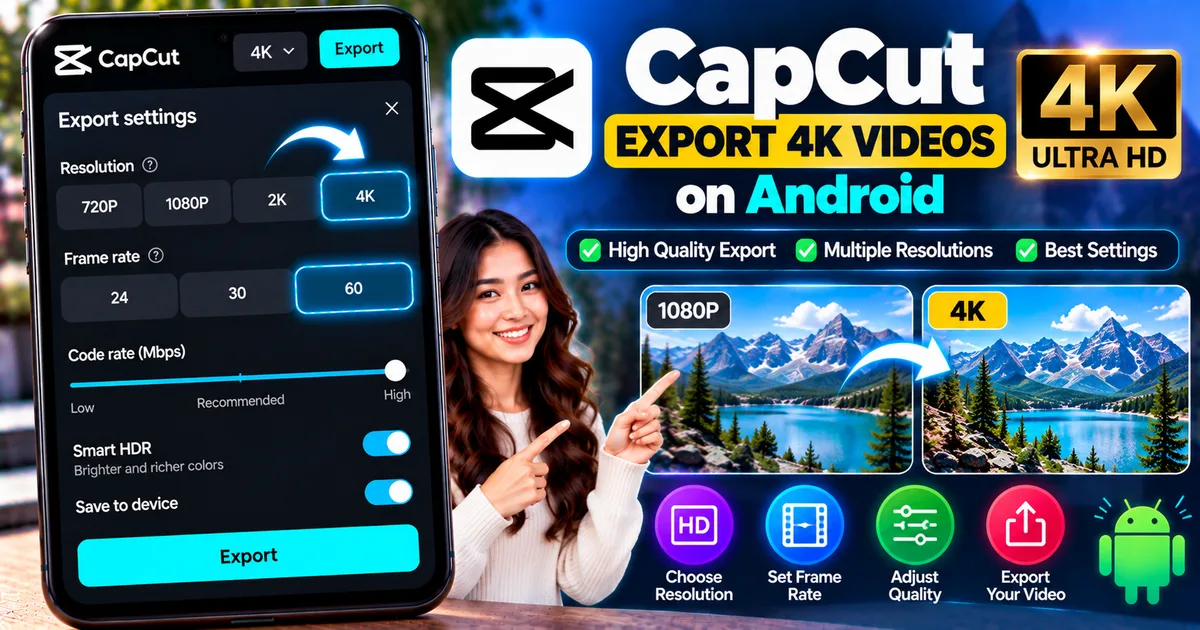
Learn how to export 4K videos in CapCut on Android, choose resolution and frame rate, improve export quality, and fix missing 4K options.
- Version
- Latest
- Source
- Google Play
- Package
- external.capcut.en.softonic.com.capcut-download
How to Export 4K Videos in CapCut on Android
Want to export a high-quality video from CapCut on your Android phone?
CapCut provides high-resolution export options, including 4K on supported devices and projects. However, the 4K option is not guaranteed to appear on every Android phone.
Your available resolution can depend on factors such as your device hardware, the resolution of your original footage, your project, frame rate, CapCut version, and regional availability.
In this guide, you'll learn how to check for 4K export in CapCut on Android, choose the right export settings, improve video quality, and troubleshoot when the 4K option isn't available.
Quick Answer
To export a video in 4K using CapCut on Android:
- Open your CapCut project.
- Finish editing your video.
- Tap the resolution label near the Export button.
- Check whether 4K or 2160P is available.
- Select the available 4K option.
- Choose your preferred frame rate and other available quality settings.
- Tap Export.
The exact options shown can vary by device, source video, CapCut version, project, and region.
If 4K isn't shown, your device or project may not meet the requirements for 4K export.
What Does 4K Mean in CapCut?
4K generally refers to a video resolution of approximately 3840 × 2160 pixels for standard UHD video.
Compared with 1080p, 4K contains substantially more pixels.
This can provide more detail when the source footage and export settings support it.
However, exporting a video at 4K does not automatically turn low-resolution footage into genuine 4K-quality footage.
If your original video was recorded at 720p or 1080p, simply selecting a higher export resolution does not recreate all the detail that wasn't captured by the original camera.
How to Check if Your Android Phone Supports 4K Export
Before editing an entire project, you can check whether CapCut provides the option on your device.
Open a project containing suitable video footage.
Look near the Export button at the top of the CapCut editor.
You may see a resolution label such as:
- 720P
- 1080P
- 2K
- 4K
Tap the resolution label to open the available export settings.
If 4K appears, your current device and project configuration support that export option.
If it doesn't appear, don't assume that CapCut is broken.
The available resolutions depend on the device and project.
How to Export 4K Video in CapCut on Android
Step 1: Open CapCut
Launch CapCut on your Android phone.
Open an existing project or create a new project.
Step 2: Add Your Video
If you're creating a new project, tap the option to start a new project and select your video clips.
For the best results, use the highest-quality original footage available.
If your source footage is already 4K, you have a better starting point for a 4K export.
Step 3: Complete Your Edit
Finish your video before changing the final export settings.
You can add:
- Text
- Captions
- Transitions
- Music
- Effects
- Overlays
- Keyframes
- Speed changes
- Background removal
- Other supported editing tools
Before exporting, watch the complete project once.
Step 4: Open Export Settings
Tap Export in the upper-right area of the editor.
Depending on your version of CapCut, you'll see the current resolution displayed near the Export button or inside the export settings.
Tap the resolution option.
Step 5: Select 4K
If your device and project support it, select:
4K / 2160P
The exact label can vary.
If 4K isn't available, you may see 1080P or another supported resolution instead.
Step 6: Choose the Frame Rate
CapCut may also provide frame-rate options.
Common options can include:
- 24 fps
- 30 fps
- 60 fps
The available frame rates depend on the project and device.
Try to choose a frame rate appropriate for the original footage rather than automatically selecting the highest number.
For example, exporting a 30 fps recording at 60 fps does not recreate the missing frames in the original recording.
Step 7: Review Other Quality Settings
Depending on your device and CapCut version, additional export controls may be available.
These can include settings related to:
- Bitrate
- Codec
- Frame rate
- Resolution
Higher-quality settings can increase the final file size and processing requirements.
Step 8: Export the Video
After reviewing your settings, tap Export.
CapCut will process the project and save the resulting video to your device.
Large 4K projects can take longer to process than smaller 1080p projects.
Does Every Android Phone Support 4K Export in CapCut?
No.
CapCut's current documentation says 4K export on Android depends on device capabilities and other conditions.
Some higher-end Android phones may offer 4K export while other devices may only show 1080P or 2K.
This is normal.
The fact that an Android phone can play a 4K video also doesn't necessarily mean every editing application will offer 4K export.
Encoding capabilities, available memory, system restrictions, and the specific CapCut version can all affect the available options.
Why Is 4K Missing in CapCut on Android?
There are several possible reasons.
1. Your Device Doesn't Support It
Your phone may not provide enough hardware capability for CapCut to offer 4K export.
This can be particularly relevant on older or lower-powered devices.
2. Your Source Video Is Too Low Resolution
Your project may be based on lower-resolution footage.
If your source clips are only 1080p or lower, exporting at 4K may not be available or may provide little practical benefit.
3. Your Frame Rate Limits the Available Resolution
Certain combinations of resolution and frame rate may not be available on your device.
For example, a device may offer 4K at one frame rate but not another.
4. Your CapCut Version Is Outdated
Older versions may have different export capabilities.
Check whether an update is available through your normal app distribution source.
5. Regional or Feature Availability
Some CapCut features can vary by region and version.
If another Android device shows 4K while yours doesn't, that doesn't necessarily mean your app is malfunctioning.
6. Project Settings
The way the project was created can affect the available export options.
If the project was created with lower-resolution media or certain templates/settings, CapCut may restrict higher-resolution export.
How to Fix CapCut 4K Not Showing
If you don't see the 4K option, try the following.
Check Your Original Video
Look at the resolution of your source footage.
If the original recording is 1080p, there may be little reason to force a 4K export.
Update CapCut
Check whether a newer version of CapCut is available.
An outdated app can have different features or bug fixes compared with the current release.
Try a Different Project
Create a small test project using a known high-resolution video.
Check whether 4K appears in the export settings.
This can help determine whether the limitation is related to the original project.
Restart CapCut
Close CapCut completely and open it again.
Temporary problems can sometimes affect editing and export functions.
Free Up Storage
4K video files can be large.
Make sure your phone has enough free storage before starting a high-resolution export.
Low storage can cause export problems.
Reduce the Frame Rate
If 4K is unavailable at a particular frame rate, try another supported frame rate.
Don't increase the frame rate simply to get a larger number.
Choose a setting appropriate for your original footage and intended output.
Does Exporting in 4K Improve Video Quality?
It depends on the source.
If you recorded the original video in 4K, exporting it in 4K can preserve the higher resolution through the editing process when the project and export settings support it.
If your original footage is 1080p, exporting at 4K doesn't magically create the missing detail.
For example:
4K source → 4K export
This can preserve the source's high resolution.
But:
1080p source → 4K export
doesn't mean the original footage suddenly contains native 4K detail.
This is an important distinction when choosing export settings.
What Resolution Should You Use?
There isn't one correct resolution for every video.
720P
Useful when:
- File size needs to be small
- Storage is limited
- Maximum quality isn't important
1080P
Useful for:
- Social media
- General video sharing
- YouTube videos
- Most everyday projects
1080P is still a practical choice for many videos.
2K
Can provide additional resolution when your device and source footage support it.
4K
Useful when:
- Your original footage is 4K
- Your device supports 4K export
- You want to preserve higher-resolution footage
- Your intended platform or workflow benefits from higher resolution
Remember that higher resolution also means larger files and potentially longer export times.
What Frame Rate Should You Use?
Frame rate describes how many frames are displayed every second.
Common settings include:
- 24 fps
- 30 fps
- 60 fps
If you recorded your footage at 30 fps, exporting at 30 fps is often a straightforward choice.
If you recorded at 60 fps and want to preserve that motion information, 60 fps may be appropriate if your device and project support it.
Higher frame rates can increase processing requirements and file size.
Don't select 60 fps simply because it sounds better.
Match the setting to the footage and the final use.
How to Export a 4K Video Without Losing Quality
There are several things you can do to preserve quality.
Start With High-Quality Footage
The final export cannot restore detail that was never captured.
Whenever possible, use high-quality original recordings.
Avoid Excessive Zooming
Digital zoom can reduce apparent sharpness.
If you repeatedly crop into a 1080p clip and export it at 4K, the result may still look soft.
Don't Overuse Filters
Heavy effects, sharpening, or other processing can introduce artifacts.
Preview your footage carefully before export.
Choose an Appropriate Bitrate
If bitrate controls are available, a higher bitrate generally allows more data to be retained, although it also increases file size.
The optimal setting depends on the video and your intended output.
Export at the Source Resolution
If your source is 4K and your device supports it, a 4K export can preserve the project's higher-resolution source.
Why Is My CapCut 4K Video Blurry?
A 4K export can still look blurry.
Possible causes include:
- Low-resolution source footage
- Excessive cropping
- Digital zoom
- Heavy compression
- Low export bitrate
- Blurry original footage
- Excessive effects
- Preview-quality limitations
CapCut's current help guidance also notes that the editing preview may not accurately represent the final exported quality.
If you're unsure, examine the actual exported file using a suitable video player rather than judging only the editor preview.
Why Does My 4K Export Take So Long?
4K video contains significantly more image data than lower-resolution video.
Your phone therefore has more work to do during rendering and encoding.
Export time can increase when the project contains:
- Long video clips
- Multiple video layers
- High-resolution source files
- Many effects
- AI processing
- Transitions
- Audio tracks
- High frame rates
If an export takes longer than expected, avoid repeatedly cancelling it unless there is clear evidence that the process is stuck.
How Much Storage Does a 4K Video Need?
The final file size depends on factors such as:
- Duration
- Resolution
- Frame rate
- Bitrate
- Codec
- Video complexity
A short 4K video may be manageable, while a long 4K video can consume a significant amount of storage.
Before exporting a long project, make sure you have enough free space.
CapCut 4K Export vs 1080P Export
| Feature | 1080P | 4K |
|---|---|---|
| Resolution | 1920 × 1080 | 3840 × 2160 |
| Detail | High | Higher |
| File size | Usually smaller | Usually larger |
| Export processing | Generally lighter | Generally heavier |
| Storage requirement | Lower | Higher |
| Device requirements | Lower | Higher |
| Best for | General use | High-resolution workflows |
The best setting depends on your source footage, device, and final destination.
Should You Always Export in 4K?
No.
4K is not automatically the right choice for every project.
If your original footage is 1080p and your final destination is a platform where 1080p is sufficient, exporting at 1080p may be more practical.
A 4K export can be worthwhile when the source is genuinely high resolution and you need to preserve that detail.
CapCut 4K Export Problems
Export Fails
Check:
- Available storage
- Project size
- Resolution
- Frame rate
- App version
Try exporting a shorter section or reducing the resolution to see whether the problem is related to the project's processing requirements.
Export Gets Stuck
Restart CapCut and try again.
If the project is very large, reduce export settings or test a shorter version.
Video Has Lag After Export
High-resolution and high-frame-rate video can be demanding for some devices.
Try playing the exported file on another capable device.
If the problem continues, test a lower resolution or frame rate.
CapCut Says There Isn't Enough Storage
Free up space on your Android device.
Remember that CapCut may need additional temporary working space during rendering, not just enough space for the final video.
Frequently Asked Questions
Can CapCut export 4K on Android?
Yes, but 4K export is not available on every Android device or project. CapCut's current documentation says mobile 4K availability depends on device and other conditions.
How do I export 4K in CapCut?
Open your project, tap the resolution option near Export, select 4K if it is available, review the frame rate and other settings, and tap Export.
Why don't I have 4K in CapCut?
Your device, source footage, frame rate, project settings, CapCut version, or regional availability may limit the available resolution.
Can I export a 1080P video as 4K?
CapCut may provide higher-resolution processing in some circumstances, but exporting 1080P source footage at 4K does not recreate native 4K detail.
Does CapCut support 4K 60fps on Android?
Availability depends on the Android device, source footage, project, and current CapCut version. Check the resolution and frame-rate options shown on your own device rather than assuming 4K 60fps is available.
Is 4K better than 1080P in CapCut?
4K provides higher resolution, but that doesn't automatically make every project better. If your source footage is 1080P, a 1080P export may be more appropriate.
Does 4K export make the file larger?
Generally, yes. Higher resolution and higher-quality settings can result in larger files.
Why is my 4K CapCut export blurry?
The source footage may already be low quality, or the video may have been heavily cropped, compressed, or processed. Check the original footage and the final exported file rather than relying only on the editor preview.
Final Thoughts
CapCut can provide high-resolution video export on supported Android devices, but 4K isn't guaranteed on every phone.
The simplest way to check is to open the export settings and see which resolutions your current device and project offer.
If 4K is available and your original footage is also high resolution, it can be a useful choice when you want to preserve more detail.
If 4K isn't available, 1080P isn't necessarily a problem. The best export setting is the one that matches your source footage, device capabilities, storage, and intended use.
Related Articles

How to Fix CapCut Video Lagging After Export on Android
Fix CapCut video lagging after export on Android. Learn how to troubleshoot choppy playback, frame-rate mismatches, heavy effects, storage issues, and export settings.
GetApkFree Team

How to Fix CapCut Preview Not Matching Export on Android
Fix CapCut preview not matching the exported video on Android. Troubleshoot missing effects, text, transitions, timing, colors, and rendering differences.
GetApkFree Team

How to Fix Couldn't Apply AI Background in CapCut on Android
Getting "Couldn't Apply AI Background" in CapCut on Android? Check usage limits, clip selection, video quality, app updates, and practical troubleshooting steps.
GetApkFree Team

How to Fix CapCut Effects Not Applying on Android
CapCut effects not working on Android? Check clip selection, effect layers, timeline timing, conflicting adjustments, and app performance with these practical fixes.
GetApkFree Team