
This article is about
CapCut - Download
ByteDance Pte. Ltd. · Education
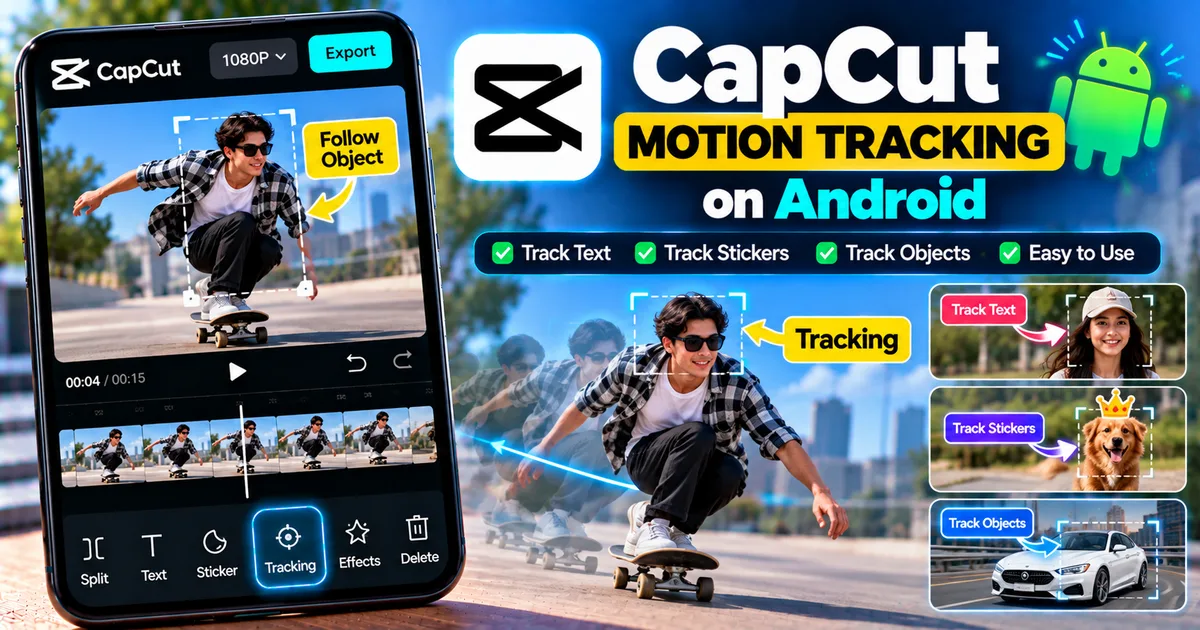
How to Use Motion Tracking in CapCut on Android
GetApkFree Team
Learn how to use motion tracking in CapCut on Android to make text, stickers, and effects follow moving objects, plus fix common tracking problems.
- Version
- Latest
- Source
- Google Play
- Package
- external.capcut.en.softonic.com.capcut-download
How to Use Motion Tracking in CapCut on Android
Want text, stickers, or other elements to follow a moving person or object in your video?
CapCut's motion-tracking tools can help attach an added element to movement in your footage. Instead of manually repositioning text or a sticker throughout the entire clip, tracking can analyze the subject's movement and keep the added element aligned with it.
This is useful for videos where you want a label to follow a person, an arrow to point at a moving object, or a sticker to stay attached to a subject.
In this guide, you'll learn how to use motion tracking in CapCut on Android, track text and stickers, improve tracking accuracy, and troubleshoot common problems.
Quick Answer
To use motion tracking in CapCut on Android:
- Open CapCut and create a new project.
- Add the video containing the moving subject.
- Add the element you want to follow the subject, such as text or a sticker.
- Select the element.
- Look for Track, Tracking, or the available motion-tracking option.
- Select the subject you want CapCut to track.
- Start the tracking process.
- Wait for CapCut to analyze the movement.
- Preview the result.
- Adjust the element if necessary and export the video.
The exact location and name of the tracking control can vary between CapCut versions and devices.
What Is Motion Tracking in CapCut?
Motion tracking is a video-editing technique that follows the movement of a subject or object through a video.
For example, imagine a person walking across the screen.
Without tracking, if you place text above their head, the text stays in its original position while the person moves away.
With tracking, the text can follow the person's movement.
The same idea can be used with:
- People
- Faces
- Hands
- Cars
- Sports equipment
- Animals
- Products
- Other visible objects
CapCut describes motion tracking as a way to synchronize added elements such as text, graphics, and effects with moving objects. :contentReference[oaicite:1]{index=1}
What Can You Track in CapCut?
Motion tracking can be useful for attaching different types of elements to moving subjects.
Examples include:
Text
Make a name, label, or caption follow a person or object.
Stickers
Attach an emoji, arrow, logo, or decorative sticker to a moving subject.
Effects
Use tracking to make a visual effect appear connected to movement.
Blur or Censoring
Tracking can also be useful when you need a visual element to follow something that moves through the frame, although the exact tools available for this workflow can vary by version.
Camera Movement
CapCut also has camera-tracking workflows that analyze movement in footage for effects and other editing tasks.
How to Use Motion Tracking in CapCut on Android
Step 1: Open CapCut
Launch CapCut on your Android phone.
Tap New Project and select the video you want to edit.
Tap Add to place the video on the timeline.
Step 2: Choose a Video With a Clear Subject
For your first tracking experiment, choose a clip where the subject is easy to see.
A good tracking clip usually has:
- Good lighting
- A clearly visible subject
- Limited motion blur
- Minimal obstruction
- Enough contrast between the subject and background
Tracking can become more difficult when the subject disappears behind another object.
Step 3: Add Text or a Sticker
After adding your video, add the element you want to track.
For example, you can add text:
- Tap Text.
- Tap Add text.
- Enter your label.
- Position it near the subject.
You can also add a sticker or other supported overlay.
CapCut's current mobile documentation confirms that text, stickers, overlays, and other elements can be added to mobile projects. :contentReference[oaicite:2]{index=2}
Step 4: Select the Element
Tap the text, sticker, or other element that you want to follow the subject.
Make sure the element itself is selected before looking for the tracking controls.
Step 5: Find Tracking
Look through the available editing controls for an option labeled something like:
- Track
- Tracking
- Motion Tracking
- Motion Track
The exact name and location can change between versions.
Recent mobile CapCut tutorials demonstrate the tracking workflow through the mobile editor, while CapCut's current materials document motion tracking as a supported capability. :contentReference[oaicite:3]{index=3}
Step 6: Select the Subject
Once the tracking tool opens, identify the object or person you want to follow.
Depending on the version of CapCut, you may be able to position or adjust a tracking area around the subject.
Try to place the tracking area over the most recognizable part of the subject.
For a person, this could be the body or another clearly visible region.
Step 7: Start Tracking
Start the tracking process.
CapCut analyzes the movement in the footage and creates tracking data.
Processing time depends on the length and complexity of the clip.
Step 8: Preview the Result
When tracking finishes, play the video.
Watch whether the text, sticker, or effect stays attached to the intended subject.
Look particularly closely at:
- Fast movement
- Turns
- Occlusion
- Changes in lighting
- Motion blur
- The beginning and end of the clip
If the element drifts away from the subject, you may need to use a better clip, change the tracking area, or use another editing technique.
How to Track Text in CapCut on Android
Text tracking is one of the simplest ways to demonstrate the feature.
For example, you could make a person's name follow them as they walk across the screen.
A basic workflow is:
- Import your video.
- Add text.
- Position the text near the person.
- Select the text.
- Open the tracking option.
- Select the person or tracking area.
- Start tracking.
- Preview the result.
- Adjust the text position or style if needed.
Keep the text close enough to the subject to make the relationship obvious, but don't cover the person's face or other important details.
How to Track a Sticker in CapCut
Stickers can also be used with motion tracking.
For example, you could place an arrow above a moving player in a sports video.
The basic workflow is:
- Add your video.
- Tap Stickers.
- Select a sticker.
- Position it near the subject.
- Select the sticker.
- Open the tracking option if available.
- Select the subject.
- Start tracking.
- Preview the result.
CapCut's mobile editor supports adding stickers and positioning them over video. :contentReference[oaicite:4]{index=4}
How to Make Text Follow a Moving Person
Suppose you have a video of someone walking from left to right.
You can use motion tracking to make a label move with them.
A useful setup is:
Person → Tracking target
Text → Attached visual element
After tracking finishes, preview the entire section rather than checking only the first few seconds.
A tracker may look correct initially but lose the subject when the person turns, moves behind another object, or leaves the frame.
How to Track a Moving Object
The same basic principle applies to objects.
Examples include:
- A football
- A basketball
- A car
- A bicycle
- A product
- A pet
- A moving hand
For best results, choose an object that remains reasonably visible throughout the tracking section.
If the object becomes completely hidden, the tracking system may lose it.
How to Track a Face in CapCut
Face tracking can be useful when you want a visual element to follow someone's face.
For example:
- Add an emoji over a face.
- Add a label near someone's face.
- Follow a face with a visual effect.
The exact face-tracking workflow depends on the current CapCut version and available tools.
CapCut's current camera-tracking materials describe tracking options involving faces, bodies, and hands in supported workflows. :contentReference[oaicite:5]{index=5}
How to Track a Moving Car
Cars can make useful motion-tracking subjects because their shape is usually easy to distinguish from the background.
Try to use footage where:
- The car is clearly visible.
- The lighting is reasonably consistent.
- The vehicle isn't heavily obscured.
- The camera isn't moving excessively.
You could use tracking to attach a label, arrow, or graphic to the vehicle.
How to Track an Object With a Moving Camera
Tracking becomes more complicated when both the subject and camera are moving.
For example, imagine a person running while the camera operator follows them.
The software has to deal with both:
- Subject movement
- Camera movement
For difficult footage, simplify the tracking section and use a shorter clip.
CapCut also provides camera-tracking workflows designed to analyze camera or subject movement for more advanced effects. :contentReference[oaicite:6]{index=6}
Motion Tracking vs Keyframes in CapCut
Motion tracking and keyframes are related but not identical.
Motion Tracking
The software analyzes movement in the footage and attempts to follow the selected subject.
This is useful when you want an element to automatically follow an object.
Keyframes
Keyframes let you manually define changes in position, scale, rotation, and other properties over time.
Our CapCut keyframe guide covers this technique in more detail.
For simple automatic tracking, use the tracking tool when available.
For precise manual control, keyframes can be useful.
You can also use tracking and then refine the result manually with other editing controls when your version of CapCut allows it.
How to Improve Motion Tracking Accuracy
The quality of the source footage has a major effect on tracking.
Use Good Lighting
A clearly visible subject is easier to track.
Avoid Excessive Motion Blur
Fast movement with heavy blur can make it difficult for the software to identify the subject.
Keep the Subject Visible
If the subject disappears behind an object, tracking can fail.
Use a Distinct Subject
A subject with clear visual features is generally easier to track than one that blends into the background.
Track Shorter Sections
If a long clip produces poor results, try tracking a shorter section.
This can make it easier to identify where the tracking begins to fail.
Why Is CapCut Motion Tracking Not Showing?
If you cannot find the tracking option, try the following.
Check What You Selected
Tracking controls may appear only after selecting a supported element or clip.
Try selecting your text, sticker, overlay, or video clip first.
Scroll Through the Toolbar
CapCut's mobile toolbar can contain more options than are immediately visible.
Swipe through the available controls.
Update CapCut
CapCut regularly updates its mobile app with new features, improvements, and bug fixes. Its current help guidance recommends checking Google Play for an available update on Android. :contentReference[oaicite:7]{index=7}
Feature Availability Can Vary
CapCut notes that updates may roll out gradually, so availability can differ by region and device. :contentReference[oaicite:8]{index=8}
Why Does CapCut Motion Tracking Not Work?
Several problems can affect tracking.
The Subject Is Too Small
If the subject occupies only a tiny portion of the frame, tracking can become difficult.
The Subject Is Hidden
If another object blocks the subject, the tracker may lose it.
Similar Background
If the subject blends into the background, the tracking system may struggle to distinguish it.
Fast Movement
Very fast movement can introduce blur and make tracking less reliable.
Camera Shake
Excessive camera movement can make the tracking task more difficult.
If the clip is heavily shaky, consider stabilizing it first when appropriate.
What to Do When Tracking Loses the Object
If the tracking result starts correctly but later drifts away:
- Check the exact point where tracking fails.
- Trim the clip around the problem area.
- Try tracking a shorter section.
- Choose a clearer tracking target.
- Improve the contrast if possible.
- Consider manually correcting the position with keyframes.
Not every clip can be tracked perfectly automatically.
Can Motion Tracking Follow a Person?
Yes, motion tracking can be used to follow moving subjects such as people in supported CapCut workflows.
You can use it to keep text, graphics, stickers, or effects associated with a moving subject. :contentReference[oaicite:9]{index=9}
Can Motion Tracking Follow Text?
Motion tracking normally tracks movement in the underlying video and then applies that movement to the selected element.
For example, you can make a text label follow a person or object.
The text itself is generally the element being moved rather than the thing being analyzed.
Can You Use Motion Tracking for Face Blur?
Tracking can be useful for keeping a visual element aligned with a moving face.
However, the exact tools available for automated face blurring or censoring vary by CapCut version.
If your version provides a dedicated tracking or masking workflow, use that rather than assuming every version has the same controls.
Motion Tracking Tips for Social Media Videos
For short-form content, tracking can make simple edits more engaging.
Some ideas include:
Follow a Person
Add a name or label that moves with the subject.
Highlight a Product
Use an arrow or graphic to point toward a moving product.
Follow a Sports Player
Add a marker above a player during an important moment.
Track a Pet
Add a funny sticker that follows a dog or cat.
Highlight an Object
Use a circle, arrow, or label to draw attention to something moving through the frame.
How to Export a Motion-Tracked Video
After you are satisfied with the tracking result:
- Preview the complete video.
- Check that the tracking stays aligned.
- Check the audio.
- Tap Export.
- Choose your available resolution and frame-rate settings.
- Export the video.
CapCut's current mobile guidance shows that export settings can include resolution, frame rate, and other quality controls. :contentReference[oaicite:10]{index=10}
Frequently Asked Questions
How do I use motion tracking in CapCut on Android?
Import your video, add the text, sticker, or other element you want to follow the subject, select it, find the available Track or Motion Tracking option, choose the subject, and start tracking.
Can CapCut track objects?
Yes. CapCut provides motion/camera tracking capabilities designed to keep added elements synchronized with moving subjects or objects. :contentReference[oaicite:11]{index=11}
Can I make text follow a person in CapCut?
Yes. Add text, select the text layer, use the available tracking tool, and select the person or target you want the text to follow.
Can I track a sticker in CapCut?
Yes, when tracking is available for the selected sticker workflow. Add the sticker, select it, use the tracking option, and choose the subject.
Why is motion tracking not showing in CapCut?
The control can depend on what you've selected, your CapCut version, device, and feature availability. Make sure the correct element is selected and check for an app update.
Why does CapCut lose the object while tracking?
The subject may become obscured, too small, blurred, poorly lit, or visually similar to the background. Try shorter tracking sections or a clearer source clip.
Is motion tracking better than keyframes?
They solve different problems. Motion tracking can automatically follow a moving subject, while keyframes give you manual control over movement. The better method depends on the edit.
Can I use motion tracking on Android?
CapCut's mobile app supports motion-tracking-related workflows, although the exact controls and availability can vary between versions and devices. Recent 2026 mobile tutorials demonstrate the feature on Android and iOS. :contentReference[oaicite:12]{index=12}
Final Thoughts
Motion tracking can make a simple CapCut edit much more dynamic.
Instead of manually moving text, stickers, or graphics frame by frame, you can use tracking to make an added element follow a moving subject.
For the best results, start with clear footage, a visible subject, and a short tracking section. Always preview the entire result because even a good track can lose the subject when the footage becomes heavily blurred or obstructed.
If automatic tracking doesn't produce the result you want, keyframes can give you a manual way to refine the movement.
Related Articles

How to Fix CapCut Video Lagging After Export on Android
Fix CapCut video lagging after export on Android. Learn how to troubleshoot choppy playback, frame-rate mismatches, heavy effects, storage issues, and export settings.
GetApkFree Team

How to Fix CapCut Preview Not Matching Export on Android
Fix CapCut preview not matching the exported video on Android. Troubleshoot missing effects, text, transitions, timing, colors, and rendering differences.
GetApkFree Team

How to Fix Couldn't Apply AI Background in CapCut on Android
Getting "Couldn't Apply AI Background" in CapCut on Android? Check usage limits, clip selection, video quality, app updates, and practical troubleshooting steps.
GetApkFree Team

How to Fix CapCut Effects Not Applying on Android
CapCut effects not working on Android? Check clip selection, effect layers, timeline timing, conflicting adjustments, and app performance with these practical fixes.
GetApkFree Team