This article is about
CapCut Premium
capcutdownload.com.pk · Tools
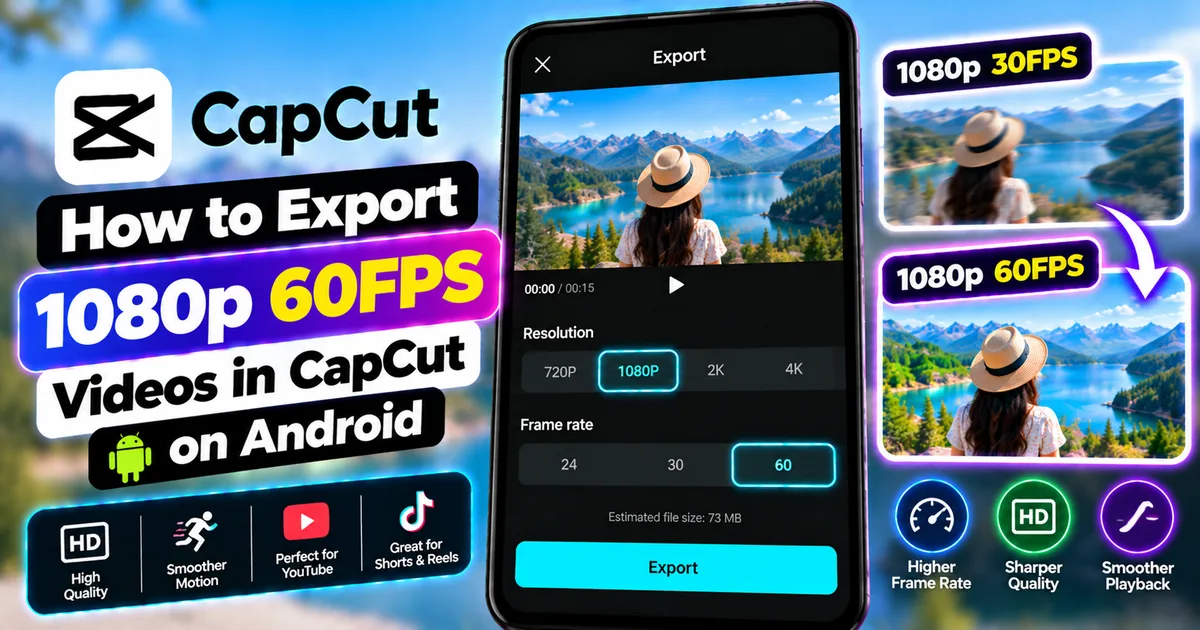
How to Export 1080p 60FPS Videos in CapCut on Android
GetApkFree Team
Learn how to export 1080p 60FPS videos in CapCut on Android, choose the right frame rate and quality settings, reduce file size, and fix missing 60FPS options.
- Source
- Developer
- Package
- CapCut Premium
How to Export 1080p 60FPS Videos in CapCut on Android
If you want your CapCut videos to look sharp and smooth after exporting, choosing the right resolution and frame rate is important.
1080p is a common Full HD output resolution, while 60FPS can produce smoother motion than 30FPS when the source footage and project are suitable for it.
CapCut provides export controls that can allow users to choose resolution and frame rate, but the options shown on Android are not identical on every device. Available settings can depend on the source video, device hardware, CapCut version, platform, region, and account or plan.
This guide explains how to export a video at 1080p and 60FPS in CapCut on Android, when you should use 60FPS instead of 30FPS, how source footage affects the result, why the 60FPS option may be missing, how to reduce export problems, and which settings make sense for different types of videos.
Quick Answer
To export a 1080p 60FPS video in CapCut on Android:
- Open CapCut.
- Create a new project or open an existing one.
- Finish editing your video.
- Tap the export button.
- Open the resolution and export settings.
- Select 1080P if it is available.
- Select 60FPS if the option is available.
- Review the other available quality settings.
- Tap Export.
- Wait for rendering to finish.
- Open the exported video and check its resolution and frame rate.
If 60FPS is not available, your device, source footage, project, app version, region, or account/plan may not support that combination.
What Does 1080p 60FPS Mean?
Two different video properties are being described here.
1080p
1080p refers to a Full HD video resolution.
A typical 1080p landscape video has a frame size of:
1920 × 1080 pixels
A vertical 1080p video may use:
1080 × 1920 pixels
The actual dimensions depend on the video's orientation.
60FPS
FPS means frames per second.
A 60FPS video displays up to 60 frames every second.
For comparison:
- 24FPS = 24 frames per second
- 30FPS = 30 frames per second
- 60FPS = 60 frames per second
Higher frame rates can make motion appear smoother, especially when the original footage was recorded at a higher frame rate.
1080p vs 60FPS
1080p and 60FPS are not alternatives to each other.
They describe different parts of the video.
1080p = resolution
60FPS = frame rate
You can have:
- 1080p 30FPS
- 1080p 60FPS
- 4K 30FPS
- 4K 60FPS
The combination you can select depends on the capabilities available in your current CapCut setup.
How to Export 1080p 60FPS in CapCut on Android
Follow these steps after completing your edit.
Step 1: Open Your CapCut Project
Open CapCut on your Android phone.
Create a new project or open the project you want to export.
Make sure the editing is finished before changing the final export settings.
Step 2: Check Your Timeline
Before exporting, watch the complete video.
Check:
- Cuts
- Captions
- Text
- Music
- Effects
- Transitions
- Overlays
- Video framing
- Audio synchronization
Exporting at a higher frame rate will not fix editing mistakes.
Step 3: Tap Export
When you are satisfied with the project, tap the Export button.
CapCut's mobile interface provides export controls near the top-right area of the editor.
Depending on the current version, you may see a resolution label near the Export button.
Step 4: Open the Export Settings
Tap the displayed resolution or export-settings control.
You may see options for:
- Resolution
- Frame rate
- Other quality settings
The exact controls can vary between CapCut versions and devices.
Step 5: Select 1080P
Choose 1080P when it is available.
This provides Full HD output.
If you are creating a vertical video, the resulting dimensions will follow the project's orientation.
Step 6: Select 60FPS
Look for the frame-rate setting.
If 60FPS is available, select it.
If you only see 24FPS or 30FPS, do not assume something is wrong with your project immediately.
The available frame-rate options depend on the current CapCut setup.
Step 7: Review the Other Settings
Depending on your version and device, additional export controls may be available.
These can include quality or bitrate-related settings.
Higher-quality settings can produce larger files.
Choose settings appropriate for your intended destination rather than automatically selecting the highest possible option.
Step 8: Start Exporting
Tap Export.
CapCut will render the project using the selected settings.
Do not close the app or interrupt the export unnecessarily.
Step 9: Check the Exported Video
Once exporting is complete, open the video in your phone's gallery or media player.
Check:
- Picture quality
- Motion smoothness
- Audio
- Resolution
- Frame rate
- Orientation
- Cropping
- Captions
- Effects
If everything looks correct, the video is ready to share.
Does CapCut Support 1080p 60FPS on Android?
CapCut supports frame-rate and resolution controls, but the exact combinations available can vary.
Current CapCut documentation states that mobile export options depend on factors such as device hardware, original media, app version, and region.
CapCut also notes that frame rate can affect which resolution options appear.
Therefore, two Android phones may not display exactly the same export menu.
If you see 1080P and 60FPS, you can select them.
If 60FPS is unavailable, use the highest suitable frame rate offered by your current setup rather than trying to force an unsupported option.
Why Is 60FPS Missing in CapCut?
There are several possible reasons.
Your Source Video Was Recorded at 30FPS
If the original footage was recorded at 30FPS, exporting it at 60FPS does not create genuine additional motion detail.
CapCut may still offer different output settings in some situations, but the result should not be confused with footage that was originally captured at 60FPS.
Your Device Has Limitations
Android devices have different hardware capabilities.
Some phones may provide fewer export options than others.
Your Project or Media Limits the Options
The project and source media can affect available export settings.
Your CapCut Version Is Different
The interface and available features can change between app versions.
Update CapCut through your normal app source if an update is available.
The Feature May Require Pro
CapCut currently documents some advanced export capabilities, including certain 4K/60FPS options, as part of its Pro offering.
If CapCut displays a Pro prompt, the limitation may be related to the feature or material being used rather than a technical problem with your phone.
Regional Availability
Some CapCut features can vary by region.
This can result in differences between tutorials you see online and the options available on your device.
Can You Export 60FPS From 30FPS Footage?
You may be able to select a 60FPS output when CapCut makes that option available, but the export setting does not magically turn 30FPS footage into native 60FPS footage.
The source footage matters.
For example:
30FPS source → 60FPS export
does not automatically mean you captured twice as much motion information.
If you want genuine 60FPS motion, recording the original footage at 60FPS is generally the better starting point.
30FPS vs 60FPS in CapCut
Both frame rates can be useful.
30FPS
30FPS can work well for:
- Talking-head videos
- Tutorials
- Presentations
- Everyday videos
- Standard social media content
- General-purpose editing
It can also produce smaller files than otherwise equivalent 60FPS output.
60FPS
60FPS can be useful for:
- Sports
- Gaming
- Fast movement
- Action footage
- Walking or camera movement
- Smooth slow-motion workflows
- Videos where smoother motion is desirable
The best choice depends on your source footage and intended use.
When Should You Use 60FPS?
Use 60FPS when smooth motion is an important part of the video and your source footage supports it.
For example, imagine recording a skateboard trick.
At 30FPS, fast movement may appear less smooth.
At 60FPS, the same type of motion can contain more frames per second.
This can make the footage more suitable for smooth playback or certain slow-motion workflows.
When Should You Use 30FPS?
30FPS is often sufficient for normal videos.
For example:
- Talking videos
- Educational tutorials
- Screen explanations
- Product discussions
- Interviews
- Basic vlogs
If your original footage is 30FPS and your content does not contain particularly fast movement, there may be little practical benefit to exporting at 60FPS.
Does 60FPS Improve Video Quality?
Not necessarily.
Frame rate and resolution describe different characteristics.
60FPS can improve the smoothness of motion.
1080p determines the number of pixels in the output.
A 1080p 60FPS video is not automatically sharper than a 1080p 30FPS video.
It simply contains more frames per second.
For example:
1080p 30FPS = Full HD + 30 frames/second
1080p 60FPS = Full HD + 60 frames/second
The visual result also depends on the source footage, bitrate, encoding, lighting, camera quality, and other factors.
Does 60FPS Make a Video Smoother?
It can.
When the source was recorded at 60FPS, exporting and playing it at an appropriate 60FPS setting can preserve the smoother motion captured by the camera.
This can be particularly noticeable in:
- Sports
- Gaming
- Fast camera movement
- Action scenes
- Vehicle footage
- Fast transitions
For slow-moving talking videos, the difference may be less noticeable.
1080p 60FPS vs 1080p 30FPS File Size
All else being equal, 60FPS can require more data than 30FPS because there are more frames to encode.
However, the final file size depends on more than frame rate.
Other factors include:
- Video duration
- Bitrate
- Codec
- Resolution
- Visual complexity
- Compression settings
A one-minute 1080p 60FPS video does not have one fixed file size.
How to Reduce the File Size of a 1080p 60FPS Video
If your exported file is too large, you can consider:
Use 30FPS When Appropriate
If the source and content do not need 60FPS, 30FPS may be sufficient.
Shorten the Video
A shorter video naturally requires less storage.
Avoid Unnecessary Re-Exports
Repeatedly exporting and re-importing the same video can introduce additional compression.
Choose Appropriate Quality Settings
If CapCut provides quality or bitrate controls, avoid selecting unnecessarily high settings for simple social media videos.
Consider the Destination
A video intended for casual sharing may not need the same settings as a high-quality archival master.
How to Export 1080p 60FPS for YouTube
For a YouTube video, start by considering the source footage and project format.
If your original footage was recorded at 1080p 60FPS, maintaining those characteristics during export can make sense when the available CapCut settings support it.
Before exporting:
- Check the project aspect ratio.
- Make sure the video is correctly framed.
- Select 1080P.
- Select 60FPS if available and appropriate.
- Review the quality settings.
- Export.
- Watch the completed file before uploading.
For landscape YouTube content, a 16:9 project is commonly used.
For YouTube Shorts, a vertical project is typically more appropriate.
How to Export 1080p 60FPS for Shorts
If you are creating a Short:
- Use a vertical project.
- Check the framing.
- Make sure captions and text stay inside the visible area.
- Select 1080P if available.
- Select 60FPS if available and appropriate for the source.
- Export.
- Review the final vertical video.
The frame rate should match the nature of your footage.
Fast movement may benefit more from 60FPS than a simple talking-head video.
How to Export 1080p 60FPS for Instagram Reels
For a vertical Reel, make sure the project is framed correctly before export.
Then:
- Preview the complete video.
- Check text placement.
- Check captions.
- Select 1080P if available.
- Select 60FPS if appropriate and available.
- Export.
- Check the exported file before uploading.
The platform may process the video again after upload, so your exported file is not necessarily the exact file viewers will receive.
How to Export 1080p 60FPS for TikTok
For vertical TikTok content:
- Create or resize the project for a vertical frame.
- Keep important content away from areas that may be covered by interface elements.
- Check the entire timeline.
- Select 1080P if available.
- Select 60FPS if appropriate.
- Export.
- Review the saved video.
Always check the final exported file before uploading.
Why Does My 60FPS Video Look Like 30FPS?
Several things can cause this.
The Source Was 30FPS
If the original footage was recorded at 30FPS, exporting at 60FPS does not recreate missing frames from the original recording.
The Video Player Reports Differently
Different media players and platforms may process or display video differently.
The Platform Re-Encoded the Video
Social platforms commonly process uploaded videos.
The file you upload and the final streamed version may not be identical.
The Export Did Not Use 60FPS
Check the actual exported file with a media-information tool or player that displays frame-rate information.
Why Does My 60FPS Video Look Choppy?
A high frame rate does not guarantee perfectly smooth playback.
Possible causes include:
- Source footage problems
- Variable frame rate footage
- Heavy editing effects
- Device playback limitations
- Export issues
- Platform processing
- Inconsistent frame rates between clips
Try playing the exported file on another device.
If the problem occurs everywhere, review the source and export settings.
Mixing 30FPS and 60FPS Clips in CapCut
You may have a project containing clips recorded at different frame rates.
For example:
Clip 1: 30FPS
Clip 2: 60FPS
CapCut can work with different source clips, but the final project and export settings determine how the finished video is rendered.
Differences in frame rate can sometimes affect how motion appears between clips.
Preview the complete project carefully.
Pay particular attention to:
- Motion changes
- Slow-motion sections
- Speed ramps
- Transitions
- Camera movement
If one section suddenly looks different, investigate the original clip's frame rate and speed settings.
Does 60FPS Matter for Slow Motion?
It can.
Higher-frame-rate footage provides more frames that can be used when slowing down motion.
For example, 60FPS footage can offer more source frames than 30FPS footage for a slow-motion workflow.
However, the final slow-motion effect depends on how the footage was captured and how CapCut processes the speed change.
If you want smooth slow motion, recording at a higher frame rate before editing is generally more useful than simply exporting ordinary 30FPS footage at 60FPS.
Should You Export at the Same FPS as the Original?
In many cases, matching the export frame rate to the source or project is a sensible starting point.
For example:
30FPS source → 30FPS export
60FPS source → 60FPS export
This helps avoid unnecessarily changing the frame rate.
However, the appropriate setting depends on your editing workflow and final destination.
Does Higher FPS Always Mean Better?
No.
Higher frame rates are useful for certain types of footage, but they also require more data and processing.
A 60FPS export is not automatically better than 30FPS for every video.
Consider:
- Source frame rate
- Type of motion
- Intended platform
- File size
- Device performance
- Export availability
Choose the setting that fits the project.
CapCut 60FPS Export Requires Pro
CapCut currently documents certain 4K/60FPS export capabilities as part of its Pro offering.
If CapCut displays a subscription or Pro prompt when you select a particular export configuration, that does not necessarily mean the application is malfunctioning.
Check which feature or material is triggering the prompt.
You may still have other export combinations available.
For example, if 60FPS is unavailable but 1080P 30FPS is available, you can use the available setting if it meets your needs.
Why Is 1080p Missing in CapCut?
1080P is commonly available on supported mobile devices, but the exact export menu can vary.
Check:
- Your source video
- Project settings
- Current CapCut version
- Device capability
- Region
- Export interface
If you see only 720P, update CapCut and check whether the source and project support higher-resolution export.
CapCut's current documentation states that mobile export resolutions depend on device hardware, original media, app version, and other conditions.
Why Is 4K Available but 60FPS Missing?
Resolution and frame rate are separate settings.
Your device may support one combination but not another.
For example, a particular setup may offer:
4K 30FPS
but not:
4K 60FPS
Higher frame rates can increase processing requirements and may limit which resolution combinations appear.
If your goal is simply Full HD smooth video, check whether:
1080P + 60FPS
is available even if 4K 60FPS is not.
How to Fix Missing 60FPS in CapCut
Try these steps in order.
Update CapCut
Check your normal Android app store for an available update.
Check the Source Footage
Find out whether the original video was recorded at 30FPS or 60FPS.
Check the Export Menu
Open the export settings and look carefully at the available frame-rate options.
Check Your Device
Older or lower-powered phones may expose fewer high-performance export options.
Check for Pro Requirements
If a Pro prompt appears, the selected export feature may be restricted by your current plan.
Restart CapCut
Close the app completely and reopen it.
Restart the Phone
A device restart can resolve temporary problems.
Test Another Project
Create a simple project with a short video.
Check whether 60FPS appears there.
This can help determine whether the limitation is project-specific.
How to Fix CapCut Export Stuck at a High Frame Rate
If export repeatedly stops or fails when using 60FPS:
Check Free Storage
Video export requires temporary storage.
Free up space if your phone is nearly full.
Reduce Export Settings
Try 1080P 30FPS.
If that works, the higher frame-rate configuration may be too demanding for the project or device.
Close Other Apps
Free system resources before exporting.
Restart CapCut
Close and reopen the app.
Restart Your Phone
This can clear temporary resource problems.
Export a Short Section
If possible, test a shorter project.
If a short export works but the complete project fails, the project complexity may be contributing to the problem.
How to Avoid Quality Loss When Exporting
Export quality depends heavily on the original footage.
For better results:
- Start with the original source file.
- Avoid repeatedly exporting and re-importing the same video.
- Don't enlarge low-resolution footage unnecessarily.
- Choose an appropriate resolution.
- Match frame rate to the source when practical.
- Preview before export.
- Keep the original project.
Exporting a low-quality source at 1080P does not create genuine missing detail.
1080p 60FPS vs 4K 30FPS
These settings make a useful comparison.
1080p 60FPS
Advantages:
- Smooth motion
- Full HD resolution
- Useful for fast-moving footage
- Often easier to process than 4K
- Can produce smaller files than 4K at comparable settings
4K 30FPS
Advantages:
- Higher resolution
- More detail when viewed at larger sizes
- Useful when the source was captured in 4K
- More flexibility for certain crops
The appropriate choice depends on your source and intended use.
If smooth motion is more important, 1080p 60FPS may make sense when available.
If resolution and detail are more important, 4K 30FPS may be preferable when supported.
Common Mistakes When Exporting 1080p 60FPS
Exporting 30FPS Footage at 60FPS and Expecting More Detail
Changing the output setting does not recreate missing source frames.
Choosing 60FPS for Every Video
Some videos do not need it.
Ignoring Storage
Higher-quality exports can create large files.
Exporting Without Checking the Project
Always preview the complete video.
Assuming Every Phone Has the Same Options
Android devices differ significantly.
Assuming a Tutorial Matches Every Version
CapCut's interface and feature availability can change.
Ignoring Pro Prompts
Some export combinations may require a paid plan.
Recommended Starting Settings
There is no universal best export setting.
Use the source footage as your starting point.
Talking-Head Video
Consider:
1080P + 30FPS
if the source is 30FPS and the content does not require unusually smooth motion.
Sports or Fast Action
Consider:
1080P + 60FPS
when the source was recorded at 60FPS and the option is available.
Gaming Video
60FPS can be useful when the original recording and editing workflow support it.
Slow-Motion Footage
Higher-frame-rate source footage can be useful for smoother slow-motion results.
Simple Social Media Video
1080P with the source-appropriate frame rate can be sufficient.
Frequently Asked Questions
How do I export 1080p 60FPS in CapCut?
Finish your project, tap Export, open the available export settings, select 1080P and 60FPS if both options are available, and then start the export.
Does CapCut support 1080p 60FPS on Android?
CapCut supports frame-rate and resolution controls, but the exact options available vary by device, source footage, app version, region, and account or plan.
Why can't I select 60FPS in CapCut?
Your device, source footage, project, app version, region, or current plan may limit the available frame-rate options. Some advanced 60FPS export capabilities may also require CapCut Pro.
Is 1080p 60FPS better than 1080p 30FPS?
Neither is universally better. 60FPS can provide smoother motion, while 30FPS can be sufficient for many standard videos and may require less processing and storage.
Does exporting 30FPS footage at 60FPS improve quality?
No. Exporting at a higher frame rate does not recreate motion information that was not captured in the original footage.
Should I record at 60FPS before editing in CapCut?
If you want smooth 60FPS motion or plan to create slow-motion effects, recording the original footage at 60FPS can be useful.
Does 60FPS increase file size?
It can. All else being equal, more frames can require more data, although actual file size also depends on bitrate, codec, duration, resolution, and compression.
Can I export 1080p 60FPS for YouTube?
Yes, when the option is available and appropriate for your source footage. Check the complete video before uploading.
Can I export 1080p 60FPS for YouTube Shorts?
Yes, if the export option is available. Use a vertical project when creating Shorts and check the framing before export.
Can I export 1080p 60FPS for Instagram Reels?
You can use 1080P and 60FPS when those settings are available and appropriate for your source footage and project.
Can I export 1080p 60FPS for TikTok?
Yes, when supported by your current CapCut setup. Use the appropriate vertical project format and review the exported file before uploading.
Why does my 60FPS video look like 30FPS?
The source may have been 30FPS, the export may not have used 60FPS, the playback device may process the video differently, or the platform may have re-encoded it.
Why is my CapCut 60FPS export lagging?
Large projects, limited storage, device performance, high-resolution footage, complex effects, and rendering limitations can contribute to export or playback problems.
Why does CapCut export fail at 60FPS?
Try freeing storage, closing background apps, restarting CapCut, updating the app, and reducing the export settings. If 30FPS works but 60FPS consistently fails, the higher setting may be too demanding for the project or device.
Does 60FPS make a video look more professional?
Not automatically. The appropriate frame rate depends on the type of footage and the visual style you want.
Should I always export at 60FPS?
No. Match the frame rate to your source footage and the needs of your final video.
Can I export 4K 60FPS on Android?
Availability varies by device, source footage, app version, region, and plan. CapCut's current documentation indicates that high-resolution and high-frame-rate combinations are not available on every mobile device.
Does 1080p mean Full HD?
Yes. 1080p commonly refers to a video frame with 1080 pixels of vertical resolution, typically 1920 × 1080 for landscape video.
What is the difference between 1080p and 60FPS?
1080p describes resolution, while 60FPS describes frame rate. They measure different properties of video.
Final Thoughts
Exporting at 1080p and 60FPS can be a useful choice when you want Full HD output with smoother motion, particularly for footage that was originally recorded at 60FPS.
The important point is that resolution and frame rate are separate settings.
1080p controls image dimensions.
60FPS controls how many frames are displayed each second.
Before choosing 60FPS, consider the original footage. If your video was recorded at 30FPS, exporting it at 60FPS does not magically create the additional motion information captured by a native 60FPS recording.
Also remember that CapCut does not expose exactly the same export options on every Android device. Hardware, source media, app version, region, project settings, and account or plan can affect what appears in the export menu.
If 1080P and 60FPS are both available and your source footage supports them, select those settings, export the project, and check the finished file.
If 60FPS is missing, don't immediately assume the app is broken. Check the source frame rate, update CapCut, test another project, check your device's capabilities, and look for any Pro requirement.
Finally, don't choose the highest setting simply because it is available. The right export is the one that matches your source footage, intended platform, desired motion quality, storage limits, and the capabilities of your device.
Related Articles

How to Fix CapCut Video Lagging After Export on Android
Fix CapCut video lagging after export on Android. Learn how to troubleshoot choppy playback, frame-rate mismatches, heavy effects, storage issues, and export settings.
GetApkFree Team

How to Fix CapCut Preview Not Matching Export on Android
Fix CapCut preview not matching the exported video on Android. Troubleshoot missing effects, text, transitions, timing, colors, and rendering differences.
GetApkFree Team

How to Fix Couldn't Apply AI Background in CapCut on Android
Getting "Couldn't Apply AI Background" in CapCut on Android? Check usage limits, clip selection, video quality, app updates, and practical troubleshooting steps.
GetApkFree Team

How to Fix CapCut Effects Not Applying on Android
CapCut effects not working on Android? Check clip selection, effect layers, timeline timing, conflicting adjustments, and app performance with these practical fixes.
GetApkFree Team