
This article is about
CapCut Premium
capcutdownload.com.pk · Tools
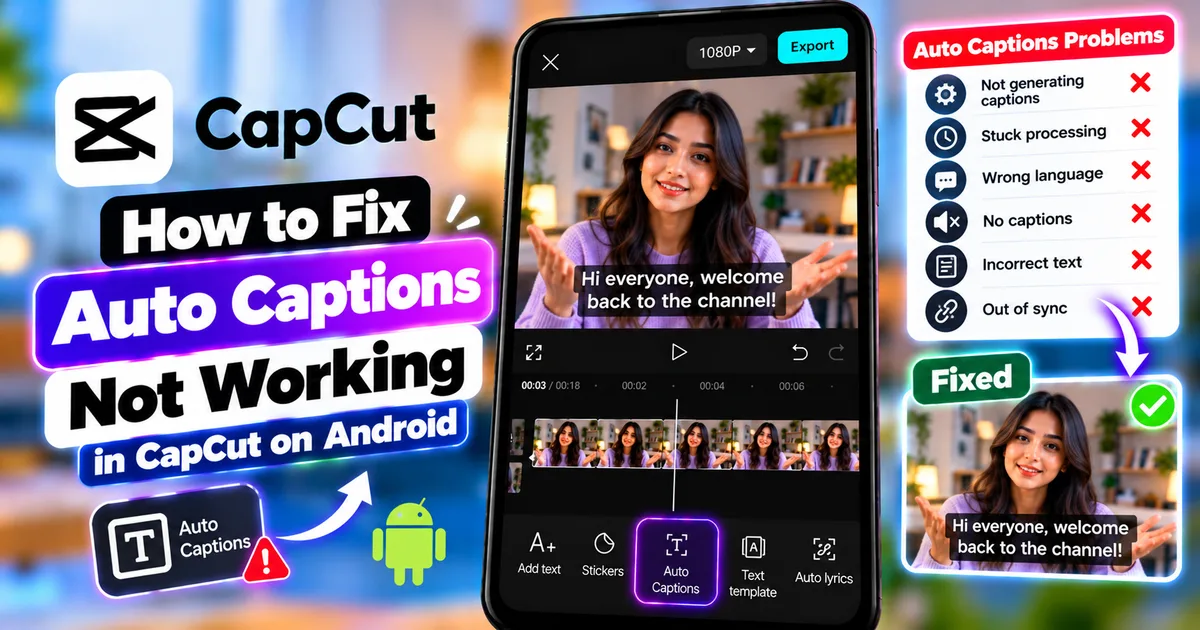
How to Fix Auto Captions Not Working in CapCut on Android
GetApkFree Team
CapCut Auto Captions not working on Android? Learn how to fix captions that won't generate, appear incorrectly, disappear, use the wrong language, or stop processing.
- Source
- Developer
- Package
- CapCut Premium
How to Fix Auto Captions Not Working in CapCut on Android
CapCut Auto Captions can save a lot of time by turning spoken audio into on-screen captions automatically. But sometimes the feature doesn't work as expected.
You might tap Auto Captions and nothing happens. The generation process may stop, captions may appear with the wrong language, some words may be incorrect, or the generated captions may disappear from the timeline.
These problems can have several causes. CapCut's current support documentation points to issues such as unclear audio, background noise, incorrect language selection, network problems, missing or muted audio, and outdated app versions. Some caption processing also relies on cloud services, so connectivity can matter.
The good news is that many Auto Captions problems can be diagnosed without reinstalling the app or starting your project again.
This guide explains how to fix Auto Captions not working in CapCut on Android, including captions that won't generate, captions that are inaccurate, captions using the wrong language, captions that disappear, and caption generation that gets stuck.
Quick Answer
If CapCut Auto Captions are not working on Android, try these steps:
- Make sure your video actually contains audible speech.
- Check that the audio track is not muted.
- Select the correct spoken language.
- Make sure your internet connection is stable.
- Close unnecessary apps.
- Restart CapCut.
- Update CapCut to the latest available version.
- Try generating captions again.
- If captions are inaccurate, edit the generated text manually.
- Preview the entire video before exporting.
If the problem is caused by poor audio, improving the source audio before generating captions can also help.
Why Are CapCut Auto Captions Not Working?
Auto Captions depend on speech recognition.
CapCut needs to process the spoken audio and determine what words are being said.
Several things can interfere with this process.
Common causes include:
- No usable speech in the video
- Muted audio
- Very low-volume speech
- Heavy background noise
- Music overpowering the voice
- Incorrect language selection
- Unstable internet connection
- Temporary app problems
- Outdated CapCut version
- Difficult accents or pronunciation
- Very fast speech
- Multiple people speaking at the same time
The exact cause can be different from one video to another.
CapCut Auto Captions Not Generating at All
If you select Auto Captions but nothing is generated, start with the basics.
Check the Audio
Play the video inside CapCut.
Can you clearly hear the person speaking?
If there is no speech, CapCut cannot generate normal speech-based captions.
Also check whether the video or audio track has been muted.
Check the Language
Make sure the selected recognition language matches the language being spoken.
For example, if the person is speaking English but a different language is selected, the recognition result may be poor or generation may fail.
Check Your Internet Connection
CapCut's caption-generation process can rely on online processing.
A weak or unstable connection can interfere with processing.
Try switching between Wi-Fi and mobile data if appropriate.
Restart CapCut
Close the app completely.
Open it again and load your project.
Then try generating the captions again.
Update CapCut
Check whether a newer version of CapCut is available for your Android device.
An outdated version can contain bugs or compatibility problems that may have been fixed in a newer release.
How to Fix CapCut Auto Captions That Are Stuck Processing
Sometimes caption generation appears to start but doesn't finish.
Try the following:
- Wait briefly to see whether processing completes.
- Check your internet connection.
- Close other apps using significant system resources.
- Stop and reopen CapCut.
- Reopen the project.
- Try generating captions again.
If the video is very long, consider testing the feature with a shorter section.
A short test can help determine whether the problem is related to the project or the particular video.
How to Fix CapCut Auto Captions With No Text
If CapCut finishes processing but the timeline contains no useful captions, check the source audio.
Make Sure Speech Is Audible
Play the original video.
If the voice is extremely quiet, recognition may be difficult.
Check Whether the Correct Audio Source Was Selected
Depending on the current CapCut interface and project setup, caption generation may provide audio-source options.
Make sure you are processing the track containing the actual speech.
Check the Language
Confirm that the selected language matches the spoken language.
Test a Shorter Clip
If the full video produces no useful captions, test a short section containing clear speech.
If the short section works, the issue may be related to the longer project or particular sections of the recording.
How to Fix Incorrect CapCut Auto Captions
Auto-generated captions are not guaranteed to be perfect.
Speech recognition can make mistakes when the audio contains:
- Background noise
- Music
- Echo
- Fast speech
- Unusual pronunciation
- Strong accents
- Technical terms
- Multiple speakers
The best approach is to review the captions after generation.
Step 1: Generate the Captions
Use Auto Captions normally.
Step 2: Play the Video
Start from the beginning.
Step 3: Check Each Caption
Look for:
- Wrong words
- Missing words
- Extra words
- Spelling errors
- Incorrect punctuation
- Incorrect timing
Step 4: Edit the Caption
Select the incorrect caption and modify the text.
CapCut's current mobile guidance supports manually editing individual generated caption lines.
Step 5: Check the Timing
Make sure the caption appears when the corresponding words are spoken.
Step 6: Preview Again
Play the corrected section several times.
CapCut Auto Captions Using the Wrong Language
If the captions are being generated in the wrong language, check the recognition language before generating them.
For example, if your video contains English speech but the wrong recognition language is selected, the resulting captions may contain incorrect words or fail to recognize the speech properly.
Try this:
- Open the caption-generation tool.
- Check the language.
- Select the language actually spoken in the video.
- Generate the captions again.
- Review the result.
If the captions were already generated incorrectly, you may need to delete them and generate a new set using the correct language.
How to Fix CapCut Captions With Wrong Words
Wrong words are usually a recognition problem rather than an editing problem.
First, check the audio quality.
If the speaker is difficult to hear, the recognition system may misinterpret words.
You can improve the situation by:
- Reducing background noise
- Making speech clearer
- Lowering distracting music
- Recording with a better microphone
- Speaking more clearly
- Avoiding excessive echo
After improving the audio, generate the captions again.
For a small number of mistakes, manually editing the generated captions may be faster than regenerating the entire video.
CapCut Auto Captions Are Missing Some Words
If some words are missing, listen to the original audio carefully.
The missing words may be difficult to hear because of:
- Background music
- Noise
- Low volume
- Fast speech
- Overlapping speakers
If only a few words are missing, manually add or correct them.
If large portions are missing, improving the audio and regenerating the captions may be more efficient.
CapCut Auto Captions Are Out of Sync
Sometimes the text is correct but appears too early or too late.
This is a timing problem.
Check the Caption Segment
Select the caption on the timeline.
Check where it starts and ends.
Compare It With the Speech
Play the video and listen carefully.
The caption should appear around the point where the corresponding speech begins.
Adjust the Timing
Move or resize the caption segment using the available timeline controls.
Check the Entire Video
Don't assume that fixing one caption fixes the whole project.
Play several sections and make sure the timing remains consistent.
How to Fix Captions That Are Too Long
A single caption can sometimes contain too much text.
Long blocks are harder to read, especially on phones.
If a caption contains an entire long sentence, consider splitting it into shorter sections.
A useful caption should be readable without forcing viewers to pause the video.
Break long speech into logical phrases.
For example:
Instead of one very long caption:
This is a long sentence containing several different ideas that stays on the screen for only a few seconds.
Use shorter segments that follow the natural speech.
How to Fix Captions That Appear Too Fast
If captions disappear before viewers have enough time to read them, check their duration.
Select the caption segment and adjust its timing where the current CapCut interface allows it.
Also consider reducing the amount of text shown in one caption.
Shorter captions are usually easier to read quickly.
How to Fix Captions That Stay on Screen Too Long
The opposite problem can also occur.
A caption may remain visible after the speaker has finished the sentence.
Check the ending point of the caption segment.
Move the end closer to the actual end of the spoken phrase.
Then preview the transition between captions.
CapCut Auto Captions Not Showing After Generation
If CapCut appears to generate captions but you cannot see them in the preview, check the caption layer.
Check the Timeline
Make sure the caption layer exists.
Check the Current Playhead Position
You may be previewing a section where no caption is currently active.
Move the playhead into a caption segment.
Check the Text Color
The caption may be present but difficult to see because its color blends into the video.
Check the Text Size
Very small captions can be difficult to notice.
Check Opacity or Style
If the current style controls include opacity or transparency, make sure the captions aren't effectively invisible.
Check Whether Another Layer Covers Them
Another visual layer may be positioned over the captions.
CapCut Captions Disappeared From the Timeline
If captions were visible previously but are now missing, check whether the caption track still exists.
Also consider whether you:
- Deleted the captions
- Opened a different project version
- Changed the project
- Moved or replaced media
- Loaded a different saved version
If you have an earlier project copy, compare it with the current project.
Avoid deleting or reinstalling the app if you have important local projects that have not been backed up.
CapCut Auto Captions Not Working After an Update
An app update can sometimes change the location or appearance of features.
If Auto Captions suddenly look different:
- Check the current Text or Captions tools.
- Look for Auto Captions under the updated interface.
- Confirm your project audio is still available.
- Check the recognition language.
- Try generating captions again.
Don't assume that a changed button location means the feature has been removed.
CapCut Auto Captions Not Working Without Internet
If caption generation depends on online processing in your current CapCut version, an unstable or unavailable connection can interfere with generation.
If you are offline:
- Connect to a reliable network.
- Reopen the project.
- Try Auto Captions again.
The exact network requirement can vary by CapCut feature and version.
CapCut Auto Captions Not Working With Background Music
Music can make speech recognition more difficult when it is loud relative to the speaker.
For example:
Voice: Low volume
Music: High volume
The recognition system may have difficulty separating the speech from the music.
If possible, reduce or temporarily mute the music before generating captions.
Then restore the music afterward.
This can make the speech easier for the caption system to process.
CapCut Auto Captions Not Working Because of Background Noise
Background noise can interfere with speech recognition.
Examples include:
- Fans
- Traffic
- Crowds
- Air conditioners
- Wind
- Construction
- Loud rooms
If the speech is difficult to distinguish from the background, the generated captions may contain more errors.
Try using a cleaner version of the audio if available.
You can also consider cleaning the audio before generating captions.
CapCut Auto Captions Not Working With Multiple Speakers
When several people speak at the same time, automatic speech recognition can become more difficult.
If speakers overlap heavily, the system may:
- Miss words
- Combine speakers
- Produce incorrect sentences
- Create confusing caption timing
For interviews and conversations, review every caption carefully.
If the speakers take turns clearly, the result may be much easier to correct.
CapCut Auto Captions Not Working With an Accent
An accent does not automatically mean captions will fail.
However, speech recognition can make more mistakes when pronunciation differs significantly from the patterns the system recognizes well.
Speak clearly and review the generated text.
For names, locations, technical terms, and uncommon words, manual correction may be necessary.
How to Fix CapCut Auto Captions for Fast Speech
Fast speech can cause words to be missed or caption segments to become crowded.
After generating captions:
- Review the fastest sections.
- Correct missing words.
- Split long caption segments if needed.
- Adjust timing.
- Preview the section again.
If the original recording can be edited, slowing down the speech is generally not the first solution. Correcting the generated captions is usually simpler.
How to Fix CapCut Captions for Technical Words
Technical terms, brand names, usernames, product names, and uncommon vocabulary can be difficult for automatic speech recognition.
For example, a tutorial about Android software may contain:
- APK
- AAB
- SDK
- Android
- Package name
- Version code
- File formats
Review these terms manually.
If the rest of the captions are accurate, there is usually no need to regenerate the entire caption track just because a few technical terms were recognized incorrectly.
Should You Regenerate Captions or Edit Them Manually?
It depends on how many errors exist.
Edit Manually When:
- Only a few words are wrong
- Timing is mostly correct
- The majority of captions are accurate
- Only names or technical terms need correction
Regenerate When:
- The wrong language was selected
- Large portions are missing
- The audio source was incorrect
- The original audio was replaced
- Background music was interfering heavily
- The first generation was clearly unusable
For a few mistakes, manual editing is usually faster.
For widespread recognition problems, fixing the underlying audio or settings and regenerating can make more sense.
How to Improve Auto Caption Accuracy in CapCut
You can improve your results before generating captions.
Use Clear Audio
A clean voice recording gives speech recognition a better source to work with.
Reduce Background Noise
Less noise can make spoken words easier to recognize.
Lower Background Music
Don't let music overpower speech.
Select the Correct Language
Use the language actually spoken in the video.
Avoid Overlapping Speakers
When possible, record conversations so people don't speak over one another.
Review the Result
Always proofread automatically generated captions.
How to Restart Auto Captions in CapCut
If the first generation fails:
- Exit the caption-generation screen.
- Check the video audio.
- Check the language.
- Check your internet connection.
- Restart CapCut.
- Reopen the project.
- Try Auto Captions again.
If an old caption track remains, remove it before generating a fresh one when appropriate.
Should You Clear CapCut Cache?
Clearing an app's cache can sometimes help with temporary app problems, but it should not be your first step.
Before clearing anything, make sure important projects are safely backed up or otherwise protected.
Do not confuse clearing cache with clearing app data.
Clearing app data can have more significant consequences for locally stored information.
If basic troubleshooting doesn't work, check CapCut's current support guidance before taking more destructive steps.
Should You Reinstall CapCut?
Reinstalling should generally be considered a later troubleshooting step rather than the first solution.
Before uninstalling an editing app, make sure important local projects are backed up.
A locally stored project may not automatically be recoverable after an uninstall.
Try simpler solutions first:
- Restart the app
- Check the audio
- Check the language
- Check the connection
- Update CapCut
- Test another video
How to Test Whether the Problem Is the Video or CapCut
A useful troubleshooting method is to test another short video.
Choose a short clip with:
- Clear speech
- Minimal background noise
- One speaker
- Stable audio
- Correct language
Generate captions for that clip.
If the New Video Works
The problem may be related to the original video or its audio.
If the New Video Also Fails
The problem may be related to CapCut, your connection, settings, or the current app environment.
This simple test can save time because it helps narrow down the cause.
Common CapCut Auto Captions Problems
Auto Captions Button Is Missing
The interface can change between CapCut versions and devices.
Look through the current Text or Captions tools.
If the feature is unavailable in your current environment, check whether CapCut needs an update and whether the feature is supported for your region or account.
Auto Captions Generates Gibberish
Check:
- Language
- Audio quality
- Background noise
- Speaker clarity
- Music volume
If the speech is clear but the output remains unusable, try another short test video.
Auto Captions Only Captions Part of the Video
Check whether the missing portion actually contains clear speech.
If it does, listen for background noise, music, overlapping speakers, or other audio problems.
Auto Captions Stops Halfway
Check the network connection.
Then restart CapCut and try again.
If possible, test a shorter video.
Auto Captions Works on One Video but Not Another
This often indicates a difference in the source media rather than a general feature failure.
Compare:
- Audio volume
- Background noise
- Language
- Duration
- Number of speakers
- Music
- Recording quality
Captions Are Correct but Look Bad
This is a styling issue rather than a recognition issue.
Select the captions and adjust available options such as:
- Font
- Size
- Color
- Position
- Style
- Animation
Make sure the captions remain readable on a phone-sized screen.
Frequently Asked Questions
Why are Auto Captions not working in CapCut on Android?
Common causes include unclear audio, muted or missing audio, incorrect language selection, unstable internet, background noise, outdated software, and speech that is difficult for recognition to process.
Why does CapCut generate no captions?
First check whether your video contains audible speech. Then check the selected language, audio track, internet connection, and CapCut version.
Why are my CapCut captions completely wrong?
The speech-recognition system may be struggling with the audio. Background noise, music, accents, fast speech, multiple speakers, and technical terms can increase recognition errors.
Why are CapCut Auto Captions stuck processing?
Check your internet connection and restart CapCut. You can also test a shorter video with clear speech to determine whether the problem is specific to the original project.
Why are CapCut captions in the wrong language?
The wrong recognition language may have been selected. Choose the language actually spoken in the video and generate the captions again.
Why are some words missing from my CapCut captions?
The speech may be difficult to recognize because of noise, music, low volume, fast speech, or overlapping speakers. You can manually correct individual captions or regenerate them after improving the audio.
Can I manually edit CapCut Auto Captions?
Yes. CapCut's current mobile guidance supports manually editing generated caption text and timing.
Should I delete captions and generate them again?
If only a few words are wrong, manual correction is usually more practical. If the language, audio source, or large portions of the recognition are wrong, regenerating may be more useful.
Can background music affect CapCut Auto Captions?
Yes. Loud music can make speech harder to recognize. Reducing or temporarily muting the music can help when generating captions.
Can background noise affect Auto Captions?
Yes. Noise can make spoken words harder for speech recognition to distinguish.
Can CapCut recognize accents?
CapCut can process speech with different accents, but recognition accuracy can vary. Always review the generated captions and correct mistakes.
Can fast speech cause incorrect captions?
Yes. Fast speech can increase recognition errors and create difficult-to-read caption segments.
Why are my CapCut captions out of sync?
The caption timing may not match the spoken audio. Select the affected caption segments and adjust their timing on the timeline.
Why are my captions too long?
Automatic captions may combine a large amount of speech into one segment. Split or adjust the caption segments so they are easier to read.
Why are my captions not visible?
Check the caption layer, playhead position, text color, text size, opacity, and whether another layer is covering the captions.
Why did my CapCut captions disappear?
Check whether the caption track was deleted, whether you opened a different project version, or whether the project was changed.
Does CapCut need internet for Auto Captions?
Some CapCut caption-processing workflows rely on online processing, so an unstable connection can cause problems. The exact requirements can vary by version and feature.
Should I update CapCut if Auto Captions stop working?
Checking for an available update is a reasonable troubleshooting step because newer versions can contain bug fixes and compatibility improvements.
Should I reinstall CapCut if Auto Captions don't work?
Not as your first step. Try checking the audio, language, connection, restarting the app, and updating CapCut first. If you consider reinstalling, protect important local projects beforehand.
Can I fix Auto Captions without making a new video?
Usually, yes. If the problem is limited to generated text or timing, you can often edit the caption track without changing the original video.
Why does Auto Captions work on a short video but not my long video?
A shorter test can work when a longer project has more complex audio, multiple sections, or processing difficulties. Testing a short clip is useful for identifying whether the problem is project-specific.
Can I use CapCut Auto Captions for multiple speakers?
Yes, but overlapping speech can make recognition and timing less accurate. Review the generated captions carefully.
Can I add subtitles manually if Auto Captions doesn't work?
Yes. You can use CapCut's text tools to create text manually, although manually timing a long video can take considerably more time.
Final Thoughts
When CapCut Auto Captions stop working on Android, don't immediately reinstall the app or delete your project.
Start by checking the most common causes.
Make sure the video contains clear speech, confirm that the audio isn't muted, select the correct recognition language, and make sure your internet connection is stable. Then restart CapCut and check for an available update.
If captions generate but contain mistakes, don't assume the entire feature has failed. Automatic speech recognition can make errors with background noise, music, fast speech, accents, technical words, and overlapping speakers.
For a small number of mistakes, manually correct the captions. If the entire result is poor, fix the underlying audio or language settings and generate the captions again.
Finally, always watch the complete video before exporting. Captions should be checked for spelling, accuracy, timing, readability, and placement.
A few minutes of proofreading can make the difference between captions that simply exist and captions that are actually useful to viewers.
Related Articles

How to Fix CapCut Video Lagging After Export on Android
Fix CapCut video lagging after export on Android. Learn how to troubleshoot choppy playback, frame-rate mismatches, heavy effects, storage issues, and export settings.
GetApkFree Team

How to Fix CapCut Preview Not Matching Export on Android
Fix CapCut preview not matching the exported video on Android. Troubleshoot missing effects, text, transitions, timing, colors, and rendering differences.
GetApkFree Team

How to Fix Couldn't Apply AI Background in CapCut on Android
Getting "Couldn't Apply AI Background" in CapCut on Android? Check usage limits, clip selection, video quality, app updates, and practical troubleshooting steps.
GetApkFree Team

How to Fix CapCut Effects Not Applying on Android
CapCut effects not working on Android? Check clip selection, effect layers, timeline timing, conflicting adjustments, and app performance with these practical fixes.
GetApkFree Team