This article is about
CapCut Premium
capcutdownload.com.pk · Tools
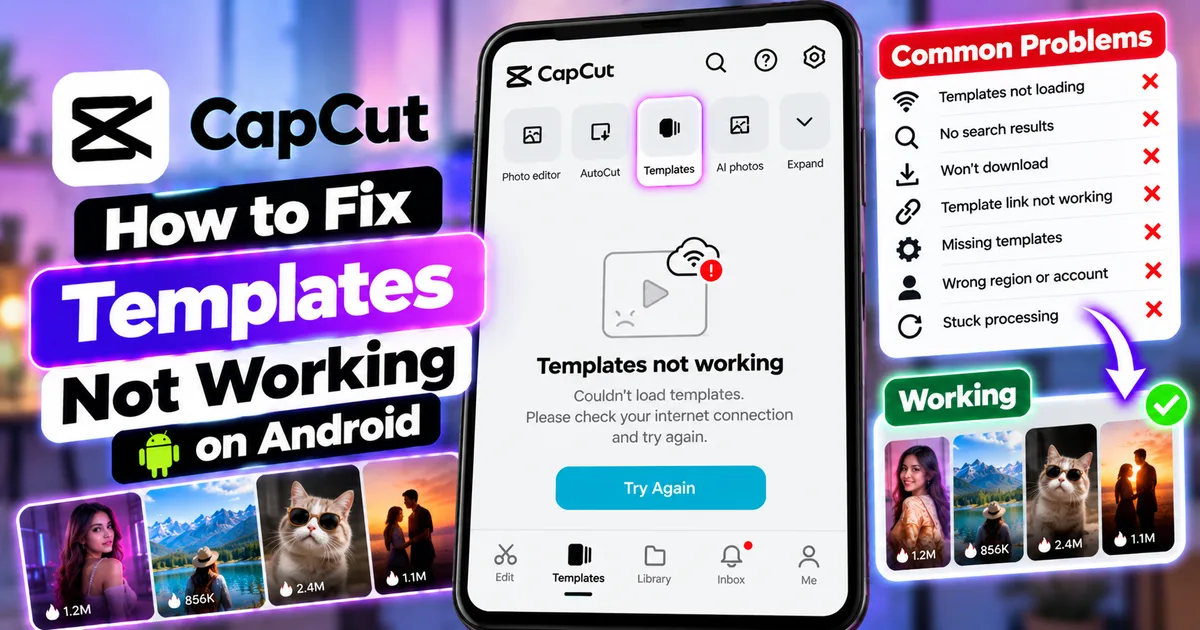
How to Fix CapCut Templates Not Working on Android
GetApkFree Team
CapCut templates not working on Android? Learn how to fix missing templates, templates that won't load, search problems, broken template links, and stuck downloads.
- Source
- Developer
- Package
- CapCut Premium
How to Fix CapCut Templates Not Working on Android
CapCut templates can make video editing much faster because you can start with a ready-made editing style instead of building every transition, effect, timing, and layout yourself.
However, sometimes CapCut templates may not appear, fail to load, show no search results, get stuck while downloading, open the wrong template, or refuse to work after you tap Use template.
These problems can be caused by several different things. Your internet connection may be unstable, CapCut may need an update, the template feature may not be available in your region or account, temporary app data may be causing a problem, or the particular template may no longer be available.
This guide explains how to troubleshoot CapCut templates on Android step by step without immediately uninstalling the app or risking your local projects.
Quick Answer
If CapCut templates are not working on Android, try these fixes in order:
- Check your internet connection.
- Switch between Wi-Fi and mobile data.
- Make sure you are using the correct Templates section.
- Update CapCut from your normal app source.
- Check whether the template feature is available in your region.
- Sign in to the correct CapCut account.
- Clear CapCut's temporary cache.
- Close other apps running in the background.
- Restart CapCut.
- Restart your Android phone.
- Try searching for a different template.
- Check whether the original template has been deleted or made unavailable.
- If a template link is not opening correctly, check CapCut's link-handling settings.
- Avoid uninstalling CapCut until you understand what may happen to your local drafts.
If only one particular template fails while other templates work normally, the problem may be with that template rather than your phone or CapCut installation.
Why Are CapCut Templates Not Working on Android?
There is no single cause for every CapCut template problem.
Templates are online content, so CapCut needs to communicate with its servers to load template information and resources. At the same time, the app version, account, region, permissions, device resources, and availability of the individual template can affect what you see.
Common causes include:
- Unstable internet connection
- Outdated CapCut version
- Temporary cache problems
- Too many apps running in the background
- Template feature unavailable in your region
- Account or login issues
- Missing app permissions
- A template that has been removed
- A template that has been made private
- A broken or outdated template link
- Temporary CapCut service problems
- Device performance limitations
The best approach is to identify which type of problem you are experiencing before making major changes to the app.
CapCut Templates Not Showing at All
If you open CapCut but cannot find the Templates section, first check whether you are looking in the correct place.
On supported mobile versions, templates are accessed from the CapCut home screen through the Templates section.
However, the exact interface can change between versions and regions.
Step 1: Return to the CapCut Home Screen
Open CapCut and return to the main home screen rather than staying inside an editing project.
Look for the Templates option.
If it is available, open it and see whether templates load normally.
If you are inside the editor, the template library may not appear in the same location.
Step 2: Check Your Internet Connection
The template library requires network access.
If the page is blank or does not load, test your connection.
Try:
- Switching from Wi-Fi to mobile data
- Switching from mobile data to Wi-Fi
- Connecting to another Wi-Fi network
- Temporarily turning Airplane mode on and off
- Moving to an area with a stronger mobile signal
Then reopen CapCut and check the Templates section again.
Step 3: Update CapCut
An older version of CapCut may not properly support newer template features.
Open your normal Android app store and search for CapCut.
If an Update button is available, install the update.
Do not uninstall CapCut first simply because an update is available.
If you have local drafts or unfinished projects, uninstalling the app can create unnecessary risk.
CapCut Templates Loading Forever
Sometimes the Templates page appears, but the content keeps loading.
This is commonly associated with network conditions, temporary app data, device performance, or an outdated version.
Try the following sequence.
Switch Networks
If you are using Wi-Fi, test mobile data.
If you are using mobile data, test Wi-Fi.
A connection may be fast enough for normal browsing but still have trouble loading large amounts of template content consistently.
Close Background Apps
Open Android's recent apps screen and close applications you are not currently using.
This can free system resources for CapCut.
This is particularly useful if your phone has limited available RAM or if you have many demanding apps running simultaneously.
Restart CapCut
Completely close CapCut.
Wait a few seconds.
Then open the app again and return to Templates.
Restart Your Phone
If the template library still does not load, restart your Android phone.
A restart can clear temporary system problems that may interfere with an app.
How to Clear CapCut Cache on Android
Temporary cached data can occasionally cause problems with app interfaces and online content.
Android allows you to clear an app's temporary cache without necessarily deleting the app itself.
The exact menu names vary by phone manufacturer.
A typical process is:
- Open Android Settings.
- Go to Apps or App Management.
- Find CapCut.
- Open Storage or Storage & cache.
- Choose Clear cache.
- Reopen CapCut.
Be careful not to select an option that deletes all application data unless you understand the consequences.
Clearing cache and clearing app data are not the same thing.
Clear Cache vs Clear App Data
Clear cache removes temporary files.
Clear app data can reset the application's stored information and may affect local content or settings.
For troubleshooting a template problem, start with the less disruptive cache option.
CapCut Template Search Shows No Results
You may be able to open the Templates section but receive no useful search results.
First, make your search simpler.
For example, instead of searching for:
summer beach travel vlog cinematic slow motion 2026
try:
travel
or:
vlog
or:
cinematic
Broad searches can make it easier to determine whether the search system is working.
Check Your Internet
Template search depends on online content.
If search returns nothing, test another network and try again.
Try Another Search Term
Search for a common category such as:
- Travel
- Vlog
- Birthday
- Fashion
- Wedding
- Food
- Fitness
- Photo
- Slow motion
If broad searches work but a very specific phrase does not, the problem may simply be that there are no matching templates for that particular query.
Update CapCut
An outdated version can have compatibility problems with newer template content.
Check for an available CapCut update.
CapCut Template Won't Download
If you can see a template but tapping Use template does not complete the process, check your connection first.
Templates may need to download additional resources before you can use them.
Try:
- Switch to a stronger Wi-Fi connection.
- Try mobile data.
- Close CapCut.
- Reopen CapCut.
- Open the template again.
- Wait for the template resources to finish loading.
- Try another template.
If another template works normally, the original template may be the problem.
One CapCut Template Works and Another Does Not
This is an important troubleshooting clue.
If multiple templates work but one specific template fails, your CapCut installation may not be the main problem.
The particular template could have:
- Been deleted
- Been made private
- Become unavailable
- Been changed by its creator
- Been affected by regional availability
- Become incompatible with your current version
Try another template from the same category.
If several unrelated templates work, there is less reason to assume that your entire CapCut installation is broken.
CapCut Template Link Is Not Opening
Some templates are shared through links from social platforms or other sources.
You may tap a template link and experience one of several problems:
- CapCut does not open
- CapCut opens but shows the home screen
- A different template appears
- The template does not load
- Nothing happens after tapping the link
CapCut's current guidance indicates that template-link switching is supported through the mobile app.
Update CapCut
Make sure you are using a current version of CapCut.
An outdated version can cause compatibility problems with newer template links.
Check Android Link Handling
Depending on your Android version and phone manufacturer, CapCut may have settings related to opening supported links.
Look under:
Settings → Apps → CapCut → Open by default
The exact wording can differ between Android devices.
If the phone does not correctly associate the link with CapCut, checking the app's link-handling settings may help.
Try Opening the Link Again
After checking the settings:
- Close CapCut.
- Return to the source containing the template link.
- Tap the template link again.
- Allow Android to open the link with CapCut if prompted.
If the original template has been deleted or removed, changing Android settings will not restore it.
CapCut Opens the Wrong Template
If tapping a shared template link opens CapCut but takes you somewhere else, first update CapCut.
Then try the link again.
Also check whether the original source has changed or whether the template is still publicly available.
If another person shared an old template link, the template may no longer be available in the same form.
Try opening a newer template link to determine whether the problem is specific to that link.
CapCut Template Is Missing in My Region
Template availability can vary by region.
CapCut's current documentation notes that some template features or content may not be available everywhere.
This means two people using CapCut on similar Android phones may not necessarily see exactly the same template library.
If your Templates section is missing or contains fewer options than expected:
- Confirm that CapCut is updated.
- Make sure you are signed in.
- Check your internet connection.
- Restart CapCut.
- Check whether the feature is available for your region and current app version.
If the feature itself is unavailable in your region, normal troubleshooting may not make it appear.
CapCut Templates Missing After an Update
An update can change CapCut's interface.
A button may move, the Templates section may look different, or some features may be reorganized.
Before assuming the feature has been removed, check the current home screen carefully.
Also make sure you are signed into the same account you normally use.
If a template or saved content was associated with an account, signing into a different account can make it appear to have disappeared.
CapCut Template Disappeared
If a template was available previously but cannot be found now, several explanations are possible.
The creator may have:
- Deleted the template
- Made it private
- Changed its availability
CapCut may also change template availability over time.
Try searching for the template again using a broader keyword.
If you have the original template link, try opening it directly.
If the link no longer works while other templates work normally, the individual template may no longer be available.
CapCut Template Requires Login
Some template features may require you to be signed into a CapCut account.
If you are not logged in, sign in using the account you normally use.
If you are already signed in but expected templates are missing, verify that you are using the correct account.
For example, switching from one login method to another can sometimes result in a different account being opened.
After confirming the account:
- Close CapCut.
- Reopen it.
- Return to Templates.
- Search again.
CapCut Templates Keep Crashing
If CapCut closes while loading or applying templates, the problem may involve available system resources, temporary app data, an outdated app version, or a particular project.
Try these steps:
Close Other Apps
Close demanding applications running in the background.
Restart the Phone
A restart can free temporary system resources.
Clear CapCut Cache
Clear the temporary cache from Android's app settings.
Update CapCut
Install an available update from your normal app source.
Test a Different Template
Try a simple template.
If a simple template works while a particular template causes a crash, the problem may be related to that template or its resources.
CapCut Template Says It Cannot Be Used
If CapCut displays an error when you attempt to use a template, do not immediately uninstall the app.
First:
- Check your internet connection.
- Update CapCut.
- Restart the app.
- Restart your phone.
- Clear the CapCut cache.
- Try another template.
If only one template cannot be used, check whether that template is still available.
The creator may have removed it or changed its availability.
CapCut Template Loads Slowly
Slow loading does not always mean CapCut is broken.
Templates can take longer to load when:
- Your internet connection is slow
- Your Wi-Fi network is congested
- Mobile signal is weak
- Many apps are running
- The device has limited available resources
- CapCut is processing other tasks
Try switching networks first.
Then close background apps and restart CapCut.
If possible, avoid downloading large files or streaming high-resolution video on the same connection while loading the template.
CapCut Template Button Is Missing
If the Templates button itself is missing, check the following:
Check the App Version
Update CapCut if an update is available.
Check Your Region
Some template features are not available in every region.
Check Your Account
Sign in and make sure you are using the expected CapCut account.
Restart the App
Close CapCut completely and reopen it.
Clear Cache
Clear the temporary cache and check the home screen again.
If the button is still missing after these steps, the feature may not currently be available for your account, region, or version.
Should You Reinstall CapCut to Fix Templates?
Reinstalling should not be the first troubleshooting step.
If you have unfinished local projects, uninstalling the app can create unnecessary risk.
Before considering a reinstall:
- Make sure important projects are safely backed up or otherwise preserved.
- Check whether the problem happens with multiple templates.
- Update CapCut.
- Clear cache.
- Restart the app.
- Restart the phone.
- Test another network.
Only consider more disruptive steps after trying the simpler solutions.
How to Tell Whether the Problem Is CapCut or the Template
Use a simple test.
Test 1: Open the Templates Section
If the entire Templates page fails to load, the problem may involve your connection, app version, account, region, or CapCut itself.
Test 2: Search for a Common Template
If search works, continue.
Test 3: Open Another Template
If another template works, the original template may be unavailable or problematic.
Test 4: Try a Different Network
If templates start working on another network, your original connection may be causing the problem.
Test 5: Update CapCut
If updating resolves the problem, the previous version may have been incompatible with the template or current service.
This testing method is much more useful than immediately deleting the app.
CapCut Templates vs Regular Editing
Templates and regular editing serve different purposes.
Templates
Templates are useful when you want:
- Ready-made editing styles
- Prebuilt timing
- Quick social media videos
- Fast photo edits
- Trending-style edits
- A starting point for a project
Regular Editing
Manual editing is better when you need:
- Complete control over timing
- Custom transitions
- Your own effects
- Precise text placement
- Custom audio
- Advanced layer arrangements
- A unique editing structure
If templates are unavailable, you can still create the same general type of video manually using CapCut's editing tools.
For example, you can combine clips, text, effects, transitions, music, overlays, and keyframes yourself.
Tips to Prevent CapCut Template Problems
A few habits can make template troubleshooting easier.
Keep CapCut Updated
Newer versions can include compatibility improvements and updated features.
Use a Stable Connection
Templates are online content, so a reliable connection is important.
Keep Some Free Storage
Your phone needs available storage for apps, temporary files, and project resources.
Avoid Too Many Background Apps
Closing unnecessary apps can free system resources.
Don't Immediately Uninstall CapCut
Uninstalling should not be your first solution when local drafts may be important.
Test Multiple Templates
Testing another template helps determine whether the issue is general or limited to one template.
Keep Your Account Consistent
If you use CapCut across devices, make sure you are signing into the account you expect.
Check Regional Availability
A feature that appears in tutorials or screenshots online may not necessarily be available in every country, account, or app version.
Common CapCut Template Problems and Fixes
Templates Not Showing
Check the correct Templates section, internet connection, app version, account, and regional availability.
Templates Loading Forever
Switch networks, clear cache, close background apps, restart CapCut, and update the app.
Template Search Shows Nothing
Try broader search terms, check your connection, and update CapCut.
Use Template Button Does Nothing
Restart CapCut, update the app, check your connection, and test another template.
Template Link Opens the Wrong Place
Update CapCut and check Android's supported-link settings.
One Template Does Not Work
Try another template. The original may have been removed, made private, or become unavailable.
Template Tab Is Missing
Check the current app version, account, region, and network connection.
CapCut Crashes When Opening a Template
Close background apps, restart the phone, clear cache, update CapCut, and test another template.
Template Loads Very Slowly
Switch networks, reduce background activity, clear temporary data, and restart the app.
Frequently Asked Questions
Why are CapCut templates not working on Android?
Common causes include an unstable internet connection, outdated CapCut version, cache problems, regional restrictions, account issues, missing permissions, device resource limitations, or a template that is no longer available.
Why can't I see the Templates tab in CapCut?
The Templates tab may not appear because of the current app version, region, account availability, interface changes, or temporary loading problems.
Why are CapCut templates loading forever?
Template loading can be affected by a slow or unstable internet connection, temporary app data, device performance, background apps, or an outdated CapCut version.
How do I fix CapCut template search not working?
Check your internet connection, try broader keywords, update CapCut, restart the app, and make sure you are using the mobile version where the relevant template search feature is available.
Why does one CapCut template work but another does not?
The individual template may have been removed, made private, changed, or become unavailable. Test another template to determine whether the problem is limited to one template.
Why does CapCut open the wrong template?
Template links can fail to route correctly because of outdated apps, Android link-handling settings, network problems, or an unavailable template. Update CapCut and check its supported-link settings.
Can a CapCut template disappear?
Yes. A template may no longer be available if its creator removes it or changes its availability. Regional and account-related availability can also affect what you see.
Do I need internet to use CapCut templates?
Many template-related features require network access because template content and resources may need to be loaded from CapCut's servers.
Should I clear CapCut cache?
Clearing temporary cache can be a useful troubleshooting step when template pages or other app content are behaving incorrectly.
Will clearing CapCut cache delete my projects?
Clearing cache is different from clearing app data. Cache removal is intended to remove temporary files, while clearing app data can have more significant consequences. Always check the exact Android option before confirming it.
Should I uninstall CapCut if templates are not working?
Not as a first step. Try updating the app, checking the network, clearing cache, restarting CapCut, restarting your phone, and testing another template first.
Why does CapCut say a template cannot be used?
The template may be unavailable, the app may be outdated, the connection may be unstable, or temporary app problems may be preventing the template from loading.
Why are some CapCut templates available to other people but not me?
Template availability can vary by region, account, app version, and platform. Not every user necessarily sees the same template library.
Can I fix a broken CapCut template myself?
If the problem is caused by your connection, app version, cache, or device, troubleshooting may fix it. If the template itself has been removed or made unavailable, changing your phone settings will not restore it.
Why are CapCut templates slow on my phone?
Slow template loading can be caused by network speed, device performance, background apps, temporary data, or the current CapCut version.
Do CapCut templates work on every device?
Template availability and functionality can vary by platform, app version, region, and account. A feature shown in an online tutorial may not appear identically on every device.
Final Thoughts
CapCut templates can save a lot of editing time, but they depend on more than just the CapCut app itself.
If templates are not working on Android, start with the simplest checks: verify your internet connection, update CapCut, restart the app, clear temporary cache, and test another template.
If only one template fails, the template itself may be unavailable rather than your phone having a problem.
If the entire Templates section is missing, investigate the app version, account, region, and current feature availability.
Most importantly, avoid immediately uninstalling CapCut when you have important local projects. Start with the least disruptive troubleshooting steps and work through the problem one step at a time.
Once templates are working again, you can use them as a starting point and customize the result with your own text, captions, music, effects, overlays, and other editing tools.
For more CapCut tutorials, see our guides on adding text in CapCut on Android and adding Auto Captions in CapCut on Android.
Related Articles

How to Fix CapCut Video Lagging After Export on Android
Fix CapCut video lagging after export on Android. Learn how to troubleshoot choppy playback, frame-rate mismatches, heavy effects, storage issues, and export settings.
GetApkFree Team

How to Fix CapCut Preview Not Matching Export on Android
Fix CapCut preview not matching the exported video on Android. Troubleshoot missing effects, text, transitions, timing, colors, and rendering differences.
GetApkFree Team

How to Fix Couldn't Apply AI Background in CapCut on Android
Getting "Couldn't Apply AI Background" in CapCut on Android? Check usage limits, clip selection, video quality, app updates, and practical troubleshooting steps.
GetApkFree Team

How to Fix CapCut Effects Not Applying on Android
CapCut effects not working on Android? Check clip selection, effect layers, timeline timing, conflicting adjustments, and app performance with these practical fixes.
GetApkFree Team