This article is about
CapCut Premium
capcutdownload.com.pk · Tools
How to Add Text in CapCut on Android
GetApkFree Team
Learn how to add text in CapCut on Android, customize fonts, colors, styles and animations, adjust timing, and fix common text problems.
- Source
- Developer
- Package
- CapCut Premium
How to Add Text in CapCut on Android
Adding text to a video can help explain what is happening, introduce a person or location, highlight important information, or make a social media video easier to understand.
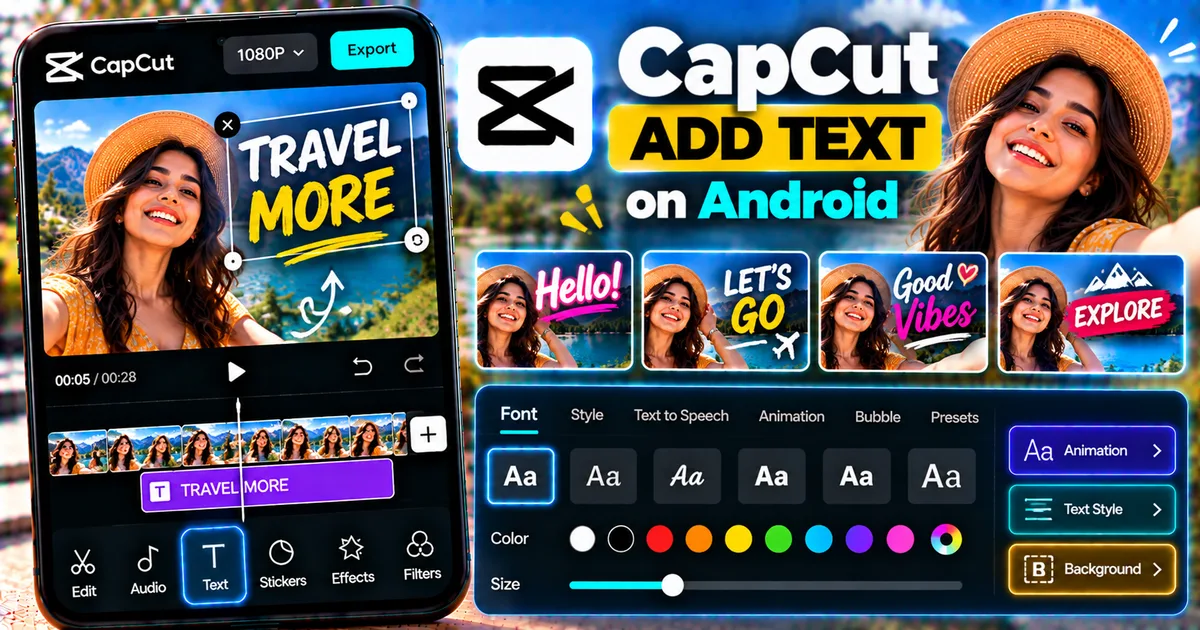
CapCut includes a built-in Text tool that lets you add custom text to videos on Android. You can type your own words, choose fonts and colors, change the size and position, adjust how long the text appears, and apply text animations and styles.
This guide explains how to add and customize text in CapCut on Android.
Quick Answer
To add text in CapCut on Android, open a project and import your video. Tap Text in the editing toolbar, choose Add Text, type your words, and confirm them. You can then customize the font, size, color, style, position, animation, and duration of the text.
The exact appearance of CapCut's text controls can vary between app versions and devices.
How to Add Text in CapCut on Android
Follow these steps to put text on a video.
Step 1: Open CapCut
Open CapCut on your Android phone.
Start a new project or open an existing project containing the video you want to edit.
If you are starting a new project, select the video from your device and add it to the timeline.
Step 2: Open the Text Tool
Once your video is loaded into the editor, look at the toolbar at the bottom of the screen.
Tap Text.
CapCut will display the available text-related options.
Step 3: Tap Add Text
Select Add Text.
A text box will appear on the video preview.
Type the words you want to display.
For example:
"Welcome to my channel"
or:
"Travel Day 1"
or:
"5 Android Editing Tips"
After entering your text, confirm the text layer.
Your text will now appear as a separate layer on the timeline.
Step 4: Move the Text
You can drag the text directly on the video preview to position it.
Move it toward the:
- Top
- Bottom
- Center
- Left
- Right
Choose a position that does not cover important parts of the video.
For example, if a person's face is in the center of the frame, placing text near the top or lower portion may make the video easier to watch.
How to Change the Text Font
CapCut provides different font styles that you can use to change the appearance of your text.
To change the font:
- Select the text layer.
- Open the text editing controls.
- Tap Font when available.
- Browse the available fonts.
- Select a font.
- Preview the result.
The available fonts and text materials can change over time.
Some fonts or text assets may also depend on region, account, connection, or licensing availability.
How to Change Text Size in CapCut
To make your text easier to read, adjust its size.
Select the text layer and use the available size control.
You can also resize the text directly on the video preview when the current interface provides that option.
Avoid making text so large that it covers the main subject.
For short-form videos, large readable text can be useful because viewers may watch on relatively small screens.
How to Change Text Color
You can change the color of your text using the text style controls.
Select the text layer and open the style or color options.
Choose a color that contrasts with the background.
For example, white text may work well on a dark background, while darker text may work better on a bright background.
If the video background changes throughout the clip, consider using a text outline, shadow, background, or another readable style.
How to Add a Text Background
A background behind text can make it easier to read when the footage contains lots of detail.
Depending on the current CapCut interface, you may find background or style controls within the text editing panel.
A text background can be useful for:
- Tutorials
- Captions
- Instructions
- Product videos
- Social media posts
- News-style videos
- Educational videos
Use enough contrast to keep the text readable without covering too much of the video.
How to Add a Text Outline or Stroke
An outline can help separate text from the background.
Select your text and look for the available style controls.
If Stroke or an equivalent outline control is available, adjust it until the text is clearly visible.
Avoid making the outline excessively thick because it can make small text harder to read.
How to Add a Text Shadow
A shadow can create additional separation between the text and the video.
Select the text layer and open the style controls.
If Shadow is available, adjust it to create enough contrast without making the text look unnecessarily heavy.
A subtle shadow can work particularly well with white text over colorful footage.
How to Change Text Position
You can move text around the video preview.
Place it where viewers can read it without blocking important visual information.
Common positions include:
Top
Useful for titles and introductions.
Center
Useful when the text itself is the main message.
Bottom
Useful for captions, labels, and supporting information.
Side
Useful when the center of the video contains an important subject.
Always preview the video on a phone-sized screen if the text is intended for mobile viewers.
How to Change How Long Text Appears
Adding text creates a text layer on the timeline.
The length of this layer determines how long the text remains visible.
To change its duration:
- Select the text layer.
- Locate its beginning and ending points on the timeline.
- Drag the edge of the text layer when the current interface allows it.
- Position it over the section where the text should appear.
- Preview the result.
For example, if you want a title to appear for only three seconds, shorten the text layer to cover that part of the video.
How to Make Text Appear at a Specific Time
You can position the text layer at a specific point in the timeline.
For example:
0:00–0:03 — Introduction
0:03–0:07 — Main message
0:07–0:12 — Call to action
Each text layer can be positioned according to when you want the information to appear.
This is useful for tutorials, list videos, product demonstrations, and social media content.
How to Add Text Animation in CapCut
CapCut supports text animations that can make text appear, move, or disappear in a more dynamic way.
To apply an animation:
- Select the text layer.
- Open Animation if available.
- Browse the available animation options.
- Select an effect.
- Adjust the duration if the option is available.
- Preview the result.
Depending on the current version, animation controls and available effects may vary.
Avoid using complicated animations for every text layer. A consistent animation style can make a video look cleaner.
How to Add Different Text to Different Parts of a Video
You can create multiple text layers in one project.
For example:
Text 1: "Welcome"
Text 2: "Today we're visiting Kolkata"
Text 3: "Here are 5 places to see"
Text 4: "Follow for more"
Each text layer can have its own timing and styling.
This makes it possible to create titles, labels, instructions, and calls to action throughout one video.
How to Edit Text After Adding It
If you make a typing mistake or want to change the wording, select the text layer on the timeline.
Then open the text editing controls and modify the text.
You can change:
- Words
- Font
- Size
- Color
- Style
- Position
- Animation
- Duration
Make sure the correct text layer is selected before making changes.
How to Add Text to Multiple Clips
If your project contains multiple clips, you can add text wherever you need it.
For example:
Clip 1 → Title
Clip 2 → Location
Clip 3 → Explanation
Clip 4 → Call to action
You can create separate text layers for each section.
If your text needs to remain visible across multiple video clips, check the length of the text layer on the timeline and extend it as appropriate.
How to Add Text Behind a Person
CapCut also supports more advanced text compositions where text appears behind a person or object.
This requires a different layering workflow from ordinary text.
For example, you can duplicate a video layer, place one copy as an overlay, and position the text between the layers to create a depth effect.
We already have a dedicated guide for this technique:
https://getapkfree.com/blog/how-to-put-text-behind-person-capcut-android
How to Add Text Over an Overlay
Text can also be placed over an image or video overlay.
For example, you might create:
Main video ↓ Overlay ↓ Text
This can be useful for titles, labels, logos, screenshots, and social-media graphics.
Learn more about overlays here:
https://getapkfree.com/blog/how-to-add-overlays-capcut-android
How to Make Text Easier to Read
Good text design is more important than simply adding effects.
Use Strong Contrast
Make sure the text stands out from the background.
Avoid Tiny Text
If the video is intended for phones, viewers should be able to read the text without zooming.
Keep Sentences Short
Long paragraphs are difficult to read when displayed over video.
Break information into short phrases.
Keep Text Away From Important Subjects
Do not cover faces, products, or important actions unless that is intentional.
Use Consistent Styles
Using the same font and general style throughout a video can make the final result look more organized.
How to Add Text for YouTube Shorts
For Shorts, text can be used to emphasize important moments.
For example:
"3 Editing Mistakes to Avoid"
"Wait for the Result"
"Tip #1"
"Before"
"After"
Keep the text large enough to read on a phone.
Also remember that platform interface elements can occupy parts of the screen, so avoid placing important text too close to the edges.
How to Add Text for Instagram Reels
The same basic workflow works for Reels.
You can use text for:
- Hooks
- Explanations
- Captions
- Calls to action
- Product information
- Location labels
- Storytelling
Preview the complete video before exporting to make sure text is positioned correctly.
How to Add Text to a Photo in CapCut
CapCut can also be used to add text to images.
Open the appropriate photo editing workflow, select the image, and use the Text tool.
You can then enter your caption and customize the font, size, color, position, and style.
The available controls may differ between the video and photo editing workflows.
Text vs Auto Captions in CapCut
Regular text and auto captions serve different purposes.
Regular Text
You manually type the words you want to display.
It is useful for:
- Titles
- Labels
- Explanations
- Calls to action
- Headings
- Creative text
Auto Captions
CapCut generates captions from spoken audio.
They are useful when you want spoken dialogue converted into on-screen subtitles.
We already have a dedicated guide for auto captions:
https://getapkfree.com/blog/how-to-add-auto-captions-capcut-android
Can You Add Animated Text Without Using Auto Captions?
Yes.
Auto captions are designed to generate text from speech.
If you want to create your own title or message, use Text → Add Text and then customize the text layer.
CapCut Text Not Showing
If you added text but cannot see it, check the following.
Check the Text Layer
Make sure the text layer exists on the timeline.
Check Its Position
The text may have been moved outside the visible area.
Drag it back onto the video preview.
Check Its Timing
The text layer may not overlap the part of the video currently being previewed.
Move the playhead into the text layer's duration.
Check the Text Color
If the text color is similar to the background, it may be difficult to see.
Try a contrasting color or add an outline or background.
Check the Text Size
Very small text can appear invisible on a phone screen.
Increase the size and preview it again.
CapCut Text Not Editable
If you cannot modify your text, first make sure the correct text track is selected.
On CapCut mobile, the current support guidance recommends tapping Text, selecting the relevant text track, and then tapping the text to modify it.
If the problem continues, CapCut recommends trying steps such as restarting the app or device, checking the network connection, clearing the app cache, and updating the app.
Do not clear the app's data or uninstall the app without understanding the consequences for local projects.
CapCut Font or Text Template Missing
Sometimes a particular font or text template may not appear in the library.
Availability can depend on the current CapCut version, region, connection, or licensing.
CapCut's current guidance also recommends checking filters such as Commercial Use or Licensed content when looking for fonts or templates.
If an asset is missing:
- Open the Text panel.
- Check the font or template section.
- Check whether a filter is hiding available assets.
- Search for the desired style when search is available.
- Check your internet connection.
- Update CapCut if an update is available.
Common Mistakes When Adding Text
Using Too Much Text
A video is not a document.
Keep on-screen text concise.
Using Too Many Fonts
Changing fonts constantly can make a video look inconsistent.
Low Contrast
Text that blends into the background is difficult to read.
Text Appears Too Quickly
If viewers do not have enough time to read the text, the message becomes ineffective.
Text Covers the Subject
Avoid placing text over important visual information unless it is part of the intended design.
Too Many Animations
Animations can attract attention, but excessive movement can distract viewers from the actual content.
Frequently Asked Questions
How do I add text to a video in CapCut on Android?
Open a project, tap Text, select Add Text, type your message, and customize its font, size, color, position, style, and timing.
Can I change the font after adding text?
Yes. Select the text layer and open the font controls to choose another available font.
Can I change text color in CapCut?
Yes. Select the text layer and use the available style or color controls.
Can I animate text in CapCut?
Yes. CapCut provides text animation options, although the exact choices can vary between versions.
Can I move text around the video?
Yes. You can reposition the text on the video preview.
Can I make text appear only for part of a video?
Yes. Adjust the text layer's duration and position on the timeline.
Can I add multiple text boxes?
Yes. You can create multiple text layers and control their timing independently.
Is adding text the same as auto captions?
No. Regular text is manually created, while auto captions generate text from spoken audio.
Why can't I edit my text in CapCut?
Make sure the correct text track is selected. If it still cannot be edited, restarting CapCut, checking the connection, clearing the app cache, or updating the app may help.
Final Thoughts
Adding text in CapCut on Android is useful for everything from simple titles and labels to detailed social-media edits.
The basic process is straightforward: open your project, tap Text, choose Add Text, enter your message, and customize the text to match your video.
For the best results, focus on readability. Choose a clear font, use enough contrast, keep the wording concise, position text away from important subjects, and give viewers enough time to read it.
Once you are comfortable with basic text, you can combine text with animations, overlays, captions, and other CapCut editing tools to create more advanced videos.
Related Articles

How to Fix CapCut Video Lagging After Export on Android
Fix CapCut video lagging after export on Android. Learn how to troubleshoot choppy playback, frame-rate mismatches, heavy effects, storage issues, and export settings.
GetApkFree Team

How to Fix CapCut Preview Not Matching Export on Android
Fix CapCut preview not matching the exported video on Android. Troubleshoot missing effects, text, transitions, timing, colors, and rendering differences.
GetApkFree Team

How to Fix Couldn't Apply AI Background in CapCut on Android
Getting "Couldn't Apply AI Background" in CapCut on Android? Check usage limits, clip selection, video quality, app updates, and practical troubleshooting steps.
GetApkFree Team

How to Fix CapCut Effects Not Applying on Android
CapCut effects not working on Android? Check clip selection, effect layers, timeline timing, conflicting adjustments, and app performance with these practical fixes.
GetApkFree Team