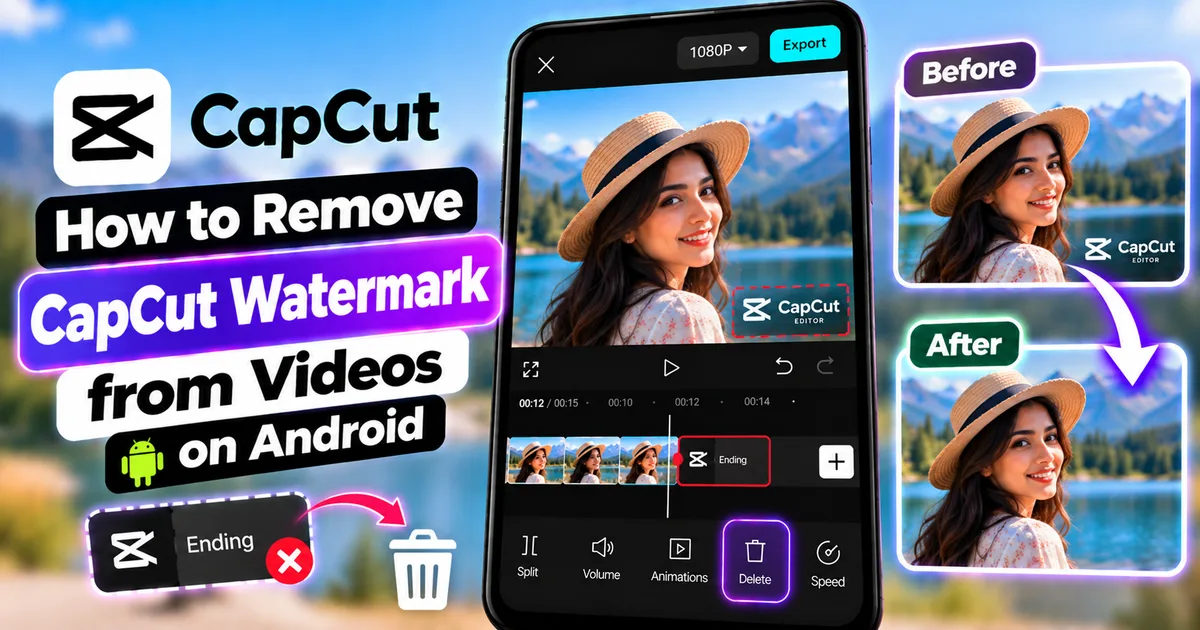

This article is about
CapCut Premium
capcutdownload.com.pk · Tools
How to Remove CapCut Watermark from Videos on Android
GetApkFree Team
Learn how to remove the CapCut watermark from videos on Android by deleting the ending clip, checking template elements, and exporting your video without unwanted CapCut branding.
- Source
- Developer
- Package
- CapCut Premium
How to Remove CapCut Watermark from Videos on Android
Have you finished editing a video in CapCut only to notice a CapCut logo or branded ending when you preview the export?
In many cases, you don't need a different video editor or a special APK to create a clean export. CapCut's current guidance explains that watermarks on mobile projects commonly come from an automatically added CapCut ending clip or from elements included in a template. Manually created projects can generally be exported without a watermark. :chatgpt-content-reference{index="1"}
The important thing is to identify where the branding is coming from before exporting.
Sometimes the CapCut logo is simply a short ending clip at the end of the timeline. In other cases, a template may contain a branded element or a particular asset may include attribution.
This guide explains how to remove the CapCut watermark from videos on Android, how to delete the default ending clip, how to check templates for additional branding, what to do when a watermark appears inside the actual video frame, and how to export a clean video.
Quick Answer
To remove the CapCut watermark from a video on Android:
- Open your project in CapCut.
- Look at the entire timeline.
- Move to the end of the project.
- Look for a CapCut-branded ending clip.
- Tap the ending clip.
- Tap Delete.
- Check the other timeline layers for additional branded elements.
- Preview the entire video.
- Tap Export.
- Check the saved video before publishing it.
If you created the project manually and the watermark is only the standard CapCut ending, deleting that ending clip is usually enough.
Does CapCut Automatically Add a Watermark?
CapCut does not necessarily place a permanent watermark across every video you export.
According to CapCut's current help documentation, many watermark situations are caused by template elements, a default ending clip, or certain assets rather than the normal video export itself. :chatgpt-content-reference{index="2"}
This means the first thing you should do is inspect your project rather than assuming that the entire video has been permanently watermarked.
For example, you might have:
Your video → Your video → CapCut ending
In this situation, the CapCut branding is a separate timeline element.
You can remove that element before exporting.
Where Does the CapCut Watermark Come From?
There are several possible sources.
CapCut Ending Clip
Some projects, especially template-based projects, can include a short CapCut-branded ending clip.
This is one of the easiest watermark situations to fix.
Template Branding
A template can contain branding as part of its design.
The branding may appear:
- At the end of the video
- As an overlay
- As part of a graphic
- Inside a template element
Watermarked Assets
Certain assets or stock elements may have their own attribution or branding requirements.
If a watermark remains after removing the ending clip, inspect the other layers and assets used in the project.
Branding Embedded in the Original Video
If the logo or watermark is already part of the video you imported, deleting a CapCut ending clip will not remove it.
For example, suppose you downloaded a video that already contains a logo in the lower-right corner.
That logo is part of the source footage.
It is not being added by CapCut during export.
How to Remove the CapCut Ending Watermark on Android
This is usually the simplest situation.
Step 1: Open CapCut
Open the CapCut app on your Android phone.
Open the project that contains the video you want to export.
If you haven't started the project yet, create a new project and add your video clips.
Step 2: Check the Timeline
Look at the complete timeline.
Don't only check the section where your actual video ends.
Scroll all the way toward the right side of the timeline.
You're looking for an additional short clip that contains CapCut branding.
Step 3: Find the CapCut Ending Clip
Move the playhead toward the end of your project.
If an ending clip was added, you may see it after your final piece of actual content.
For example:
Main video → Main video → CapCut ending
The ending clip may be much shorter than the rest of your footage.
Step 4: Select the Ending Clip
Tap the CapCut-branded ending clip.
Make sure the clip itself is selected.
This is important because selecting another timeline element may display different controls.
Step 5: Tap Delete
Tap Delete.
The ending clip should disappear from the timeline.
Your actual video content should remain unchanged.
Step 6: Preview the Ending
Play the last few seconds of your project.
Make sure the CapCut-branded ending is no longer present.
Also check that you haven't accidentally deleted part of your actual video.
Step 7: Export
Once the timeline looks correct, tap Export.
Choose the appropriate export settings for your project.
After the export finishes, open the saved video and check the beginning, middle, and end.
How to Remove a CapCut Watermark From a Template
Templates require a little more checking.
CapCut's current help says mobile templates can include an automatic branded ending or template-based watermark elements. :chatgpt-content-reference{index="3"}
Step 1: Open the Template Project
Open the project created from the CapCut template.
Step 2: Go to the End of the Timeline
Scroll to the end.
Look for a CapCut-branded ending clip.
Step 3: Select the Branded Clip
Tap the ending element.
Step 4: Delete It
Tap Delete if the element is removable.
Step 5: Check the Other Layers
Don't stop after deleting the ending.
Look through the timeline for:
- Logo overlays
- Branded graphics
- Watermark elements
- Template stickers
- Branded text
- Other visible CapCut elements
Step 6: Preview the Complete Video
Watch the entire video.
A watermark can appear somewhere other than the final seconds if it is part of the template design.
Step 7: Export Again
If no unwanted branding remains, export the project again.
How to Export a CapCut Video Without a Watermark
For a manually created project, the general workflow is straightforward.
Step 1
Create a project using your own video clips.
Step 2
Edit the video normally.
You can add:
- Text
- Music
- Effects
- Filters
- Transitions
- Stickers
- Overlays
- Captions
Step 3
Before exporting, inspect the timeline.
Check the ending and other layers.
Step 4
Remove any unwanted CapCut-branded elements.
Step 5
Preview the complete video.
Step 6
Tap Export.
Step 7
Open the exported file.
Verify that the final video looks the way you intended.
CapCut's current help specifically recommends checking the timeline and removing template ending clips or other branding elements before exporting. :chatgpt-content-reference{index="4"}
How to Remove the CapCut Logo at the End of a Video
If the CapCut logo only appears at the end, you normally don't need to edit the actual footage.
Instead:
- Open the project.
- Scroll to the end.
- Find the CapCut ending clip.
- Select it.
- Tap Delete.
- Preview the ending.
- Export again.
This is different from removing a logo that is physically embedded into a video frame.
What If the CapCut Watermark Appears in the Middle of the Video?
If the branding appears in the middle of the video, first determine whether it is a CapCut template element or something that was already present in the source footage.
Check your timeline.
If you see a separate logo, sticker, graphic, or overlay, select it and determine whether it can be removed.
If you don't see a corresponding element in the timeline, the branding may already be part of the imported video.
How to Check Whether a Watermark Is Part of the Original Video
A simple test is to open the original video outside CapCut.
Compare it with the CapCut project.
If the logo appears in both:
Original video → Logo present
CapCut project → Same logo present
then the logo is probably already embedded in the source footage.
If the original doesn't contain it but the CapCut project does, inspect the timeline for an added element.
This distinction is important because deleting the CapCut ending won't remove a watermark that was already encoded into the source video.
How to Remove a Watermark From a Video You Own
If the watermark is part of your own footage or your own graphic, you may be able to edit the affected area using appropriate CapCut editing tools.
Depending on the footage, options can include:
- Cropping
- Blurring
- Covering with your own graphic
- Replacing the source asset
- Using an available removal tool
The correct approach depends on the video.
If the watermark belongs to another creator or rights holder, don't assume that removing it gives you permission to republish the underlying content.
Can CapCut Remove a Watermark From a Video?
CapCut currently documents an AI removal workflow for certain on-screen logos or text, where you select or brush over the unwanted area and let the tool attempt to fill it using surrounding pixels. CapCut notes that results can vary depending on the complexity of the background. :chatgpt-content-reference{index="5"}
This is different from removing CapCut's own ending clip.
If the CapCut branding is simply a separate ending clip, deleting the clip is much simpler.
If the logo is embedded inside a frame, a removal tool may be relevant depending on the situation.
How to Remove a Watermark Without Cropping the Video
If you don't want to lose part of the frame, cropping may not be the best solution.
Instead, determine whether the watermark is a separate layer.
If it is, remove the layer.
If it is embedded in the video, you can investigate available removal or masking techniques.
For example, a small logo over a relatively simple background may be easier to conceal than a large logo over a detailed moving scene.
How to Remove a CapCut Watermark Without Losing Video Quality
The easiest way to preserve the original framing is to remove the separate branded ending rather than cropping the actual video.
Cropping changes the composition.
Removing an extra timeline clip does not require you to crop your main footage.
For the best export quality:
- Start with high-quality source footage
- Avoid unnecessary repeated exports
- Choose appropriate resolution
- Choose an appropriate frame rate
- Preview the final export
Remember that exporting at a higher resolution cannot recreate details that weren't present in the original footage.
CapCut Watermark vs CapCut Ending Clip
These terms are often used interchangeably, but they aren't always the same thing.
CapCut Ending Clip
A separate video segment at the end of the timeline.
It can usually be selected and deleted.
Watermark Embedded in a Video
A logo or graphic that is already part of the video pixels.
Deleting a timeline ending clip will not remove it.
Template Branding
A graphic or other element included as part of a template.
It may need to be removed or replaced if the template allows it.
Understanding which type you're dealing with makes troubleshooting much easier.
How to Avoid the CapCut Watermark When Starting a New Project
If you want maximum control over your final export, creating the project manually can make it easier to understand exactly what is in your timeline.
Start with:
- New Project
- Your own video clips
- Your own images or graphics
- Your preferred audio
- Your text
- Your effects
- Your transitions
Before exporting, inspect the complete timeline.
This makes it easier to spot unwanted ending clips or branding elements.
CapCut's current help specifically recommends standard editing instead of relying on templates when you want to avoid template-related watermark elements. :chatgpt-content-reference{index="6"}
How to Check a CapCut Video Before Exporting
Before pressing Export, perform a quick watermark check.
Check the Beginning
Make sure no unexpected branding appears during the opening.
Check the Middle
Move through several points in the timeline.
Look for unexpected logos, stickers, or template elements.
Check the Ending
This is especially important.
Scroll to the final seconds and make sure there isn't an unwanted CapCut ending clip.
Check Every Layer
If your project contains overlays, graphics, stickers, or other elements, inspect them individually.
Watch the Exported File
Don't rely only on the editor preview.
Open the final saved video after exporting.
Why Does CapCut Add a Watermark to My Template?
A template may include branded elements or an automatic ending clip.
CapCut's current support documentation specifically identifies template ending clips and template-based logo elements as common sources of watermarks. :chatgpt-content-reference{index="7"}
The exact behavior can vary depending on the template and version of the app.
If you see a watermark:
- Inspect the end of the timeline.
- Delete the CapCut ending clip if present.
- Check other template elements.
- Preview the complete project.
- Export again.
Why Is the CapCut Logo Still There After I Deleted the Ending?
If the logo remains, it may not be coming from the ending clip.
Check for:
- Template overlays
- Logo graphics
- Stock elements
- Additional timeline layers
- Branding already embedded in the source footage
If the logo appears inside the actual video frame, compare the exported file with the original footage to determine whether it was already present.
Why Does My Video Still Have a Watermark After Exporting?
Several possibilities exist.
A Template Element Remains
You may have removed the ending but left another branded layer in the project.
The Source Video Already Has a Logo
The imported video itself may contain the watermark.
A Stock Asset Contains Attribution
Some assets may have their own branding or attribution requirements.
The Project Uses a Feature With Different Export Conditions
CapCut's available features and export behavior can vary by version, region, platform, and asset.
Check the current export information shown by your version of the app.
Can I Remove the CapCut Watermark From a Template?
In many cases, yes, when the branding is a removable ending clip or editable template element.
CapCut's current Android/iOS guidance specifically says to scroll to the end of the timeline, select the CapCut ending clip, and delete it. :chatgpt-content-reference{index="8"}
If the branding is part of another template element, you need to determine whether that element can be removed or replaced.
Can I Export CapCut Videos Without a Watermark?
Yes, CapCut's current documentation states that watermark-free exports are possible in many situations. The exact result can depend on the template, assets, and version of the app. :chatgpt-content-reference{index="9"}
A manually created project is generally easier to control because you can see exactly what you've added to the timeline.
Do I Need CapCut Pro to Remove the Watermark?
Not necessarily.
CapCut's current support documentation explains that many watermark situations can be resolved by removing an ending clip or replacing watermarked elements. Some premium templates or assets can have different requirements. :chatgpt-content-reference{index="10"}
Therefore, don't assume that simply seeing a CapCut logo means you must purchase Pro.
First determine where the branding is coming from.
Can I Remove the Watermark by Cropping?
Cropping can sometimes remove a logo that sits near the edge of the frame.
However, cropping also removes part of your original composition.
If the logo is simply a separate CapCut ending clip, cropping is unnecessary.
Delete the ending clip instead.
If the logo is embedded in the video, cropping may be an option when the affected area is close enough to an edge that you can remove it without damaging the important content.
Can I Blur a Watermark?
For footage you own or have permission to edit, a blur can sometimes conceal a small embedded logo.
However, the result depends heavily on the background.
A moving or highly detailed background can make the blurred area obvious.
If the watermark is a separate editable layer, removing the layer is usually cleaner than blurring it.
Can I Cover a Watermark With My Own Logo?
If you're editing your own content and have the appropriate rights to the footage, you can place your own graphic over an unwanted area when appropriate.
For example, a creator might place their own channel logo in a corner.
However, this doesn't automatically make third-party content yours or remove any rights restrictions associated with the original footage.
Common Problems When Removing the CapCut Watermark
I Can't Find the CapCut Ending Clip
Scroll all the way to the end of the timeline.
Make sure you're looking at the complete project rather than only the currently visible section.
I Deleted the Ending but the Watermark Is Still There
Check the other timeline layers.
The branding may come from a template element, overlay, stock asset, or the original video.
The Watermark Is Inside the Video Frame
If it isn't a separate timeline element, it may already be embedded in the source footage.
Compare the original file with the edited project.
The Watermark Appears Only in Certain Sections
Check whether a template or overlay becomes active only during those sections.
Look at the corresponding timeline layers.
The Watermark Appears After Export but Not in the Editor
Check the complete timeline and export-related settings.
Also open the exported file again and identify exactly where the branding appears.
If the problem persists, CapCut recommends contacting its support team when the watermark remains after visible watermark elements have been removed. :chatgpt-content-reference{index="11"}
The Video Is Cropped After Trying to Remove the Watermark
If you used cropping, restore the original framing if possible.
Removing a separate ending clip is preferable when the watermark is simply a timeline element.
Removing the Logo Also Removes Part of My Video
You may be editing the wrong element.
Make sure you select the actual branded clip or overlay rather than the main video.
The Watermark Comes Back When I Use Another Template
Different templates can contain different elements.
Inspect each new template project rather than assuming that every template behaves identically.
Tips for Watermark-Free CapCut Exports
Check the Timeline Before Exporting
A quick timeline inspection can prevent surprises.
Always Check the Ending
The final seconds are particularly important when working with templates.
Inspect Template Layers
Don't assume the only branding is the final clip.
Use Your Own Media When Possible
Your own footage and graphics make it easier to control what's included in the final video.
Avoid Unnecessary Cropping
If the watermark is a removable timeline element, deleting it is cleaner than cropping the frame.
Preview Before Publishing
Watch the exported file before uploading it to YouTube, Instagram, TikTok, Facebook, or another platform.
Keep the Original Project
Don't overwrite your only copy of the project while experimenting.
Keeping the original gives you the option to make another export if needed.
Frequently Asked Questions
How do I remove the CapCut watermark on Android?
Open the project, scroll to the end of the timeline, select the CapCut ending clip if present, tap Delete, check the other layers for branding, and export again.
Does CapCut always add a watermark?
No. CapCut's current documentation says many projects can be exported without a watermark. Watermarks can come from templates, ending clips, or specific assets. :chatgpt-content-reference{index="12"}
Why is there a CapCut logo at the end of my video?
It is likely a CapCut ending clip included in the project, particularly when using certain templates.
Can I delete the CapCut ending?
Yes. On mobile, CapCut's current guidance says to scroll to the end of the timeline, select the CapCut ending clip, and delete it. :chatgpt-content-reference{index="13"}
Can I export a CapCut video without a watermark for free?
Many CapCut projects can be exported without a watermark. The exact behavior can depend on the template, asset, feature, and app version. :chatgpt-content-reference{index="14"}
Do I need CapCut Pro to export without a watermark?
Not necessarily. Many watermark situations can be handled by removing an ending clip or replacing a watermarked element. Premium assets and templates can have different requirements. :chatgpt-content-reference{index="15"}
Why does my template have a watermark?
The template may include a branded ending clip or another watermark element.
Can I remove a watermark from the middle of a video?
First determine whether it is a separate editable layer or embedded into the footage.
If it is a separate layer, you may be able to remove it.
If it is embedded, the available editing options are different.
Can CapCut remove a logo from a video?
CapCut currently documents an AI removal tool for certain on-screen logos and text. The result depends on the complexity of the surrounding image. :chatgpt-content-reference{index="16"}
Can I remove a watermark without cropping the video?
Yes, if the watermark is a separate clip or layer. Deleting the separate element does not require cropping your main footage.
Why is the watermark still there after I delete the ending?
It may be coming from another template layer, an asset, or the original video.
Can I use a watermark-removal tool on any video?
You should only edit or remove branding from content you own or have permission to modify. Removing a watermark does not give you rights to use someone else's copyrighted video.
Does removing the CapCut ending reduce video quality?
Deleting a separate ending clip does not require changing the quality of your main footage.
How can I check whether a watermark is part of my original video?
Open the original video outside CapCut and compare it with the edited project.
If the same logo appears in the original, it was likely already embedded in the footage.
Can I add my own logo after removing the CapCut watermark?
Yes. You can add your own logo as an image overlay and position it where appropriate.
See our guide on how to add overlays in CapCut on Android for the overlay workflow.
Is the CapCut watermark the same as an ending clip?
Not always.
An ending clip is a separate piece of video in the timeline. A watermark can also be part of a template element, asset, or source footage.
What should I do if CapCut keeps adding a watermark?
Check the project timeline, template elements, and assets. If the visible watermark elements have been removed and the problem continues, CapCut recommends contacting its support team. :chatgpt-content-reference{index="17"}
Final Thoughts
Removing a CapCut watermark from an Android video is often easier than it first appears.
If the branding is simply a CapCut ending clip, open the project, scroll to the end, select the branded clip, and delete it before exporting.
If you're using a template, check the entire timeline because additional branding can come from template elements or other assets.
The most important step is identifying the source of the watermark.
A separate ending clip can usually be deleted. A template element may need to be removed or replaced. A logo already embedded in the original footage is a different problem and requires a different editing approach.
Before publishing your video, always watch the exported file from beginning to end. This simple check can catch unwanted branding, accidental edits, missing sections, and other export problems before the video goes public.
Related Articles

How to Fix CapCut Video Lagging After Export on Android
Fix CapCut video lagging after export on Android. Learn how to troubleshoot choppy playback, frame-rate mismatches, heavy effects, storage issues, and export settings.
GetApkFree Team

How to Fix CapCut Preview Not Matching Export on Android
Fix CapCut preview not matching the exported video on Android. Troubleshoot missing effects, text, transitions, timing, colors, and rendering differences.
GetApkFree Team

How to Fix Couldn't Apply AI Background in CapCut on Android
Getting "Couldn't Apply AI Background" in CapCut on Android? Check usage limits, clip selection, video quality, app updates, and practical troubleshooting steps.
GetApkFree Team

How to Fix CapCut Effects Not Applying on Android
CapCut effects not working on Android? Check clip selection, effect layers, timeline timing, conflicting adjustments, and app performance with these practical fixes.
GetApkFree Team