
This article is about
CapCut Premium
capcutdownload.com.pk · Tools
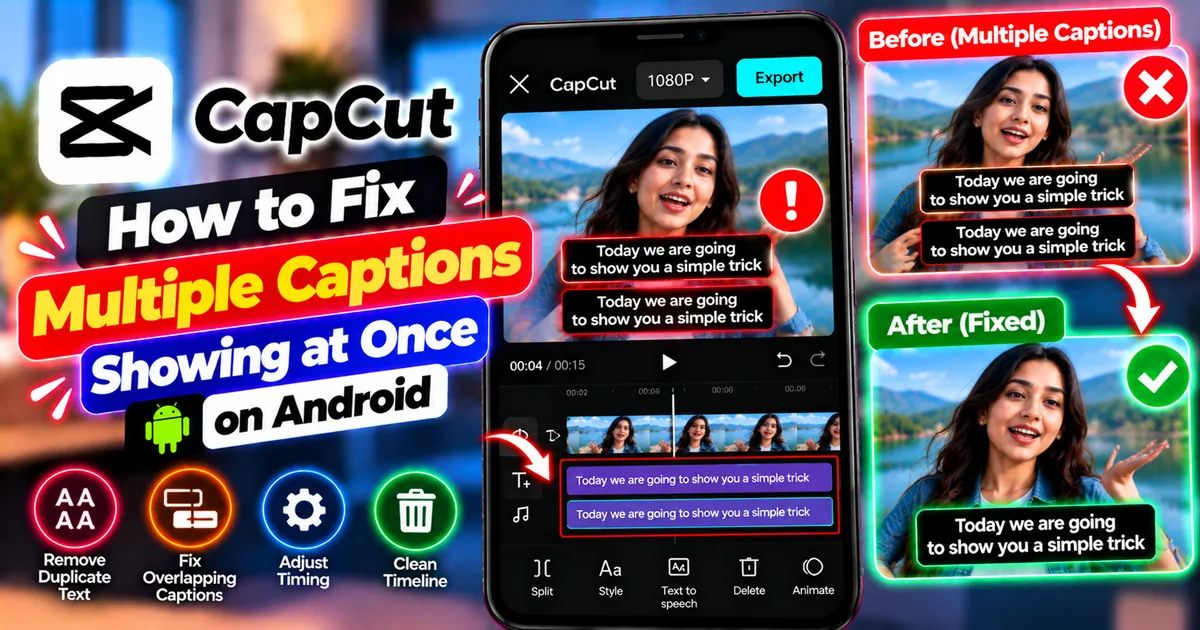
How to Fix Multiple Captions Showing at Once in CapCut on Android
GetApkFree Team
Seeing duplicate or overlapping captions in CapCut on Android? Find extra text layers, fix overlapping subtitle clips, and export clean captions step by step.
- Source
- Developer
- Package
- CapCut Premium
How to Fix Multiple Captions Showing at Once in CapCut on Android
Are two captions appearing on top of each other in your CapCut video? Perhaps the same sentence appears twice, an old subtitle remains visible while the next one appears, or automatically generated captions overlap with text you added manually.
Duplicate captions can make a video difficult to read, especially when you are editing YouTube Shorts, Instagram Reels, TikTok videos, tutorials, or gameplay clips. The problem can also make an otherwise professional edit look unfinished.
Fortunately, you usually do not need to recreate your entire project. Multiple captions often appear because the timeline contains duplicate text layers, overlapping subtitle clips, or a combination of automatic captions and manually added text.
This guide explains how to identify the cause and fix multiple captions showing at once in CapCut on Android. You will learn how to find duplicate tracks, correct caption timing, remove unnecessary text layers, and check the exported video before publishing.
Quick Answer: How to Fix Duplicate Captions in CapCut
If multiple captions appear simultaneously in your CapCut video, follow these steps:
- Open your project and locate the caption section on the timeline.
- Check whether automatic captions and manually added text are displaying the same words.
- Look for duplicate caption or text tracks.
- Remove unnecessary duplicate text clips.
- Check whether adjacent captions overlap in time.
- Adjust the start and end points of overlapping clips.
- Preview the entire affected section.
- Export a short test and confirm that only the intended captions appear.
Important: Delete only the unwanted caption or text layer. Removing the wrong track could erase subtitles or other text that you want to keep.
Why Are Multiple Captions Showing at Once in CapCut?
Before fixing the problem, identify what kind of duplication you are experiencing.
1. Automatic Captions and Manual Text Are Both Visible
CapCut can generate captions from speech, while the Text tool lets you add your own words.
If you generate automatic captions and then manually type the same dialogue over the video, both layers may appear at the same time.
For example, an automatic caption might display:
“Welcome back to my channel.”
If you also add a manual text layer containing the same sentence, the viewer may see duplicate text.
This is especially common when creators want to customize their subtitles but accidentally create a new text layer instead of editing the existing captions.
2. Duplicate Caption Tracks Exist on the Timeline
A project can contain more than one text or caption track.
You might have generated captions twice, copied a caption clip accidentally, or duplicated a section while editing.
Even if the text looks identical, each separate layer can remain visible during playback.
3. Caption Clips Overlap in Time
Sometimes the project contains two different captions that are both active at the same moment.
For example, the first caption may remain visible until 00:05.5, while the next caption begins at 00:05.2.
The overlap means both captions are active for a short period.
Depending on their position and style, they may appear stacked, merged, or difficult to read.
4. You Copied Text Without Removing the Original
Copying a text clip can be useful when you want consistent styling across a video.
However, if the original and copied clips overlap, the same words may appear twice.
This can happen when duplicating title cards, subtitles, labels, or animated text.
5. The Problem Appears Only in Certain Sections
If duplicate captions appear only during one sentence or scene, the issue may be limited to a few clips rather than the entire project.
In that case, inspect the affected section instead of deleting all your captions and starting again.
Step 1: Find the Caption Tracks on the Timeline
The first step is to inspect your project's timeline.
How to check the timeline on Android
- Open CapCut.
- Open the project that contains the duplicate captions.
- Move the playhead to a section where multiple captions appear.
- Inspect the timeline for text or caption clips.
- Look for two or more tracks containing identical or similar text.
- Tap the relevant clips to identify which text they contain.
Depending on your version of CapCut, the tracks may be labeled differently or displayed in a slightly different arrangement.
If the timeline is crowded, zoom in or scroll through the available tracks to inspect the affected section more clearly.
What should you look for?
Check whether:
- Two caption clips contain the same sentence.
- An automatic caption and a manual text clip display identical words.
- One caption begins before the previous caption ends.
- A copied text clip appears directly above or below the original.
- An unwanted text layer continues beyond the scene where it belongs.
Once you identify the extra layer, you can remove or adjust it without disturbing the rest of the project.
Step 2: Remove Duplicate Caption or Text Clips
If two separate clips display the same words at the same time, remove the one you do not need.
How to delete an unwanted caption
- Move the playhead to the section with duplicate text.
- Tap the caption or text clip you want to remove.
- Check that the selected clip contains the unwanted duplicate.
- Tap the Delete or trash icon if that option is available.
- Preview the same section again.
- Confirm that the correct caption remains visible.
Repeat the process only for other confirmed duplicates.
Do not delete every text track simply because captions are overlapping. Some tracks may contain legitimate titles, subtitles, labels, or other text elements that belong in your finished video.
If you are unsure which layer is responsible, inspect each candidate before deleting anything.
Step 3: Check Whether Automatic Captions Overlap With Manual Text
This is one of the most important checks if you use CapCut's automatic caption feature.
Suppose you generate subtitles from a voiceover and then add a second text layer to change the appearance of one sentence. Both layers might remain visible.
The solution is to decide which layer should display the words.
Option A: Keep the Automatic Captions
If you want to use CapCut's generated subtitles, keep the appropriate caption track and remove the unnecessary manual text that duplicates it.
This is often the simplest option when the automatic captions already contain the correct words.
Option B: Use Manually Added Text
If you want a custom title or specially styled sentence, keep the manual text where needed and remove any automatic caption that duplicates it during the same time interval.
Remember that automatic captions are useful for dialogue, while manually added text is often better for titles, labels, emphasis, and decorative messages.
Option C: Edit the Existing Caption
If your goal is to correct the words or styling, select the existing caption and use the available editing controls rather than creating another layer unnecessarily.
The exact editing options depend on your version of CapCut.
For more information about creating subtitles, see our guide on how to add text in CapCut on Android.
Step 4: Fix Overlapping Caption Timing
If the captions contain different words but appear together unexpectedly, inspect their timing.
For example:
- Caption A: 00:04.0–00:05.5
- Caption B: 00:05.2–00:06.8
Both captions are active between 00:05.2 and 00:05.5.
If they should appear sequentially, adjust their boundaries so the first caption ends before the second begins.
How to adjust caption timing
- Open the project timeline.
- Zoom in on the section where the captions overlap.
- Select the first caption clip.
- Adjust its end point if the clip continues too long.
- Select the next caption clip.
- Check its start point and adjust it if necessary.
- Play the transition between the two captions.
- Confirm that the words appear in the intended order.
The precise trimming controls may vary between CapCut versions.
Avoid creating gaps between captions
When correcting an overlap, make sure you do not accidentally leave a large gap where no subtitle appears while someone is speaking.
For dialogue, the timing should follow the spoken words as naturally as possible.
A small gap between separate sentences may be appropriate, but captions should not disappear during important dialogue simply because the clips were trimmed too aggressively.
Step 5: Check Whether You Accidentally Duplicated a Text Layer
If you copied a title, subtitle, or label, check whether the copied version overlaps with the original.
How to troubleshoot duplicated text
- Find the affected text in the preview.
- Locate its corresponding clip on the timeline.
- Select the clip and inspect its text.
- Check whether another clip contains the same words.
- Compare their positions and durations.
- Remove the unnecessary duplicate or adjust its timing.
If you deliberately use two text layers for a visual effect, such as an outline or shadow created with separate text elements, do not delete either layer until you understand its purpose.
The goal is to remove accidental duplication, not legitimate design elements.
Step 6: Check the Position and Style of the Remaining Captions
Sometimes captions are not exact duplicates but appear to overlap because their positions are too close.
For example, an automatic subtitle may sit near the bottom of the screen while a manually added sentence occupies almost the same position.
Both captions are technically different, but they compete for the same space.
How to improve caption placement
- Select the text or caption clip.
- Open the available style or positioning controls.
- Move the manual text away from the subtitle area if both are needed.
- Check the font size and line spacing where those controls are available.
- Choose colors that remain readable against the background.
- Preview the result on the phone screen.
Keep essential text away from interface areas that may be covered by social media buttons, descriptions, or other on-screen elements.
If the text is intended to be subtitles, consistent positioning usually makes the video easier to follow.
Step 7: Check for Duplicate Captions After Splitting or Editing Clips
Splitting and rearranging clips can make a crowded timeline harder to manage.
You may accidentally leave a caption from the previous scene active while adding a new caption for the next scene.
What to do
- Locate the scene transition where the problem begins.
- Inspect the caption clips immediately before and after that point.
- Check whether the previous caption extends too far.
- Check whether the next caption starts too early.
- Trim the relevant clips.
- Preview the transition several times.
If the same issue appears at several transitions, review the affected caption track systematically rather than correcting only the first visible example.
Step 8: Preview the Entire Video Before Exporting
After removing duplicate clips and adjusting timing, watch the affected sections again.
Do not rely only on the frame where you made the edit. A caption that looks correct at one moment may overlap with the next caption a second later.
Use this review checklist
- The same sentence does not appear twice accidentally.
- Different captions do not overlap unintentionally.
- Each caption appears at the correct time.
- No important dialogue is missing its subtitle.
- Manual text does not duplicate the automatic captions.
- Titles and subtitles remain readable.
- Caption transitions look natural.
If the project contains many captions, check the beginning, middle, and end, as well as any section where you previously noticed duplication.
Step 9: Export a Short Test Video
If the captions look correct in the editor, export a short section before exporting the entire project.
This helps determine whether the issue is limited to the editing timeline or also affects the final output.
How to test the export
- Save your project if the app provides that option.
- Identify a short section that previously displayed duplicate captions.
- Use the available export controls to test that section if supported.
- Otherwise, export the project and inspect the affected section.
- Open the saved video in your phone's Gallery or another video player.
- Check whether the captions still overlap.
If the exported video is correct, you may have resolved the problem.
If duplicate captions remain, return to the timeline and inspect the layers and timing again.
CapCut's available export options vary by version and platform, so a separate section export may not be available in every Android workflow.
Step 10: Restart CapCut if the Preview Still Looks Wrong
If you have checked the timeline and removed confirmed duplicates but the preview still behaves unexpectedly, try basic troubleshooting.
- Save your work if possible.
- Close CapCut completely.
- Reopen the app and return to the project.
- Preview the affected section again.
- If necessary, restart your phone.
- Check whether a compatible CapCut update is available.
CapCut's official guidance also recommends checking the timeline for duplicated caption layers and overlapping clips when multiple captions appear in an exported video.
You can review the official instructions here: CapCut: Fix multiple captions appearing in the exported video.
Avoid clearing app data or uninstalling CapCut as an initial troubleshooting step. Those actions may remove local projects or other data.
Common Mistakes to Avoid
Deleting All Captions at Once
Removing every caption can solve the overlap, but it also removes subtitles you may need. Delete only the unwanted clips.
Generating Automatic Captions Twice
If you already have a caption track, inspect it before generating another one. A second pass may create duplicate text depending on how the workflow is used.
Leaving Captions Overlapping on the Timeline
Two captions with different words can still appear together if their time ranges overlap. Check both the text and the clip boundaries.
Adding Manual Text Over Existing Subtitles
If you want to customize an existing caption, check whether you can edit that caption directly before adding a new text layer.
Exporting Without Reviewing the Result
A clean preview does not eliminate the need to inspect the saved file when troubleshooting an export issue. Test the affected section before publishing.
Frequently Asked Questions
Why are two captions showing at the same time in CapCut?
This often happens when the timeline contains duplicate caption clips, automatic captions and manual text with the same words, or subtitle clips that overlap in time.
How do I remove duplicate subtitles in CapCut on Android?
Open the project, find the duplicate caption clips on the timeline, select the unwanted clip, and delete it. Preview the section afterward to ensure that the correct captions remain.
Why do my automatic captions overlap with manually added text?
The automatic caption track and the manual text track may both be active during the same section. Keep the version you want to display and remove the duplicate or reposition it if both elements are intentional.
Why do captions overlap even though they contain different words?
The caption clips may have overlapping start and end times. Inspect the timeline and adjust the boundaries so the captions appear in the intended sequence.
Why do duplicate captions appear only in one part of my video?
The problem may be limited to a specific section where a text clip was copied, a caption was generated twice, or the timing was changed accidentally. Inspect the affected section first.
Will deleting a caption also delete my video?
Deleting a caption clip should remove that selected text element rather than the video itself, but always verify which timeline item is selected before confirming deletion.
Can I keep automatic captions and custom text in the same video?
Yes. You can use both when they serve different purposes. For example, automatic captions can display dialogue while manually added text provides a title or emphasizes a key point. Make sure the two elements do not duplicate each other unintentionally.
Why do captions look correct in CapCut but overlap after export?
Inspect the exported file and compare it with the editor preview. If the problem persists in the saved video, recheck the caption tracks and their timing. If the preview itself is inconsistent, restart the app and test again.
Should I reinstall CapCut to fix duplicate captions?
Reinstallation should not be your first step. Check duplicate layers, caption timing, and the exported result first. Protect your unfinished projects before taking any action that could remove local data.
Where can I find CapCut's official instructions for this problem?
CapCut provides a dedicated support article on multiple captions appearing in an exported video. Its guidance covers duplicated caption layers and overlapping subtitle clips on mobile and other supported platforms.
Final Thoughts
Multiple captions showing at once in CapCut on Android usually means that more than one text element is active when only one should appear, or that separate caption clips overlap on the timeline.
Start by identifying the affected section, inspecting the caption tracks, and removing only confirmed duplicates. If the captions contain different words, check their timing and adjust the clip boundaries.
After making the changes, preview the affected section and test the exported video before publishing. This approach helps you correct the problem while preserving the rest of your project.
Related Articles

How to Fix CapCut Video Lagging After Export on Android
Fix CapCut video lagging after export on Android. Learn how to troubleshoot choppy playback, frame-rate mismatches, heavy effects, storage issues, and export settings.
GetApkFree Team

How to Fix CapCut Preview Not Matching Export on Android
Fix CapCut preview not matching the exported video on Android. Troubleshoot missing effects, text, transitions, timing, colors, and rendering differences.
GetApkFree Team

How to Fix Couldn't Apply AI Background in CapCut on Android
Getting "Couldn't Apply AI Background" in CapCut on Android? Check usage limits, clip selection, video quality, app updates, and practical troubleshooting steps.
GetApkFree Team

How to Fix CapCut Effects Not Applying on Android
CapCut effects not working on Android? Check clip selection, effect layers, timeline timing, conflicting adjustments, and app performance with these practical fixes.
GetApkFree Team