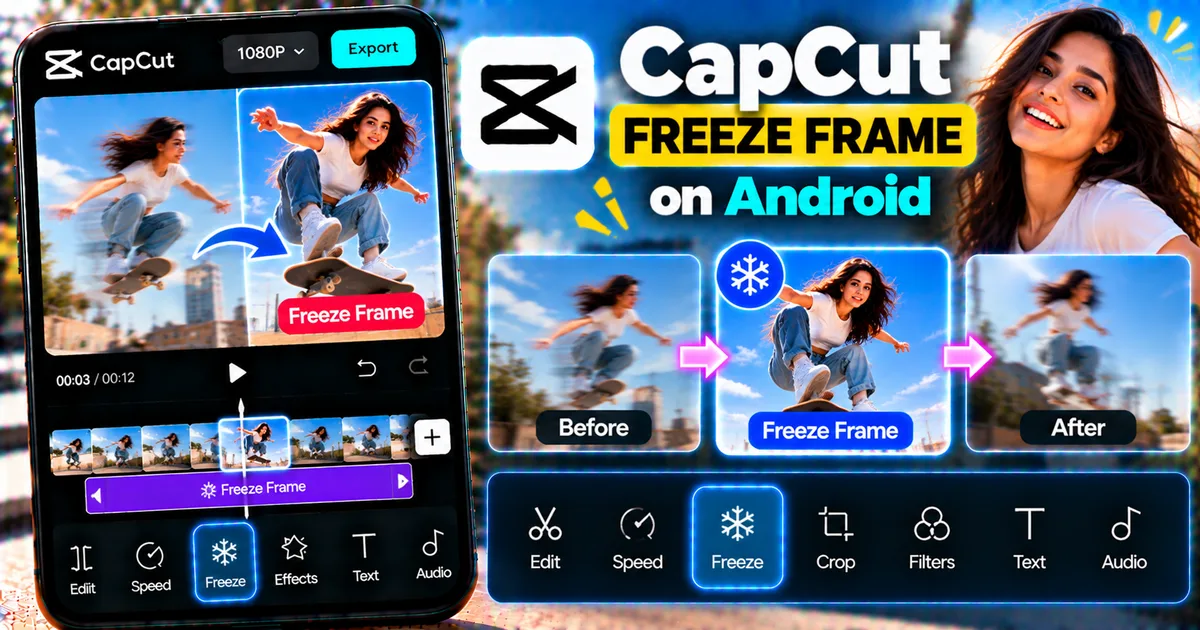

This article is about
CapCut Premium
capcutdownload.com.pk · Tools
How to Freeze a Frame in CapCut on Android
GetApkFree Team
Learn how to freeze a frame in CapCut on Android, pause a video at any moment, create freeze-frame effects, add text and music, and adjust the freeze duration.
- Source
- Developer
- Package
- CapCut Premium
How to Freeze a Frame in CapCut on Android
Want to pause a video at the perfect moment and hold that image on screen? CapCut on Android has a built-in Freeze Frame feature that lets you stop the action at a specific point and turn that moment into a still section of your video.
A freeze frame can be useful for highlighting a reaction, emphasizing an important moment, introducing a person, creating a dramatic pause, or making short-form videos more engaging.
In this guide, you'll learn how to freeze a frame in CapCut on Android, how to control the freeze duration, add text and music, create creative freeze-frame effects, and fix common problems.
Quick Answer
To freeze a frame in CapCut on Android, open CapCut and create a new project. Add your video to the timeline and move the playhead to the exact moment you want to pause. Select the video clip, open the editing tools, and choose Freeze. CapCut creates a still frame at that point in the video. Adjust the duration of the frozen section, add text or effects if needed, and export the finished video.
The exact location of editing controls can change between CapCut versions, but the Freeze function is available in the mobile editor.
What Is a Freeze Frame?
A freeze frame is a video editing technique that temporarily stops motion on a specific frame.
Instead of continuing to play normally, the video holds one image on screen for a chosen amount of time.
For example, imagine a person jumping in a video. You can stop the video at the highest point of the jump and hold that moment for two seconds.
The video can then continue playing normally.
Freeze frames are commonly used for:
- Dramatic pauses
- Sports highlights
- Funny reactions
- Dance videos
- Introductions
- Outfit reveals
- Tutorials
- Before-and-after videos
- Social media edits
- Cinematic effects
CapCut provides a dedicated Freeze function that makes this process much easier than manually creating a still image from a video frame.
How to Freeze a Frame in CapCut on Android
Follow these steps to create a basic freeze-frame effect.
Step 1: Open CapCut
Open CapCut on your Android phone.
From the home screen, start a new project.
Step 2: Add Your Video
Select the video you want to edit from your phone's media library.
Add it to the project.
The video will appear on the timeline.
Step 3: Find the Moment You Want to Freeze
Move the playhead along the timeline.
Stop at the exact frame you want to hold.
Take your time with this step.
A freeze frame is most effective when the selected moment clearly shows the action, facial expression, subject, or detail you want viewers to notice.
Step 4: Select the Video Clip
Tap the video clip on the timeline.
This opens the clip editing controls.
Make sure the correct clip is selected before applying the Freeze function.
Step 5: Choose Freeze
Look through the editing toolbar for the Freeze option.
Tap Freeze.
CapCut will create a frozen section from the selected frame.
The video before the freeze can continue normally, while the selected frame remains visible for the duration of the frozen section.
Step 6: Adjust the Freeze Duration
The frozen section appears as part of the timeline.
You can adjust its duration by changing the length of the frozen section.
A short freeze can create a quick visual emphasis.
A longer freeze can create a dramatic pause or give viewers enough time to read text added over the frame.
Step 7: Preview the Effect
Play the video from a few seconds before the freeze.
Check how smoothly the video enters the frozen section.
Then watch what happens after the freeze ends.
The transition should feel intentional rather than accidental.
Step 8: Add Text or Effects
If you want to emphasize the frozen moment, you can add text, stickers, effects, music, or other elements.
For example, you could freeze on a person's face and add their name above the frame.
For text editing, see our guide on [how to add text in CapCut on Android].
Step 9: Export the Video
When the freeze frame looks correct, tap Export.
Choose the available resolution and frame-rate settings that match your project.
Wait for CapCut to finish processing the video.
Your completed video can then be saved or shared.
How to Make a Longer Freeze Frame
Sometimes the default freeze duration is too short.
If you want viewers to have more time to see the frame, increase the length of the frozen section on the timeline.
A longer freeze can be useful when:
- You want viewers to read text
- You're introducing a person
- You're highlighting a product
- You're explaining a detail
- You're creating a dramatic pause
- You're creating a meme-style edit
Avoid making the pause unnecessarily long unless the effect is intentional.
A freeze frame works best when its duration supports the pacing of the video.
How to Make a Short Freeze Frame
For fast-paced videos, a very short freeze can create emphasis without interrupting the rhythm too much.
You can use a short freeze when:
- A dancer hits a pose
- Someone makes a funny expression
- A product appears
- A subject reaches the peak of an action
- You want to emphasize a beat in the music
Short freeze frames are particularly useful in social media edits where pacing is important.
How to Freeze a Specific Moment
Choosing the correct frame is one of the most important parts of creating a good freeze effect.
Move through the video slowly and identify the exact moment you want.
For example:
Sports
Freeze at the moment an athlete scores or reaches a peak movement.
Dance
Freeze when the dancer hits a strong pose.
Reaction Videos
Freeze at the funniest or most expressive facial reaction.
Travel Videos
Freeze at a scenic view or memorable moment.
Product Videos
Freeze when the product is clearly visible.
Tutorials
Freeze when an important button, setting, or result appears.
How to Add Text to a Freeze Frame
Adding text is one of the easiest ways to make a freeze frame more useful.
For example, you can freeze a person's face and add:
"Meet Sarah"
Or freeze an important moment and add:
"Wait for it..."
Or freeze a tutorial screen and add:
"Step 3"
To add text:
- Create your freeze frame.
- Select the Text tool.
- Add your text.
- Position it over the frozen section.
- Adjust the font, size, color, and style.
- Adjust its duration so it matches the freeze.
- Preview the result.
For a complete text tutorial, see [how to add text in CapCut on Android].
How to Add Music to a Freeze Frame
Music can make a freeze-frame effect feel more intentional.
For example, you can time the freeze to a strong beat or musical hit.
A simple workflow is:
- Add your video.
- Add the freeze frame.
- Add your music.
- Adjust the timing.
- Position the freeze at the desired musical moment.
- Preview the complete sequence.
- Export the video.
See our guide on [how to add music to a video in CapCut on Android] for more help with music editing.
How to Add a Sound Effect to a Freeze Frame
Sound effects can make the moment more noticeable.
You could use a:
- Whoosh
- Impact
- Camera shutter
- Pop
- Click
- Record scratch
- Notification sound
For example, the video can suddenly freeze while a short impact or record-scratch sound plays.
See our guide on [how to add sound effects to a video in CapCut on Android].
Be sure to use audio you have permission to use when publishing your video.
How to Create a Freeze-Frame Introduction
A freeze frame can be used to introduce a person or subject.
One simple approach is:
- Start with a moving video.
- Choose a clear frame showing the subject.
- Apply Freeze.
- Extend the frozen section.
- Add the person's name or title.
- Add a subtle animation if appropriate.
- Continue into the next clip.
For example:
"John Travel Creator"
The moving video can then continue after the introduction.
How to Create a Freeze-Frame Effect for Reels
Freeze frames work well in short-form vertical videos.
A simple workflow is:
- Import your video.
- Choose a strong visual moment.
- Apply Freeze.
- Adjust the duration.
- Add text or an effect.
- Match the freeze to the music.
- Preview the complete video.
- Export using appropriate quality settings.
Make sure the subject remains visible inside the project's frame.
How to Create a Freeze Frame for YouTube Shorts
The same technique can be used for YouTube Shorts.
For example, you can freeze a reaction and add a short caption explaining what happened.
You can also use a freeze frame to introduce a person, emphasize a result, or create a transition between two sections of a video.
Always preview the final video before exporting.
How to Create a Freeze-Frame Zoom Effect
A freeze frame becomes more interesting when combined with animation.
One possible workflow is:
- Create a freeze frame.
- Select the frozen section.
- Add a keyframe at the beginning.
- Set the starting scale.
- Add another keyframe later.
- Increase the scale slightly.
- Preview the movement.
This can create a slow zoom toward the frozen subject.
For more information about keyframe animation, see our guide on [how to add keyframes in CapCut on Android].
Avoid making the zoom too aggressive because excessive scaling can make the footage look soft or distracting.
How to Create a Freeze-Frame With Multiple Effects
You can combine a freeze frame with other editing tools.
For example:
Moving video → Freeze → Text appears → Zoom → Sound effect → Video continues
This can create a more polished social media edit.
However, don't add effects simply because they are available.
The strongest freeze-frame edits usually have a clear reason for pausing the action.
How to Use Freeze Frames in a Tutorial
Freeze frames can be especially useful for instructional videos.
Suppose you're demonstrating an Android setting.
You can pause the video when the important setting appears and add an arrow or text explaining what viewers should tap.
This gives viewers more time to understand the screen before the video continues.
A freeze frame can therefore be useful not only for entertainment but also for educational content.
Freeze Frame vs Pause
A normal pause stops playback while you're watching the video inside the editor.
A freeze frame becomes part of the edited video itself.
When someone watches the exported video, they see the selected frame held on screen for the chosen duration.
That's why Freeze is useful when you want the effect to appear in the final exported video.
Freeze Frame vs Screenshot
A screenshot captures one frame as a separate image.
A freeze frame creates a still moment within the video timeline.
The advantage of a freeze frame is that the viewer remains inside the video sequence.
You can also add text, music, effects, animation, and other elements around the frozen moment.
Common Freeze Frame Problems in CapCut
I can't find the Freeze option
First select the video clip on the timeline.
Then check the editing toolbar.
CapCut's interface can change between versions, so the exact position of the option may look different.
If you're following an older tutorial, look for Freeze within the current clip-editing controls.
The freeze happens at the wrong moment
The playhead may not be positioned on the exact frame you wanted.
Move through the timeline more carefully and select the desired moment before applying Freeze.
The freeze is too short
Increase the duration of the frozen section on the timeline.
This gives viewers more time to see the frame.
The freeze is too long
Shorten the frozen section.
A shorter duration usually works better for fast-paced edits.
The video doesn't continue after the freeze
Preview the timeline carefully.
Make sure the frozen section hasn't been positioned or edited in a way that removes the following footage.
If necessary, undo the change and apply the Freeze function again.
The freeze frame looks blurry
The quality of the frozen frame depends partly on the quality of the original video frame.
If the source footage is low resolution or heavily compressed, the selected frame may not look sharp when displayed for an extended period.
Choose a clear frame and avoid excessive zooming.
The text disappears too quickly
Check the duration of the text layer.
Extend the text layer so it covers the entire frozen section.
Tips for Better Freeze-Frame Edits
Choose a strong frame
Don't freeze randomly.
Look for a frame with a clear subject, expression, action, or visual detail.
Keep the timing intentional
A freeze that lasts too long can make the video feel slow.
A freeze that is too short may be difficult to notice.
Match the freeze to the audio
A freeze can feel more natural when it happens on a beat, impact, or sound effect.
Use text when it adds information
Text can explain why the moment is important.
Avoid covering the subject unnecessarily.
Don't overuse freeze frames
Using a freeze every few seconds can reduce its impact.
Save the technique for moments that deserve emphasis.
Preview before exporting
Watch the transition into and out of the frozen section.
The effect should feel intentional and smooth.
Frequently Asked Questions
Can I freeze a frame in CapCut on Android?
Yes. CapCut's mobile editor includes a Freeze function that can hold a selected frame in the video.
Can I choose exactly which frame to freeze?
Yes. Move the playhead to the moment you want before applying the Freeze function.
Can I change the length of a freeze frame?
Yes. After creating the frozen section, you can adjust its duration on the timeline.
Can I add text to a freeze frame?
Yes. You can add text and adjust its position, style, and duration.
Can I add music to a freeze-frame video?
Yes. You can add music and synchronize the freeze with the timing of the audio.
Can I add sound effects to a freeze frame?
Yes. Sound effects such as impacts, clicks, or record scratches can emphasize the frozen moment.
Can I zoom into a freeze frame?
Yes. You can combine a freeze frame with keyframe animation to create a gradual zoom or other movement.
Can I use a freeze frame for Instagram Reels?
Yes. Freeze frames can be used as part of vertical short-form videos, including Reels.
Can I use a freeze frame for YouTube Shorts?
Yes. You can use the effect to emphasize reactions, actions, explanations, or important moments in a Short.
Is a freeze frame the same as reversing a video?
No. A freeze frame stops motion at a selected moment. Reverse changes the playback direction of the video.
Final Thoughts
Creating a freeze frame in CapCut on Android is a simple way to make an important moment stand out.
The basic process is:
- Add your video to a CapCut project.
- Find the exact moment you want to hold.
- Select the video clip.
- Choose Freeze.
- Adjust the duration.
- Add text, music, sound effects, or animation if needed.
- Preview the result.
- Export the finished video.
The most important part is choosing the right frame and using the effect at the right moment. A short, well-timed freeze can add much more impact than repeatedly stopping the video without a clear purpose.
Related Articles

How to Fix CapCut Video Lagging After Export on Android
Fix CapCut video lagging after export on Android. Learn how to troubleshoot choppy playback, frame-rate mismatches, heavy effects, storage issues, and export settings.
GetApkFree Team

How to Fix CapCut Preview Not Matching Export on Android
Fix CapCut preview not matching the exported video on Android. Troubleshoot missing effects, text, transitions, timing, colors, and rendering differences.
GetApkFree Team

How to Fix Couldn't Apply AI Background in CapCut on Android
Getting "Couldn't Apply AI Background" in CapCut on Android? Check usage limits, clip selection, video quality, app updates, and practical troubleshooting steps.
GetApkFree Team

How to Fix CapCut Effects Not Applying on Android
CapCut effects not working on Android? Check clip selection, effect layers, timeline timing, conflicting adjustments, and app performance with these practical fixes.
GetApkFree Team